> For the complete documentation index, see [llms.txt](https://docs.globo.io/llms.txt). Markdown versions of documentation pages are available by appending `.md` to page URLs; this page is available as [Markdown](https://docs.globo.io/askly-customer-surveys/results/responses.md).

# Read and export responses

Read each customer's answers, add notes, and download responses.

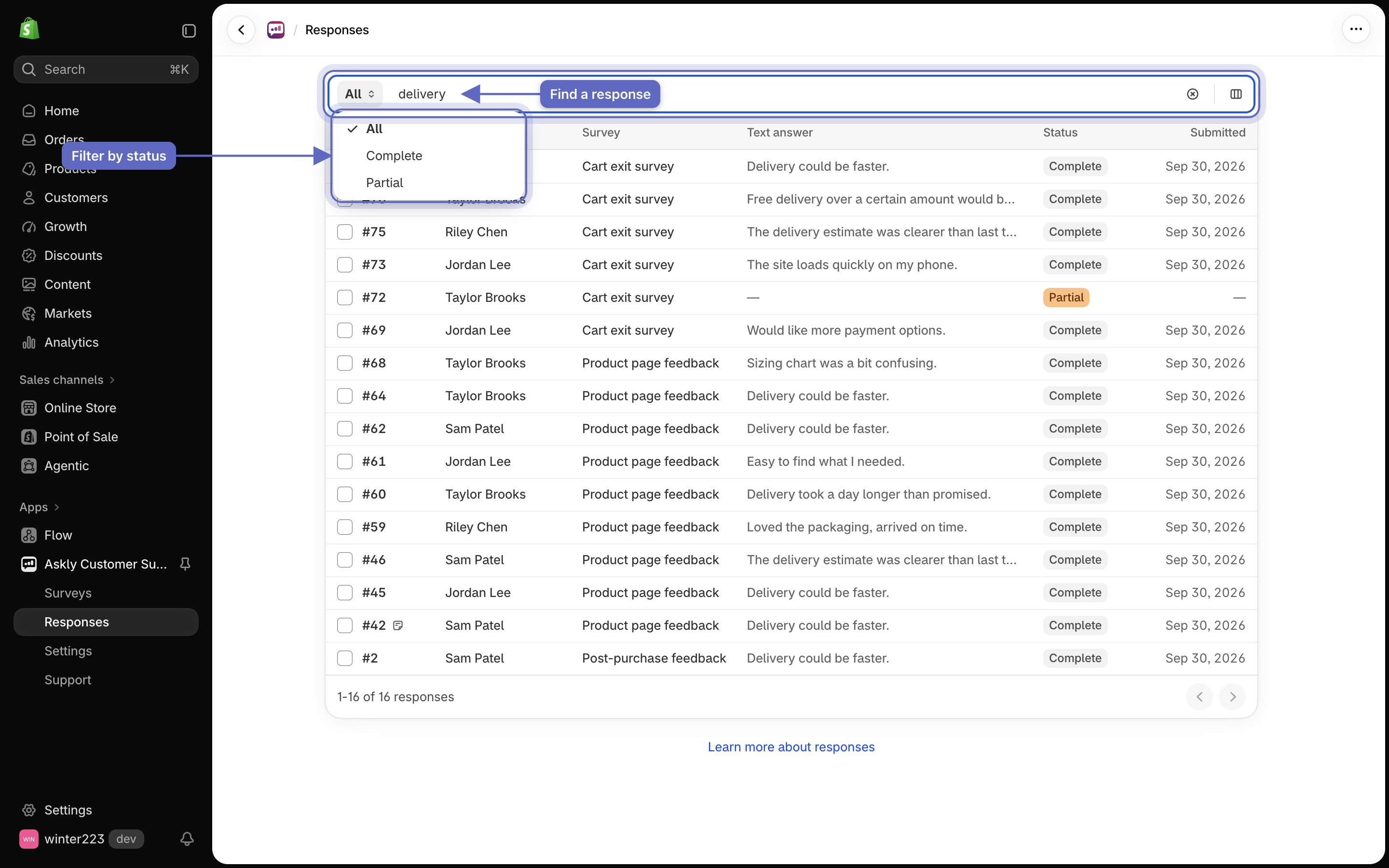
Go to **Responses** to see every answer from every survey, newest first. The list shows **All** at first. Use the view menu to show only:

* **Complete** — they finished the survey.
* **Partial** — they stopped partway. These are kept only if the survey has **Keep unfinished answers** on. Otherwise they're removed after a short while.

## Find a response

Type in **Search and filter** to find words in text answers or customer names. Select the box to filter by **Survey**, **Respondent**, or **Text answer**.

<figure><img src="https://609121677-files.gitbook.io/~/files/v0/b/gitbook-x-prod.appspot.com/o/spaces%2FZGBRJVX5BLagz6gFEmK1%2Fuploads%2Fgit-blob-0e2faec164b3f67d2c7fb0ba7ef0e5d9576eb463%2Fscreenshot-responses-list-search.png?alt=media" alt="The Responses list with &#x27;delivery&#x27; typed in Search and filter and the view menu open, showing All, Complete and Partial"><figcaption><p>Type a word to find it in answers and names, and use the view menu to show only Complete or Partial responses.</p></figcaption></figure>

## Open a response

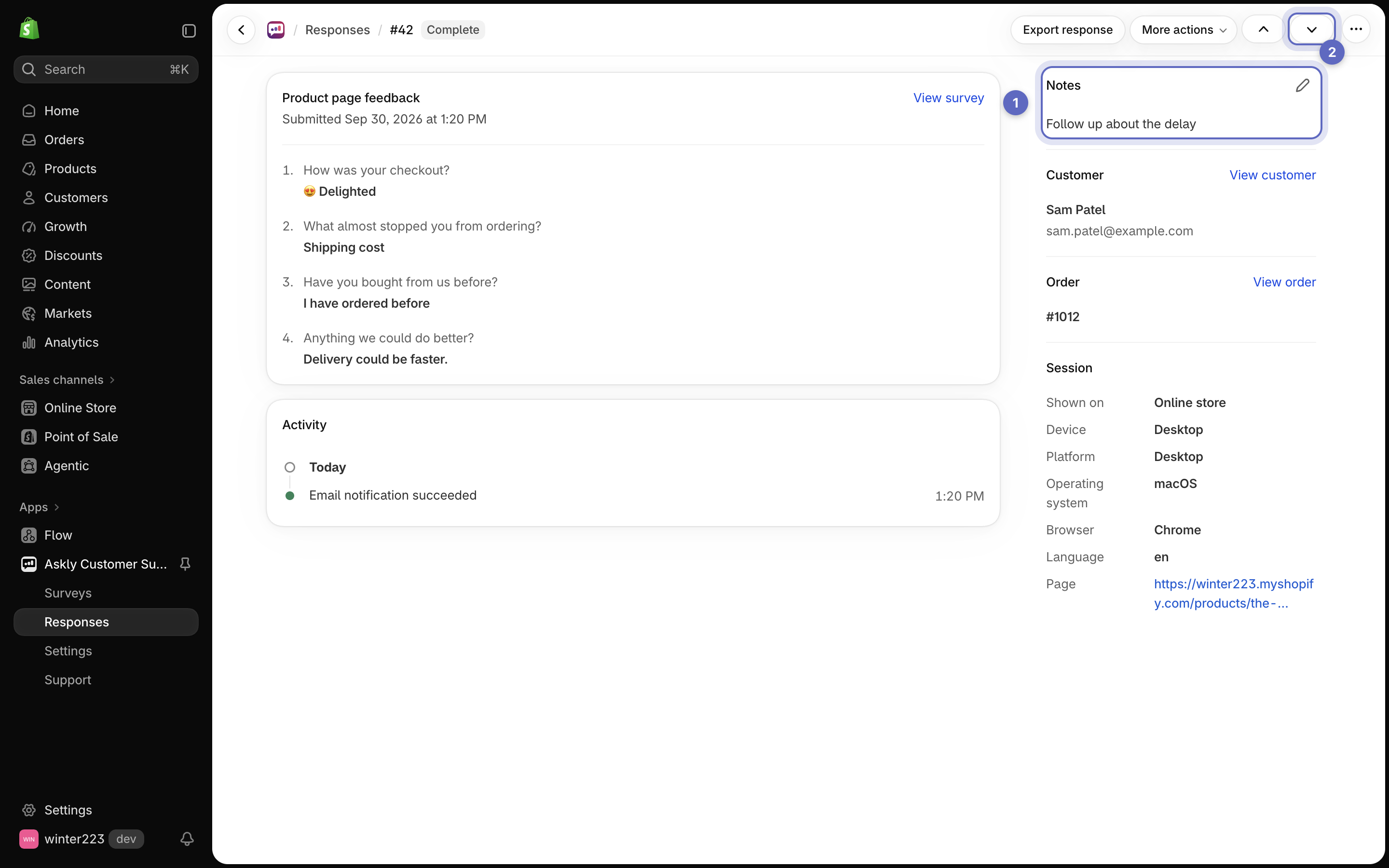
Select a row to see all the answers. You also see the customer, the order, and the page they answered on, when available. Use **Previous response** and **Next response** to move through the list.

<figure><img src="https://609121677-files.gitbook.io/~/files/v0/b/gitbook-x-prod.appspot.com/o/spaces%2FZGBRJVX5BLagz6gFEmK1%2Fuploads%2Fgit-blob-4d4874588da687c52caccefbeffeef9eac78db3b%2Fscreenshot-response-detail-notes.png?alt=media" alt="One response with its answers, the Notes card, the customer and the order, and the Previous and Next response buttons"><figcaption><p>Every answer sits on one page. (1) is the Notes card, which only your team can see, and (2) moves you to the next response.</p></figcaption></figure>

To write a note for your team, select **Edit note** under **Notes**. Only store staff can see it.

## Download responses

* **One response, every answer:** open it and select **Export response**.
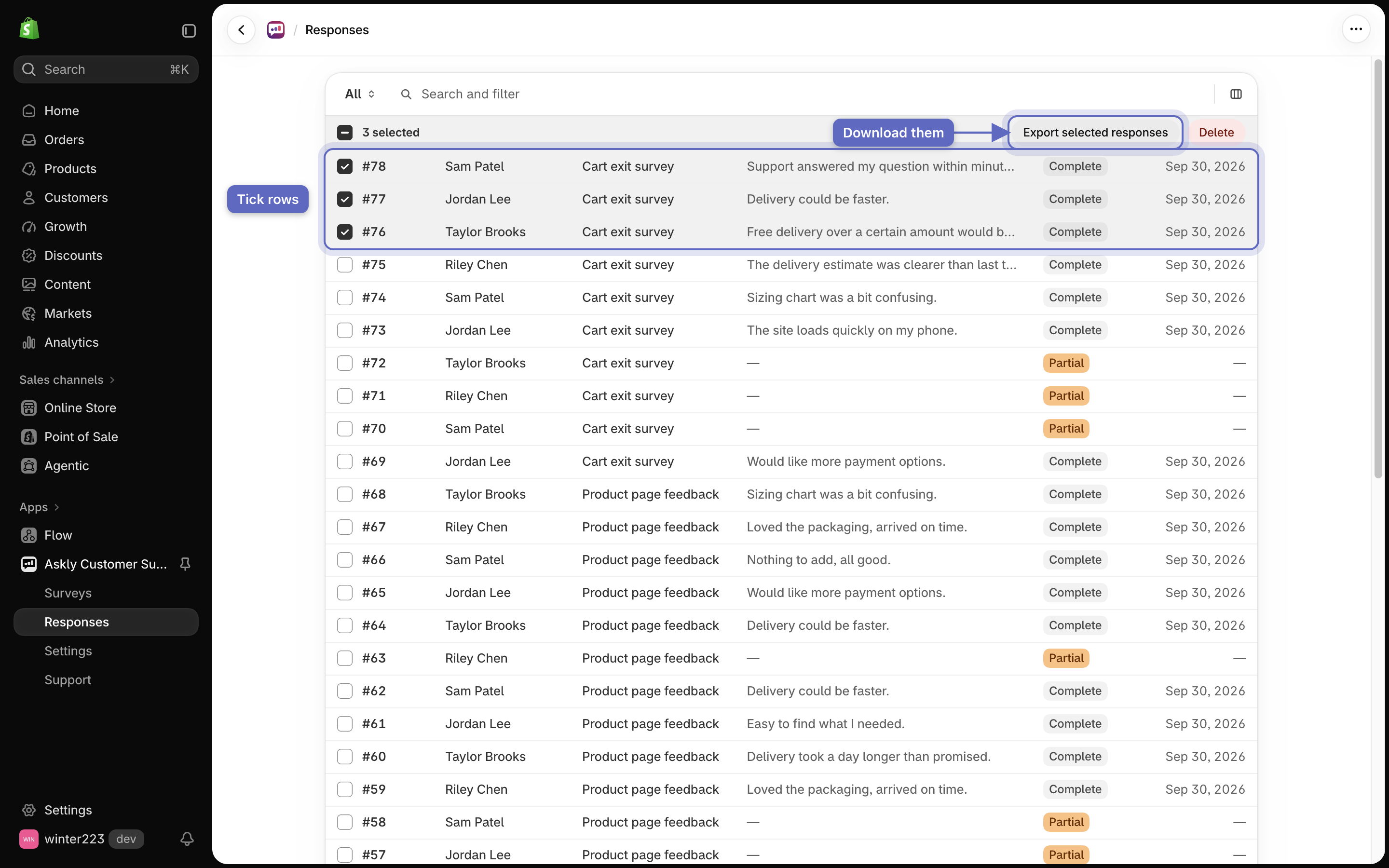
* **Several responses:** tick the rows you want, then select **Export selected responses**. You get one line per response, with the customer, survey, text answer, status, and dates.

The file opens in Excel or Google Sheets. For totals per question, use [**Export summary**](/askly-customer-surveys/results/survey-results.md) on the results page.

<figure><img src="https://609121677-files.gitbook.io/~/files/v0/b/gitbook-x-prod.appspot.com/o/spaces%2FZGBRJVX5BLagz6gFEmK1%2Fuploads%2Fgit-blob-23dcebd735e76d813ac1c3e54ec5d6978db5b54c%2Fscreenshot-responses-export-selected.png?alt=media" alt="The Responses list with three rows ticked and the Export selected responses and Delete buttons above the table"><figcaption><p>Tick the rows you want, then select Export selected responses to download them.</p></figcaption></figure>

## Delete a response

Tick the rows and select **Delete**. Or open a response and select **More actions → Delete**. The answers are removed from your results for good.

Next: [set up email and notifications](/askly-customer-surveys/settings/email-and-notifications.md).