> For the complete documentation index, see [llms.txt](https://docs.globo.io/llms.txt). Markdown versions of documentation pages are available by appending `.md` to page URLs; this page is available as [Markdown](https://docs.globo.io/askly-customer-surveys/results/survey-results.md).

# See survey results

See how a survey is doing and what customers answered, as charts.

1. Go to **Surveys**.
2. On the survey's row, select **View results**.

   <figure><img src="https://609121677-files.gitbook.io/~/files/v0/b/gitbook-x-prod.appspot.com/o/spaces%2FZGBRJVX5BLagz6gFEmK1%2Fuploads%2Fgit-blob-7be0942e136d11ae3f5d7d2107de7118379f9152%2Fscreenshot-results-view-results-button.png?alt=media" alt="The Surveys list showing the View results action on a survey row"><figcaption><p>Select View results on any survey row to open its report.</p></figcaption></figure>
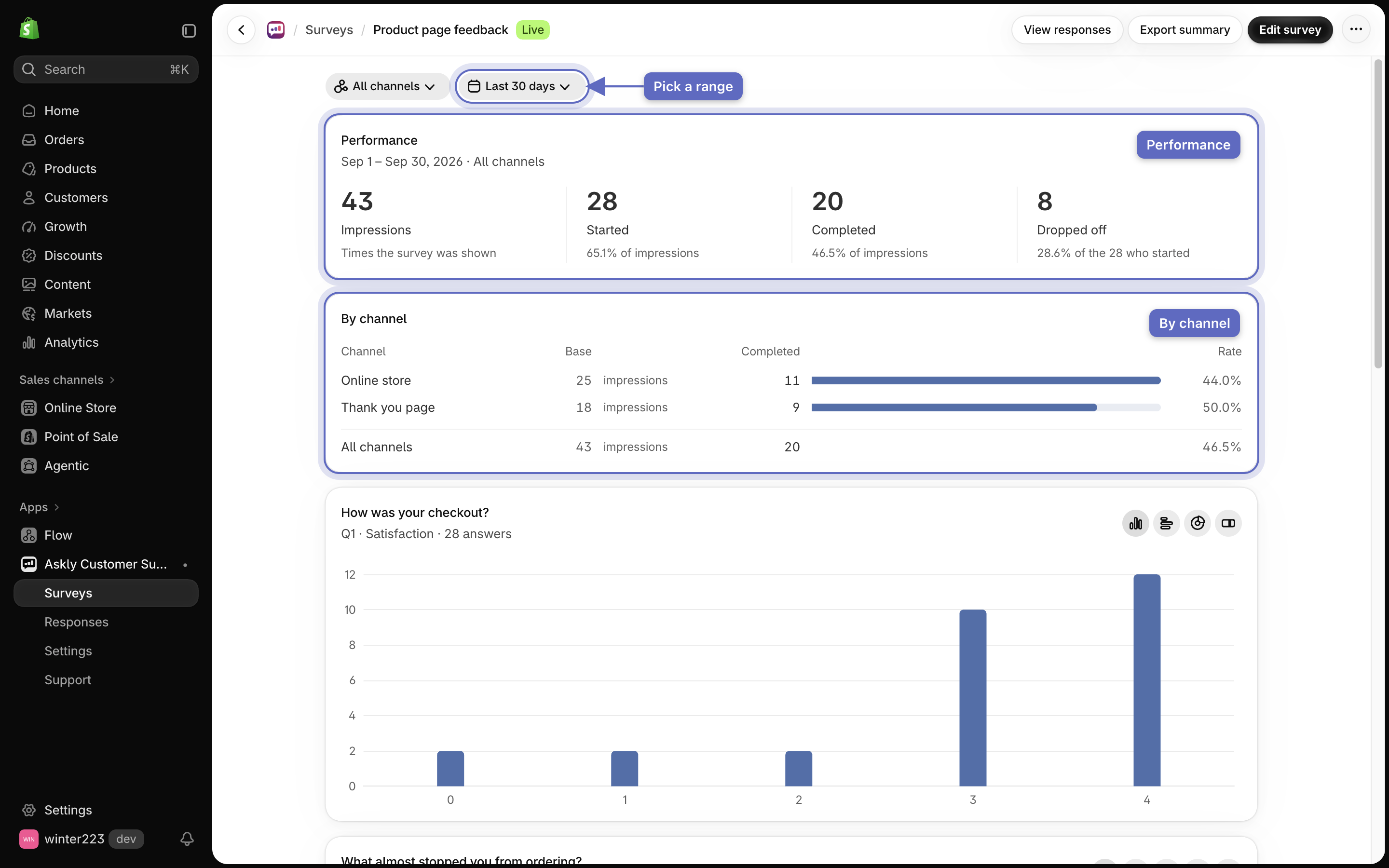
3. Pick a date range: the last 7, 30, or 90 days. To see one place only, pick it in the **All channels** menu.

   <figure><img src="https://609121677-files.gitbook.io/~/files/v0/b/gitbook-x-prod.appspot.com/o/spaces%2FZGBRJVX5BLagz6gFEmK1%2Fuploads%2Fgit-blob-182b63fa14db868a888a8f80423562c8153e5a31%2Fscreenshot-results-date-channel-filter.png?alt=media" alt="The results page controls showing the date range filter and the open All channels menu"><figcaption><p>Filter the report by date range (1) or choose a specific surface from All channels (2).</p></figcaption></figure>

<figure><img src="https://609121677-files.gitbook.io/~/files/v0/b/gitbook-x-prod.appspot.com/o/spaces%2FZGBRJVX5BLagz6gFEmK1%2Fuploads%2Fgit-blob-9b5c108509108c0f876eab91342eb8b9a47055f8%2Fscreenshot-results-overview.png?alt=media" alt="The results page of a survey, with the date range, the Performance totals, the By channel table and the first question chart"><figcaption><p>Performance and By channel show how the survey is doing, and each question gets its own chart below.</p></figcaption></figure>

## What you see

* **Performance** — **Impressions** (how many times the survey was shown), **Started**, **Completed**, and **Dropped off** (people who stopped partway).
* **By channel** — the same numbers for each place the survey runs.
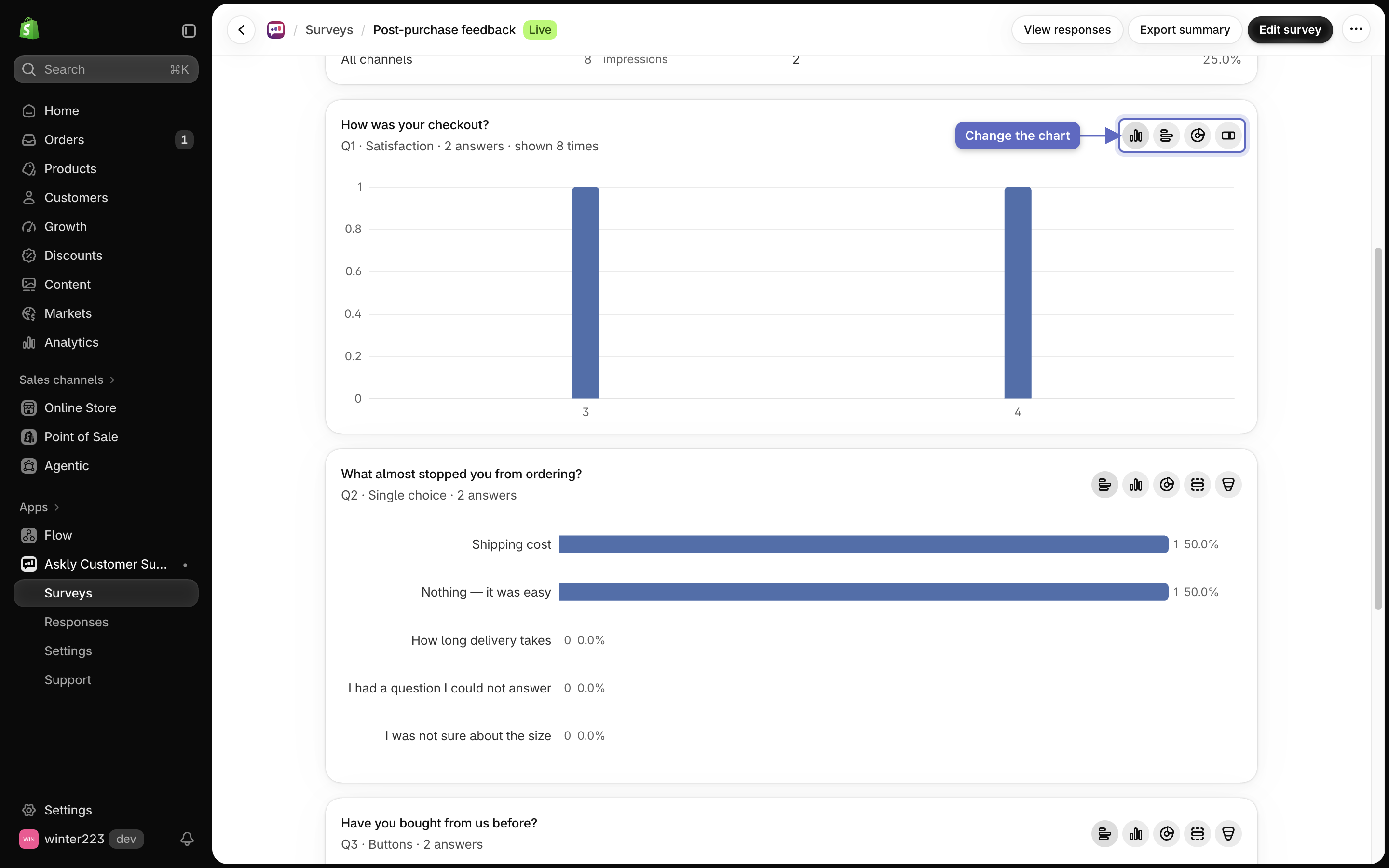
* **A chart for each question.** On some questions, you can switch the chart style with the small buttons on the chart.

  <figure><img src="https://609121677-files.gitbook.io/~/files/v0/b/gitbook-x-prod.appspot.com/o/spaces%2FZGBRJVX5BLagz6gFEmK1%2Fuploads%2Fgit-blob-d58dc69af4ba5e3ebf17ac4f4d95cb99e3999912%2Fscreenshot-results-chart-style-buttons.png?alt=media" alt="A question report card with style buttons to switch the chart view"><figcaption><p>Switch chart styles using the buttons on the question card.</p></figcaption></figure>

## Download or dig deeper

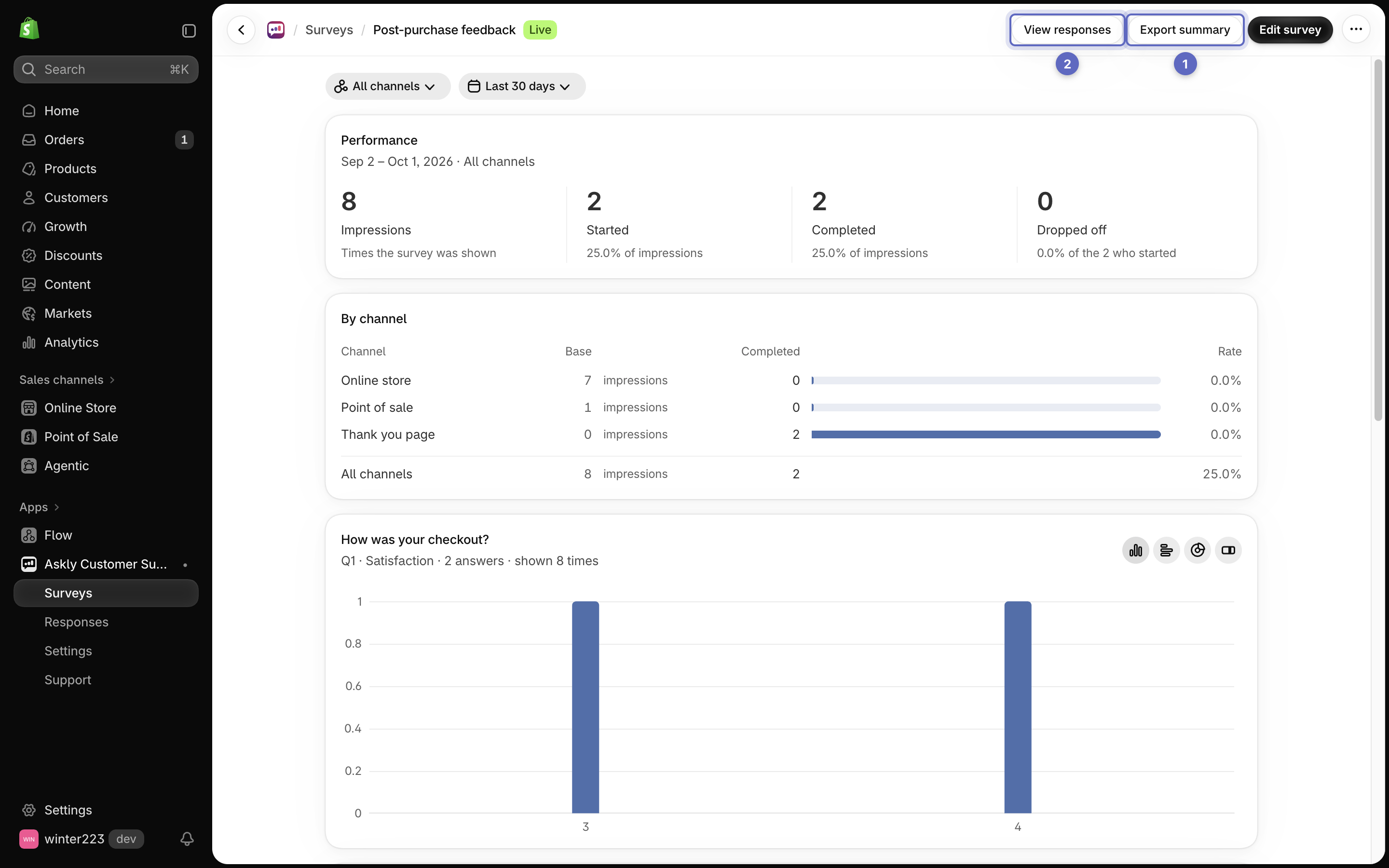
* **Export summary** downloads these totals as a file you can open in Excel or Google Sheets. It has counts per answer, not each person's answers.

  <figure><img src="https://609121677-files.gitbook.io/~/files/v0/b/gitbook-x-prod.appspot.com/o/spaces%2FZGBRJVX5BLagz6gFEmK1%2Fuploads%2Fgit-blob-2bf56c59d1cd217a0799cb149ca1187e423baae0%2Fscreenshot-results-export-summary.png?alt=media" alt="The results page header showing the Export summary and View responses actions"><figcaption><p>Export summary (1) downloads answer totals as a spreadsheet, while View responses (2) shows individual customer entries.</p></figcaption></figure>
* **View responses** shows each person's answers. See [Read and export responses](/askly-customer-surveys/results/responses.md).

Next: [read and export responses](/askly-customer-surveys/results/responses.md).