> For the complete documentation index, see [llms.txt](https://docs.globo.io/llms.txt). Markdown versions of documentation pages are available by appending `.md` to page URLs; this page is available as [Markdown](https://docs.globo.io/askly-customer-surveys/settings/ai-assistants.md).

# Ask AI about your surveys

Ask Shopify Sidekick, ChatGPT, Claude, or Gemini questions about your survey answers.

Ask questions about your surveys in everyday words, such as:

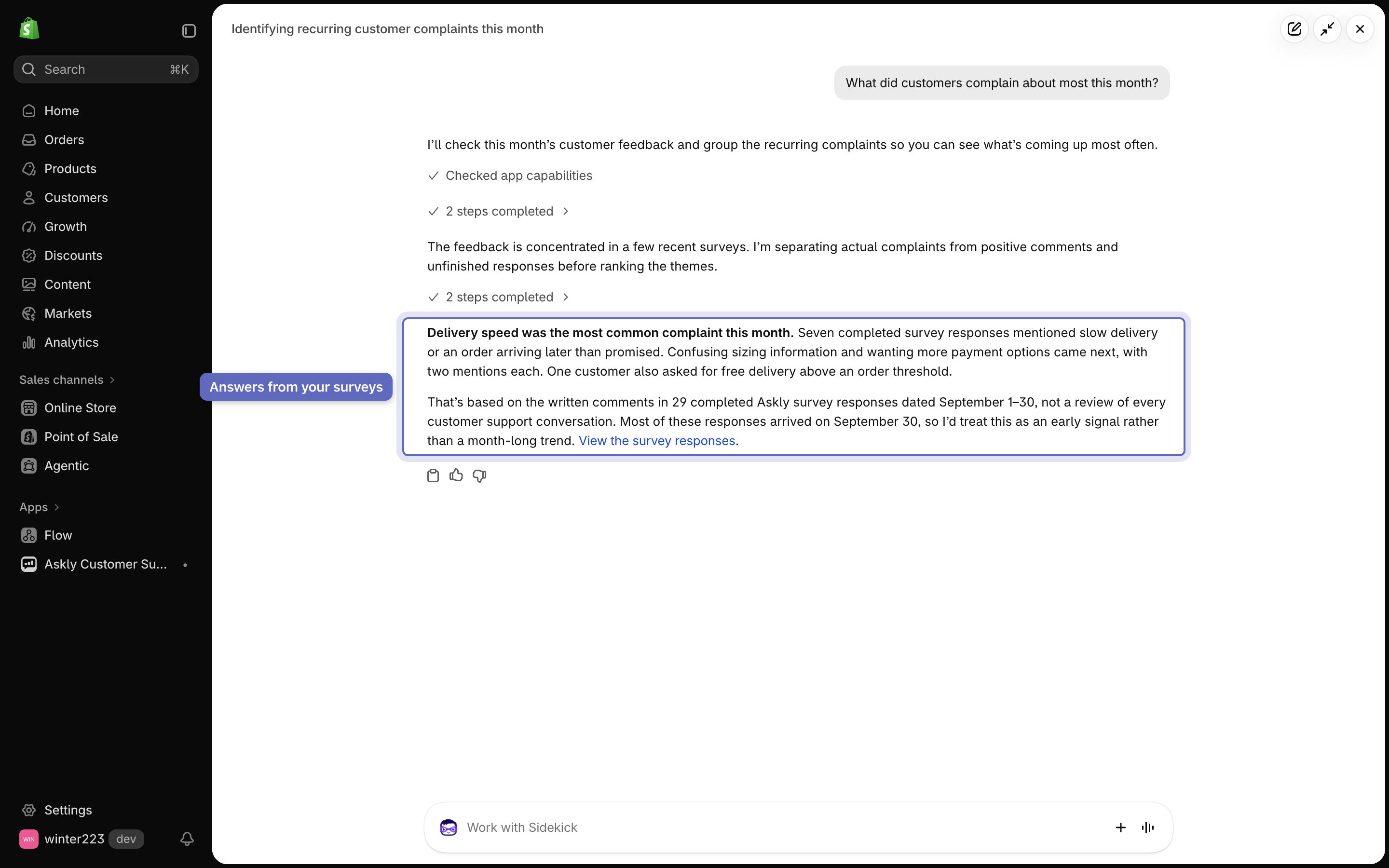
* "What did customers complain about most this month?"
* "How did people hear about us last week?"
* "Which products get the lowest ratings?"

## Shopify Sidekick

Nothing to set up. Open **Sidekick** in your Shopify admin and ask about your surveys.

<figure><img src="https://609121677-files.gitbook.io/~/files/v0/b/gitbook-x-prod.appspot.com/o/spaces%2FZGBRJVX5BLagz6gFEmK1%2Fuploads%2Fgit-blob-934960c2df97280324dce91b69635d82576ed207%2Fscreenshot-sidekick-answer.png?alt=media" alt="Sidekick panel answering What did customers complain about most this month with delivery speed as the top complaint from 29 completed survey responses"><figcaption><p>Sidekick reads your survey answers and tells you what customers mention most.</p></figcaption></figure>

## ChatGPT, Claude, or Gemini

1. Go to **Settings → AI assistants** and select **Allow access**.
2. Select **Copy** next to **Server URL**, and next to **Access key**. Keep the key somewhere safe — it's only shown once, and you need it to approve each assistant.
3. Follow the steps for your assistant below.

> **Screenshot placeholder** · `screenshot-ai-assistants-settings.png`
>
> * **Open:** Shopify admin → Apps → Askly Customer Surveys → **Settings** → **AI assistants**.
> * **Set up:** Turn on **Allow access**. The key is shown only once, right after it is created. Take the shot after that moment, when the app shows the **Access key** masked. Never blur or crop a visible key to make it pass.
> * **In the frame:** **Allow access**, **Server URL** with **Copy**, the **Access key** field (masked), and **Replace key**.
> * **Annotate:** Badge 1 on **Allow access**, badge 2 on **Server URL** and **Copy**, badge 3 on **Access key**. Never label or point at readable key characters.
> * **Keep out:** Any real access key. If a real key would be readable in the image, that is a fail; re-shoot. Also the real app domain if it identifies a customer.
> * **Done when:** No key characters can be read anywhere.
> * **Size:** 1440 × 900 @2× → 2880 × 1800 px, see SCREENSHOTS.md

Every assistant connects the same way: you paste the **Server URL**, an Askly page opens, you paste your **access key** there and select **Allow**.

### Claude

Works on Claude.ai and Claude Desktop, on every plan. The Free plan allows one custom connector.

1. In Claude, open **Customize**, then **Connectors**.
2. Select **+**, then **Add custom connector**.
3. Give it a name, such as `Askly`, and paste the **Server URL**.
4. Under **Authentication**, keep **Sign in now**. Under **OAuth client**, choose **Use Claude's published identity**.
5. Select **Add**. On the Askly page that opens, paste your access key and select **Allow**.
6. To use it in a chat, select **+**, then **Connectors**, and turn **Askly** on.

{% hint style="info" %}
On Team and Enterprise plans, only an Owner can add the connector, in **Organization settings → Connectors → Add → Custom → Web**. Each member then opens **Customize → Connectors**, selects **Connect** next to Askly, and approves it with the access key.
{% endhint %}

### ChatGPT

Works on chatgpt.com (web) with Plus, Pro, Business, Enterprise, or Edu. Custom apps need **Developer mode**.

1. In ChatGPT, open **Settings → Apps → Advanced settings** and turn on **Developer mode**. On Business, only an admin can do this.
2. Go back to **Apps** and select **Create**.
3. Enter a name, such as `Askly`, and paste the **Server URL** under **MCP Server URL**.
4. Under **Authentication**, choose **OAuth**. Tick the box that says you understand the risk, then select **Create**.
5. On the Askly page that opens, paste your access key and select **Allow**.
6. To use it in a chat, select **+**, then **Developer mode** (or **More**), and pick **Askly**.

### Gemini

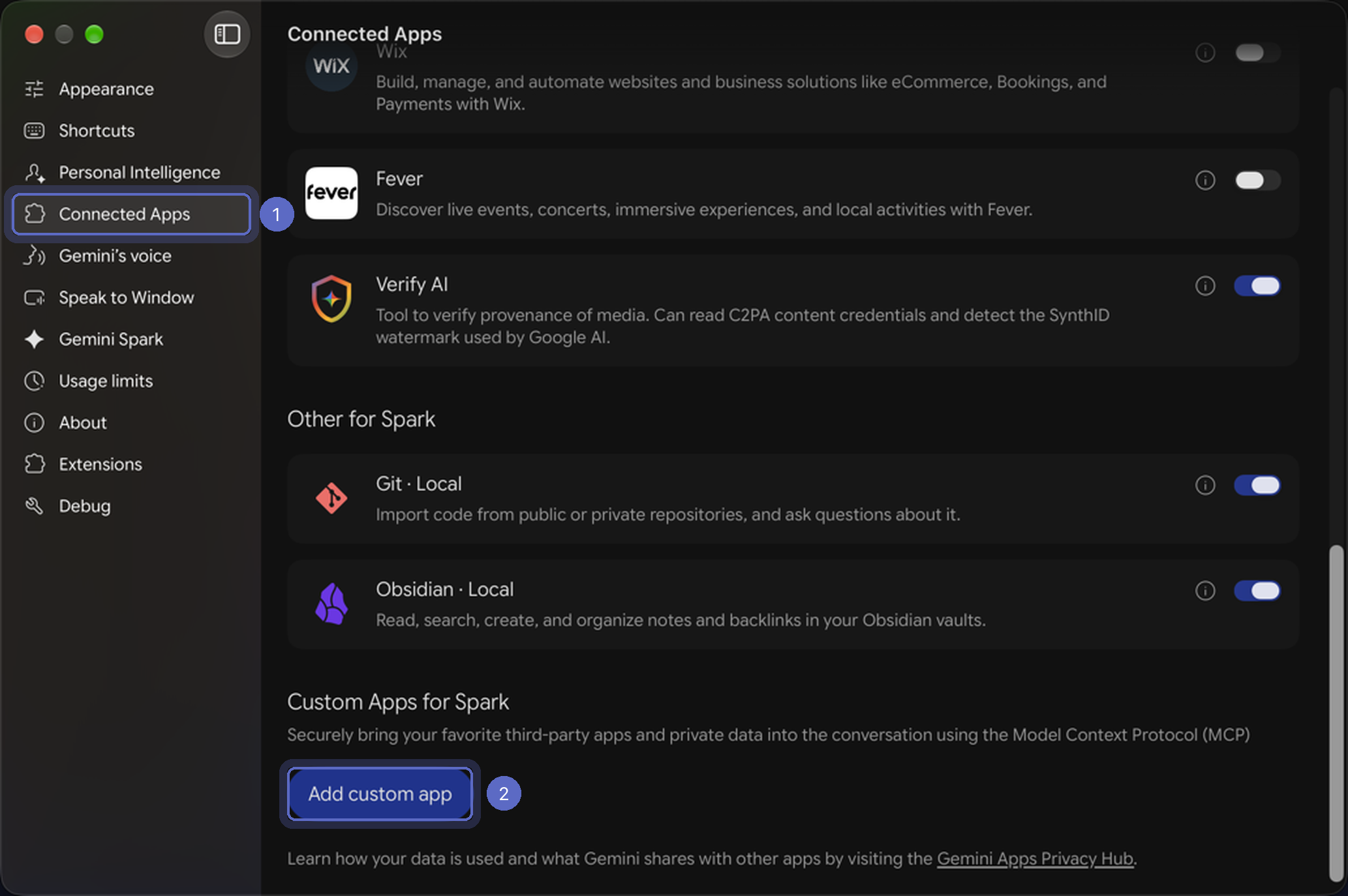
1. In the Gemini app or at gemini.google.com, open **Settings**, then **Connected Apps**.
2. Under **Custom Apps for Spark**, select **Add custom app**.

<figure><img src="https://609121677-files.gitbook.io/~/files/v0/b/gitbook-x-prod.appspot.com/o/spaces%2FZGBRJVX5BLagz6gFEmK1%2Fuploads%2Fgit-blob-6e0dfc7cbe4bd07326de4b65625be70b3e3d1fd9%2Fscreenshot-gemini-add-custom-app.png?alt=media" alt="Gemini settings with Connected Apps selected and the Add custom app button under Custom Apps for Spark"><figcaption><p>Custom apps live under Connected Apps in Gemini's settings.</p></figcaption></figure>

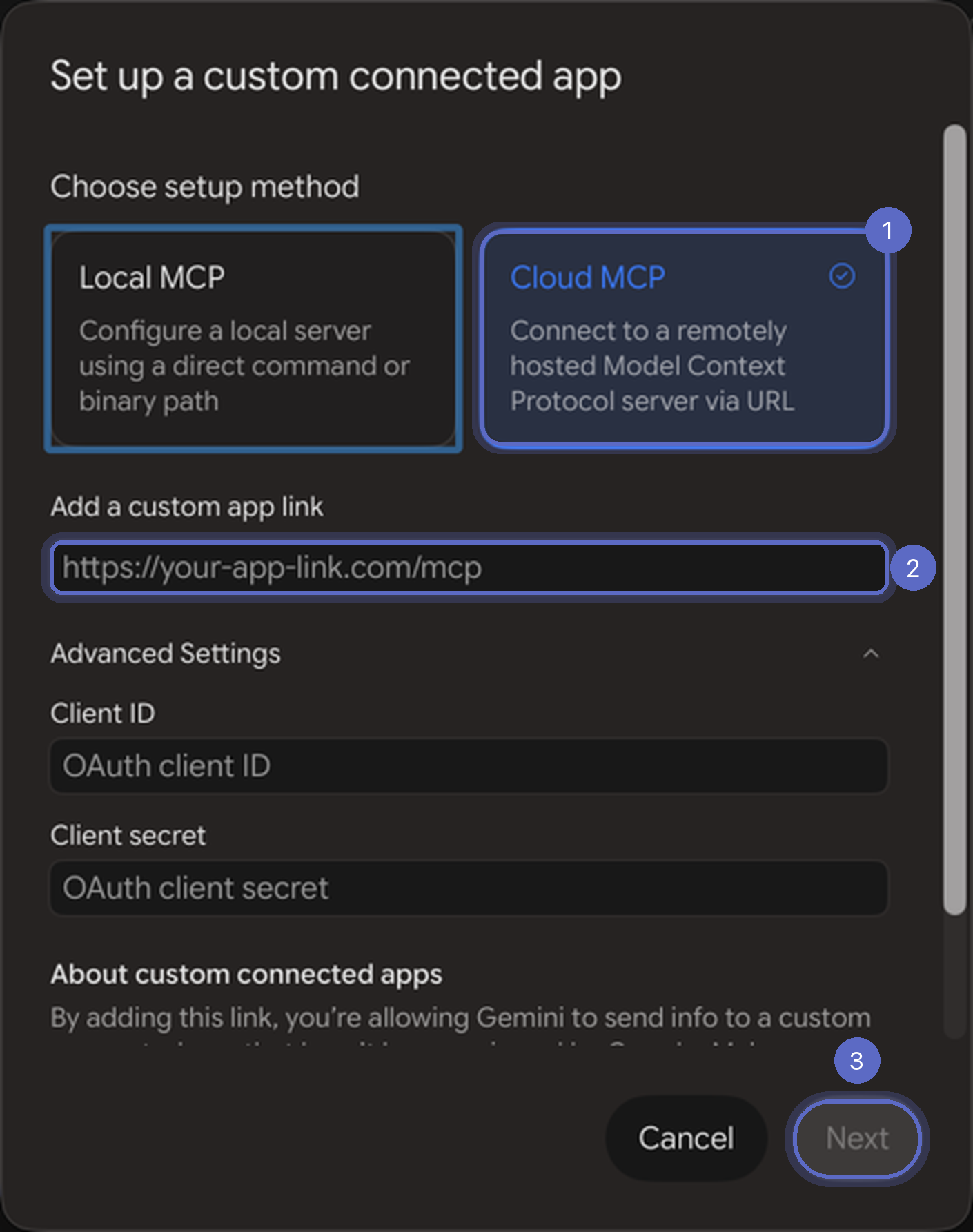
3. Choose **Cloud MCP**, paste your **Server URL** under **Add a custom app link**, and select **Next**. Leave **Client ID** and **Client secret** empty.

<figure><img src="https://609121677-files.gitbook.io/~/files/v0/b/gitbook-x-prod.appspot.com/o/spaces%2FZGBRJVX5BLagz6gFEmK1%2Fuploads%2Fgit-blob-f8ca94312b1d5b2ade5ec6e631408a45c8c489a0%2Fscreenshot-gemini-cloud-mcp-url.png?alt=media" alt="Gemini&#x27;s Set up a custom connected app window with Cloud MCP selected and the custom app link field"><figcaption><p>Pick Cloud MCP and paste the Server URL. Nothing else is needed.</p></figcaption></figure>

4. On the Askly page, paste your access key and select **Allow**.

{% hint style="info" %}
Gemini custom apps only work for personal Google accounts in the US, in English, with **Keep Activity** turned on. They don't work with work or school accounts. If your account doesn't qualify, Gemini shows a Google "500. That's an error" page after you select **Next**.
{% endhint %}

### If your assistant asks for a Client ID

Some assistants let you type your own **Client ID** and **Client secret**. You don't need them. If you use them, both are required, and this only works with Claude, ChatGPT, and Gemini:

* **Client ID:** the last part of your Server URL, after `/mcp/`.
* **Client secret:** your access key.

### Not connecting?

* Check that **Allow access** is on in **Settings → AI assistants**.
* Paste the whole Server URL, with nothing added at the end.
* On the Askly page, paste the access key exactly as you copied it. After 5 wrong tries, wait 15 minutes.
* If the Askly page says it expired, start again from your assistant. The page lasts 30 minutes.
* Lost the key? Select **Replace key**, then connect again with the new one.
* In Claude, choose **Sign in now**, not **Sign in when needed**.
* Gemini shows a Google "500" page? That comes from Google, not from Askly. Check that your Google account meets the requirements above.

AI assistants can only **read** your surveys and answers. They can't change, publish, or delete anything. Each connection lasts 90 days, then you approve it again with your access key.

**To stop access:** turn off **Allow access**. If the key was shared by mistake, select **Replace key**. The old key stops working right away, and every connected assistant is disconnected. Connect each one again with the new key.

Something not working? [Contact support](/askly-customer-surveys/help/contact.md).