> For the complete documentation index, see [llms.txt](https://docs.globo.io/llms.txt). Markdown versions of documentation pages are available by appending `.md` to page URLs; this page is available as [Markdown](https://docs.globo.io/askly-customer-surveys/settings/email-and-notifications.md).

# Email and notifications

Get emails about new responses, and choose how Askly sends its emails.

## Get emails about responses

1. Go to **Settings**. In **Email delivery**, find **Emails to your team**.
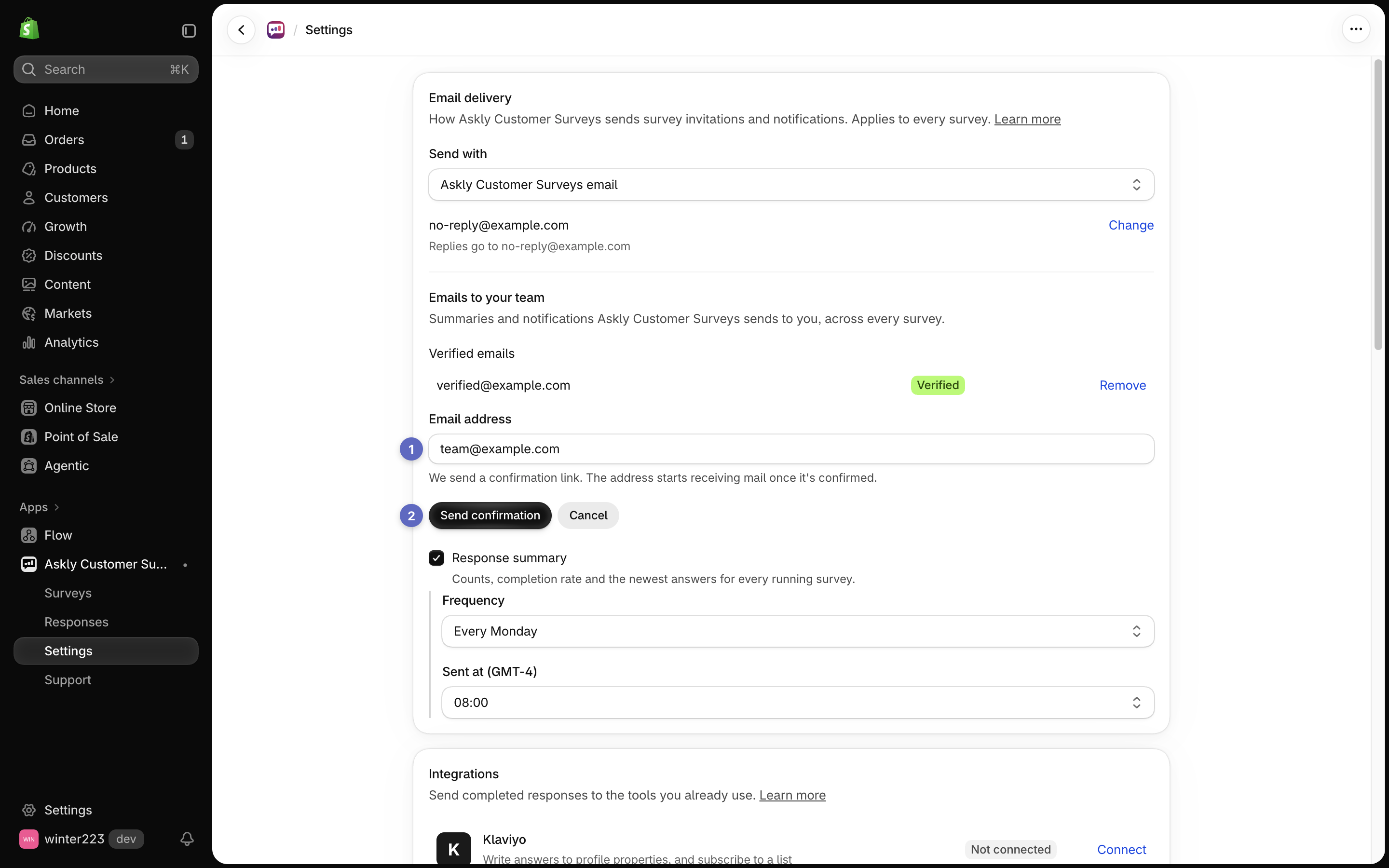
2. Select **Add an address**, type an email, and select **Send confirmation**.

   <figure><img src="https://609121677-files.gitbook.io/~/files/v0/b/gitbook-x-prod.appspot.com/o/spaces%2FZGBRJVX5BLagz6gFEmK1%2Fuploads%2Fgit-blob-f24aad938bb40efd738f3bb6ceee34cf1c3fdec9%2Fscreenshot-email-add-address.png?alt=media" alt="Emails to your team section with team@example.com entered and the Send confirmation button"><figcaption><p>Enter your team email address (1) and select Send confirmation (2) to start receiving email notifications.</p></figcaption></figure>
3. Open that inbox and confirm. Mail starts once it's confirmed.

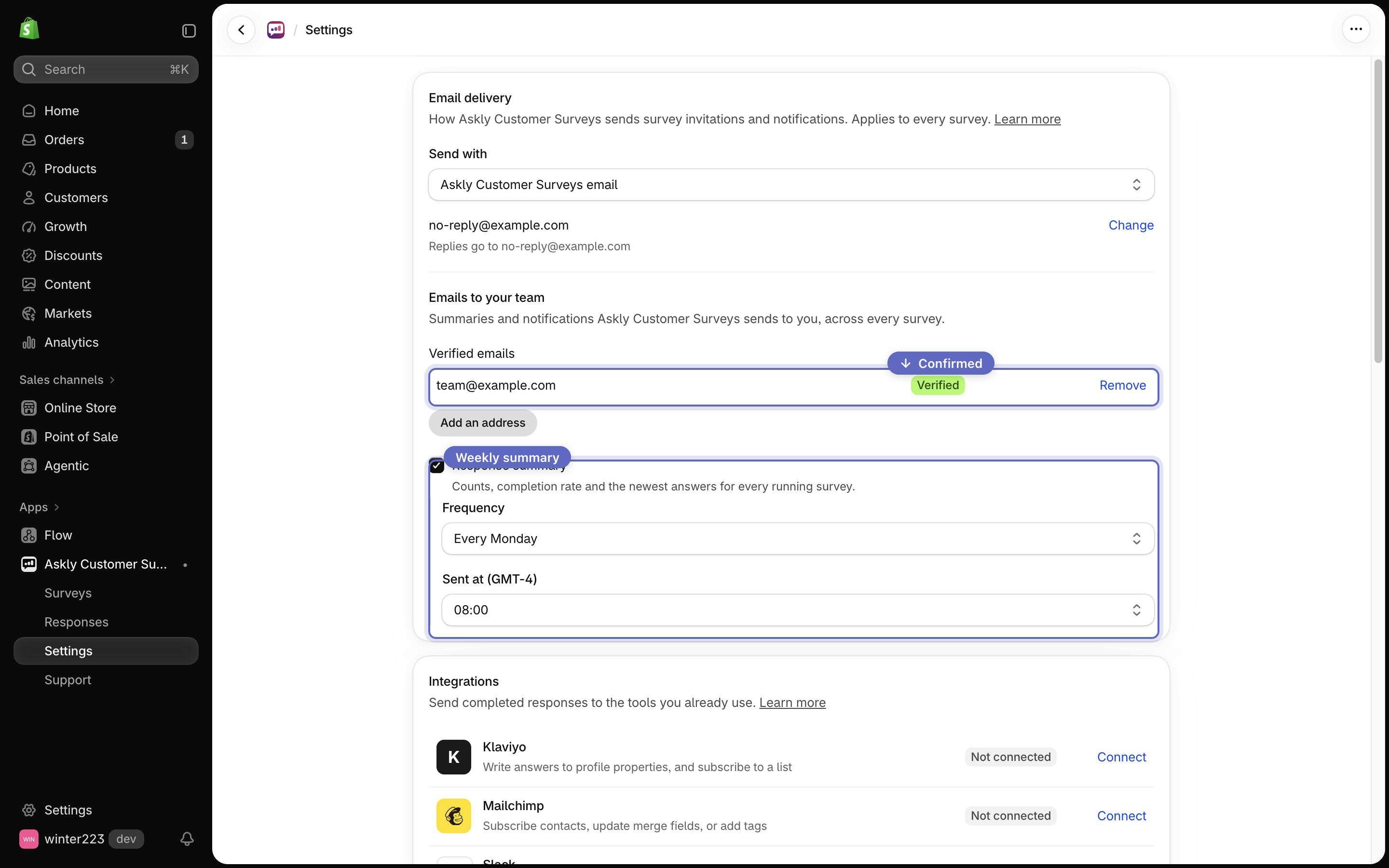
**A summary of your responses:** **Response summary** is on from the start, and sends every Monday at 08:00 once an address is confirmed. To change it, pick the **Frequency** (**Every day**, **Every Monday**, or **First of the month**) and the time, then select **Save**.

**An email for every response:** open the survey, go to **Flow → Merchant**, and add **Notify the team**. See [Do something after each response](/askly-customer-surveys/surveys/automations.md).

<figure><img src="https://609121677-files.gitbook.io/~/files/v0/b/gitbook-x-prod.appspot.com/o/spaces%2FZGBRJVX5BLagz6gFEmK1%2Fuploads%2Fgit-blob-3961369e877f630b938cbea6654d7d09ae8ec1f1%2Fscreenshot-email-team-recipients.png?alt=media" alt="Emails to your team settings showing a confirmed address and the Response summary weekly schedule options"><figcaption><p>Confirmed team addresses receive notification emails and the weekly response summary.</p></figcaption></figure>

## How emails are sent

You don't need to set anything up. Askly sends emails for you.

Want emails to come from your own mailbox, such as Gmail or Outlook?

1. Go to **Settings → Email delivery**.
2. Under **Send with**, pick your provider and fill in the details it asks for.
3. Select **Save**, then **Send test email**. The test goes to your store's account email.

<figure><img src="https://609121677-files.gitbook.io/~/files/v0/b/gitbook-x-prod.appspot.com/o/spaces%2FZGBRJVX5BLagz6gFEmK1%2Fuploads%2Fgit-blob-26d0de23f5cde8da05b4fcda0f128f249421eef4%2Fscreenshot-email-delivery-provider.png?alt=media" alt="Email delivery settings showing the Send with provider menu and the Gmail configuration fields"><figcaption><p>Select Send with to choose your email provider and enter its details.</p></figcaption></figure>

To have customer replies go to a different inbox, select **Change** next to the sender, check **Use a different reply-to address**, and type the address. Select **Done**, then **Save**.

<figure><img src="https://609121677-files.gitbook.io/~/files/v0/b/gitbook-x-prod.appspot.com/o/spaces%2FZGBRJVX5BLagz6gFEmK1%2Fuploads%2Fgit-blob-5a8699cf7fa92673f17b3448ff1475412c2ffb75%2Fscreenshot-email-reply-to.png?alt=media" alt="Sender settings showing the Use a different reply-to address checkbox ticked with support@example.com and the Done button"><figcaption><p>Tick Use a different reply-to address (1), enter your reply-to inbox, and select Done (2).</p></figcaption></figure>

Emails not arriving? Check your spam folder, then see [Survey not showing?](/askly-customer-surveys/help/troubleshooting.md#emails-not-arriving).