> For the complete documentation index, see [llms.txt](https://docs.globo.io/llms.txt). Markdown versions of documentation pages are available by appending `.md` to page URLs; this page is available as [Markdown](https://docs.globo.io/askly-customer-surveys/settings/integrations.md).

# Connect other apps

Send survey answers to Klaviyo, Mailchimp, Slack, and other apps you use.

Askly can send answers to: **Klaviyo**, **Mailchimp**, **Slack**, **Brevo**, **HubSpot**, **Zendesk**, and **Webhook** (for developers).

## Step 1: Connect the app

1. Go to **Settings → Integrations**.
2. Select **Connect** next to the app.
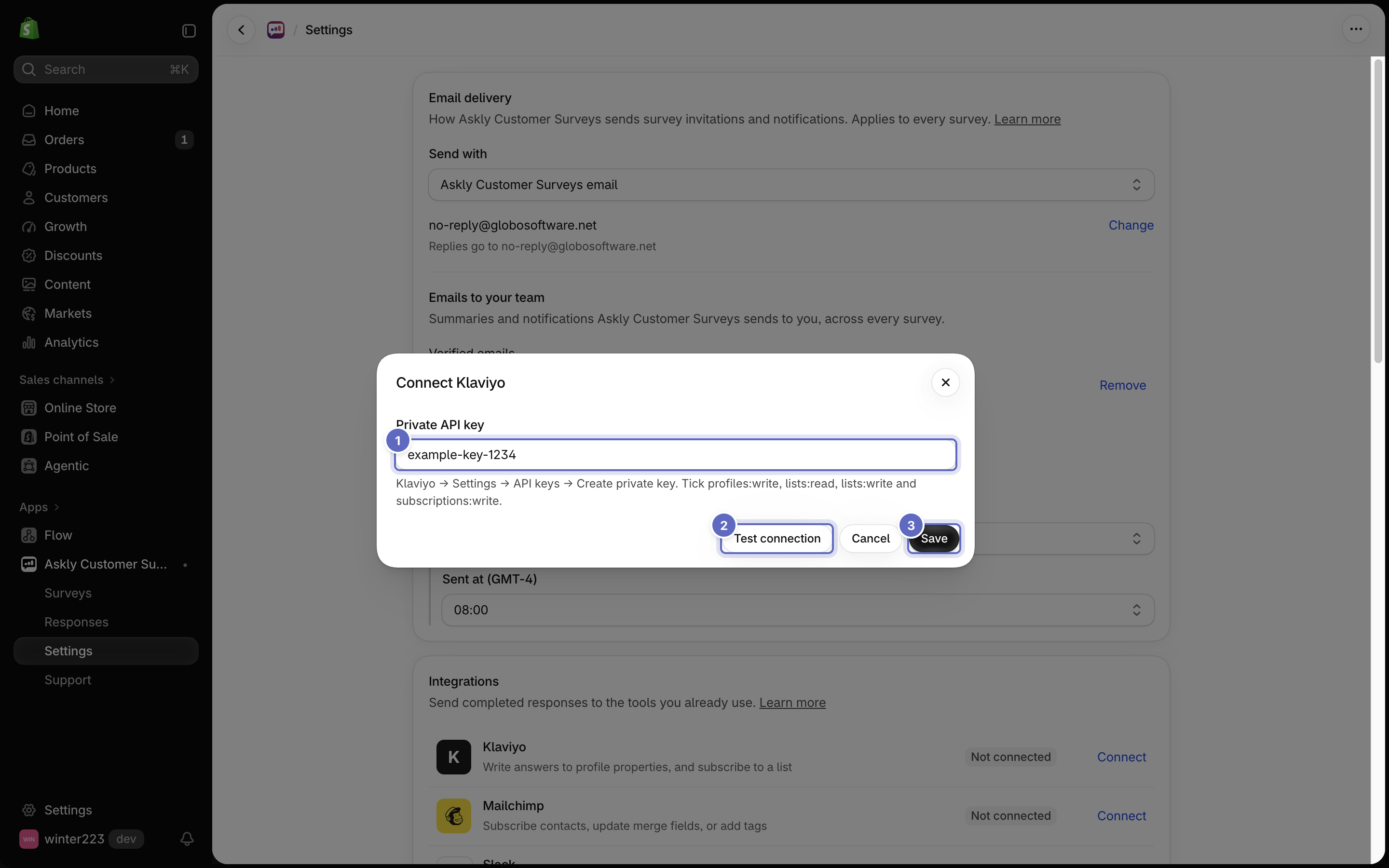
3. Paste the key the window asks for. The window tells you where to find it in that app.
4. If the window has **Test connection**, select it to check the key. Then select **Save**.

   <figure><img src="https://609121677-files.gitbook.io/~/files/v0/b/gitbook-x-prod.appspot.com/o/spaces%2FZGBRJVX5BLagz6gFEmK1%2Fuploads%2Fgit-blob-fee1283745079c4734f4797bb888f1599c6ec348%2Fscreenshot-integrations-connect-window.png?alt=media" alt="The Connect Klaviyo window showing the Private API key field with a fake key, hint text, Test connection button, and Save button"><figcaption><p>Enter the API key, select Test connection to verify it, then select Save.</p></figcaption></figure>

<figure><img src="https://609121677-files.gitbook.io/~/files/v0/b/gitbook-x-prod.appspot.com/o/spaces%2FZGBRJVX5BLagz6gFEmK1%2Fuploads%2Fgit-blob-6f5790fc66a445c5e07fca7c13607d7d1f87dc32%2Fscreenshot-integrations-list.png?alt=media" alt="The Integrations list in Settings with Webhook connected and the other apps showing Connect"><figcaption><p>Connected apps show Manage. The rest show Connect.</p></figcaption></figure>

## Step 2: Choose what each survey sends

Connecting an app doesn't send anything yet. For each survey:

1. Open the survey and go to **Flow → Merchant**.
2. Select the **+** under a step (**Add a step after this**), then pick the app's step under **Send to an app**, such as **Post to Slack**.
3. Choose where the answers go, such as a Klaviyo list or a Slack channel.
4. Select **Save**.

Answer the survey once yourself to check it works.

{% hint style="info" %}
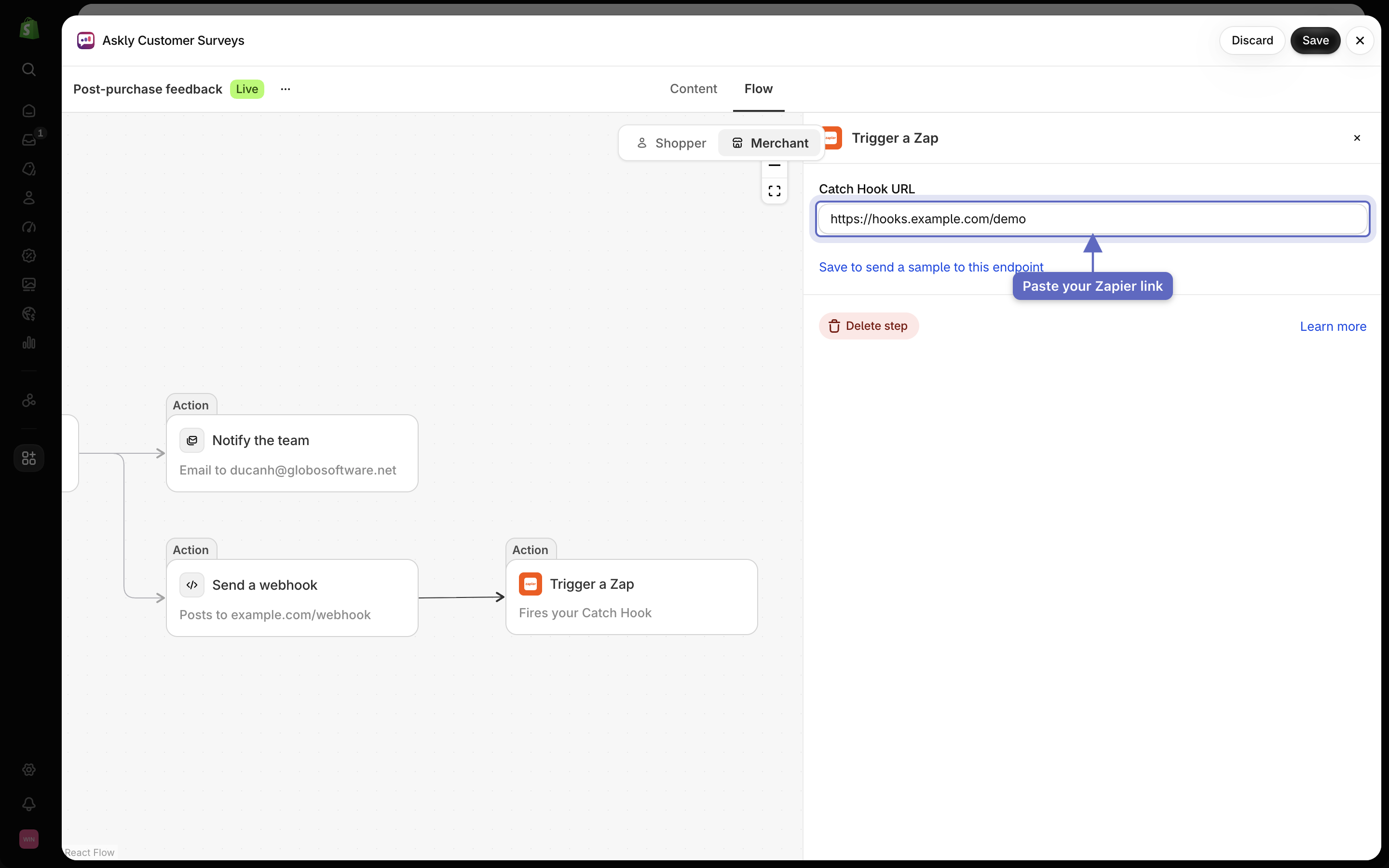
Using Zapier? Add **Trigger a Zap** and paste your Zapier link. No connection needed.
{% endhint %}

<figure><img src="https://609121677-files.gitbook.io/~/files/v0/b/gitbook-x-prod.appspot.com/o/spaces%2FZGBRJVX5BLagz6gFEmK1%2Fuploads%2Fgit-blob-32565751c07a021418aff1778c05c479d420412b%2Fscreenshot-integrations-trigger-a-zap.png?alt=media" alt="Trigger a Zap step in the Merchant flow with its settings open and Catch Hook URL field containing a demo Zapier link"><figcaption><p>Add Trigger a Zap to your merchant flow and paste your Zapier Catch Hook link.</p></figcaption></figure>

<figure><img src="https://609121677-files.gitbook.io/~/files/v0/b/gitbook-x-prod.appspot.com/o/spaces%2FZGBRJVX5BLagz6gFEmK1%2Fuploads%2Fgit-blob-43862cbacfdace9b8b316f954d82feb9d4aa0149%2Fscreenshot-integrations-slack-step.png?alt=media" alt="Post to Slack step in the Merchant flow with its settings open and channel dropdown showing test-feedback"><figcaption><p>Add Post to Slack to the flow, then choose which channel receives responses.</p></figcaption></figure>

## Check that it worked

Open a response in **Responses** and look at its **Activity** card. Each step shows whether it succeeded or failed.

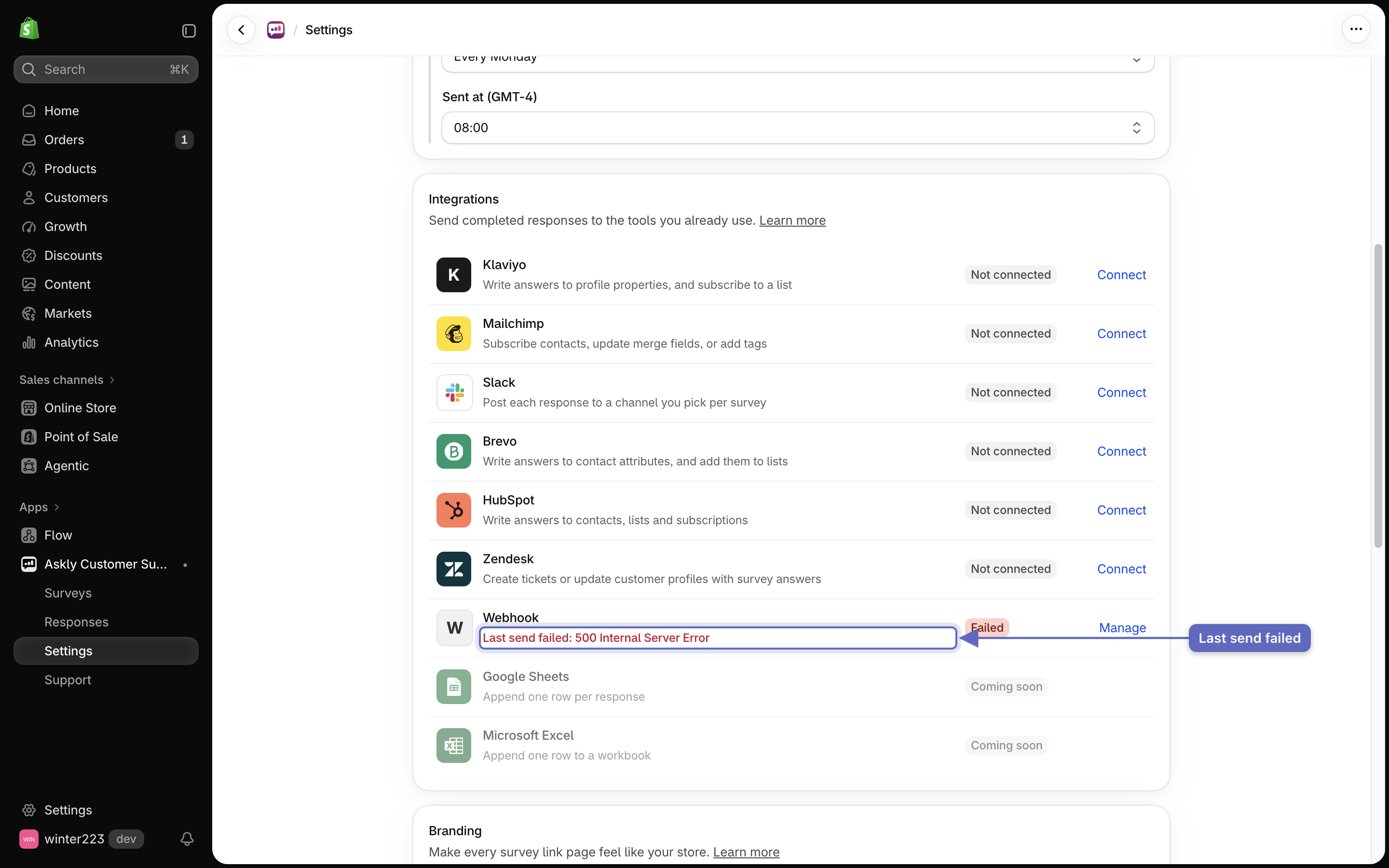
If a step failed, fix the connection or the step, then select **Retry**. If the last send to an app failed, **Settings → Integrations** also shows the error on that app.

<figure><img src="https://609121677-files.gitbook.io/~/files/v0/b/gitbook-x-prod.appspot.com/o/spaces%2FZGBRJVX5BLagz6gFEmK1%2Fuploads%2Fgit-blob-816bda29c890559e8d447936911821bfa25c2687%2Fscreenshot-integrations-error-on-app.png?alt=media" alt="The Integrations list in Settings with the Webhook row showing a Last send failed error message"><figcaption><p>If a send fails, the app row in Settings → Integrations highlights the delivery error.</p></figcaption></figure>

<figure><img src="https://609121677-files.gitbook.io/~/files/v0/b/gitbook-x-prod.appspot.com/o/spaces%2FZGBRJVX5BLagz6gFEmK1%2Fuploads%2Fgit-blob-4e8093ce4aae7901976a9dcfeb34f60f8a43b3e9%2Fscreenshot-integrations-activity-succeeded.png?alt=media" alt="Activity timeline on response details showing Sent to Slack succeeded"><figcaption><p>The Activity timeline on each response details page logs when a send to Slack succeeds.</p></figcaption></figure>

Next: [add your logo to survey pages](/askly-customer-surveys/settings/branding.md).