> For the complete documentation index, see [llms.txt](https://docs.globo.io/llms.txt). Markdown versions of documentation pages are available by appending `.md` to page URLs; this page is available as [Markdown](https://docs.globo.io/askly-customer-surveys/surveys/create.md).

# Create a survey

Start a new survey from a template in a few short steps.

Go to **Surveys** and select **Create survey**. A few short steps follow. The default choices work for most stores, and you can change everything later.

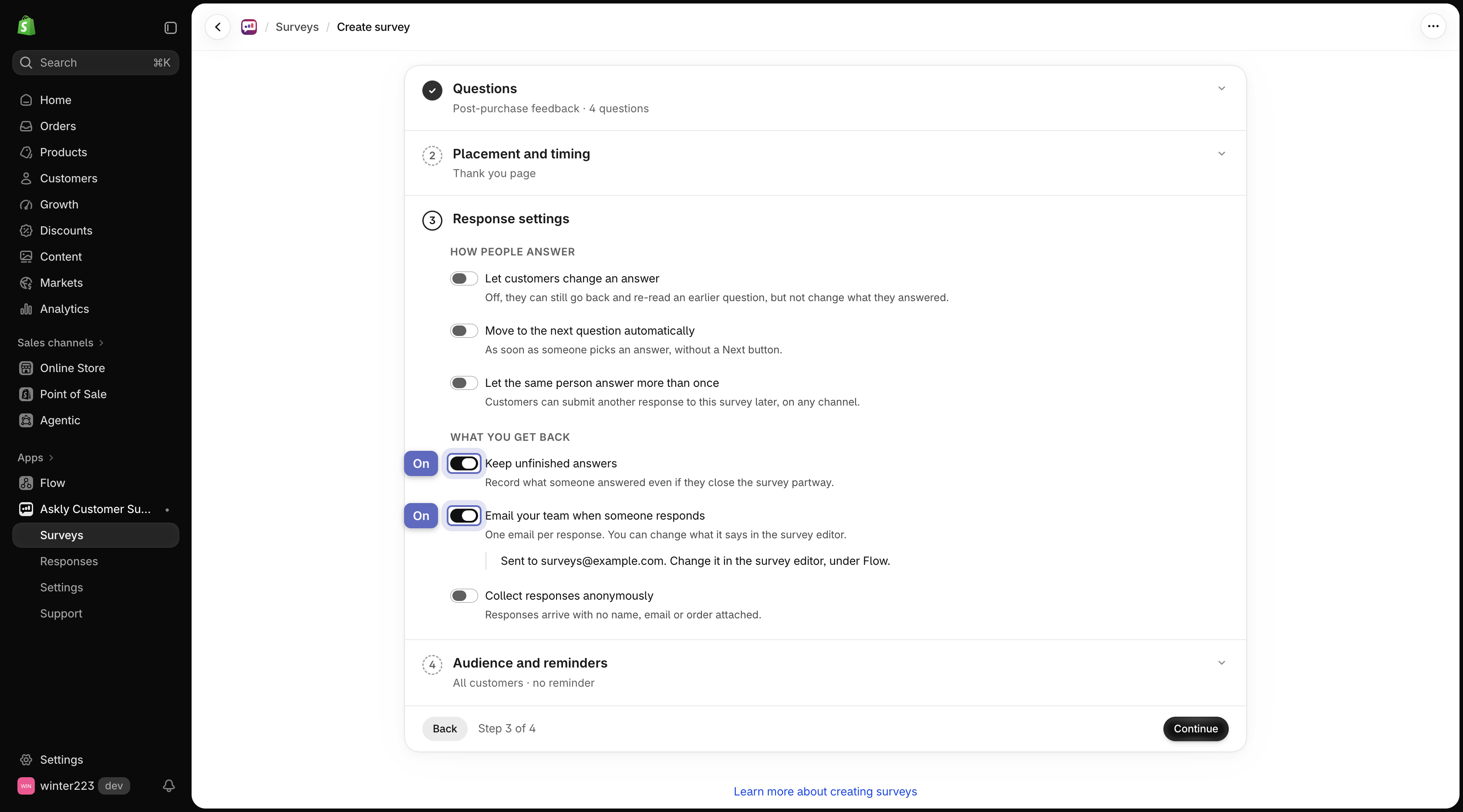
1. **Questions** — Pick a template. To read its questions first, select the eye icon on the template. **Browse all templates** shows more. **Start from scratch** gives you an empty survey.

   <figure><img src="https://609121677-files.gitbook.io/~/files/v0/b/gitbook-x-prod.appspot.com/o/spaces%2FZGBRJVX5BLagz6gFEmK1%2Fuploads%2Fgit-blob-7924d48fd029651030d193c964cee5a263ee8127%2Fscreenshot-create-wizard-steps.png?alt=media" alt="Survey creation wizard on the Questions step with the template gallery open and Post-purchase feedback selected"><figcaption><p>Pick a template to load its questions. The other three steps are collapsed below it.</p></figcaption></figure>
2. **Placement and timing** — Pick one place to show the survey. You can add more places later. For your online store, also pick when it opens.
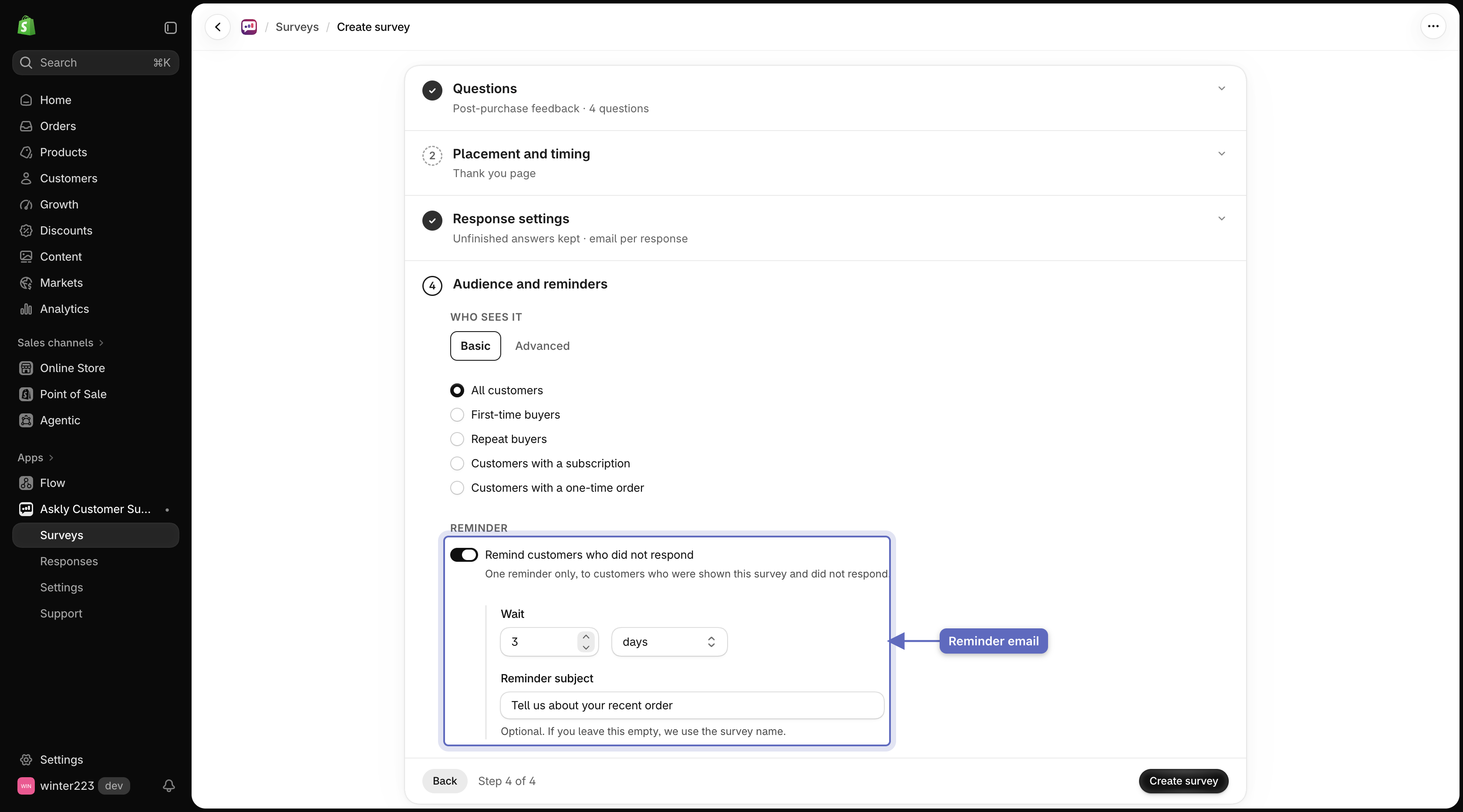
3. **Response settings** — Turn on only what you need:

   * **Let customers change an answer** — they can go back and edit.
   * **Move to the next question automatically** — no **Next** button after each answer.
   * **Let the same person answer more than once** — they can send another response later.
   * **Keep unfinished answers** — you keep answers even if someone stops halfway.
   * **Email your team when someone responds** — one email per response, sent to your store's email address.
   * **Collect responses anonymously** — no name, email, or order is saved.

   <figure><img src="https://609121677-files.gitbook.io/~/files/v0/b/gitbook-x-prod.appspot.com/o/spaces%2FZGBRJVX5BLagz6gFEmK1%2Fuploads%2Fgit-blob-c98cdd862ec7e9e7f011e2dc8b64cc050c70ada6%2Fscreenshot-create-response-settings.png?alt=media" alt="Survey creation wizard response settings step showing six toggles with Keep unfinished answers and Email your team enabled"><figcaption><p>Turn on only the response settings you need, such as keeping partial answers or sending email alerts.</p></figcaption></figure>
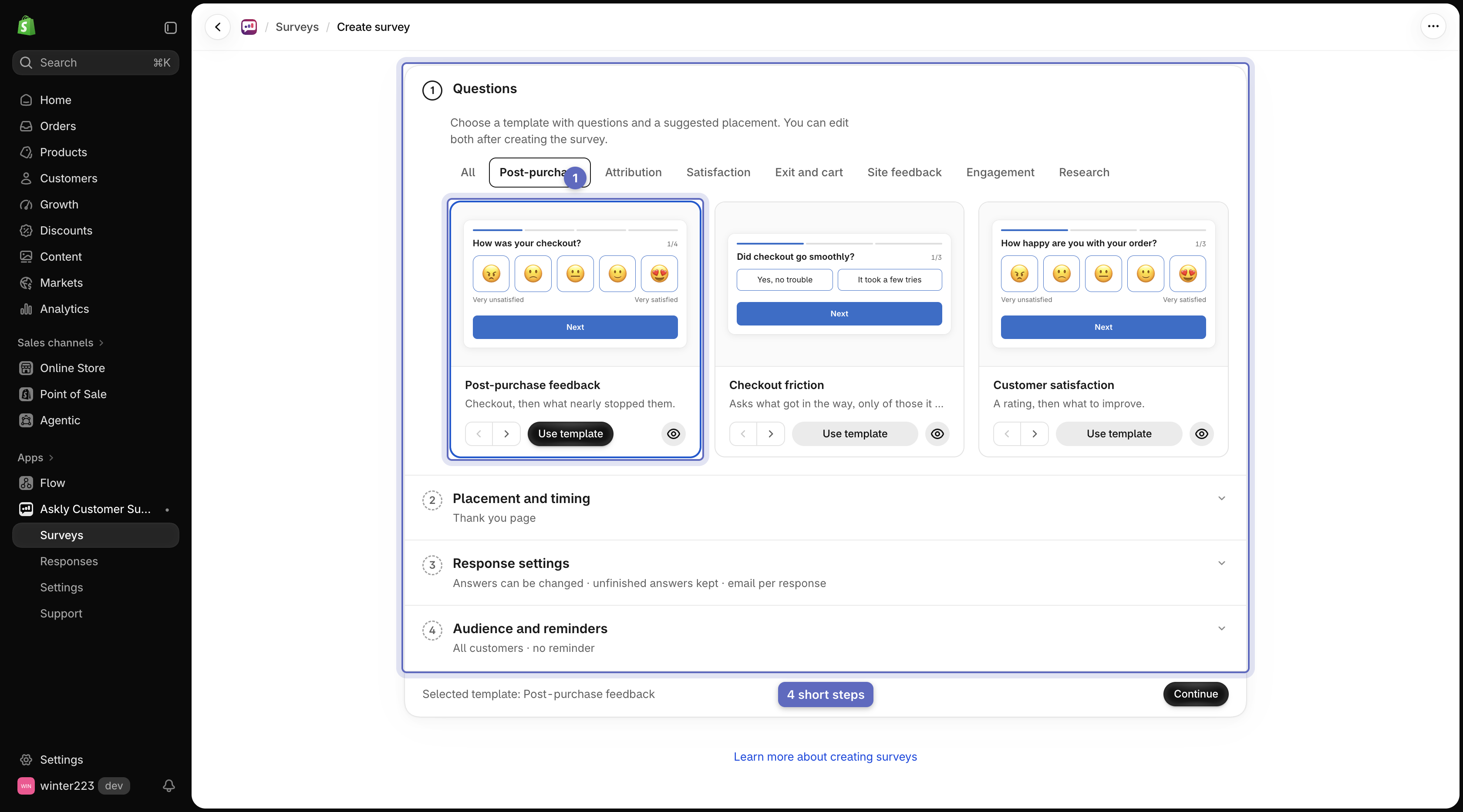
4. **Audience and reminders** — Choose who sees it. For places tied to an order, such as the thank you page or POS, you can also send one reminder email to customers who didn't answer. Some places skip this step.

   <figure><img src="https://609121677-files.gitbook.io/~/files/v0/b/gitbook-x-prod.appspot.com/o/spaces%2FZGBRJVX5BLagz6gFEmK1%2Fuploads%2Fgit-blob-ade95c7da1d8446e7d0587d6c2f8c7447dd2e6ef%2Fscreenshot-create-audience-reminders.png?alt=media" alt="Survey creation wizard audience and reminders step with the reminder email switch enabled and wait time and subject fields configured"><figcaption><p>Configure customer targeting and optionally turn on a reminder email with custom timing and subject.</p></figcaption></figure>

Select **Create survey**.

## What happens next

Your survey starts as a **Draft** and opens in the editor, on **Channels**. Customers don't see it until you [publish it](/askly-customer-surveys/surveys/publish.md), so you can [test it](/askly-customer-surveys/surveys/test.md) first.

To change the response settings or the reminder later, open the survey and go to **Settings**.

Next: [change the questions](/askly-customer-surveys/surveys/question-types.md).