> For the complete documentation index, see [llms.txt](https://docs.globo.io/llms.txt). Markdown versions of documentation pages are available by appending `.md` to page URLs; this page is available as [Markdown](https://docs.globo.io/askly-customer-surveys/surveys/design-and-translate.md).

# Design and translate

Match the survey to your store's look, and show it in your customers' languages.

## Change the look

1. Open the survey and go to **Appearance**.
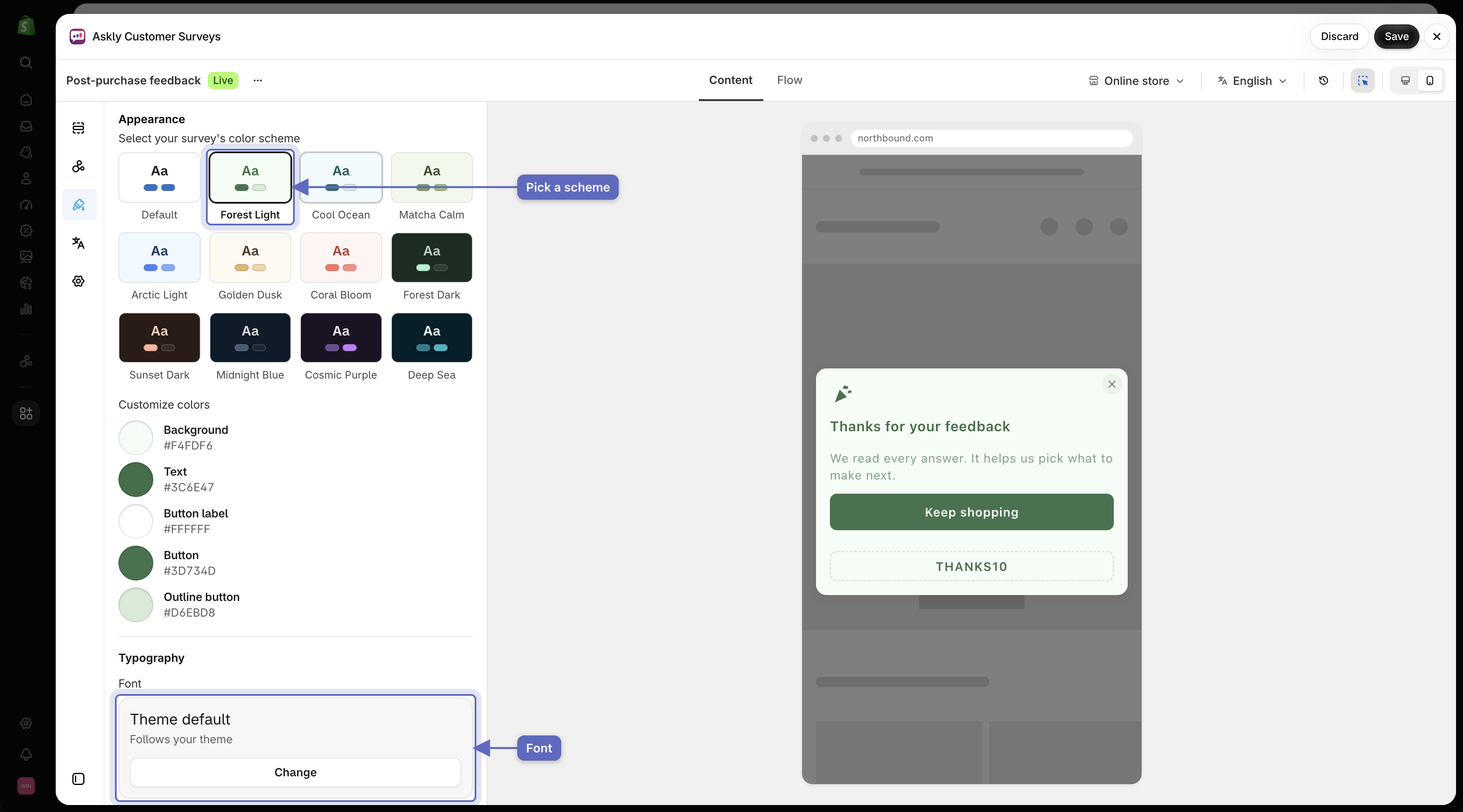
2. Under **Colors**, pick a color scheme. To change a single color, use the rows under **Customize colors**.
3. Under **Typography**, select **Change** to pick a **Font**. **Theme default** uses your store's font.
4. Select **Save**.

<figure><img src="https://609121677-files.gitbook.io/~/files/v0/b/gitbook-x-prod.appspot.com/o/spaces%2FZGBRJVX5BLagz6gFEmK1%2Fuploads%2Fgit-blob-dc75b84f104a05f7885985eefea81a98112c1281%2Fscreenshot-appearance-colors-font.png?alt=media" alt="Appearance settings showing color schemes and font picker alongside the mobile preview matching the selected palette"><figcaption><p>Choose a color scheme and font for your survey, previewing how they look together on mobile.</p></figcaption></figure>

{% hint style="info" %}
On checkout, customer accounts, and POS, Shopify controls the look. Your colors and fonts don't apply there.
{% endhint %}

## Translate the survey

1. Make sure the language is published on your store, in Shopify under **Settings → Languages**. Only published languages can be picked.
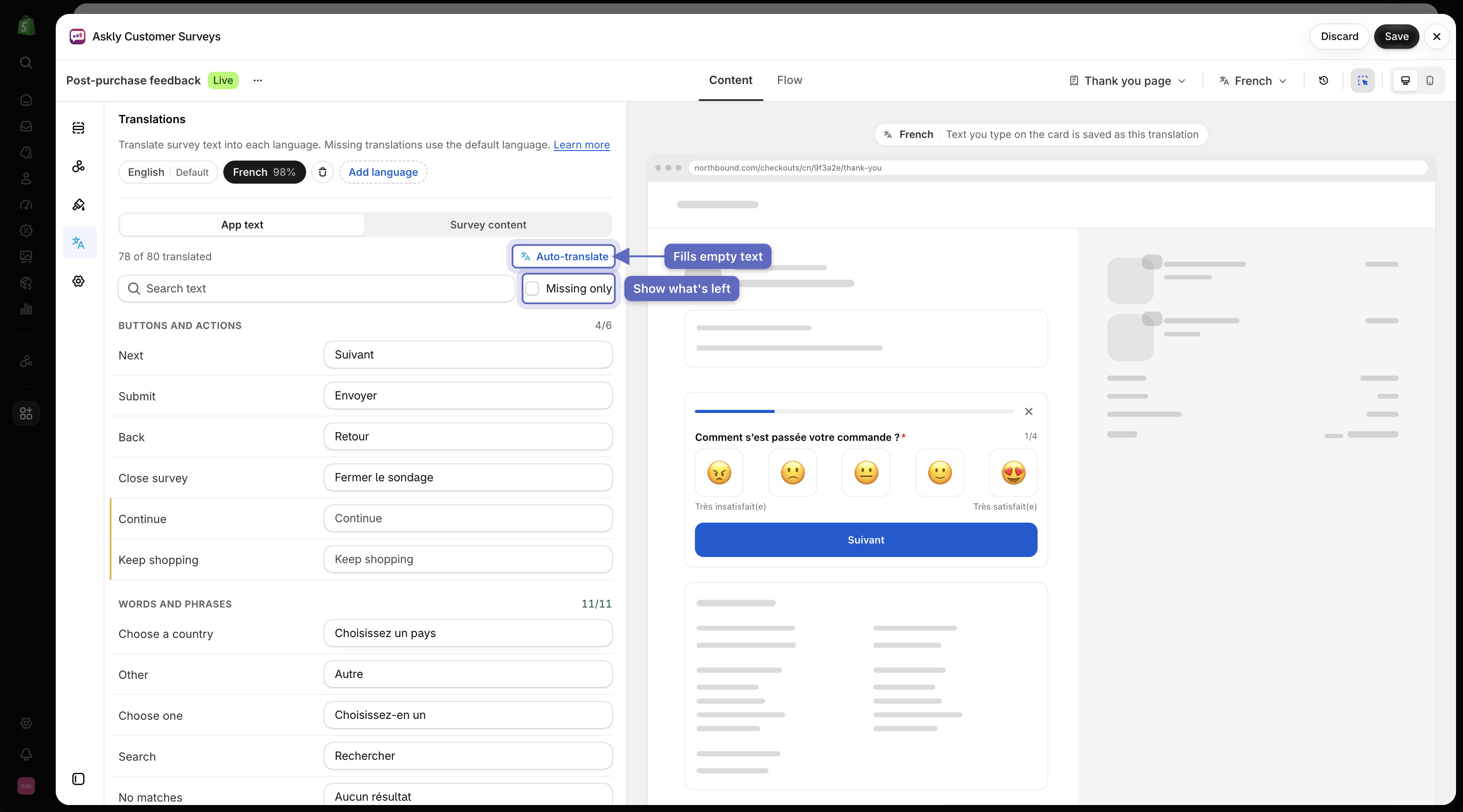
2. In Askly, open the survey and go to **Translations**.
3. Select **Add language**, pick the language, and select **Add language** again.
4. Select **Auto-translate** to fill in the empty text for you. Text you already translated stays as it is.
5. Read through it and fix anything that sounds wrong.
6. Select **Save**.

   <figure><img src="https://609121677-files.gitbook.io/~/files/v0/b/gitbook-x-prod.appspot.com/o/spaces%2FZGBRJVX5BLagz6gFEmK1%2Fuploads%2Fgit-blob-4d59f348e7d56ffcaad14139dae22b1b06e4d8a6%2Fscreenshot-translations-tab.png?alt=media" alt="Translations tab showing English source strings, French translations, Auto-translate button, and Missing only filter"><figcaption><p>Translate survey strings into published store languages with automatic translation and missing-entry filtering.</p></figcaption></figure>

Customers see the survey in the language they're browsing your store in. Anything not translated shows in your main language.

{% hint style="info" %}
Check **Missing only** to see just the text that still needs a translation.
{% endhint %}

**Auto-translate** has a daily and a monthly limit. If you reach it, the app tells you when you can use it again. You can always type translations yourself.

**Arabic, Hebrew, or Persian:** pick the language under **Preview language** above the preview. Then, in **Appearance**, turn on **Right to left** under **Layout**. It only changes that language, on your online store, the share link, and emails. On checkout, customer accounts, and POS, Shopify controls the layout, so this setting doesn't apply there.

Next: [test your survey](/askly-customer-surveys/surveys/test.md).