> For the complete documentation index, see [llms.txt](https://docs.globo.io/llms.txt). Markdown versions of documentation pages are available by appending `.md` to page URLs; this page is available as [Markdown](https://docs.globo.io/askly-customer-surveys/where-surveys-appear/channels/email-and-links.md).

# Email and shareable links

Send a survey by email after an order, put a question in your own email, or share a link or QR code.

There are three ways. Pick the one that fits.

| Use this                                    | When you want to                                                                       |
| ------------------------------------------- | -------------------------------------------------------------------------------------- |
| [Post-purchase email](#post-purchase-email) | Have Askly email customers after they order.                                           |
| [Embed in email](#embed-in-your-own-email)  | Add a question to an email you already send from Klaviyo, Mailchimp, or Shopify Email. |
| [Standalone page](#standalone-page)         | Share a link, or print a QR code on a receipt or packing slip.                         |

## Post-purchase email

Askly sends this email for you.

1. Open the survey and go to **Channels → Post-purchase email**.
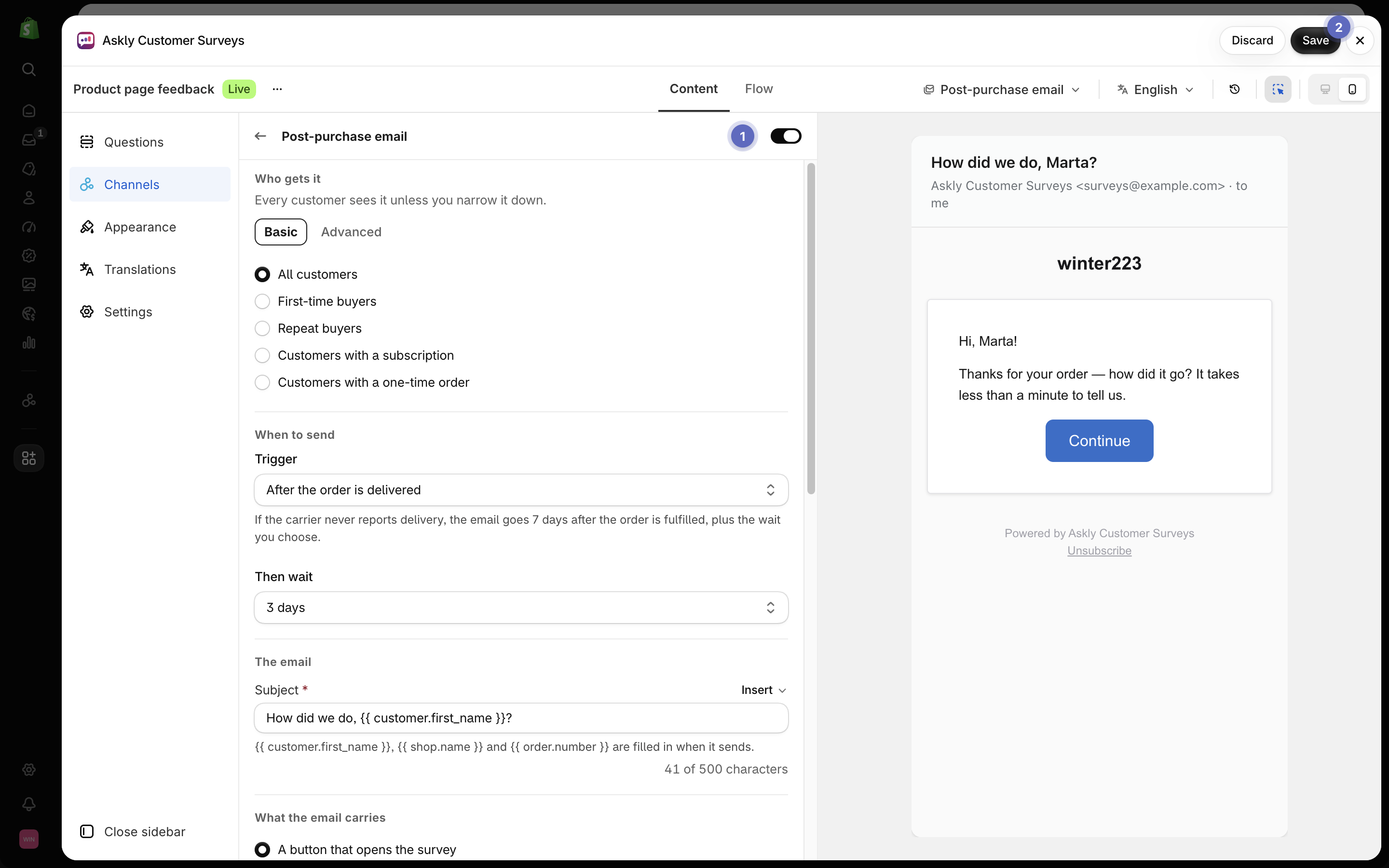
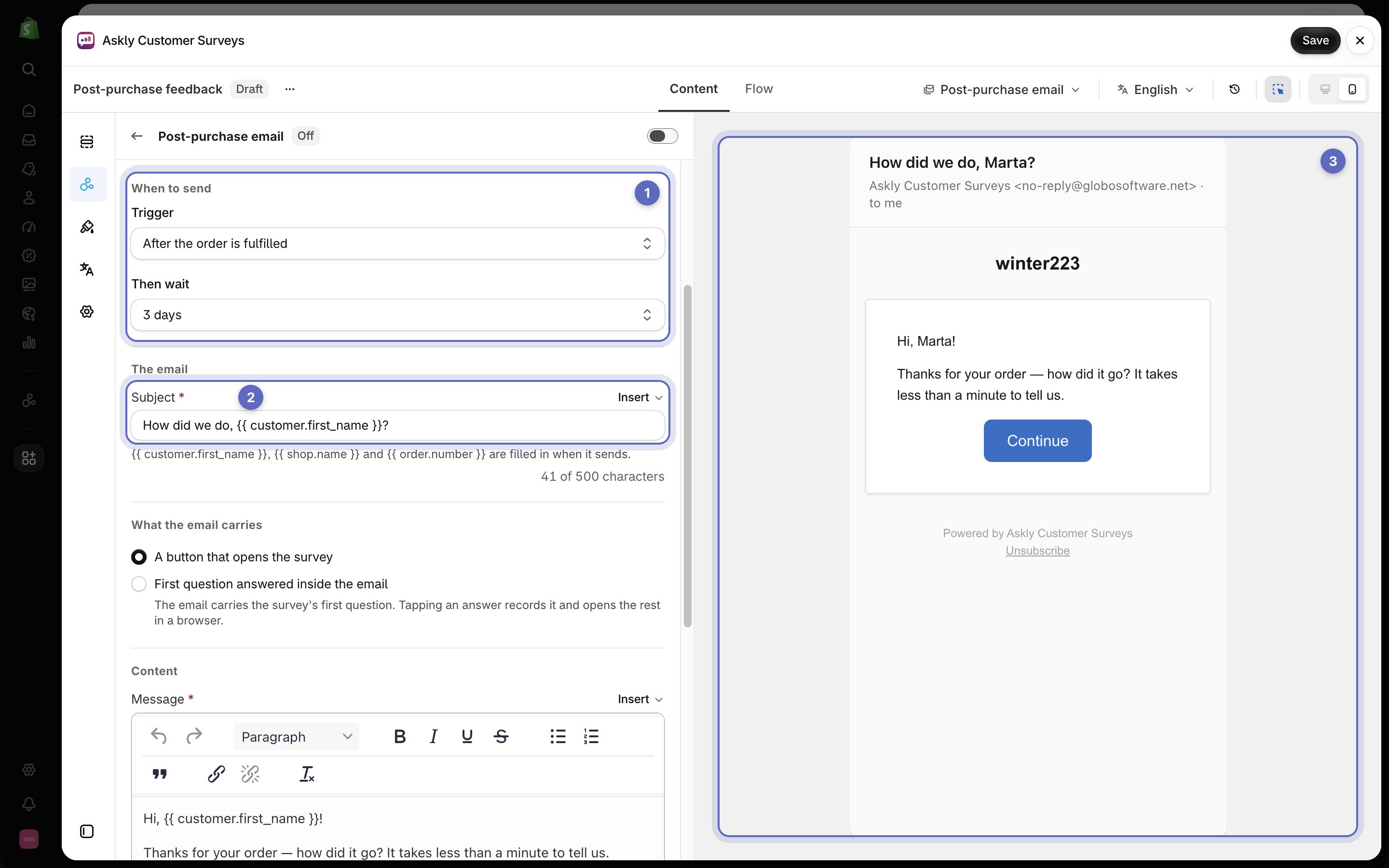
2. Under **Trigger**, pick when to send it: **When the order is placed**, **After the order is fulfilled**, or **After the order is delivered**. Under **Then wait**, pick how long.
3. Write the **Subject** and **Message**.
4. Under **What the email carries**, pick **A button that opens the survey**, or **First question answered inside the email**.
5. Select **Save**, then **Send test email** under the message. The test goes to your store's email address.

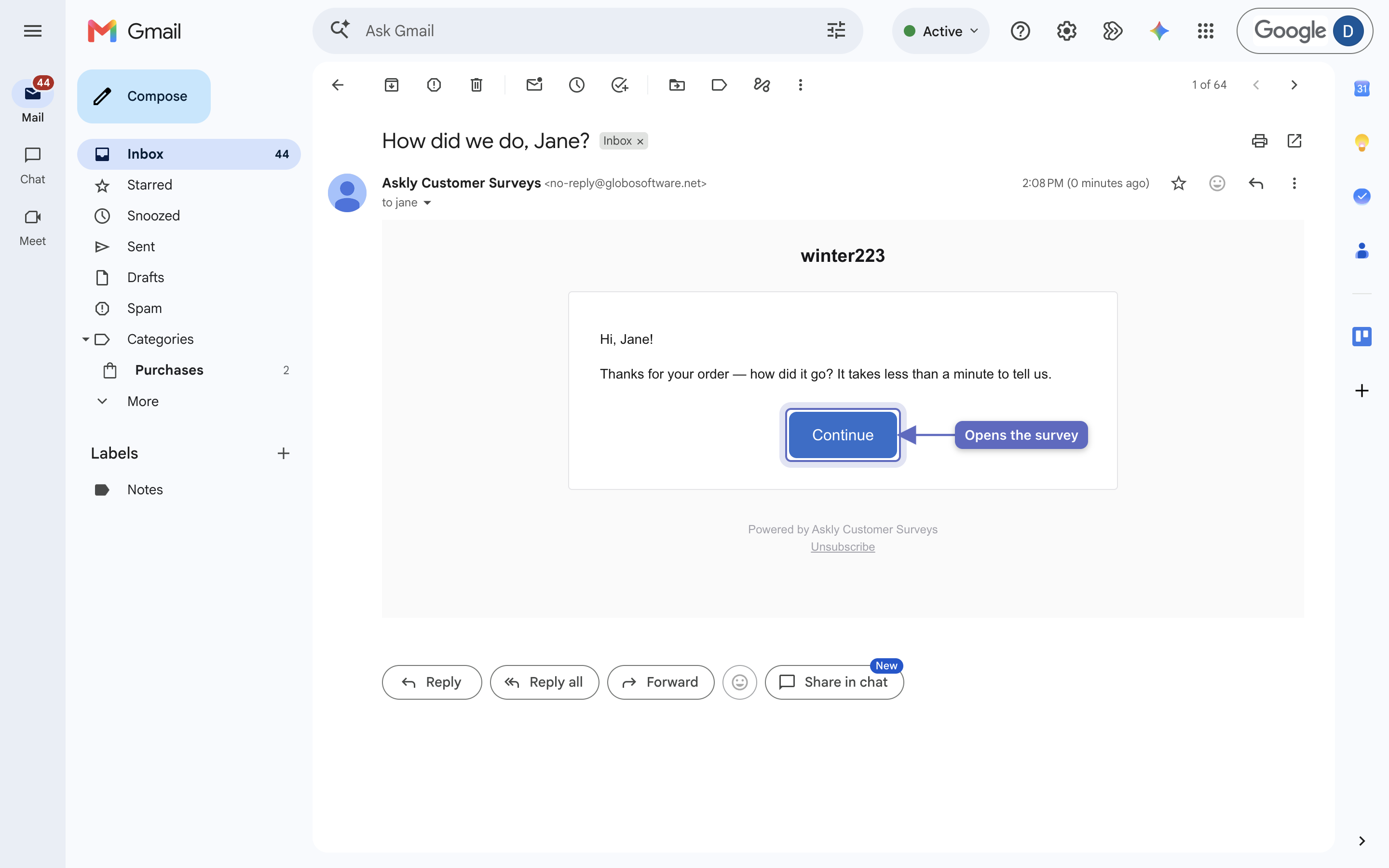
   <figure><img src="https://609121677-files.gitbook.io/~/files/v0/b/gitbook-x-prod.appspot.com/o/spaces%2FZGBRJVX5BLagz6gFEmK1%2Fuploads%2Fgit-blob-b8d9ab22b8170ba9a36e03dbe45c50cc9bf4dec5%2Fscreenshot-email-post-purchase-inbox.png?alt=media" alt="A test post-purchase email received in an inbox with a Continue button that opens the survey"><figcaption><p>The test email arrives with your message and a button that opens the survey in the customer's browser.</p></figcaption></figure>
6. At the top, turn on **Send a post-purchase email** and select **Save**. If Shopify asks for access to your orders, allow it.

   <figure><img src="https://609121677-files.gitbook.io/~/files/v0/b/gitbook-x-prod.appspot.com/o/spaces%2FZGBRJVX5BLagz6gFEmK1%2Fuploads%2Fgit-blob-c5bec3d5e4bc62e843129a1ff7d795f6635ad499%2Fscreenshot-email-post-purchase-turn-on.png?alt=media" alt="The Post-purchase email settings with the switch turned on and the Save button"><figcaption><p>Turn on Send a post-purchase email (1) and select Save (2).</p></figcaption></figure>

<figure><img src="https://609121677-files.gitbook.io/~/files/v0/b/gitbook-x-prod.appspot.com/o/spaces%2FZGBRJVX5BLagz6gFEmK1%2Fuploads%2Fgit-blob-d8f36d5e4773fe9a80fd3185b321bdde9c8a8967%2Fscreenshot-post-purchase-email-settings.png?alt=media" alt="The Post-purchase email settings with the trigger and wait, the subject, what the email carries, and a preview of the email"><figcaption><p>Choose when to send (1), write the subject (2), and check the preview (3) before you turn the email on.</p></figcaption></figure>

{% hint style="info" %}
Want a customer's name in the subject? Type `{{ customer.first_name }}`. You can also use `{{ shop.name }}` and `{{ order.number }}`. They're filled in when the email sends.
{% endhint %}

If the carrier never reports delivery, an **After the order is delivered** email goes 7 days after the order is fulfilled, plus your wait.

Turning off **Send a post-purchase email** stops new emails. Customers who already got one can still answer it. To stop all answers, [pause the survey](/askly-customer-surveys/surveys/manage.md).

## Embed in your own email

Askly gives you a piece of code to paste into your email. You send the email yourself, so the survey's audience and schedule settings don't apply.

1. Go to **Channels → Embed in email**.
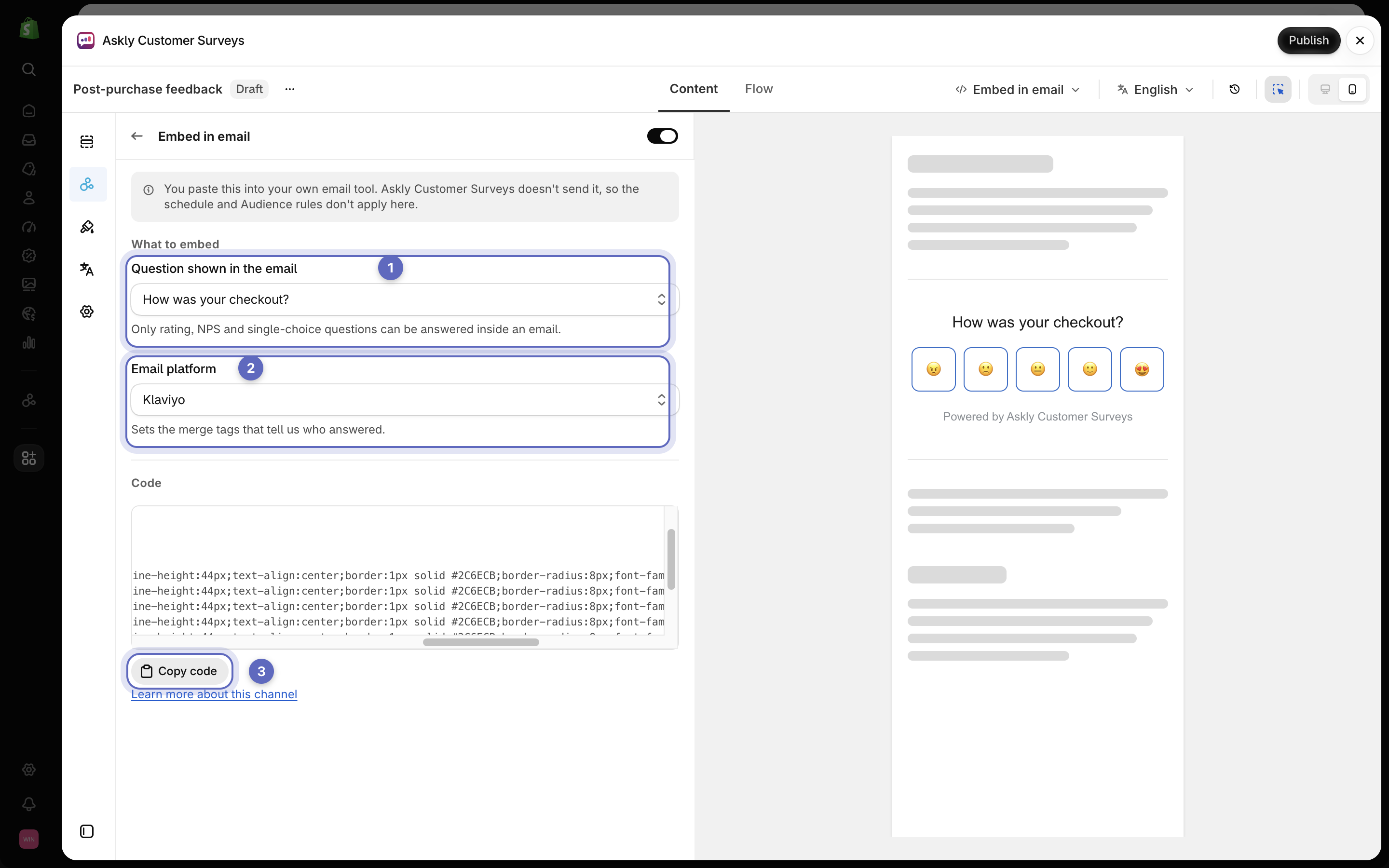
2. Under **Question shown in the email**, pick a question. Only NPS, rating, and single-choice questions work in an email.
3. Under **Email platform**, pick the tool you use, or **Other — plain link**.
4. Turn on **Provide an email embed code** and select **Save**.
5. Select **Copy code** and paste it into your email.
6. Send yourself a test before sending it to customers.

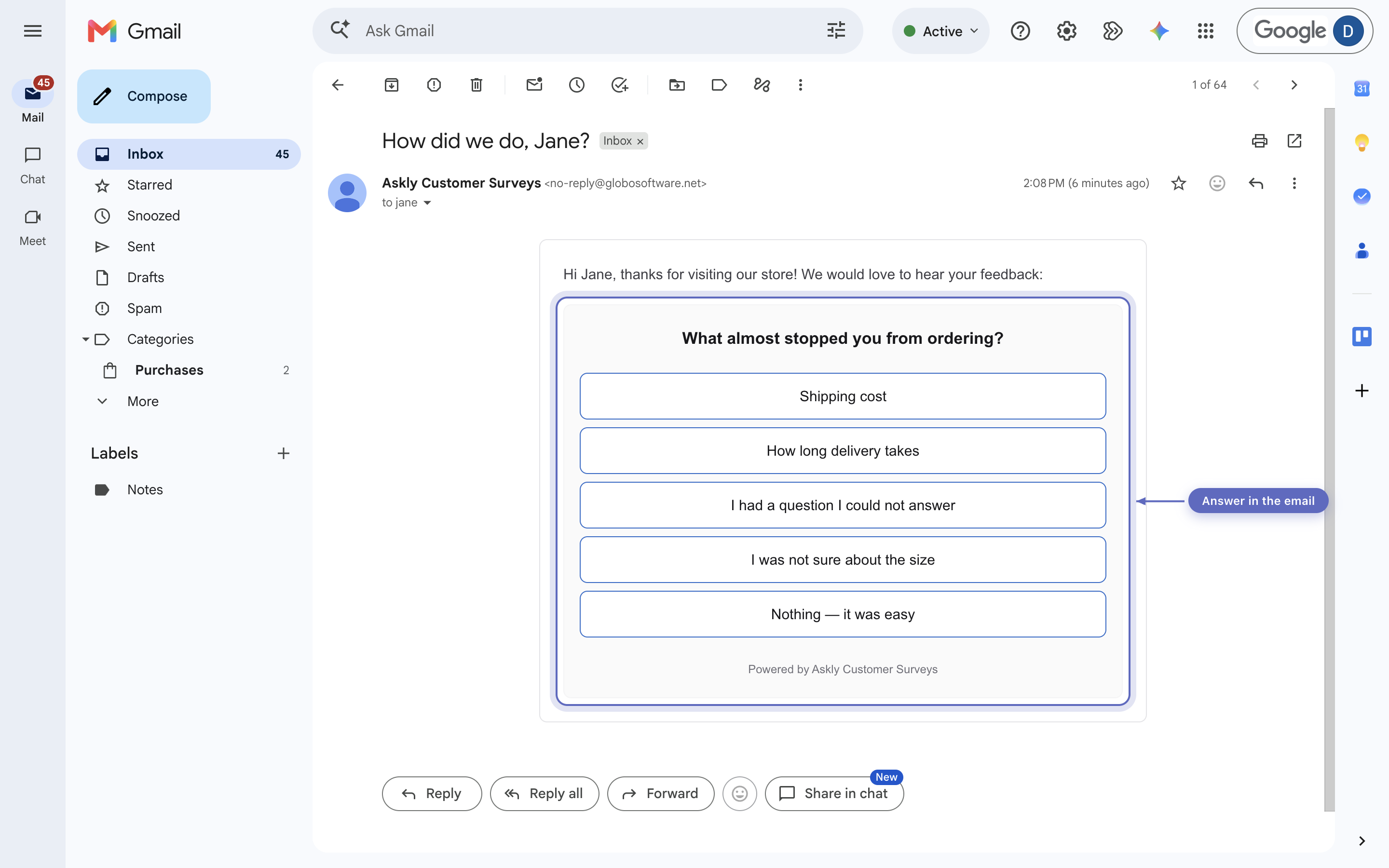
   <figure><img src="https://609121677-files.gitbook.io/~/files/v0/b/gitbook-x-prod.appspot.com/o/spaces%2FZGBRJVX5BLagz6gFEmK1%2Fuploads%2Fgit-blob-891e1f6ad23aa8e229434875a749137574cca67a%2Fscreenshot-embed-in-email-received.png?alt=media" alt="An email carrying an embedded survey question with selectable answer choices"><figcaption><p>The embedded survey question renders directly inside the email body so customers can respond without opening a new tab first.</p></figcaption></figure>

<figure><img src="https://609121677-files.gitbook.io/~/files/v0/b/gitbook-x-prod.appspot.com/o/spaces%2FZGBRJVX5BLagz6gFEmK1%2Fuploads%2Fgit-blob-18a77e1b1a7e67791c365d9487d1e33aad00ba08%2Fscreenshot-embed-in-email.png?alt=media" alt="The Embed in email settings with the question picker, the email platform picker and the Copy code button"><figcaption><p>Pick the question (1) and your email platform (2), then select Copy code (3) and paste it into your email.</p></figcaption></figure>

To stop collecting answers from emails you already sent, turn off **Provide an email embed code** and select **Save**. A customer who taps a button in one of those emails then sees that the survey isn't accepting responses.

## Standalone page

A page just for your survey, with its own link.

1. Go to **Channels → Standalone page**.
2. Turn on **Publish a standalone page**.
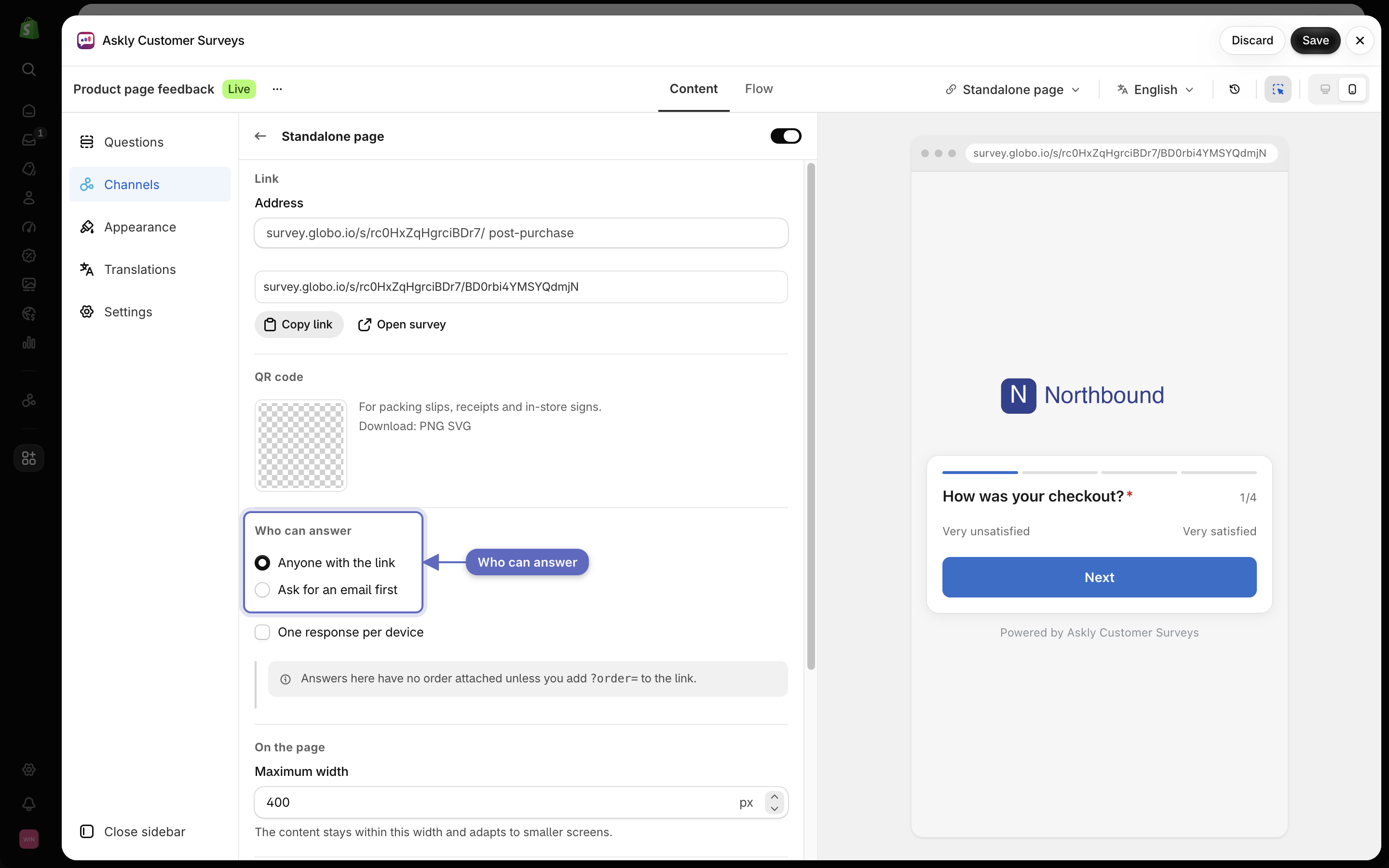
3. Under **Who can answer**, keep **Anyone with the link**, or pick **Ask for an email first**.

   <figure><img src="https://609121677-files.gitbook.io/~/files/v0/b/gitbook-x-prod.appspot.com/o/spaces%2FZGBRJVX5BLagz6gFEmK1%2Fuploads%2Fgit-blob-cac0198353435b2c6d4fe889e86c81e7b0b1125f%2Fscreenshot-standalone-who-can-answer.png?alt=media" alt="The Standalone page settings with Who can answer options: Anyone with the link and Ask for an email first"><figcaption><p>Choose who can answer the survey: anyone with the link or only people who enter an email first.</p></figcaption></figure>
4. Select **Save**. The link works from now on.
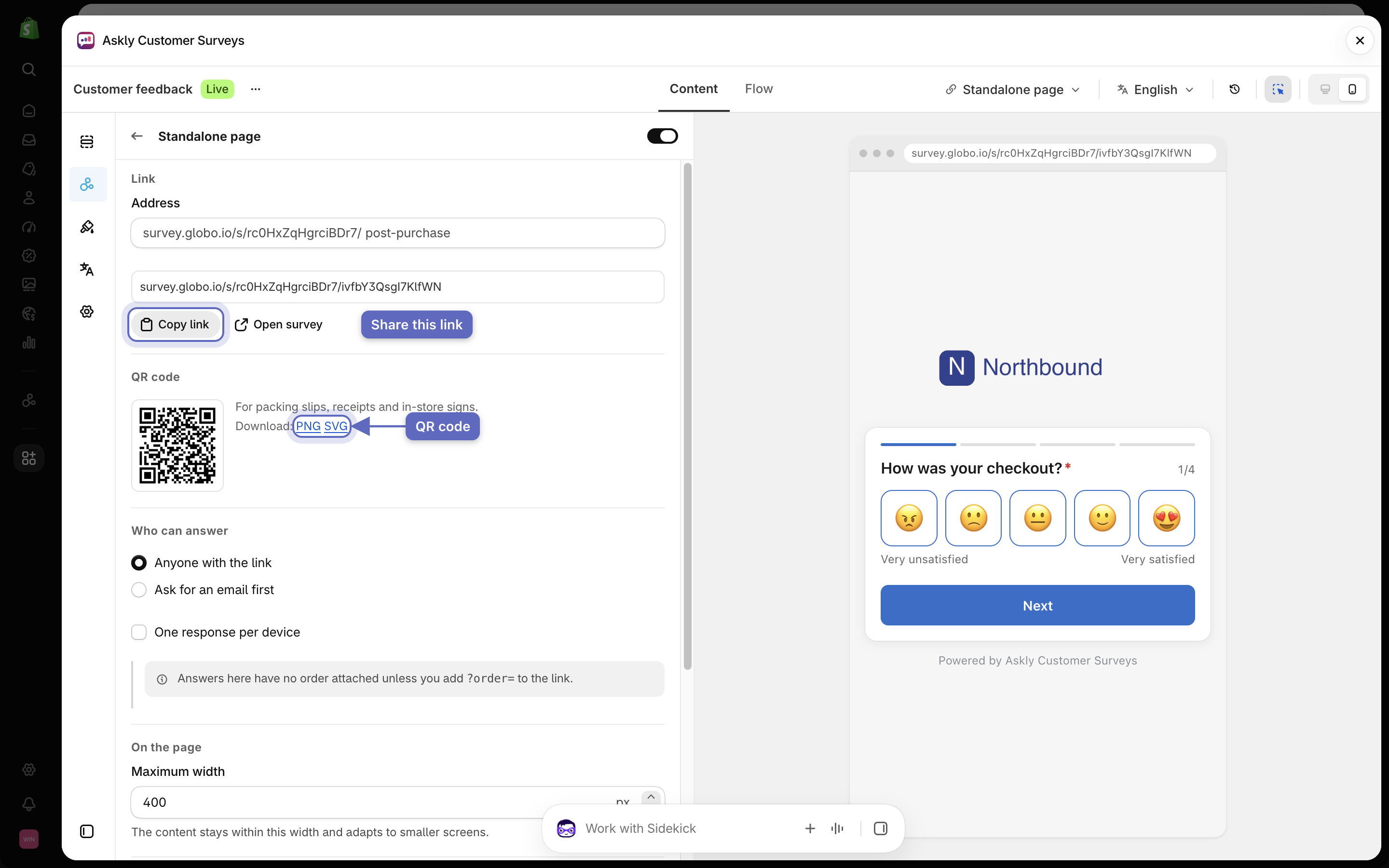
5. Select **Copy link** to share it. For the QR code, select **PNG** or **SVG** next to **Download:**.

<figure><img src="https://609121677-files.gitbook.io/~/files/v0/b/gitbook-x-prod.appspot.com/o/spaces%2FZGBRJVX5BLagz6gFEmK1%2Fuploads%2Fgit-blob-c62a60966a9dcb4c3c8dcebf3e8e4e6bdbb5082f%2Fscreenshot-standalone-page-link-qr.png?alt=media" alt="The Standalone page settings with the survey link and Copy link, and a QR code with PNG and SVG download links"><figcaption><p>Share the link, or download the QR code as a PNG or SVG to print it.</p></figcaption></figure>

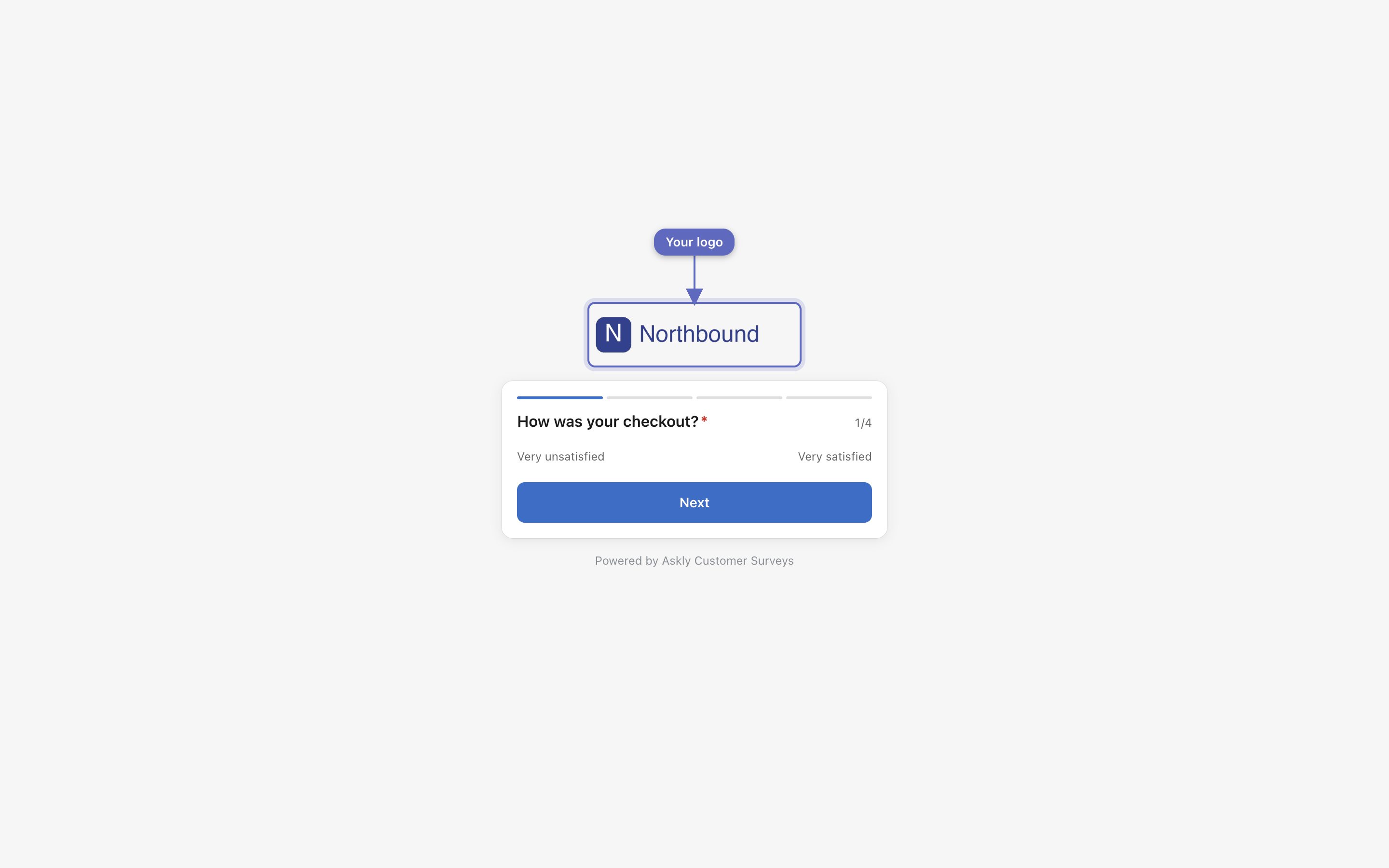
<figure><img src="https://609121677-files.gitbook.io/~/files/v0/b/gitbook-x-prod.appspot.com/o/spaces%2FZGBRJVX5BLagz6gFEmK1%2Fuploads%2Fgit-blob-52a4fd233dca7b899f4084441d3416f025a646be%2Fscreenshot-standalone-page-live.png?alt=media" alt="The live standalone survey page showing the store logo centered above the first question"><figcaption><p>The standalone page displays your store logo above the survey card.</p></figcaption></figure>

Answers from this page have no order attached. Add your logo to the page in [Branding](/askly-customer-surveys/settings/branding.md).