> For the complete documentation index, see [llms.txt](https://docs.globo.io/llms.txt). Markdown versions of documentation pages are available by appending `.md` to page URLs; this page is available as [Markdown](https://docs.globo.io/askly-customer-surveys/where-surveys-appear/channels/online-store.md).

# Online store

Show a survey on your online store as a popup, a corner box, or inside a page.

Before you start, [turn on the app in your theme](/askly-customer-surveys/getting-started/enable-theme-embed.md).

1. Open the survey and go to **Channels → Online store**.
2. At the top, turn on **Show on the online store**.
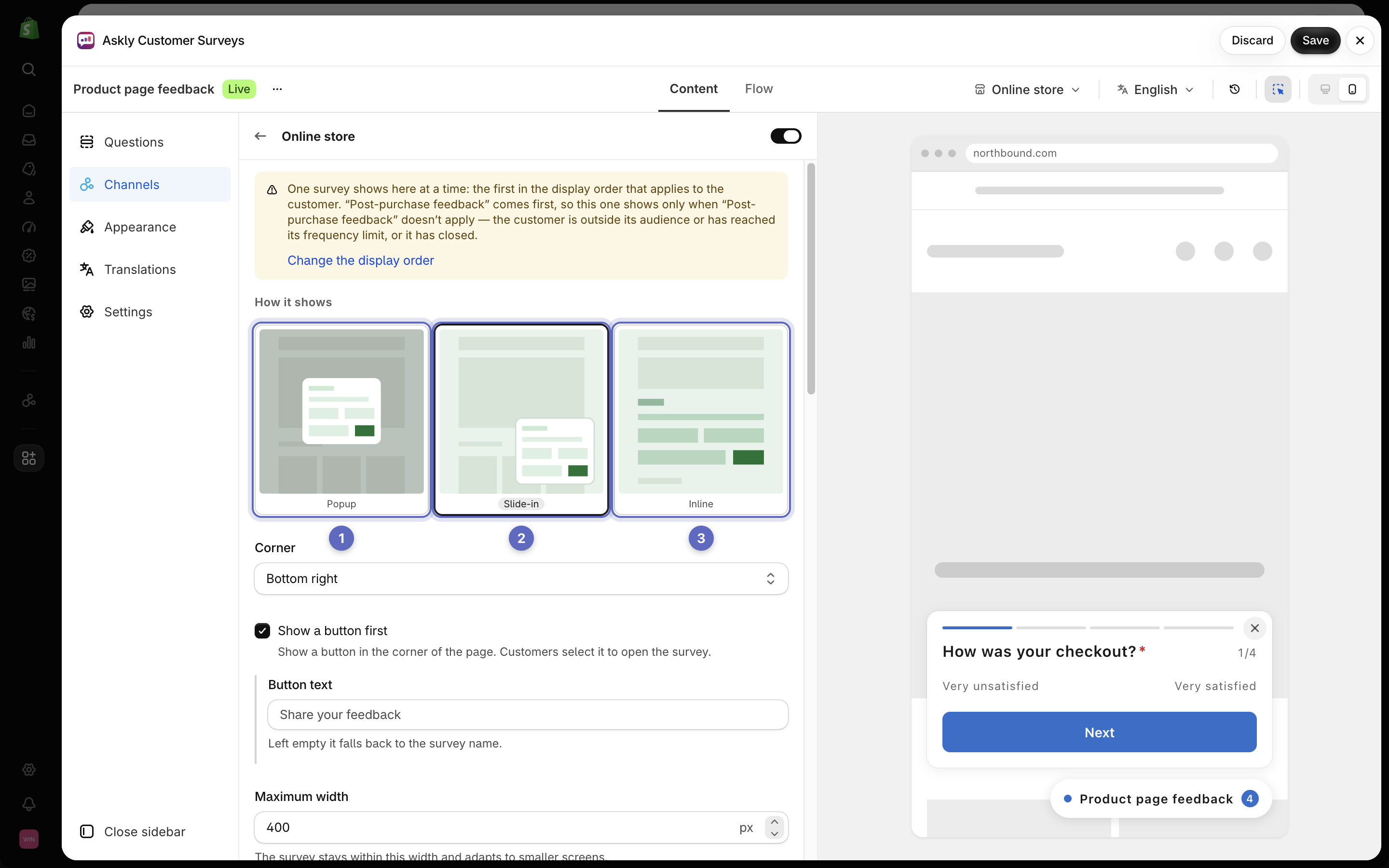
3. Under **How it shows**, pick one:
   * **Popup** — in the middle of the screen.
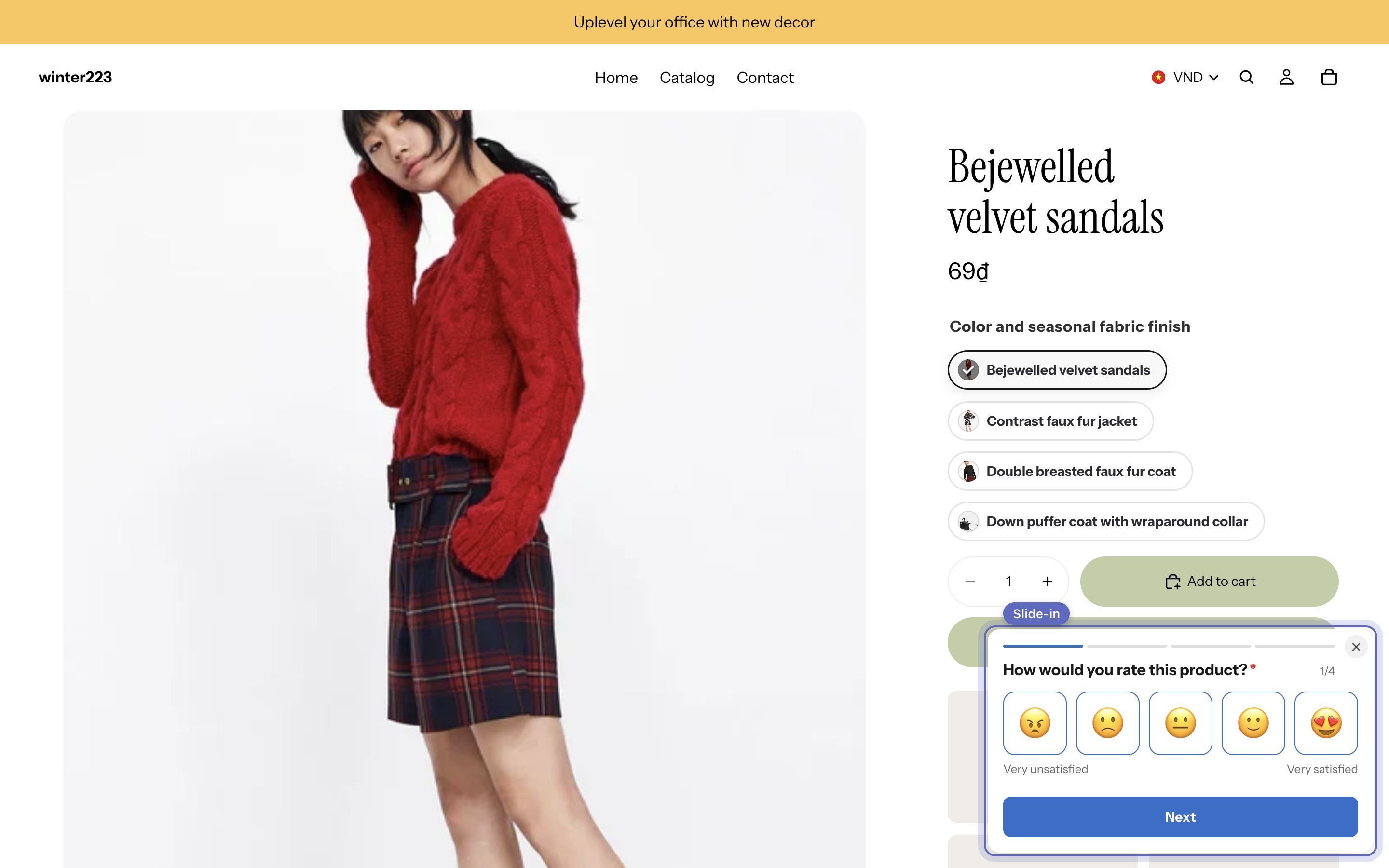
   * **Slide-in** — a small box in the corner.
   * **Inline** — inside the page, where you put it. [See below](#show-it-inside-a-page).

<figure><img src="https://609121677-files.gitbook.io/~/files/v0/b/gitbook-x-prod.appspot.com/o/spaces%2FZGBRJVX5BLagz6gFEmK1%2Fuploads%2Fgit-blob-8cdbb8eb87469a730dad2972ae651c2ec12fac1f%2Fscreenshot-online-store-how-it-shows.png?alt=media" alt="How it shows section offering Popup (1), Slide-in (2), and Inline (3) options with Slide-in selected"><figcaption><p>Choose how the survey displays: as a centered popup (1), a corner slide-in (2), or placed inline on the page (3).</p></figcaption></figure>

<figure><img src="https://609121677-files.gitbook.io/~/files/v0/b/gitbook-x-prod.appspot.com/o/spaces%2FZGBRJVX5BLagz6gFEmK1%2Fuploads%2Fgit-blob-1ad5343cb43d0ddb5cb02663aba1ce7632b1b8ff%2Fscreenshot-online-store-slide-in-storefront.png?alt=media" alt="Storefront product page displaying the slide-in survey box anchored in the bottom corner with a Slide-in annotation label"><figcaption><p>A slide-in survey appears in the corner of the product page without blocking the main content.</p></figcaption></figure>

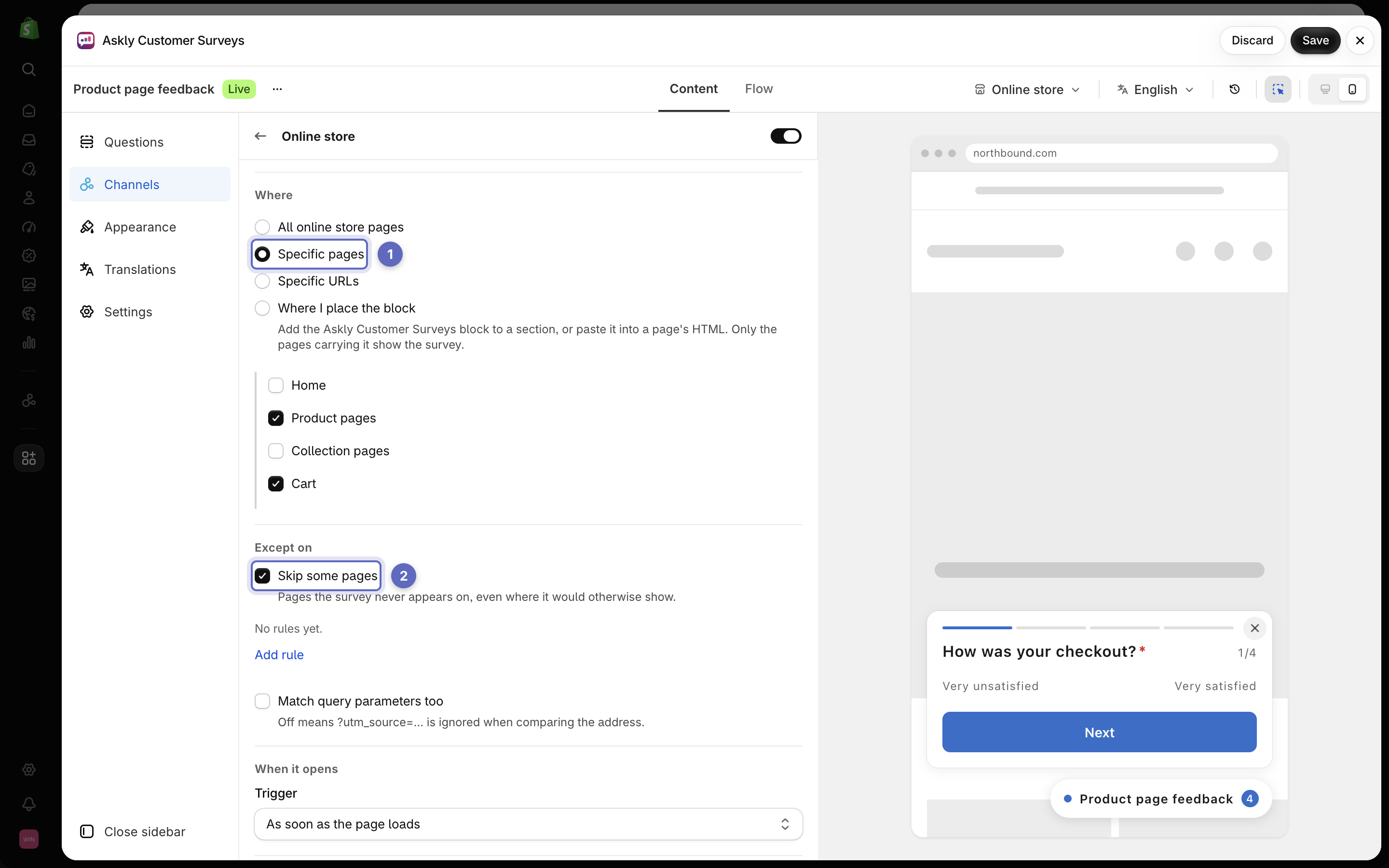
4. Under **Where**, keep **All online store pages**, or pick **Specific pages** such as **Product pages** or **Cart**. To leave some pages out, use **Skip some pages**.

<figure><img src="https://609121677-files.gitbook.io/~/files/v0/b/gitbook-x-prod.appspot.com/o/spaces%2FZGBRJVX5BLagz6gFEmK1%2Fuploads%2Fgit-blob-60e4e03fa591a43ece14f7642bb49c5fae9b33aa%2Fscreenshot-online-store-where-specific-pages.png?alt=media" alt="Where section with Specific pages (1) selected, Product pages and Cart checked, and Skip some pages (2) open"><figcaption><p>Limit the survey to specific pages (1) and exclude pages where it should never appear (2).</p></figcaption></figure>

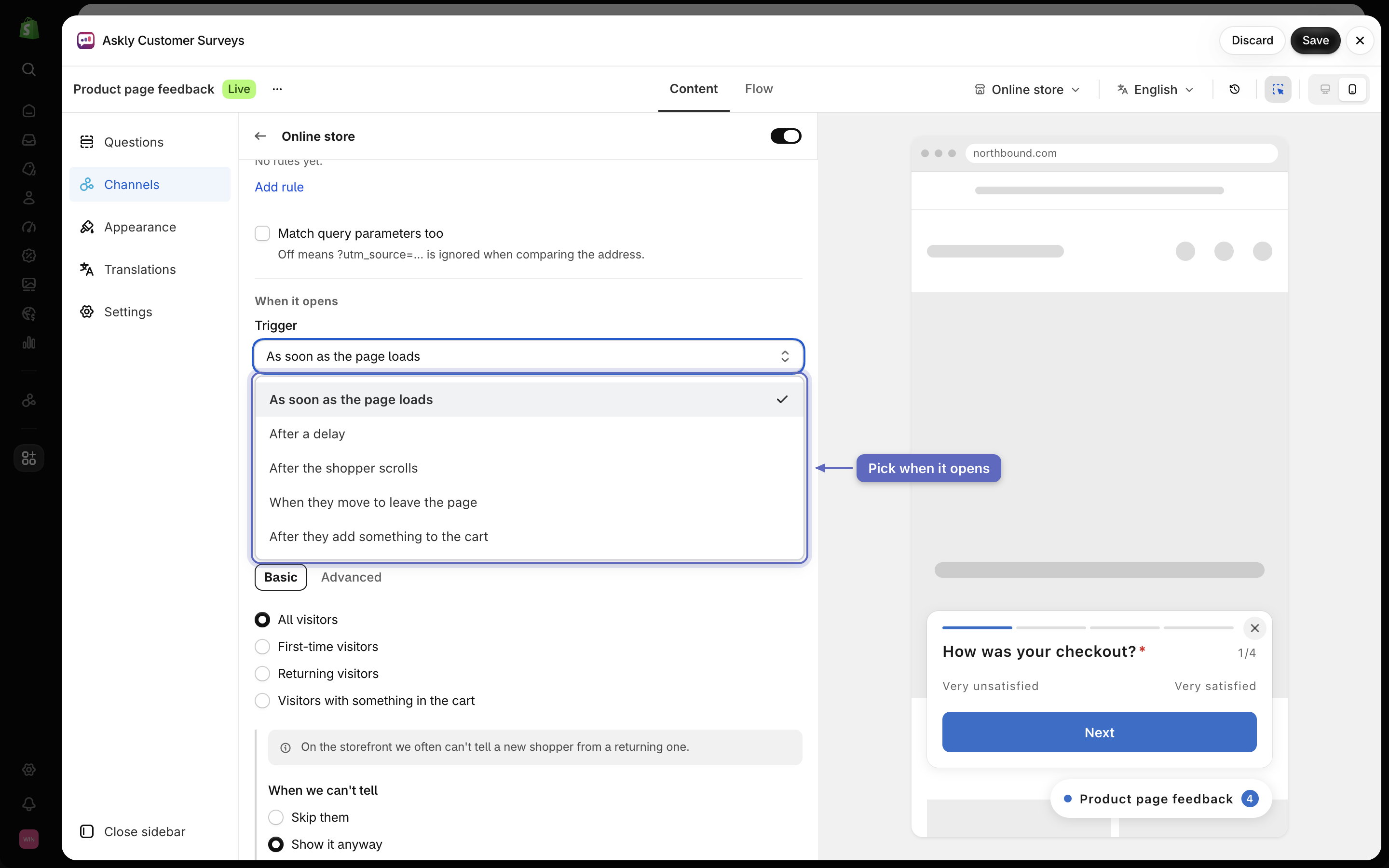
5. Under **When it opens**, pick a **Trigger**, such as **As soon as the page loads**, **After a delay**, or **After the shopper scrolls**.

<figure><img src="https://609121677-files.gitbook.io/~/files/v0/b/gitbook-x-prod.appspot.com/o/spaces%2FZGBRJVX5BLagz6gFEmK1%2Fuploads%2Fgit-blob-f84b2e821d12d6540d9d5023e05347aba4bbe66a%2Fscreenshot-online-store-trigger-menu.png?alt=media" alt="When it opens section with the Trigger menu open showing every trigger option, annotated with a Pick when it opens label"><figcaption><p>Select when the survey displays, such as immediately on page load, after a delay, or upon scroll.</p></figcaption></figure>

6. Under **Devices**, pick **Desktop**, **Mobile**, or both.
7. Select **Save**.

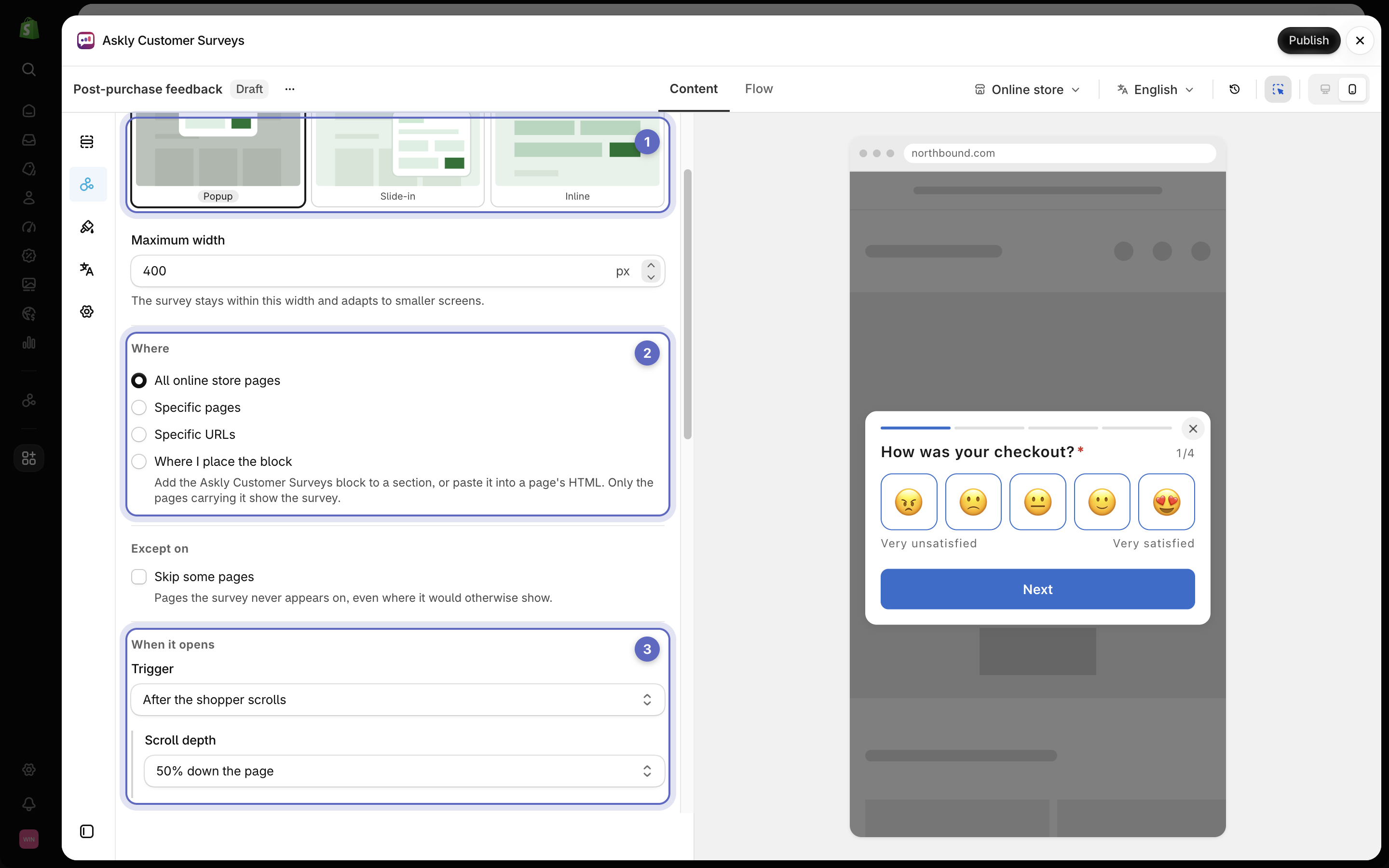
<figure><img src="https://609121677-files.gitbook.io/~/files/v0/b/gitbook-x-prod.appspot.com/o/spaces%2FZGBRJVX5BLagz6gFEmK1%2Fuploads%2Fgit-blob-97afeba214431f1dd3e4c020d6dbde8592769bfa%2Fscreenshot-online-store-settings.png?alt=media" alt="The Online store settings with the popup style, the Where choices and the Trigger, next to a preview of the survey"><figcaption><p>Pick how it shows (1), where it shows (2), and when it opens (3).</p></figcaption></figure>

## Show it inside a page

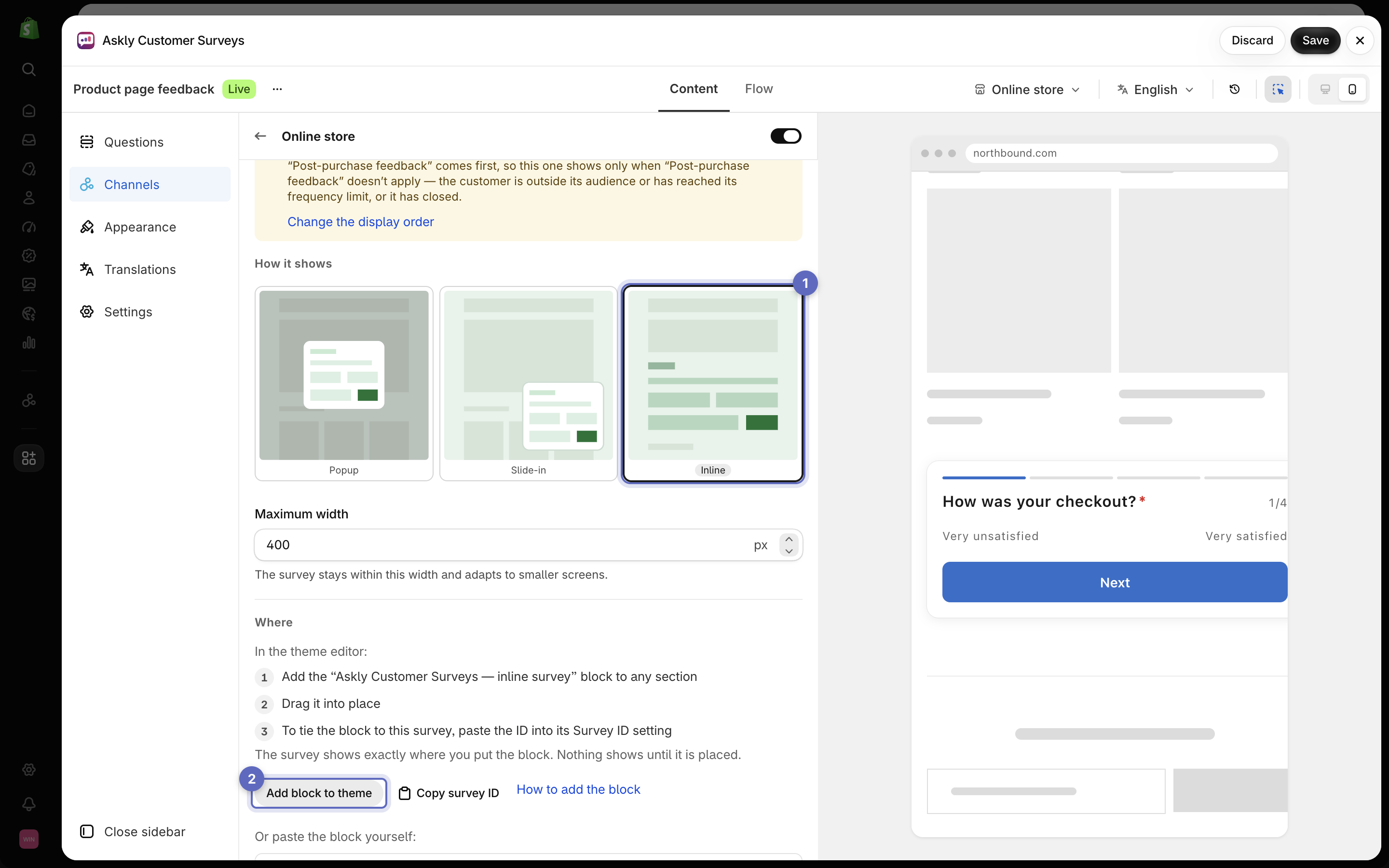
1. Under **How it shows**, pick **Inline**, then select **Add block to theme**. The theme editor opens with the **Askly Customer Surveys — inline survey** block added.

<figure><img src="https://609121677-files.gitbook.io/~/files/v0/b/gitbook-x-prod.appspot.com/o/spaces%2FZGBRJVX5BLagz6gFEmK1%2Fuploads%2Fgit-blob-f39256840601b5b2f4ab617ad353d32757277c53%2Fscreenshot-online-store-add-block-button.png?alt=media" alt="How it shows section with Inline (1) selected and the Add block to theme button (2) displayed below"><figcaption><p>Select Inline (1) to reveal the Add block to theme button (2) for embedding the survey directly into page content.</p></figcaption></figure>

2. Drag the block where you want it, and save the theme.
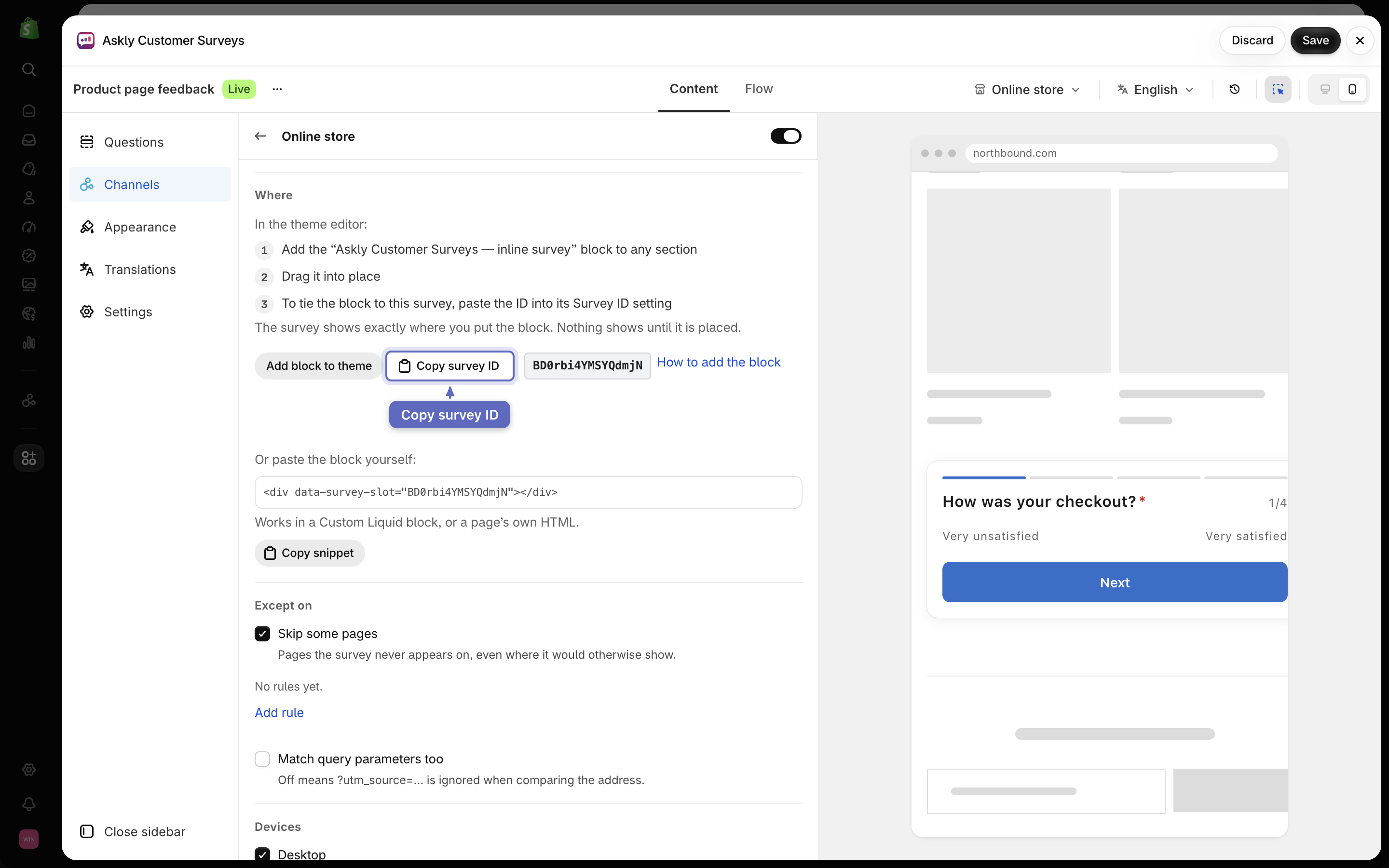
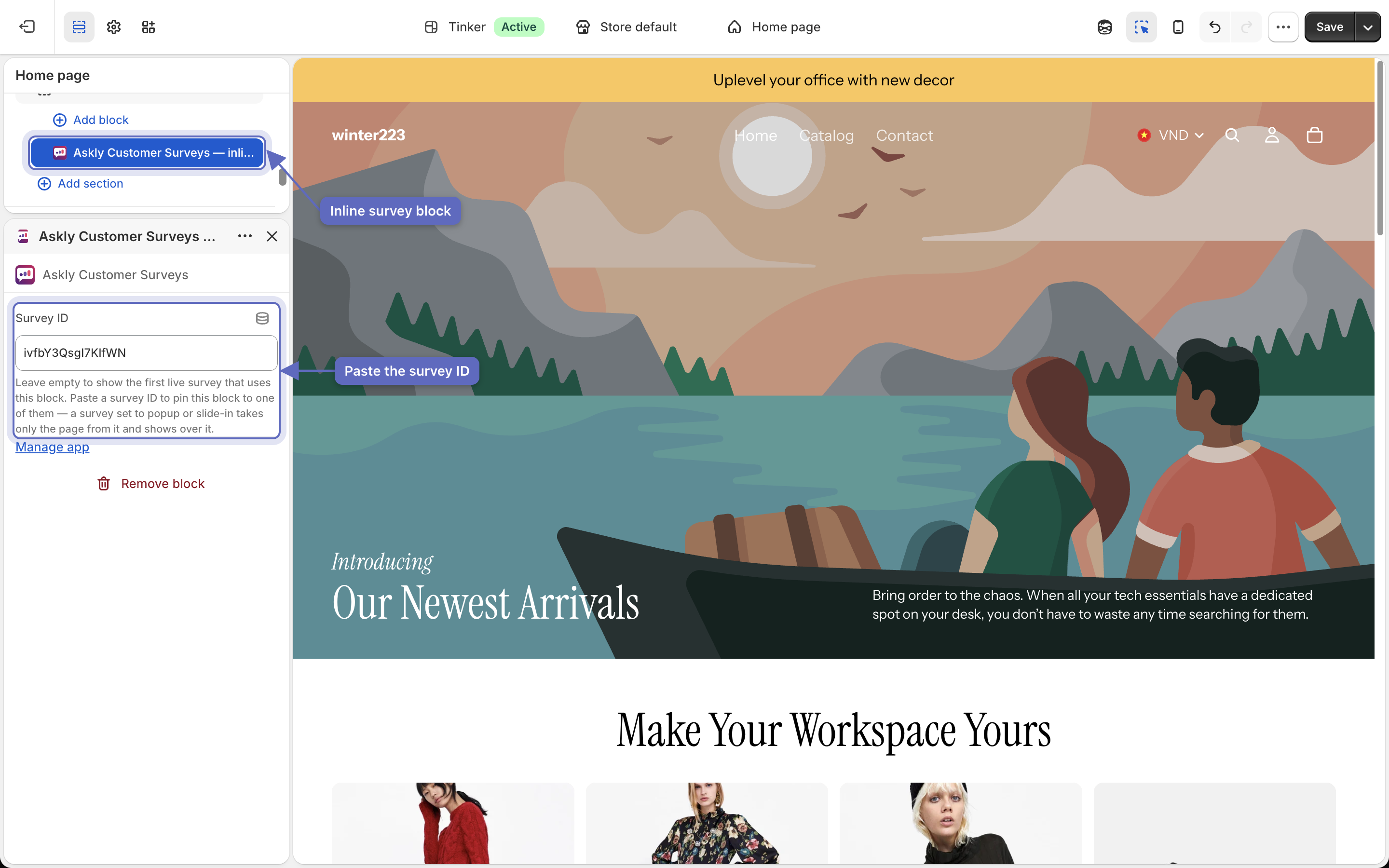
3. Have more than one inline survey? Back in Askly, select **Copy survey ID**. Paste it into the block's **Survey ID** setting, and save the theme again.

<figure><img src="https://609121677-files.gitbook.io/~/files/v0/b/gitbook-x-prod.appspot.com/o/spaces%2FZGBRJVX5BLagz6gFEmK1%2Fuploads%2Fgit-blob-6095b85f129c0d708da7145c4ceb41bfcb4cebec%2Fscreenshot-online-store-copy-survey-id.png?alt=media" alt="The Copy survey ID button displayed next to the survey ID chip and annotated with a pointer arrow"><figcaption><p>Select Copy survey ID to copy the survey's identifier for pasting into the theme editor block.</p></figcaption></figure>

<figure><img src="https://609121677-files.gitbook.io/~/files/v0/b/gitbook-x-prod.appspot.com/o/spaces%2FZGBRJVX5BLagz6gFEmK1%2Fuploads%2Fgit-blob-6fa575686c66523e73d292cb04f69b19290c5968%2Fscreenshot-online-store-inline-block.png?alt=media" alt="The theme editor with the Askly Customer Surveys inline survey block selected in the section list and its Survey ID filled in"><figcaption><p>Select the block in the section list, then paste the survey ID into Survey ID to show that survey here.</p></figcaption></figure>

The survey shows exactly where the block is. Nothing shows until you place it.

<figure><img src="https://609121677-files.gitbook.io/~/files/v0/b/gitbook-x-prod.appspot.com/o/spaces%2FZGBRJVX5BLagz6gFEmK1%2Fuploads%2Fgit-blob-19d0d672272e4b0370e9906266bebcc758af233e%2Fscreenshot-online-store-inline-on-page.png?alt=media" alt="Storefront product page with the inline survey embedded in the page flow directly below the product description"><figcaption><p>The inline survey sits naturally inside the product page content below the description.</p></figcaption></figure>

{% hint style="info" %}
**When they move to leave the page** only works with a mouse. On phones and tablets, the survey shows after 20 seconds instead.
{% endhint %}

Can't see it? Open your store in a private window, then follow [Survey not showing?](/askly-customer-surveys/help/troubleshooting.md).