> For the complete documentation index, see [llms.txt](https://docs.globo.io/llms.txt). Markdown versions of documentation pages are available by appending `.md` to page URLs; this page is available as [Markdown](https://docs.globo.io/globo-b2b-bulk-order/collection-quick-order/overview.md).

# Collection Quick Order overview

Let buyers add products to the cart straight from the product cards on your collection pages, search results and other product grids.

Collection Quick Order adds add-to-cart controls to the product cards in your store's product grids: collection pages, search results, your home page and the related-product sections on product pages. Buyers choose a variant, set a quantity and add the product to the cart without opening its product page.

The app finds the product cards in your theme and adds the controls by itself. You don't need an app block or a shortcode. You decide which products, buyers and pages get the controls, and whether they appear as a button below each product or as a cart icon on each product image.

{% hint style="info" %}
In a few places the app also uses the name **Quick Buy Collection**: it's the default name of a new form and the name of this feature's section in **Settings** > **Translations**. Both names refer to the same feature.
{% endhint %}

## Choose a template

Each Collection Quick Order form uses one of two templates. Each guide below takes you from creating the form to checking the result on your storefront.

<table data-view="cards"><thead><tr><th></th><th></th><th data-hidden data-card-target data-type="content-ref"></th></tr></thead><tbody><tr><td><strong>Add a button below products</strong></td><td>Classic template: a variant dropdown, a quantity stepper and an Add to Cart button under each product's price.</td><td><a href="/globo-b2b-bulk-order/collection-quick-order/button-below-product.md">Add a button below products</a></td></tr><tr><td><strong>Add a cart icon on product images</strong></td><td>Floating template: a round cart icon on a corner of each product image that adds to cart or opens a list of variants.</td><td><a href="/globo-b2b-bulk-order/collection-quick-order/icon-on-image.md">Add a cart icon on product images</a></td></tr></tbody></table>

## Before you start

* Turn on the **Globo Bulk Order** app embed in your theme. Without it, no Collection Quick Order appears on your storefront. On the app's Dashboard, in the **Quick Setup Guide**, click **Activate app embed**, then click **Save** in the theme editor that opens. See [Enable the app embed](/globo-b2b-bulk-order/getting-started/enable-app-embed.md).
* Only **Active** forms appear on your storefront. A new form starts as **Active**.
* The app detects the product cards of many themes on its own. If the controls don't appear on your cards, or appear in the wrong place, [contact support](/globo-b2b-bulk-order/help/contact-support.md) so we can check your theme.

## Manage your forms

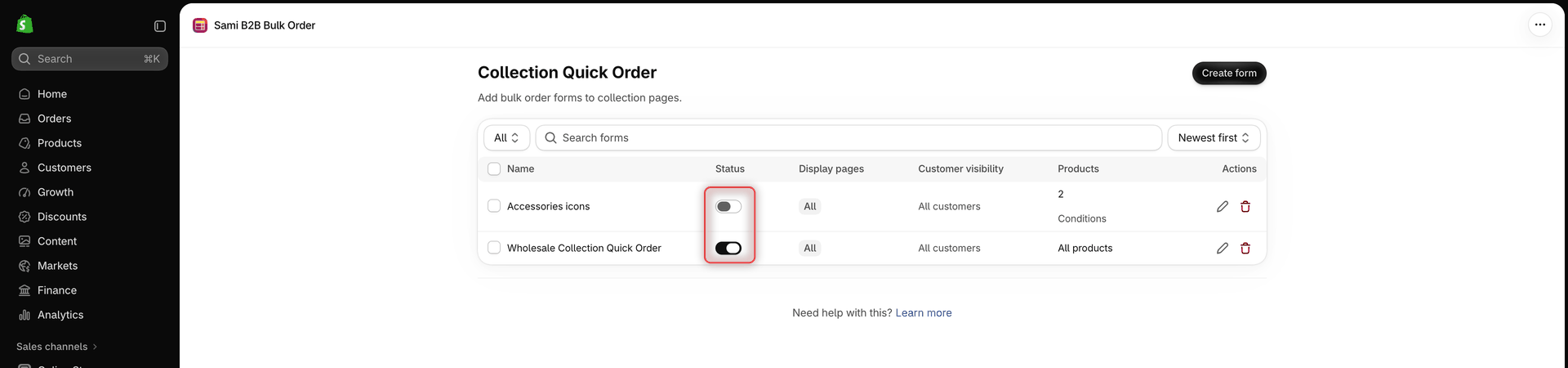
In Shopify admin, go to **Apps** > **Globo B2B Bulk Order**, then click **Collection Quick Order** in the app navigation. The **Collection Quick Order** page lists every form you've created. To start a new one, click **Create form**. Before your first form, the page shows **Create your first collection quick buy form** with a **Create form** button instead.

<figure><img src="https://4205698016-files.gitbook.io/~/files/v0/b/gitbook-x-prod.appspot.com/o/spaces%2FcOPpR31lfLzPdPWnPtOU%2Fuploads%2Fgit-blob-f3e1e9f4943cd2e363747246e4d0b95643e05d79%2Fscreenshot-collection-quick-order-list.png?alt=media" alt="Collection Quick Order list with two forms showing the Name, Status, Display pages, Customer visibility, Products and Actions columns"><figcaption><p>The Collection Quick Order list shows each form's status, pages, buyers and products at a glance.</p></figcaption></figure>

| Column                  | What it shows                                                                                                  |
| ----------------------- | -------------------------------------------------------------------------------------------------------------- |
| **Name**                | The form's name. Buyers don't see it.                                                                          |
| **Status**              | A switch: on means **Active**, off means **Draft**. A change here saves right away and shows **Form updated**. |
| **Display pages**       | The locations picked in **Display location**, or **All** when none are picked.                                 |
| **Customer visibility** | Who can see the form, for example **All customers** or **Customers with tags (2)**.                            |
| **Products**            | **All products**, the number of products you picked, or the number of conditions.                              |
| **Actions**             | The pencil icon opens the form for editing. The trash icon deletes it.                                         |

Above the table, filter the list by status (**All**, **Active** or **Draft**), search by form name with **Search forms**, and sort by **Newest first** or **Oldest first**.

To change several forms at once, tick their checkboxes, then click one of these buttons:

* **Duplicate**: makes a copy of each form right away. A copy has the original's name followed by "(Copy)", and the same settings and status.
* **Set active** or **Set draft**: changes the status after you click **Confirm**.
* **Delete**: removes the forms after you confirm in **Delete collection quick buy form(s)?**. You can't undo this.

## When several forms match a product

A product card shows one Collection Quick Order at most. When more than one **Active** form matches the page, the buyer and the product, the card shows the form you **created** most recently. Editing an older form doesn't move it ahead.

You can use this to give different buyers different controls. For example:

1. Create a form with the **Classic** template for **All products** and **All customers**.
2. Then create a second form with the **Floating** template, limited to **Customers with tags** and the tag `wholesale`.

Buyers tagged `wholesale` see the cart icon from the second form, because it's newer. Everyone else sees the button from the first form, because the second one doesn't match them.

A copy made with **Duplicate** is newer than its original, so an **Active** copy takes over from the original on the same cards. Set the copy to **Draft** until you've finished editing it.

## Stock labels on product cards

When you turn on the **Stock** column in a form, buyers see stock labels:

* **Classic** template: the label of the selected variant, in the row of controls under the price.
* Variant list (the **Floating** template, or **Classic** with **Show variants in a popover**): a label next to each available variant's price. Sold-out variants show **Sold out** instead.

Where the labels come from:

* The quantities that decide each status (**Out of stock**, **Last items**, **Low stock**, **In stock**, **High stock**) come from **Settings** > **Stock thresholds**. See [Stock thresholds](/globo-b2b-bulk-order/settings/stock-status.md).
* The label texts, such as `Only {{count}} left`, come from the **Stock** section in **Settings** > **Translations**.
* Variants whose inventory Shopify doesn't track, and variants at 0 that keep selling when out of stock, show the **High stock** text, for example **100+ available**.

{% hint style="warning" %}
In the row of controls under the price, Collection Quick Order always shows **In stock** labels in green (`#279a4b`) and **Out of stock** labels in red (`#cc1313`), whatever colors you set for those two statuses in **Stock thresholds**. All other labels, including every label in the variant list, use your **Stock thresholds** colors.
{% endhint %}

Prices on the cards and in the variant lists use your store's currency format and the currency the buyer selected.

## Next steps

* [Add a button below products](/globo-b2b-bulk-order/collection-quick-order/button-below-product.md)
* [Add a cart icon on product images](/globo-b2b-bulk-order/collection-quick-order/icon-on-image.md)
* [Customer & product targeting](/globo-b2b-bulk-order/targeting-and-design/customer-and-product-targeting.md)
* [Stock thresholds](/globo-b2b-bulk-order/settings/stock-status.md)
