> For the complete documentation index, see [llms.txt](https://docs.globo.io/llms.txt). Markdown versions of documentation pages are available by appending `.md` to page URLs; this page is available as [Markdown](https://docs.globo.io/globo-b2b-bulk-order/getting-started/dashboard.md).

# Dashboard

Find your way around the Globo B2B Bulk Order Dashboard, from the setup guide and app embed status to analytics, tool cards, help and the app language.

The Dashboard is the home page of Globo B2B Bulk Order. It opens when you go to **Apps** > **Globo B2B Bulk Order** in Shopify admin. The app's menu has no Dashboard item, so click **Globo B2B Bulk Order** in the Shopify sidebar whenever you want to come back here.

From top to bottom, the Dashboard shows a greeting with the language button, the **Quick Setup Guide ⚡**, **Analytics overview**, **Bulk order tools**, **Latest updates** and **Help and resources**.

## Greeting and app embed warning

The page opens with **Hi, {your store name}! 👋** and **Here's everything you need to set up fast B2B bulk ordering in your store.** On the right is the language button (see [Change the app language](#change-the-app-language)).

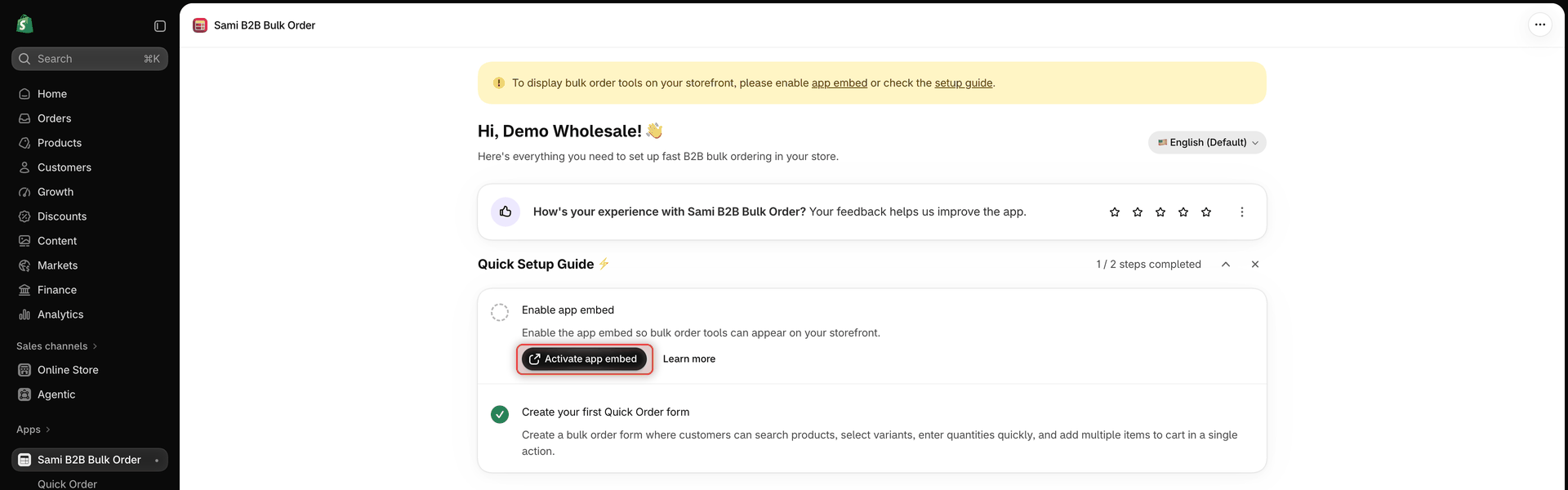
While the app embed is off, a yellow banner appears at the very top: **To display bulk order tools on your storefront, please enable app embed or check the setup guide.**

* **app embed** opens your theme editor with **Globo Bulk Order** turned on. Click **Save** there.
* **setup guide** opens the [Quickstart](/globo-b2b-bulk-order/getting-started/getting-started.md) in this documentation.

The banner goes away as soon as the app detects the embed. See [Enable the app embed](/globo-b2b-bulk-order/getting-started/enable-app-embed.md).

You may also see a feedback banner with star ratings below the greeting; to hide it for now, open its menu (⋮) and choose **Remind me later**.

## Quick Setup Guide

The **Quick Setup Guide ⚡** card tracks the two steps every store needs, with a progress count such as **1 / 2 steps completed**. A finished step shows a check mark and its buttons disappear.

| Step                                   | What it says                                                                                                                                                    | Buttons                                                                                                                                                                   | Done when                                                       |
| -------------------------------------- | --------------------------------------------------------------------------------------------------------------------------------------------------------------- | ------------------------------------------------------------------------------------------------------------------------------------------------------------------------- | --------------------------------------------------------------- |
| **Enable app embed**                   | **Enable the app embed so bulk order tools can appear on your storefront.**                                                                                     | **Activate app embed** opens your theme editor with the embed turned on. **Learn more** opens the [Quickstart](/globo-b2b-bulk-order/getting-started/getting-started.md). | The app embed is on in your published theme                     |
| **Create your first Quick Order form** | **Create a bulk order form where customers can search products, select variants, enter quantities quickly, and add multiple items to cart in a single action.** | **Create Quick Order form** opens the **Quick Order** list. **Learn more** opens [Quick Order Form](/globo-b2b-bulk-order/quick-order-form/overview.md).                  | You have at least one Quick Order form, **Active** or **Draft** |

* Click the arrow button in the card header to collapse or expand the steps.
* Click **X** to dismiss the guide. A **Quick Setup Guide ⚡** button then appears at the top of the page; click it to bring the guide back. The guide stays hidden only in the browser where you dismissed it.

<figure><img src="https://4205698016-files.gitbook.io/~/files/v0/b/gitbook-x-prod.appspot.com/o/spaces%2FcOPpR31lfLzPdPWnPtOU%2Fuploads%2Fgit-blob-1c11a64db8c3a07f4138ec23fba99dc6178733d4%2Fscreenshot-dashboard-setup-guide.png?alt=media" alt="Dashboard Quick Setup Guide card with the steps Enable app embed and Create your first Quick Order form, and the Activate app embed button"><figcaption><p>The Quick Setup Guide tracks the app embed and your first Quick Order form.</p></figcaption></figure>

## Analytics overview

This section tracks the orders and revenue that come from the app's tools. Its description reads **Track bulk orders and revenue generated by your bulk order tools.** Next to the heading you see the app embed status:

* a badge, **App embed is active** or **App embed is not active**
* **Refresh app embed status** (circular arrow button), which checks the status again
* **Activate app embed**, shown only when the embed is off and you dismissed the setup guide

Below are three numbers. Hover over the info icon next to a title to see its description.

| Metric                  | What it counts                                                                                          | Line below the number                                     |
| ----------------------- | ------------------------------------------------------------------------------------------------------- | --------------------------------------------------------- |
| **Bulk Orders**         | All orders that include items added with the app, since you installed it                                | **{n} orders this week**: the orders from the last 7 days |
| **Revenue Generated**   | The total value of those orders: each order's full total, including any other items, shipping and taxes | **Tracked from app orders**                               |
| **Average order value** | **Revenue Generated** divided by **Bulk Orders**                                                        | **Revenue per bulk order**                                |

Amounts are shortened, for example $1.2K, and use your store's currency. There's no date filter. The numbers load each time you open the Dashboard.

<figure><img src="https://4205698016-files.gitbook.io/~/files/v0/b/gitbook-x-prod.appspot.com/o/spaces%2FcOPpR31lfLzPdPWnPtOU%2Fuploads%2Fgit-blob-c30a7fd30636d32ef69fc03bbe88bc3be4a8ac1c%2Fscreenshot-dashboard-analytics-overview.png?alt=media" alt="Dashboard Analytics overview section with the App embed is active badge and the refresh button next to it, above the Bulk Orders, Revenue Generated and Average order value metrics"><figcaption><p>Analytics overview shows the app embed status and your bulk order numbers.</p></figcaption></figure>

{% hint style="info" %}
An order counts when at least one of its items was added to the cart with the Quick Order form, the Variant Table or Collection Quick Order. If a buyer first added an item another way, for example from the product page, and then only changed its quantity in a Quick Order form, that item doesn't count as added by the app.
{% endhint %}

## Bulk order tools

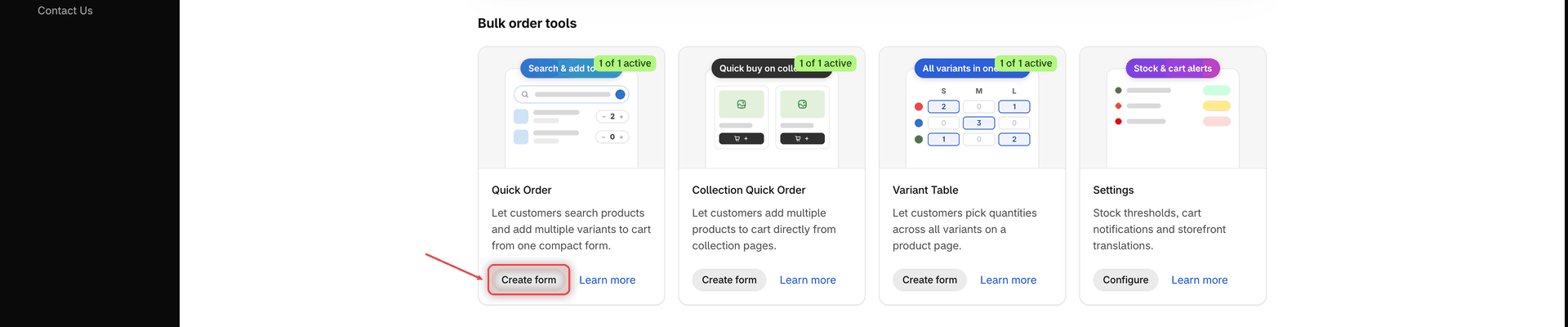
One card for each of the three tools, plus a **Settings** card. Once a tool has at least one form, its card shows a badge on the picture, such as **1 of 2 active**: green when at least one is **Active**, grey when all are **Draft**.

| Card                       | Label on the picture          | Description                                                                                | Button          |
| -------------------------- | ----------------------------- | ------------------------------------------------------------------------------------------ | --------------- |
| **Quick Order**            | **Search & add to cart**      | **Let customers search products and add multiple variants to cart from one compact form.** | **Create form** |
| **Collection Quick Order** | **Quick buy on collections**  | **Let customers add multiple products to cart directly from collection pages.**            | **Create form** |
| **Variant Table**          | **All variants in one table** | **Let customers pick quantities across all variants on a product page.**                   | **Create form** |
| **Settings**               | **Stock & cart alerts**       | **Stock thresholds, cart notifications and storefront translations.**                      | **Configure**   |

* **Create form** opens the editor for a new form right away, full screen. When you close it, the badges update.
* **Configure** opens **Settings** on the **Translations** tab.
* **Learn more** on each card opens the matching page of this documentation: [Quick Order Form](/globo-b2b-bulk-order/quick-order-form/overview.md), [Collection Quick Order](/globo-b2b-bulk-order/collection-quick-order/overview.md), [Variant Table](/globo-b2b-bulk-order/variant-table/overview.md) or [Stock thresholds](/globo-b2b-bulk-order/settings/stock-status.md).

<figure><img src="https://4205698016-files.gitbook.io/~/files/v0/b/gitbook-x-prod.appspot.com/o/spaces%2FcOPpR31lfLzPdPWnPtOU%2Fuploads%2Fgit-blob-d2608aa290219af8eeb27b0b9e9b3211a2959637%2Fscreenshot-dashboard-bulk-order-tools.png?alt=media" alt="Dashboard Bulk order tools section with four cards: Quick Order, Collection Quick Order, Variant Table and Settings, each with a Create form or Configure button and a Learn more link"><figcaption><p>Start a new form for any tool from the Bulk order tools cards.</p></figcaption></figure>

## Latest updates

**Latest updates** lists recent features as tiles. Scroll sideways to see them all. Recent tiles carry a **New** or **Improved** badge. **Try it out** opens the screen where you can use the feature, for example **Settings** > **Order export** or the **Quick Order** list.

The section description says the new Quick Order options are under **Customize** → **File upload**. In the form editor, that section is called **File upload order**. For the full list with details, see [What's new](/globo-b2b-bulk-order/getting-started/whats-new.md).

## Help and resources

This card reads **Our support team is here to help. Choose how you'd like to reach us.** and has four buttons:

| Button              | What it does                                                                                           |
| ------------------- | ------------------------------------------------------------------------------------------------------ |
| **Documentation**   | Opens the [Quickstart](/globo-b2b-bulk-order/getting-started/getting-started.md) in this documentation |
| **Video tutorial**  | Opens the overview video on YouTube                                                                    |
| **Live chat**       | Opens a chat with the Globo support team. If chat isn't available, it opens the **Contact us** page.   |
| **Contact support** | Opens the **Contact us** page. See [Contact support](/globo-b2b-bulk-order/help/contact-support.md).   |

## Change the app language

The app's admin screens are available in 18 languages. You change the language from the Dashboard.

{% stepper %}
{% step %}

### Open the language menu

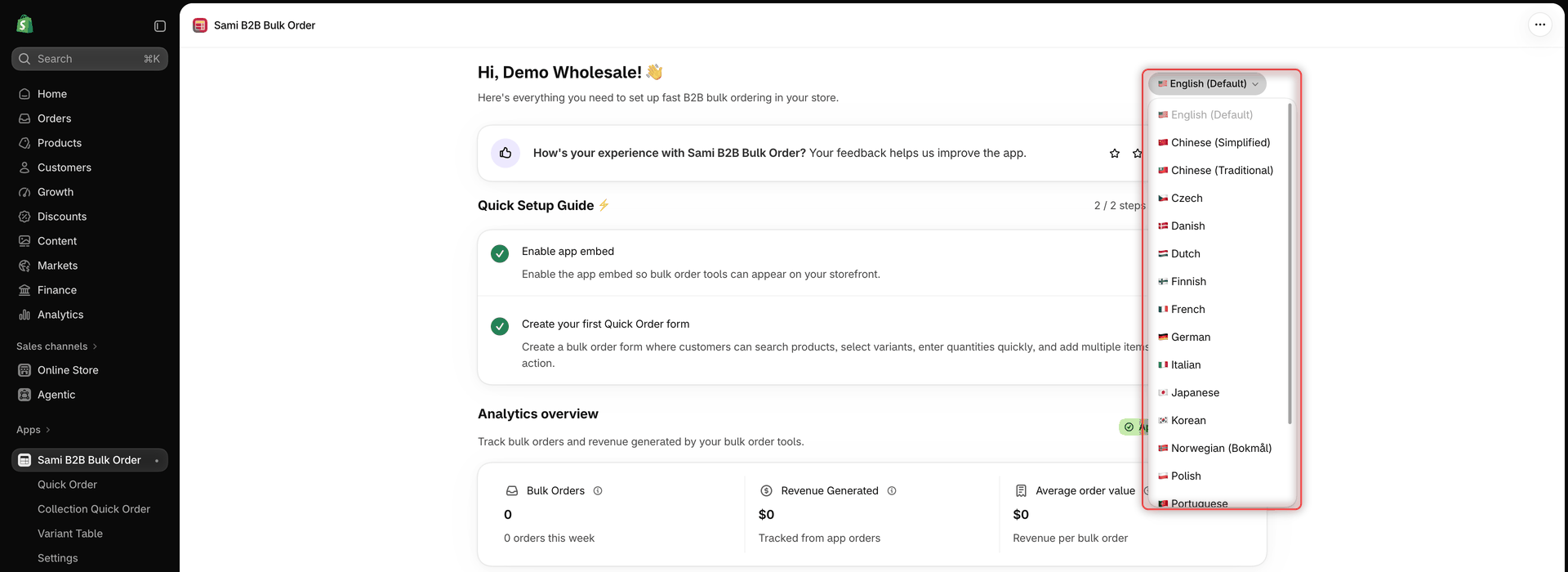
On the Dashboard, click the language button to the right of the greeting. It shows the current language, for example **🇺🇸 English (Default)**.
{% endstep %}

{% step %}

### Choose a language

Click the language you want. The current language is greyed out in the list.
{% endstep %}

{% step %}

### Check the confirmation

The app switches right away and shows **Language updated**, written in the new language. If the change can't be saved, you see **Couldn't change the language. Try again.** and the app goes back to the previous language.
{% endstep %}
{% endstepper %}

<figure><img src="https://4205698016-files.gitbook.io/~/files/v0/b/gitbook-x-prod.appspot.com/o/spaces%2FcOPpR31lfLzPdPWnPtOU%2Fuploads%2Fgit-blob-537242f8faa1200cd6bed67d8bd604ff26922239%2Fscreenshot-dashboard-language-switch.png?alt=media" alt="Dashboard language menu open below the English (Default) button, listing languages such as Chinese (Simplified), Czech, Danish and Dutch"><figcaption><p>Choose the app language from the menu next to the greeting.</p></figcaption></figure>

Available languages: English (Default), Chinese (Simplified), Chinese (Traditional), Czech, Danish, Dutch, Finnish, French, German, Italian, Japanese, Korean, Norwegian (Bokmål), Polish, Portuguese, Spanish, Swedish and Turkish.

The language is saved for your whole store. Everyone on your team who opens the app, on any device, sees the same language.

**What it changes:** the text of the app's own screens, such as the menu, the Dashboard, the form editors and **Settings**.

**What it doesn't change:** your Shopify admin language, and the wording buyers see on your storefront. To change storefront wording, use **Settings** > **Translations** (see [Translations](/globo-b2b-bulk-order/settings/overview.md)).

The app language also matters in three places:

* **Variant Table column headers.** A new Variant Table saves its column headers (**Variant**, **Price**, **Quantity**, **Stock**) in the app language at the moment you create it. Buyers see these headers in every storefront language, and **Settings** > **Translations** doesn't change them. Set the app language to your storefront's main language before you create Variant Tables.
* **Default language in Translations.** In **Settings** > **Translations**, the app language is the default language. It's always published and can't be deleted.
* **Quick Order heading.** In a Quick Order form's **Customize** > **Header**, the language selected first is the app language.

## Next steps

* Follow the [Quickstart](/globo-b2b-bulk-order/getting-started/getting-started.md) to finish both setup steps and add your form to a page.
* Turn on the [app embed](/globo-b2b-bulk-order/getting-started/enable-app-embed.md) if the badge says **App embed is not active**.
* See what changed recently in [What's new](/globo-b2b-bulk-order/getting-started/whats-new.md).