> For the complete documentation index, see [llms.txt](https://docs.globo.io/llms.txt). Markdown versions of documentation pages are available by appending `.md` to page URLs; this page is available as [Markdown](https://docs.globo.io/globo-b2b-bulk-order/getting-started/enable-app-embed.md).

# Enable the app embed

Turn on the Globo Bulk Order app embed in your theme so the Quick Order form, Variant Table and Collection Quick Order can appear on your storefront.

The **Globo Bulk Order** app embed loads Globo B2B Bulk Order on every page of your online store. Every storefront tool needs it: the Quick Order form, the Variant Table and Collection Quick Order, as well as stock labels and add-to-cart messages. While the embed is off, buyers see none of them, even if you added the **GloboBO quick order form** block to a page.

The embed has no settings. You only turn it on and save your theme.

## Turn it on from the Dashboard

{% stepper %}
{% step %}

### Open the Dashboard

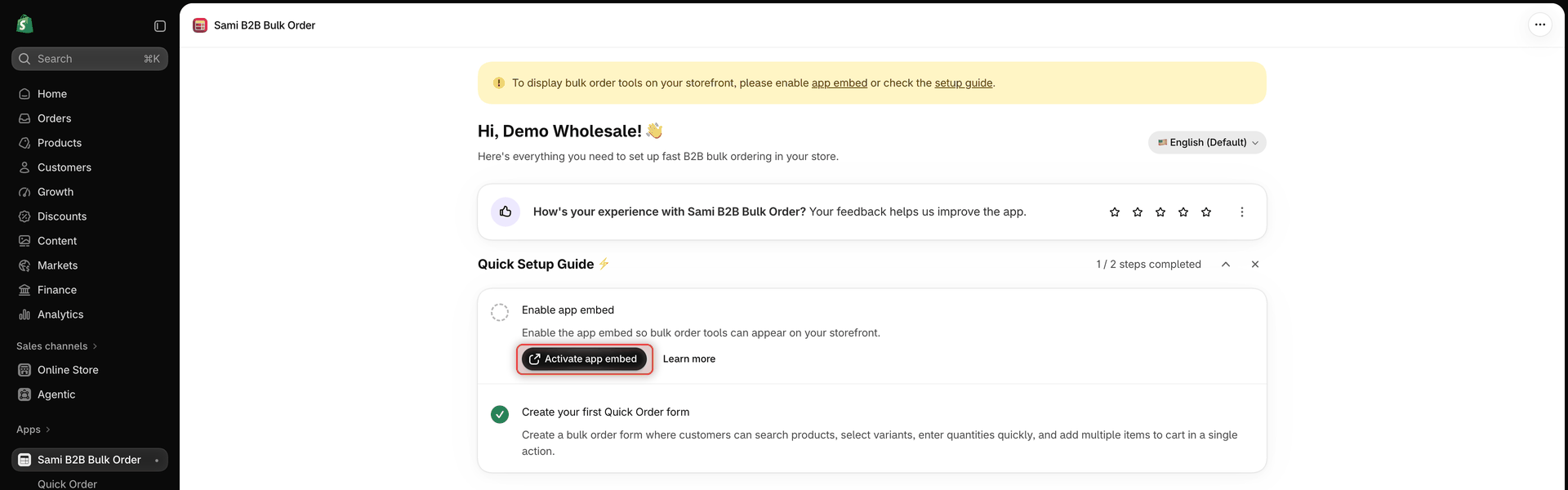
In Shopify admin, go to **Apps** > **Globo B2B Bulk Order**. While the embed is off, the Dashboard shows a yellow banner at the top, **To display bulk order tools on your storefront, please enable app embed or check the setup guide.**, and the **Analytics overview** badge reads **App embed is not active**.
{% endstep %}

{% step %}

### Click Activate app embed

In the **Quick Setup Guide ⚡**, under **Enable app embed**, click **Activate app embed**.

You can also click the **app embed** link in the yellow banner. If you dismissed the setup guide, an **Activate app embed** button appears next to the badge in **Analytics overview** instead.

Your live theme's editor opens in a new browser tab, on the **App embeds** panel, with **Globo Bulk Order** already turned on.

<figure><img src="https://4205698016-files.gitbook.io/~/files/v0/b/gitbook-x-prod.appspot.com/o/spaces%2FcOPpR31lfLzPdPWnPtOU%2Fuploads%2Fgit-blob-1c11a64db8c3a07f4138ec23fba99dc6178733d4%2Fscreenshot-dashboard-setup-guide.png?alt=media" alt="Dashboard Quick Setup Guide card with the steps Enable app embed and Create your first Quick Order form, and the Activate app embed button"><figcaption><p>Start from the Activate app embed button in the Quick Setup Guide.</p></figcaption></figure>
{% endstep %}

{% step %}

### Save in the theme editor

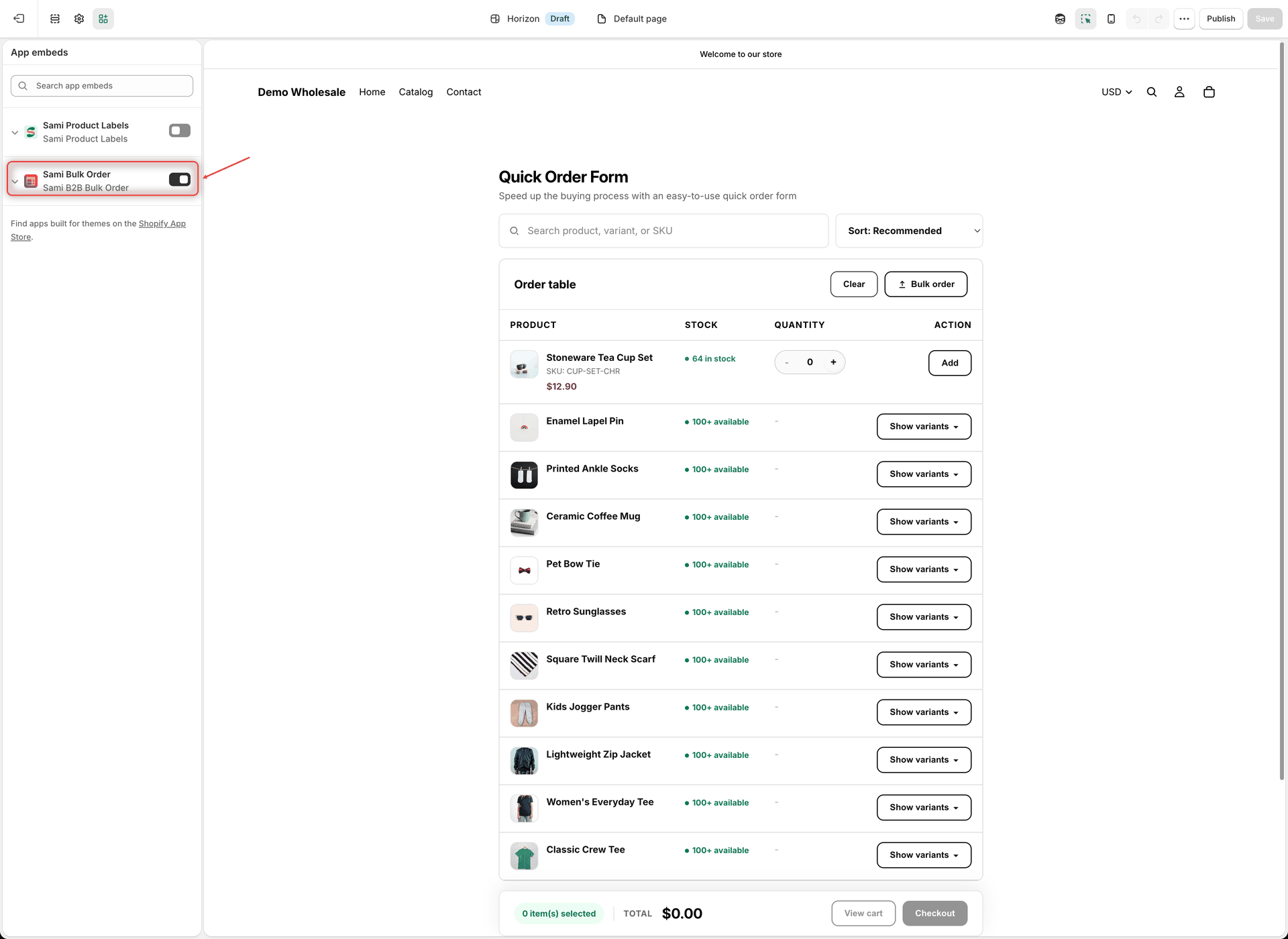
In the **App embeds** panel, find **Globo Bulk Order** (it shows **Globo B2B Bulk Order** under its name). Check that its toggle is on, then click **Save** at the top right. The link turns the embed on in the editor, but the change only goes live when you save.

<figure><img src="https://4205698016-files.gitbook.io/~/files/v0/b/gitbook-x-prod.appspot.com/o/spaces%2FcOPpR31lfLzPdPWnPtOU%2Fuploads%2Fgit-blob-0ae6a1779975c0207c797579bccc3b7975b8c3b9%2Fscreenshot-theme-editor-app-embed.png?alt=media" alt="Shopify theme editor with the App embeds panel open and the Globo Bulk Order toggle turned on"><figcaption><p>Turn on Globo Bulk Order under App embeds, then click Save.</p></figcaption></figure>
{% endstep %}

{% step %}

### Go back to the app

Switch back to the app's browser tab. The app checks the embed again on its own:

* the **Analytics overview** badge changes to **App embed is active**
* the **Enable app embed** step shows a check mark
* the yellow banner disappears

If nothing changes, click the **Refresh app embed status** button (the circular arrow next to the badge).

Your storefront looks the same for now. The embed only loads the app. Buyers see a tool once you create a Variant Table, a Collection Quick Order or a Quick Order form and set it to **Active**. A Quick Order form also needs to be [added to a page](/globo-b2b-bulk-order/getting-started/getting-started.md#add-the-form-to-a-page).
{% endstep %}
{% endstepper %}

## Turn it on from the theme editor

You can also turn on the embed without starting from the app.

{% stepper %}
{% step %}

### Open your theme editor

In Shopify admin, go to **Online Store** > **Themes**. On your current theme, click **Customize**.
{% endstep %}

{% step %}

### Open App embeds

In the theme editor's left sidebar, click the **App embeds** icon.
{% endstep %}

{% step %}

### Turn on Globo Bulk Order

Turn on **Globo Bulk Order**, then click **Save**.

Back in the app, click **Refresh app embed status** next to the **Analytics overview** badge to update it.
{% endstep %}
{% endstepper %}

## Check the app embed status

The Dashboard shows the status in three places:

| Where                                              | Embed on                | Embed off                                         |
| -------------------------------------------------- | ----------------------- | ------------------------------------------------- |
| **Analytics overview** badge                       | **App embed is active** | **App embed is not active**                       |
| **Quick Setup Guide ⚡**, step **Enable app embed** | Check mark, no buttons  | **Activate app embed** and **Learn more** buttons |
| Top of the Dashboard                               | No banner               | Yellow banner with an **app embed** link          |

The app checks the status when you open it, and again when you come back from a theme editor tab you opened with **Activate app embed** or the banner's **app embed** link. To check again at any time, click **Refresh app embed status** next to the badge.

<figure><img src="https://4205698016-files.gitbook.io/~/files/v0/b/gitbook-x-prod.appspot.com/o/spaces%2FcOPpR31lfLzPdPWnPtOU%2Fuploads%2Fgit-blob-c30a7fd30636d32ef69fc03bbe88bc3be4a8ac1c%2Fscreenshot-dashboard-analytics-overview.png?alt=media" alt="Dashboard Analytics overview section with the App embed is active badge and the refresh button next to it, above the Bulk Orders, Revenue Generated and Average order value metrics"><figcaption><p>The Analytics overview badge shows whether the app embed is on.</p></figcaption></figure>

{% hint style="warning" %}
**Only your published theme counts.** The Dashboard checks the theme that is live on your store. Turning on the embed in an unpublished theme doesn't change the badge, and buyers don't see the tools until you publish that theme. App embeds are saved per theme: when you publish a different theme, open it in the theme editor and turn on **Globo Bulk Order** there too.
{% endhint %}

## Turn off the app embed

1. In Shopify admin, go to **Online Store** > **Themes** and click **Customize** on your current theme.
2. Click the **App embeds** icon, turn off **Globo Bulk Order** and click **Save**.

All Globo B2B Bulk Order tools disappear from your storefront. Your forms, tables and settings stay in the app, and come back when you turn the embed on again.

{% hint style="info" %}
To hide only one form or table, set it to **Draft** in the app instead of turning off the embed.
{% endhint %}

## Next steps

* Create your first form and add it to a page: [Quickstart](/globo-b2b-bulk-order/getting-started/getting-started.md).
* Add a [Variant Table](/globo-b2b-bulk-order/variant-table/overview.md) or [Collection Quick Order](/globo-b2b-bulk-order/collection-quick-order/overview.md). Both appear on their own once the embed is on.
* Badge says active but nothing shows? See [Troubleshooting](/globo-b2b-bulk-order/help/troubleshooting.md).