> For the complete documentation index, see [llms.txt](https://docs.globo.io/llms.txt). Markdown versions of documentation pages are available by appending `.md` to page URLs; this page is available as [Markdown](https://docs.globo.io/globo-b2b-bulk-order/getting-started/getting-started.md).

# Quickstart

Turn on Globo B2B Bulk Order, create your first Quick Order form, add it to a page and check it on your storefront.

This guide takes you from opening Globo B2B Bulk Order to a working Quick Order form on your storefront. You turn on the app embed, create a form, add it to a page, then check the page the way a buyer sees it.

## Before you start

* Install [Globo B2B Bulk Order](https://apps.shopify.com/sami-b2b-bulk-order) from the Shopify App Store.
* Make sure the products you want to sell in bulk are active and available on your **Online Store** sales channel. The form only shows products your storefront can show.

## Set up your first Quick Order form

{% stepper %}
{% step %}

### Open Globo B2B Bulk Order

In Shopify admin, go to **Apps** > **Globo B2B Bulk Order**. The app opens on its [Dashboard](/globo-b2b-bulk-order/getting-started/dashboard.md).

The **Quick Setup Guide ⚡** card lists the first two steps, **Enable app embed** and **Create your first Quick Order form**, and counts your progress (for example **0 / 2 steps completed**). This Quickstart follows the same steps, then shows you how to add the form to a page.

The app's menu in the Shopify sidebar has no Dashboard item. To come back to the Dashboard, click **Globo B2B Bulk Order** again.
{% endstep %}

{% step %}

### Enable the app embed

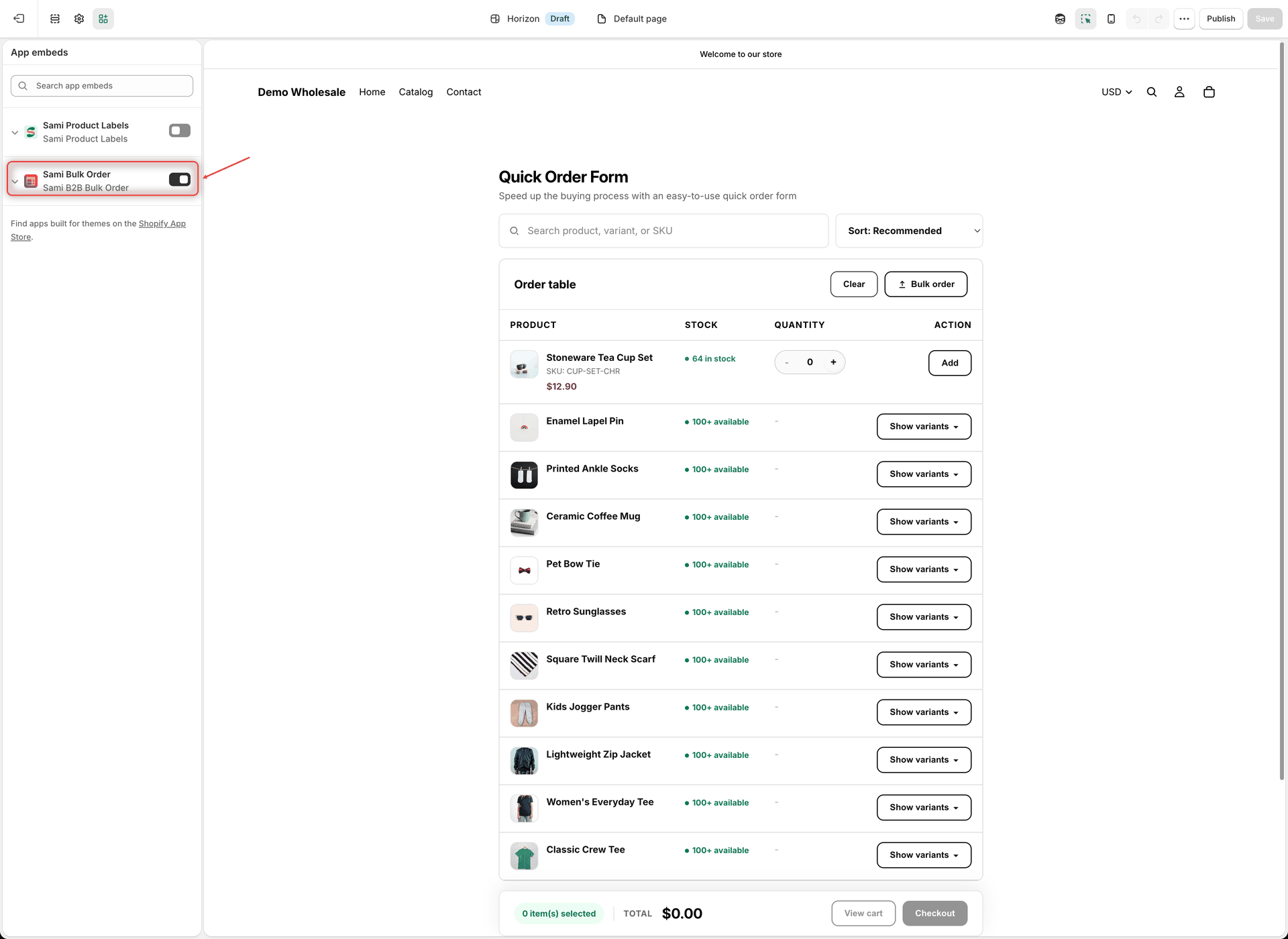
The **Globo Bulk Order** app embed loads the app on your online store. Without it, none of the app's tools appear to buyers.

1. In the **Quick Setup Guide ⚡**, under **Enable app embed**, click **Activate app embed**. Your theme editor opens in a new browser tab, on **App embeds**, with **Globo Bulk Order** already turned on.
2. Click **Save** in the theme editor.
3. Go back to the app's browser tab. The app checks again on its own. The **Analytics overview** badge changes to **App embed is active**, and the setup step shows a check mark.

<figure><img src="https://4205698016-files.gitbook.io/~/files/v0/b/gitbook-x-prod.appspot.com/o/spaces%2FcOPpR31lfLzPdPWnPtOU%2Fuploads%2Fgit-blob-0ae6a1779975c0207c797579bccc3b7975b8c3b9%2Fscreenshot-theme-editor-app-embed.png?alt=media" alt="Shopify theme editor with the App embeds panel open and the Globo Bulk Order toggle turned on"><figcaption><p>Turn on Globo Bulk Order under App embeds, then click Save.</p></figcaption></figure>

{% hint style="warning" %}
The theme editor link turns the embed on, but doesn't save it for you. If you close the editor without clicking **Save**, the badge stays at **App embed is not active**. For the manual path and how to check the status, see [Enable the app embed](/globo-b2b-bulk-order/getting-started/enable-app-embed.md).
{% endhint %}
{% endstep %}

{% step %}

### Create your first Quick Order form

1. In the Shopify sidebar, under **Globo B2B Bulk Order**, click **Quick Order**. (The **Create Quick Order form** button in the **Quick Setup Guide ⚡** opens the same page.)
2. Click **Create form**. The form editor opens full screen on the **Products** tab. (On the Dashboard, **Create form** on the **Quick Order** card under **Bulk order tools** opens the editor directly.)
3. Under **Display Products**, keep **Specific products** selected and click **Add products**.
4. In the product picker, tick the products you want in the form, for example **Classic Crew Tee**, **Lightweight Zip Jacket**, **Ceramic Coffee Mug**, **Enamel Lapel Pin** and **Stoneware Tea Cup Set**, then click **Select**.
5. Optional: in the name field at the top, replace **Quick Order Form** with a name you'll recognize. Only you see this name.
6. Leave the status at the top on **Active**. A **Draft** form never appears on the storefront.
7. Click **Save** in the save bar. The message **Form created** confirms it.

To list every product in your store, choose **All products** instead. To list the products of one or more collections, choose **Specific collections**. If you save with **Specific products** and no products picked, the editor shows **Select at least one product**.

You can leave the **Customize** and **Visibility** tabs as they are for now. By default, the form is shown to **All customers** on landing pages (your home page and standard pages). To change this later, see [Choose who sees the form and where](/globo-b2b-bulk-order/quick-order-form/visibility.md).
{% endstep %}

{% step %}

### Add the form to a page

A Quick Order form appears only where you place its embed code. The easiest way is the **GloboBO quick order form** app block in your theme editor.

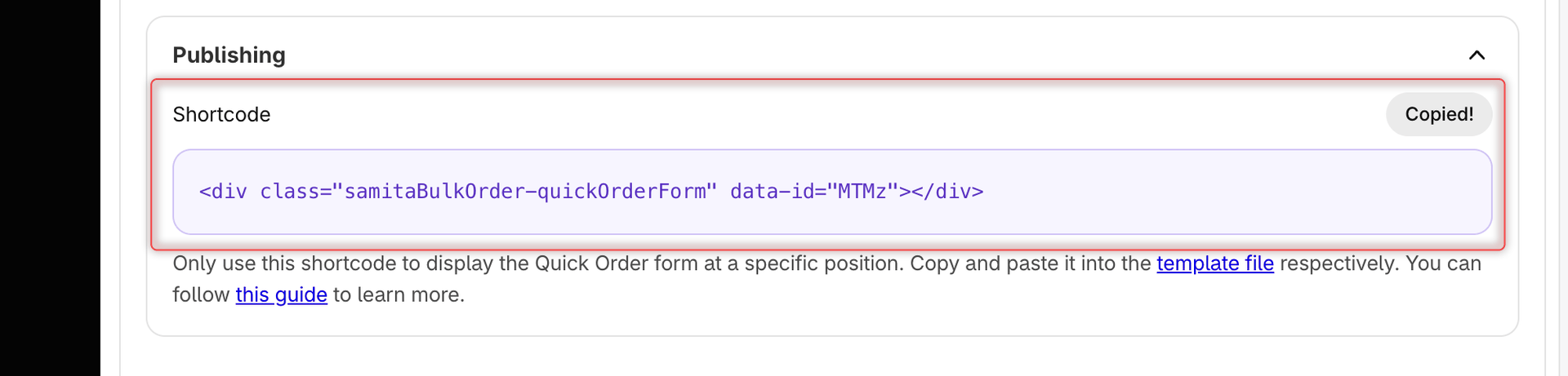
1. **Copy the embed code.** In the form editor, open the **Visibility** tab and go to **Publishing**. Next to **Shortcode**, click **Copy** (it changes to **Copied!**). The code looks like `<div class="samitaBulkOrder-quickOrderForm" data-id="..."></div>`. You can also copy it later from the **Shortcode** column of the **Quick Order** list.
2. **Open your theme editor.** In Shopify admin, go to **Online Store** > **Themes** and click **Customize** on your current theme.
3. **Create a page template for the form.** In the page menu at the top of the editor, choose **Pages** > **Create template**. Name it, for example `quick-order`, base it on **Default page**, and click **Create template**. A separate template keeps the form off your other pages, such as About us or Contact.
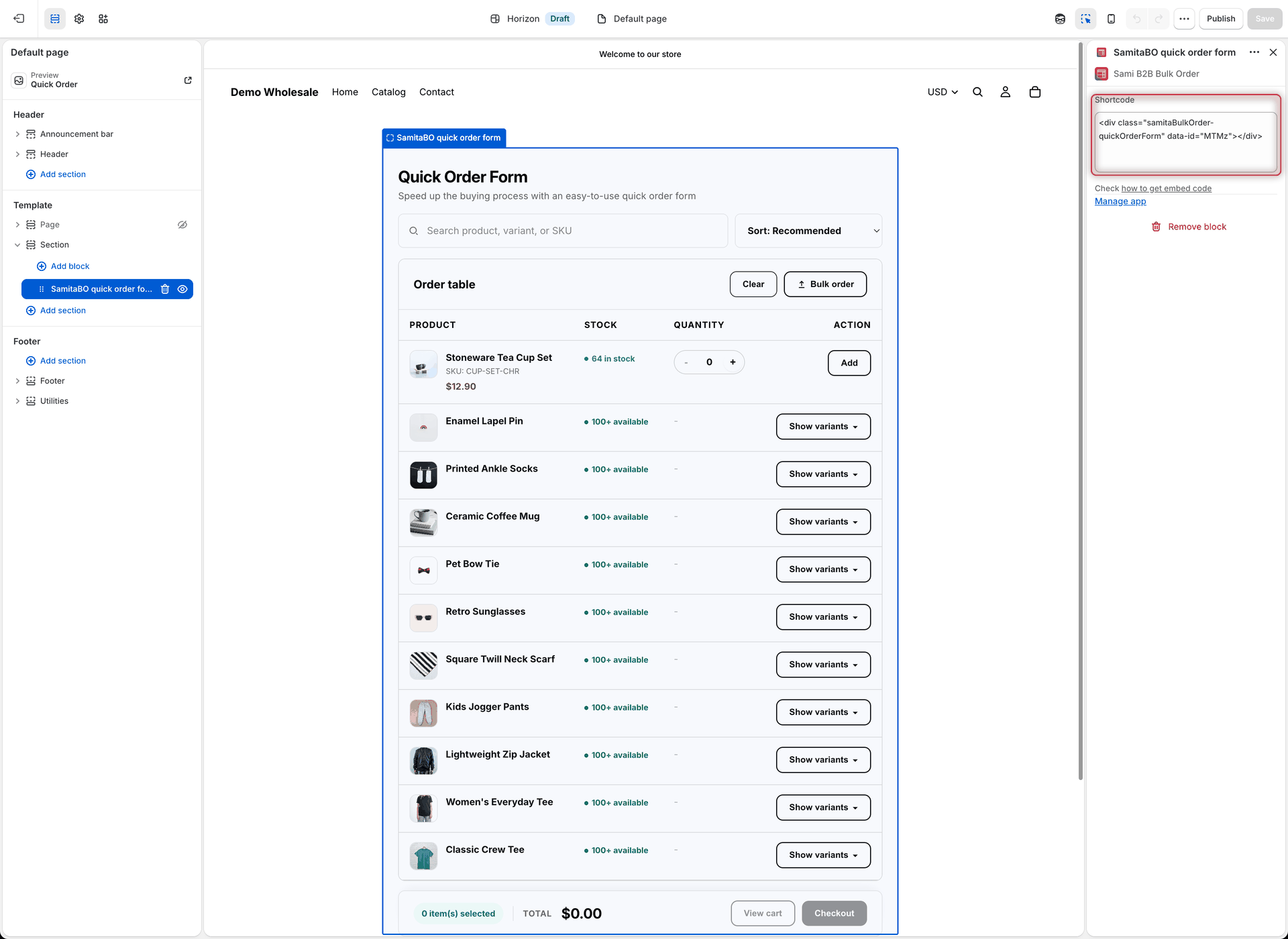
4. **Add the app block.** In the sidebar, click **Add section** and choose **GloboBO quick order form** under **Apps**. In some themes, you add it with **Add block** inside a section instead.
5. **Paste the code.** In the block's **Shortcode** box, delete the default code and paste the code you copied. The default code has an empty ID, so it shows nothing.
6. Click **Save** in the theme editor.

<figure><img src="https://4205698016-files.gitbook.io/~/files/v0/b/gitbook-x-prod.appspot.com/o/spaces%2FcOPpR31lfLzPdPWnPtOU%2Fuploads%2Fgit-blob-830e58afe441aab8fef81bcfdedebfbded9fe31d%2Fscreenshot-quick-order-visibility-publishing.png?alt=media" alt="Publishing section of the Visibility tab in the Quick Order form editor, showing the form&#x27;s embed code and the Copy button next to Shortcode, which reads Copied! after a click"><figcaption><p>Copy the form's embed code from Visibility, Publishing.</p></figcaption></figure>

<figure><img src="https://4205698016-files.gitbook.io/~/files/v0/b/gitbook-x-prod.appspot.com/o/spaces%2FcOPpR31lfLzPdPWnPtOU%2Fuploads%2Fgit-blob-3c4826261f86a61217a75221ed6bfa720807826d%2Fscreenshot-theme-editor-quick-order-block.png?alt=media" alt="Shopify theme editor with the GloboBO quick order form block selected and the form&#x27;s embed code pasted into its Shortcode setting"><figcaption><p>Paste the embed code into the Shortcode box of the GloboBO quick order form block.</p></figcaption></figure>

**Prefer to edit theme code?** You can paste the embed code straight into a theme file instead. In Shopify admin, go to **Online Store** > **Themes**, open the **…** menu of your theme, click **Edit code**, and paste the code into the template or section file where the form should appear. See Shopify's guide to [theme templates](https://help.shopify.com/en/manual/online-store/themes/theme-structure/templates).

{% hint style="info" %}
If you place the form on a product or collection template, also tick **Product page** or **Collection page** in **Visibility** > **Display location**, then save the form. New forms only show on landing pages (the home page and standard pages).
{% endhint %}
{% endstep %}

{% step %}

### Create the page

1. In Shopify admin, go to **Online Store** > **Pages** and click **Add page**.
2. Enter a title, for example "Quick order".
3. Under **Theme template**, choose the template you created, for example `quick-order`.
4. Click **Save**.

The page address is based on its title, for example `/pages/quick-order`.
{% endstep %}

{% step %}

### Check your storefront

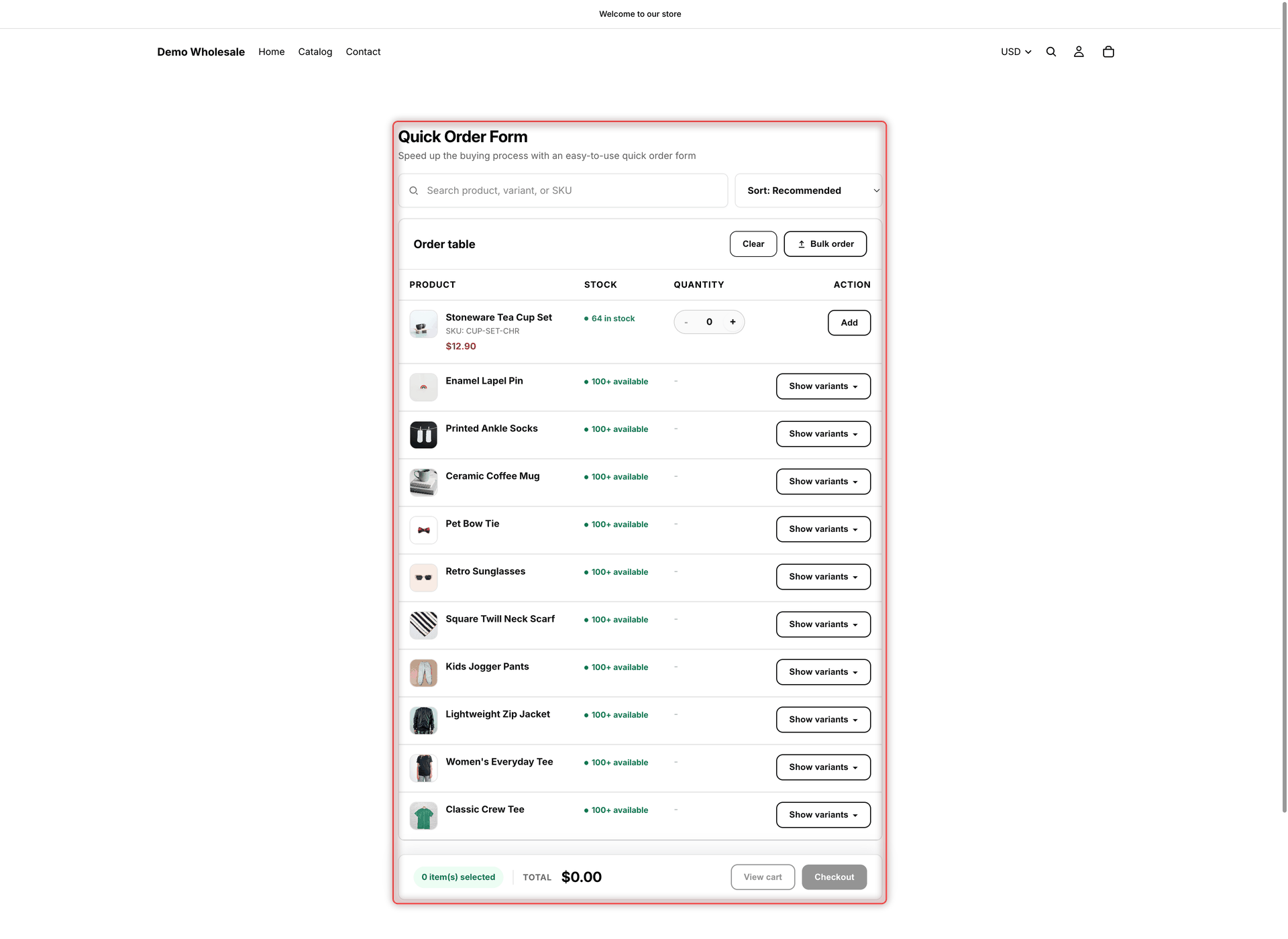
Open the new page on your online store, for example `your-store.com/pages/quick-order`. With the default settings, buyers see:

* the heading **Quick Order Form** and the text **Speed up the buying process with an easy-to-use quick order form**
* a search box (**Search product, variant, or SKU**) and a sort menu (**Sort: Recommended**)
* the **Order table** with a **Clear** button (it empties the whole cart), and one row per product
* on a product with one variant, such as **Stoneware Tea Cup Set**, a quantity box with − and + and an **Add** button
* on a product with several variants, a **Show variants** button. Click it to list each variant with its own quantity box and **Add** button.
* a footer bar with the number of items in the cart (for example **0 item(s) selected**), the cart **Total**, **View cart** and **Checkout**

Try it: enter a quantity next to a product and click **Add**. The button changes to **Added**, the message **Added to order.** appears, and the footer count and **Total** update.

If you set **Who can see this form?** to **Logged-in customers only** or **Customers with tags**, log in to your storefront with a customer account that matches, for example one tagged `wholesale`. Guests and other customers see nothing where the form is placed, and no message.

<figure><img src="https://4205698016-files.gitbook.io/~/files/v0/b/gitbook-x-prod.appspot.com/o/spaces%2FcOPpR31lfLzPdPWnPtOU%2Fuploads%2Fgit-blob-fcdfe8fe4367e2b27535879f5573297147f30001%2Fscreenshot-storefront-quick-order-form.png?alt=media" alt="A Quick Order form on a storefront page, with a search box, a sort menu, Clear and Bulk order buttons, product rows with Show variants buttons, one product row with a quantity box and an Add button, and a footer with Total, View cart and Checkout"><figcaption><p>The finished Quick Order form on the storefront; this example also has file upload turned on, which adds the Bulk order button.</p></figcaption></figure>

{% hint style="warning" %}
Form not showing? Check that the Dashboard says **App embed is active**, the form is **Active**, the block holds the form's own embed code, and the page matches the form's **Display location** and **Who can see this form?** settings. See [Troubleshooting](/globo-b2b-bulk-order/help/troubleshooting.md).
{% endhint %}
{% endstep %}
{% endstepper %}

## Next steps

* Add a [Variant Table](/globo-b2b-bulk-order/variant-table/overview.md) to product pages. It needs no block: once the app embed is on, it appears above the **Add to cart** button on the products you choose.
* Add [Collection Quick Order](/globo-b2b-bulk-order/collection-quick-order/overview.md) to product cards on collection pages. It also appears on its own.
* [Customize the form](/globo-b2b-bulk-order/quick-order-form/customize-the-form.md): heading, search and sort, columns, pagination and style.
* Let buyers [upload an order file](/globo-b2b-bulk-order/quick-order-form/upload-an-order-file.md) instead of typing quantities.