
Quickstart
Turn on Globo B2B Bulk Order, create your first Quick Order form, add it to a page and check it on your storefront.
This guide takes you from opening Globo B2B Bulk Order to a working Quick Order form on your storefront. You turn on the app embed, create a form, add it to a page, then check the page the way a buyer sees it.
Before you start
- Install Globo B2B Bulk Order from the Shopify App Store.
- Make sure the products you want to sell in bulk are active and available on your Online Store sales channel. The form only shows products your storefront can show.
Set up your first Quick Order form
-
Open Globo B2B Bulk Order
In Shopify admin, go to Apps > Globo B2B Bulk Order. The app opens on its Dashboard.
The Quick Setup Guide ⚡ card lists the first two steps, Enable app embed and Create your first Quick Order form, and counts your progress (for example 0 / 2 steps completed). This Quickstart follows the same steps, then shows you how to add the form to a page.
The app’s menu in the Shopify sidebar has no Dashboard item. To come back to the Dashboard, click Globo B2B Bulk Order again.
-
Enable the app embed
The Globo Bulk Order app embed loads the app on your online store. Without it, none of the app’s tools appear to buyers.
- In the Quick Setup Guide ⚡, under Enable app embed, click Activate app embed. Your theme editor opens in a new browser tab, on App embeds, with Globo Bulk Order already turned on.
- Click Save in the theme editor.
- Go back to the app’s browser tab. The app checks again on its own. The Analytics overview badge changes to App embed is active, and the setup step shows a check mark.
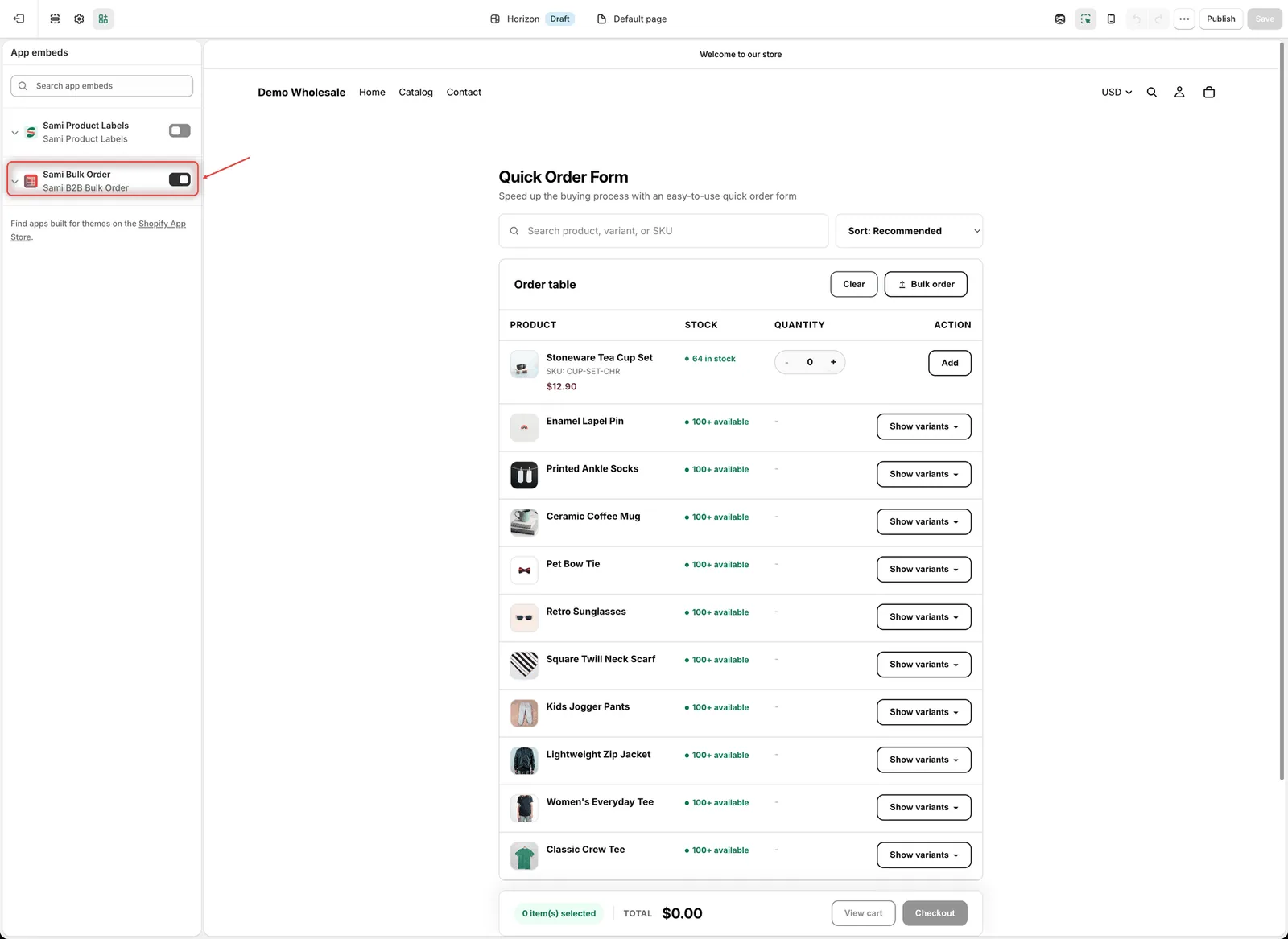
Turn on Globo Bulk Order under App embeds, then click Save.
-
Create your first Quick Order form
- In the Shopify sidebar, under Globo B2B Bulk Order, click Quick Order. (The Create Quick Order form button in the Quick Setup Guide ⚡ opens the same page.)
- Click Create form. The form editor opens full screen on the Products tab. (On the Dashboard, Create form on the Quick Order card under Bulk order tools opens the editor directly.)
- Under Display Products, keep Specific products selected and click Add products.
- In the product picker, tick the products you want in the form, for example Classic Crew Tee, Lightweight Zip Jacket, Ceramic Coffee Mug, Enamel Lapel Pin and Stoneware Tea Cup Set, then click Select.
- Optional: in the name field at the top, replace Quick Order Form with a name you’ll recognize. Only you see this name.
- Leave the status at the top on Active. A Draft form never appears on the storefront.
- Click Save in the save bar. The message Form created confirms it.
To list every product in your store, choose All products instead. To list the products of one or more collections, choose Specific collections. If you save with Specific products and no products picked, the editor shows Select at least one product.
You can leave the Customize and Visibility tabs as they are for now. By default, the form is shown to All customers on landing pages (your home page and standard pages). To change this later, see Choose who sees the form and where.
-
Add the form to a page
A Quick Order form appears only where you place its embed code. The easiest way is the GloboBO quick order form app block in your theme editor.
- Copy the embed code. In the form editor, open the Visibility tab and go to Publishing. Next to Shortcode, click Copy (it changes to Copied!). The code looks like
<div class="samitaBulkOrder-quickOrderForm" data-id="..."></div>. You can also copy it later from the Shortcode column of the Quick Order list. - Open your theme editor. In Shopify admin, go to Online Store > Themes and click Customize on your current theme.
- Create a page template for the form. In the page menu at the top of the editor, choose Pages > Create template. Name it, for example
quick-order, base it on Default page, and click Create template. A separate template keeps the form off your other pages, such as About us or Contact. - Add the app block. In the sidebar, click Add section and choose GloboBO quick order form under Apps. In some themes, you add it with Add block inside a section instead.
- Paste the code. In the block’s Shortcode box, delete the default code and paste the code you copied. The default code has an empty ID, so it shows nothing.
- Click Save in the theme editor.
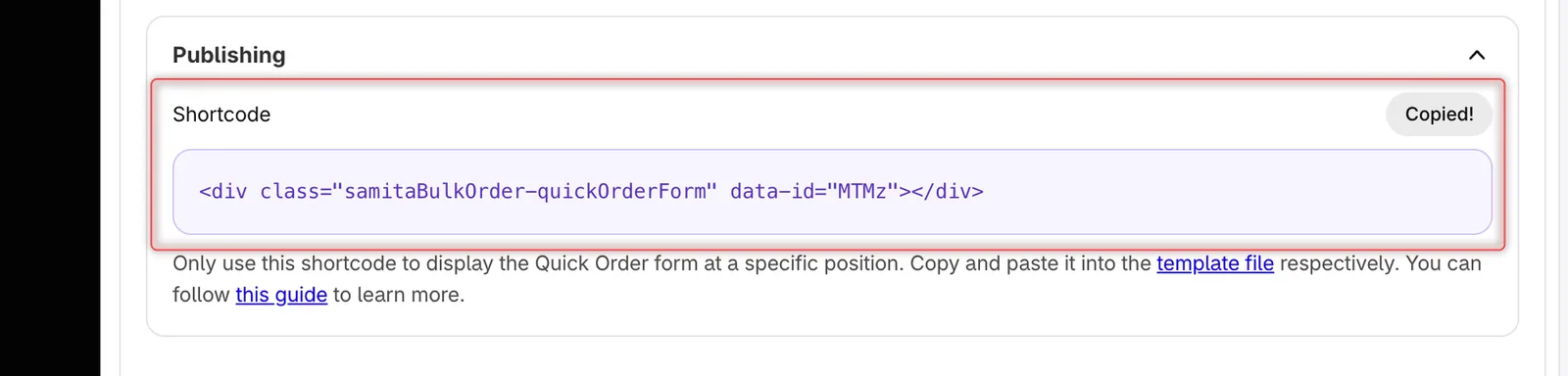
Copy the form's embed code from Visibility, Publishing.
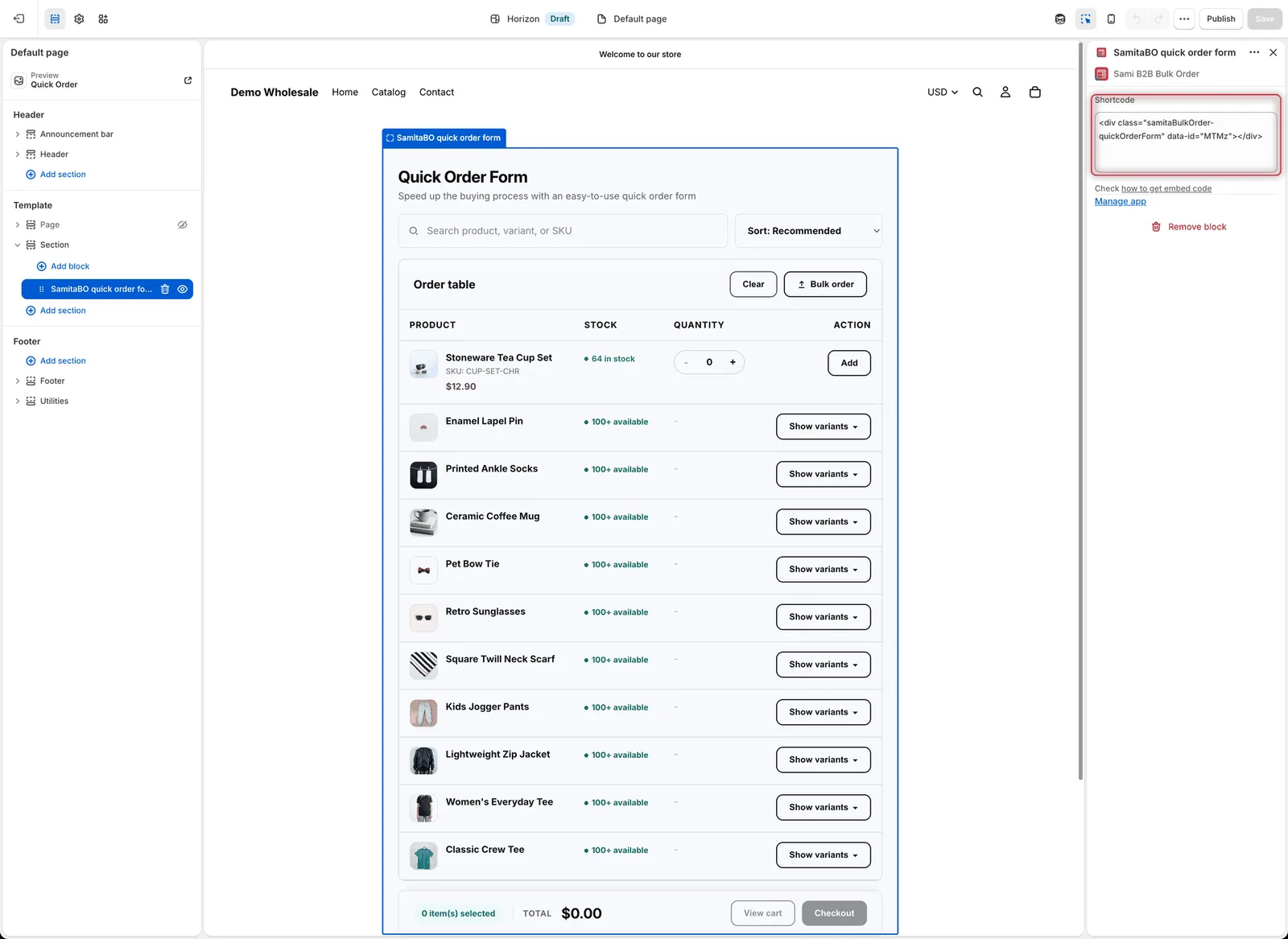
Paste the embed code into the Shortcode box of the GloboBO quick order form block.
Prefer to edit theme code? You can paste the embed code straight into a theme file instead. In Shopify admin, go to Online Store > Themes, open the … menu of your theme, click Edit code, and paste the code into the template or section file where the form should appear. See Shopify’s guide to theme templates.
- Copy the embed code. In the form editor, open the Visibility tab and go to Publishing. Next to Shortcode, click Copy (it changes to Copied!). The code looks like
-
Create the page
- In Shopify admin, go to Online Store > Pages and click Add page.
- Enter a title, for example “Quick order”.
- Under Theme template, choose the template you created, for example
quick-order. - Click Save.
The page address is based on its title, for example
/pages/quick-order. -
Check your storefront
Open the new page on your online store, for example
your-store.com/pages/quick-order. With the default settings, buyers see:- the heading Quick Order Form and the text Speed up the buying process with an easy-to-use quick order form
- a search box (Search product, variant, or SKU) and a sort menu (Sort: Recommended)
- the Order table with a Clear button (it empties the whole cart), and one row per product
- on a product with one variant, such as Stoneware Tea Cup Set, a quantity box with − and + and an Add button
- on a product with several variants, a Show variants button. Click it to list each variant with its own quantity box and Add button.
- a footer bar with the number of items in the cart (for example 0 item(s) selected), the cart Total, View cart and Checkout
Try it: enter a quantity next to a product and click Add. The button changes to Added, the message Added to order. appears, and the footer count and Total update.
If you set Who can see this form? to Logged-in customers only or Customers with tags, log in to your storefront with a customer account that matches, for example one tagged
wholesale. Guests and other customers see nothing where the form is placed, and no message.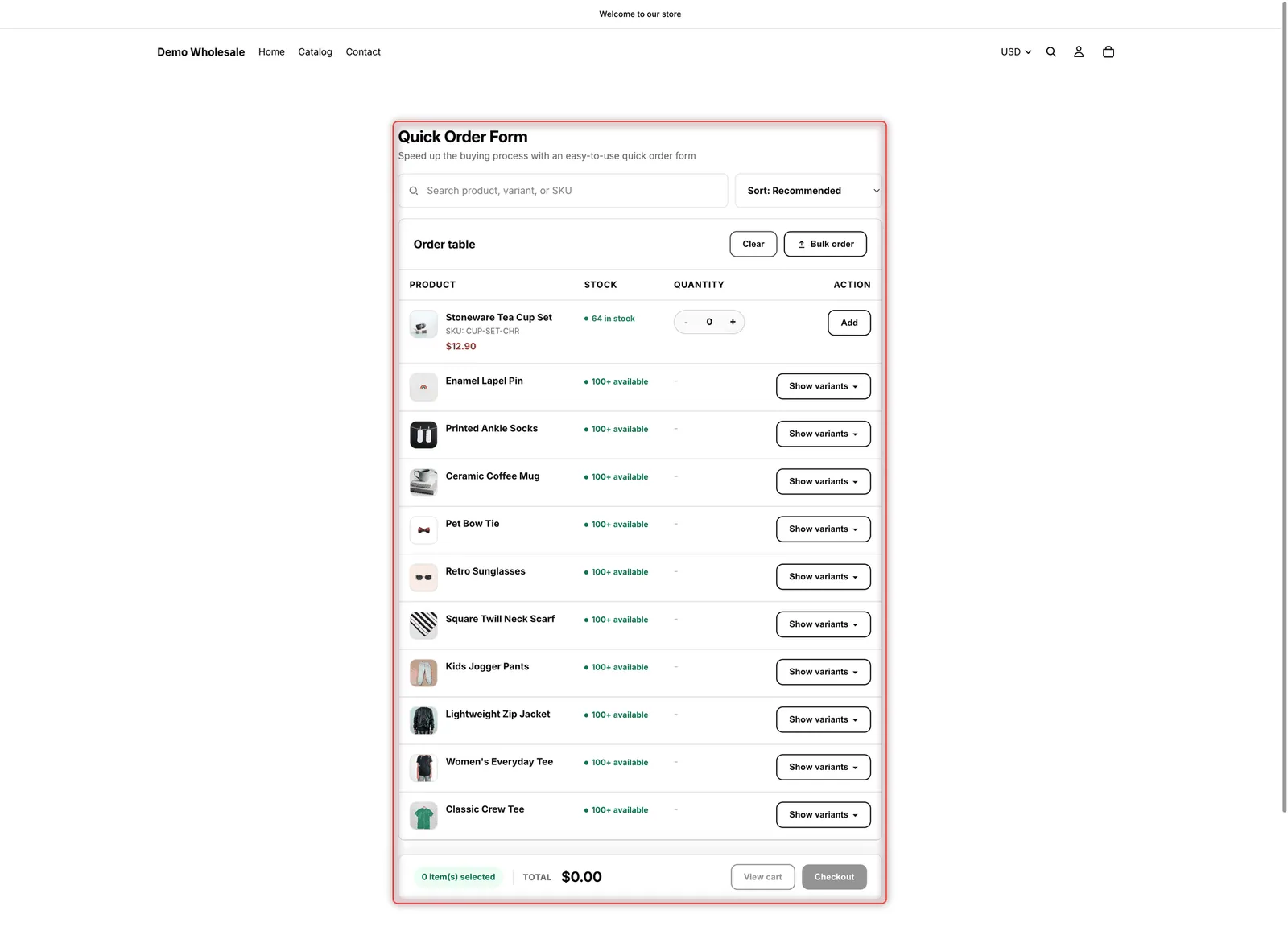
The finished Quick Order form on the storefront; this example also has file upload turned on, which adds the Bulk order button.
Next steps
- Add a Variant Table to product pages. It needs no block: once the app embed is on, it appears above the Add to cart button on the products you choose.
- Add Collection Quick Order to product cards on collection pages. It also appears on its own.
- Customize the form: heading, search and sort, columns, pagination and style.
- Let buyers upload an order file instead of typing quantities.
Was this helpful?
Thanks for your feedback! Tell us what was missing
Report an issue