> For the complete documentation index, see [llms.txt](https://docs.globo.io/llms.txt). Markdown versions of documentation pages are available by appending `.md` to page URLs; this page is available as [Markdown](https://docs.globo.io/globo-b2b-bulk-order/help/troubleshooting.md).
# Troubleshooting
Find the cause and the fix when a bulk order tool doesn't show, a file or pasted list doesn't match, items aren't added, or labels and numbers look wrong.
Each entry below starts with what you see, then lists the usual causes and how to fix them. Most problems come from three settings: the **Globo Bulk Order** app embed is off, the form is a **Draft**, or the page or buyer doesn't match the form's visibility rules.
After you change a setting, reload the storefront page. Saved changes take a few moments to reach your online store.
## The tools don't appear on the storefront
### Nothing from the app shows anywhere on my store
Check these in order:
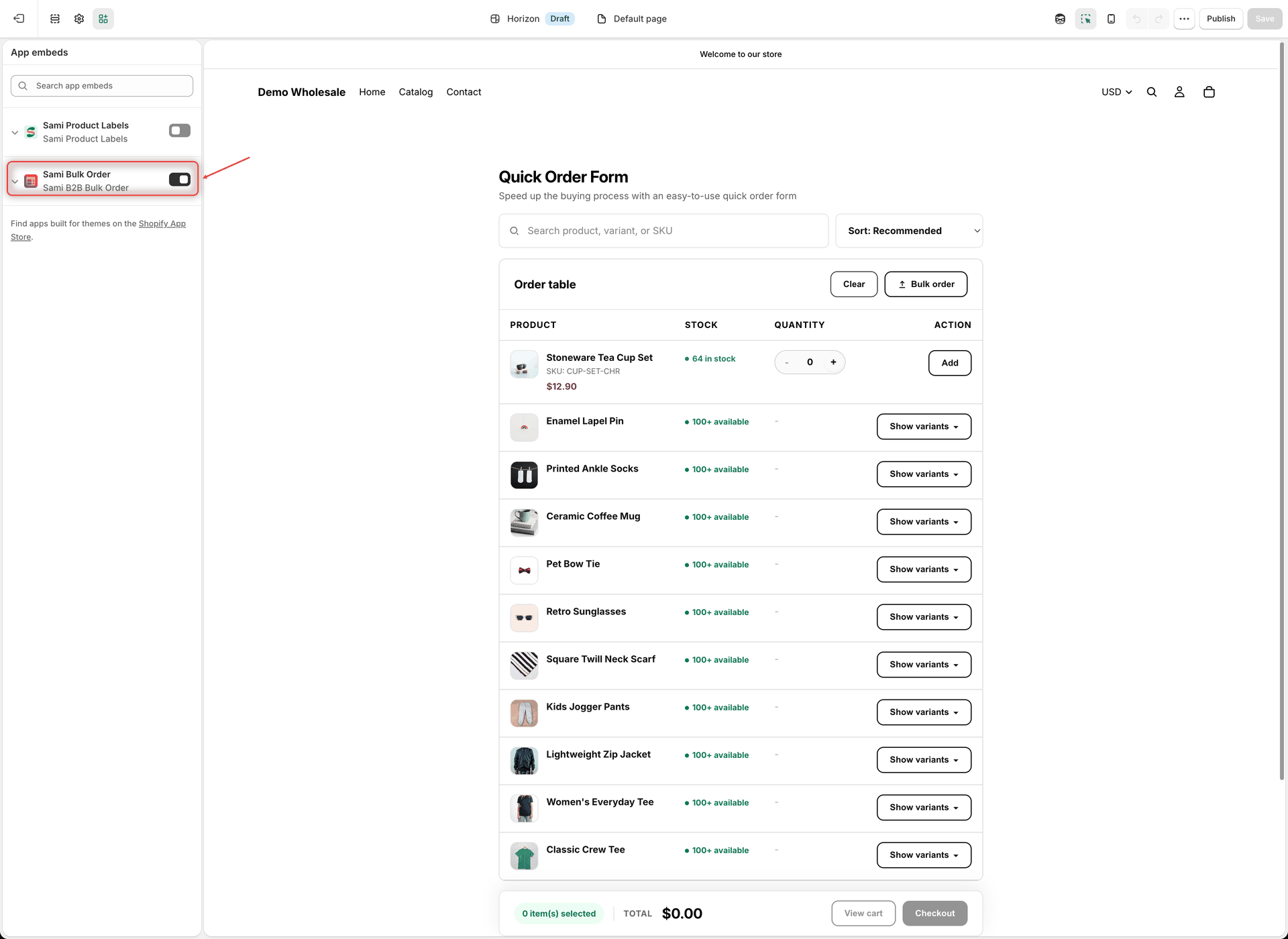
* **The app embed is off.** In Shopify admin, go to **Apps** > **Globo B2B Bulk Order**. If the **Analytics overview** badge reads **App embed is not active**, or a yellow banner says **To display bulk order tools on your storefront, please enable app embed or check the setup guide.**, turn on the embed. See [Enable the app embed](/globo-b2b-bulk-order/getting-started/enable-app-embed.md).
* **The embed is on in a different theme.** App embeds are saved per theme, and the Dashboard only checks your published theme. If you turned it on in an unpublished theme, or switched themes since, open the theme that is live, turn on **Globo Bulk Order** under **App embeds** and click **Save**.
* **The embed wasn't saved.** **Activate app embed** opens the theme editor with **Globo Bulk Order** turned on, but the change only goes live after you click **Save** there. Back in the app, click the refresh icon next to the badge (**Refresh app embed status**) to check again.
* **Every form is a Draft.** Only **Active** forms and tables reach your storefront. On the **Quick Order**, **Collection Quick Order** and **Variant Table** lists, turn on the **Status** switch of the forms you want to show.
Turn on Globo Bulk Order under App embeds, then click Save.
If it stopped working after you published a new theme, also add the **GloboBO quick order form** block to the new theme's pages again, and open Globo B2B Bulk Order once so it picks up the new theme.
### The Quick Order form doesn't appear on the page
If the app embed is on (see above), check the form itself:
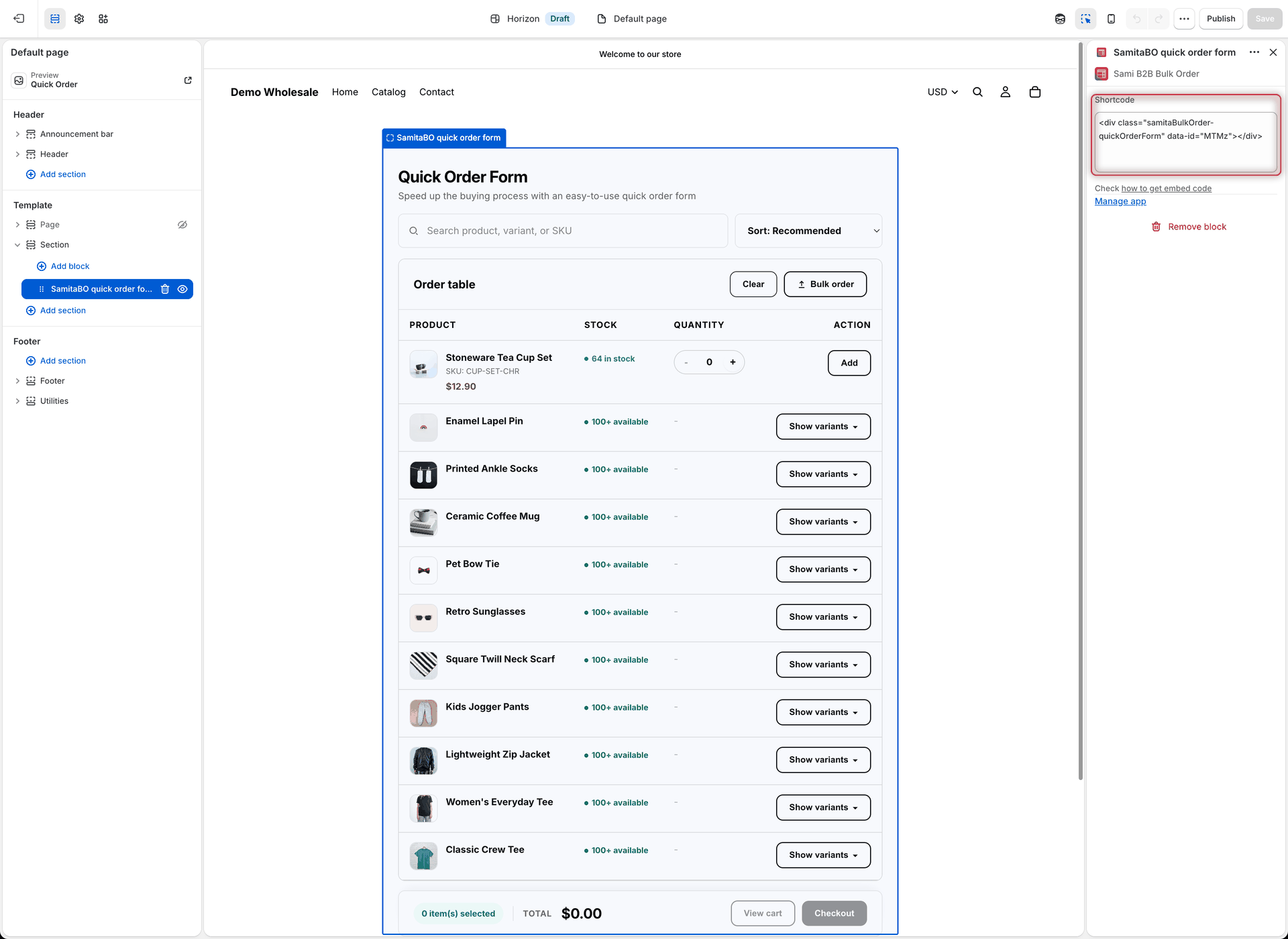
* **The block holds the empty default code.** The **GloboBO quick order form** block starts with ``, which shows nothing. Copy your form's code from **Visibility** > **Publishing** > **Copy** (or the **Shortcode** column of the **Quick Order Form** list), paste it into the block's **Shortcode** setting and save the theme. See [Add the form block in the theme editor](/globo-b2b-bulk-order/quick-order-form/create-a-form.md#add-the-form-block-in-the-theme-editor).
* **The form is a Draft.** Set it to **Active** in the form editor and click **Save**, or turn on its **Status** switch on the list.
* **The page type isn't ticked in Display location.** New forms have only **Landing page** ticked. That covers your home page and pages such as those in **Online Store** > **Pages**, but not product, collection or search pages. If the block is on a product or collection template, tick **Product page** or **Collection page** on the **Visibility** tab. Search results pages show the form only when no page type is ticked.
* **Specific pages are picked.** When you add pages under a page type, the form shows only on those pages. If you added landing pages but not **Home page (home\_page)**, the form disappears from your home page.
* **Specific products are picked under Product page.** At the moment, a form limited to specific products under **Product page** doesn't appear on any product page. Remove the products from that box, and use a separate product template for the products that should show the form.
* **The buyer doesn't match Customer visibility.** For example, a form set to **Logged-in customers only** or **Customers with tags** stays empty for guests. Buyers see no message or login prompt in its place.
For every **Display location** and **Customer visibility** option, see [Choose who sees the form and where](/globo-b2b-bulk-order/quick-order-form/visibility.md).
The block's Shortcode setting must hold your form's own code, not the empty default.
### The Variant Table doesn't appear on a product page
* **The product isn't in the table's Products tab.** New tables start on **Specific products**, so the table shows only on the products you picked. Add the product, or choose **All products** or **Conditions**. See [Customer & product targeting](/globo-b2b-bulk-order/targeting-and-design/customer-and-product-targeting.md#product-conditions).
* **The table is a Draft**, or the buyer doesn't match **Customer targeting** on the **Visibility** tab.
* **Your theme's product form isn't recognized.** The table is placed above your theme's **Add to cart** button, inside the product form. If the app can't find that form on your theme, the table doesn't appear. [Contact support](/globo-b2b-bulk-order/help/contact-support.md) with the product page URL and your theme name.
Also good to know:
* The table doesn't hide your theme's own variant picker, quantity box or **Add to cart** button.
* With the **Matrix column** template, products with fewer than 2 options show as a normal table.
### Collection Quick Order buttons don't appear on product cards
* **Display location doesn't include this page.** With no box ticked, the buttons can appear on any page with product cards. Once you tick a box, they appear only on those page types: **Home page**, **Collection page**, **Search page** or **Featured and related products** (product cards on product pages). If you added collections under **Collection page**, only those collection pages show them.
* **The product isn't in the Products tab**, the form is a **Draft**, or the buyer doesn't match **Customer targeting**.
* **The cards are in a menu, footer or cart drawer.** The app skips product links there on purpose, and it doesn't add controls to the main product of a product page.
* **The cards load later.** On grids with infinite scroll, filters or recommendation sections, the buttons are added to new cards shortly after the buyer scrolls.
* **Your theme's cards aren't recognized,** or the controls appear in the wrong place. [Contact support](/globo-b2b-bulk-order/help/contact-support.md) so we can check your theme.
A product with a single variant shows no variant dropdown while **Hide variant selector for single-variant products** is on (the default). See [Collection Quick Order](/globo-b2b-bulk-order/collection-quick-order/overview.md).
### A buyer with the right tag doesn't see the form
* **The tag doesn't match exactly.** Tags are compared exactly, including upper and lower case: `Wholesale` doesn't match a customer tagged `wholesale`. In the form's **Visibility** tab, pick the tag from the list under **Include customer tags** instead of typing it.
* **The buyer isn't logged in.** Guests have no tags, so **Customers with tags** always needs the buyer to log in to their customer account.
* **The buyer also has an excluded tag.** A customer with any tag in **Exclude customer tags** never sees the form, even if they match the include rule.
* **You're testing in the theme editor or admin preview.** Test on the live storefront in a private browser window, logged in as the customer.
See [Customer & product targeting](/globo-b2b-bulk-order/targeting-and-design/customer-and-product-targeting.md).
### The wrong Variant Table or Collection Quick Order shows on a product
A product page shows one Variant Table, and each product card shows one Collection Quick Order. When several **Active** forms match the same product and buyer, the one you **created** most recently wins. Editing an older form doesn't move it ahead.
**Duplicate** creates a newer copy with the same settings and status, so an Active copy replaces the original right away. Set copies to **Draft** while you edit them, or narrow each form's **Products** and **Visibility** settings so only one matches. See [When several tables match one product](/globo-b2b-bulk-order/variant-table/create-a-variant-table.md#when-several-tables-match-one-product).
## Products and search
### The Quick Order form shows the wrong products
* **Specific products** is the default. The form shows only the products you picked. **Add products** opens Shopify's picker with your current products ticked, and confirming replaces the list with what's ticked.
* **Add from collection** copies the collection's products once. Products you add to that collection later don't appear. To follow a collection as it changes, choose **Specific collections** instead.
* **Only products your online store can show appear.** A product must be active and available on the **Online Store** sales channel. Products that can't be bought show as out of stock.
* **All products** loads in the background. The first page appears right away, and the caption **Loading products... ({{loaded}} loaded)** shows while the rest loads.
* **The preview isn't the storefront.** The form editor's preview shows only the first page of your picks, and only the first collection with **Specific collections**. Check the storefront.
If the table says **No products are configured for this quick order form yet.**, the form has no products to show, or the product list couldn't load. Check the **Products** tab, then reload the page.
See [Create a Quick Order form](/globo-b2b-bulk-order/quick-order-form/create-a-form.md).
### Search in the Quick Order form doesn't find a product
* The search box matches the **product name**, **variant name** and **SKU**. It doesn't search barcodes, vendors, product types or tags.
* It searches only the products in this form.
* A product with several variants stays collapsed. Click **Show variants** on its row to see the variants that match.
If a search finds nothing, buyers see **No products match "{{term}}".**, with their search words in place of `{{term}}`.
### Sorting doesn't change the order
The sort menu always starts with **Sort: Recommended**, the order the products were loaded in. **Best selling** currently keeps that same order. On forms that use **Specific collections**, **Newest first** and **Oldest first** also keep it. The other sort options work as named. To choose which options buyers see, open the form's **Customize** tab > **Search & sort**. See [Customize the form](/globo-b2b-bulk-order/quick-order-form/customize-the-form.md).
## Bulk order files and pasted lists
### An uploaded order file shows an error
| Message buyers see | Cause | Fix |
| ------------------------------------------------------------------------------------------- | ------------------------------------------------------------------------------------------------------------------------------- | ------------------------------------------------------------------------------------------------------------------------------ |
| **This file type isn't supported for automatic import yet. Please use a CSV or XLSX file.** | The file isn't CSV, Excel, PDF or an image. | Save the order as `.csv` or `.xlsx`. |
| **This file is too large to import. Please use a file smaller than 15 MB.** | The file is over 15 MB. | Split the order or remove extra sheets and images. |
| **PDFs and images must be smaller than 8 MB. Please use a smaller file.** | A PDF or image is over 8 MB. | Use a smaller scan or photo, or a CSV or Excel file. |
| **Couldn't read this file. Please check the format and try again.** | The CSV or Excel file is damaged, or isn't really that format. | Open the file in a spreadsheet app and save it again as `.xlsx` or `.csv`. |
| **No matching SKU/Quantity rows were found in this file.** | No `SKU` or barcode heading was found, the CSV uses semicolons, the PDF has no selectable text, or the AI found no order lines. | Add a `SKU` or `Barcode` column, upload the `.xlsx` instead of a semicolon CSV, or upload a scanned PDF as a JPG or PNG image. |
| **We couldn't read this image automatically. Please try a CSV or XLSX file.** | A PDF or image couldn't be read: a connection problem, or too many PDFs and images were sent from your store in a short time. | Try again later, or upload a CSV or Excel file. |
Also check:
* **The Bulk order button is missing.** Turn on **Enable file upload** (or **Allow pasting a SKU list**) in the form's **Customize** tab > **File upload order**, then save.
* **Only the first sheet of an Excel file is read.** Put the order on the first sheet.
* **The column headings aren't recognized.** The header row needs a cell that reads `SKU`, `Barcode`, `UPC`, `EAN` or `GTIN` and nothing else. Upper and lower case don't matter. A heading such as `Item SKU` isn't recognized until you add it under **Spreadsheet column names**. Without a quantity column (`Qty` or `Quantity`), every line gets quantity 1.
* **Older `.xls` files** aren't listed in the file picker, but buyers can drag them onto the upload area.
The file type chips you keep in **File upload order** don't limit what buyers can upload. Every type listed in [Accepted files and limits](/globo-b2b-bulk-order/quick-order-form/upload-an-order-file.md#accepted-files-and-limits) is always accepted.
### Uploaded or pasted SKUs show as "not found"
Lines that don't match show **SKU "{{sku}}" not found** in the review, with the code in place of `{{sku}}`, even when the code is a barcode. They're never added. Check:
* **The product isn't in this form.** Only the form's own products can match. Add the product on the **Products** tab, or use a form with **All products**.
* **The code is different.** Matching uses the variant's SKU, then its barcode. Upper and lower case and spaces around the code don't matter, but the rest must be identical. Product names and handles are never used.
* **Excel removed leading zeros.** When a CSV is opened and saved in Excel, a SKU such as `00123` can become `123`. Upload the `.xlsx` file instead. **Download sample file** gives buyers an Excel file in the right layout, pre-filled with SKUs from the form.
* **Several variants share the code.** The review notes **{{count}} products share this code — the first one was used**. Give each variant its own SKU in Shopify.
To give buyers a copy of what matched and what didn't, turn on **Let customers download the review summary**. See [Let buyers upload an order file](/globo-b2b-bulk-order/quick-order-form/upload-an-order-file.md).
### A pasted line shows an error
The review lists the line as **Line {{line}}: "{{text}}" — the quantity must be a whole number greater than 0.** and doesn't add it. Common causes:
* The quantity is `0`, negative, has decimals (`2.5`) or is a word (`ten`).
* The SKU contains a space and has no quantity after it. When words are separated by spaces, the last word is read as the quantity, so `Blue Shirt` on its own becomes the code `Blue` with the quantity `Shirt`. Add the quantity, ideally after a tab or a comma: `Blue Shirt,1`.
* A heading line such as `SKU Quantity` is in the middle of the list. It's skipped only on the first line.
Other messages:
* **Paste at least one SKU or barcode to continue.** The box is empty.
* **Only the first {{max}} lines were read.** One paste reads up to 1,000 entries. Split longer lists.
See [Line formats](/globo-b2b-bulk-order/quick-order-form/paste-a-sku-list.md#line-formats).
## Adding to the cart
### Some items from the review weren't added
The review notes say what will happen to each line before the buyer adds anything:
* **Out of stock — won't be added**: the variant has no stock.
* **All available stock is already in your cart**: the cart already holds all the stock.
* **Only {{available}} available — {{quantity}} will be added**: the quantity is lowered to the stock left.
If nothing can be added, buyers see **None of these items can be added — they're out of stock or already in your cart.** and the review stays open.
If Shopify refuses a line, buyers see **Couldn't update your cart. Please try again.** with the item's name and Shopify's reason (for example that it's sold out), or **Couldn't add {{items}}.** The other lines are still added. Check the refused product's stock, status and sales channel in Shopify admin.
### Cart quantities from the Quick Order form aren't what the buyer expected
* **Add sets the cart quantity.** Clicking **Add** on a row sets that variant's cart quantity to the number in the row. It doesn't add on top. With 3 in the cart, typing 5 and clicking **Add** leaves 5 in the cart.
* **Typed quantities aren't added on their own.** **View cart** and **Checkout** only open the cart or checkout. Rows where the buyer typed a number without clicking **Add** aren't added.
* **Quantities are limited to stock.** The quantity box doesn't go above the available stock. Only variants that don't track inventory, or that keep selling when out of stock and have none left, have no limit.
* **Clear empties the whole cart**, including items added outside the form, with no confirmation. So does **Clear cart and add** in the review.
### The Variant Table's Add to Cart button stays disabled
* **No quantity is entered yet.** The button turns on once the total is above 0. Variants priced at 0 keep the total at 0, so the button stays off.
* **A quantity rule isn't met.** A red message under the button says which rule, for example **Total quantity must be at least 24.** Change the quantities until it turns green. See [Set quantity rules](/globo-b2b-bulk-order/variant-table/quantity-rules.md).
### An add fails with "This item is out of stock"
When a Variant Table or Collection Quick Order add fails, the message is always the error toast from **Settings** > **Translations** > **Toast**, whatever the cause. By default it reads **Couldn't add to cart** with **This item is out of stock. Try again later.** Besides stock, it can mean that Shopify refused the quantity (for example a quantity rule on the product) or a connection problem. Check the variant's stock and settings in Shopify admin, then try again.
### No message appears after adding to the cart
All the app's storefront messages, including error messages, are turned off when **Show toast after add to cart** is off. Go to **Settings** > **Toast** and turn it on. See [Toast notifications](/globo-b2b-bulk-order/settings/cart-notifications.md).
## Stock labels
### A product shows "100+ available" instead of its stock
The **High stock** label (default `{{threshold}}+ available`, for example **100+ available**) also shows when the real quantity is unknown:
* the variant doesn't track inventory in Shopify
* the variant is set to continue selling when out of stock and has no stock left, like the White **Ceramic Coffee Mug** in the example store
These variants also have no quantity limit in the forms. To show a real count, turn on inventory tracking for the variant in Shopify admin.
### Stock label colors or wording don't match my settings
* In the row of controls under the price, **Collection Quick Order** always shows the **In stock** and **Out of stock** labels in its own green and red. The other statuses use your colors from **Settings** > **Stock thresholds**.
* The **Matrix column** legend of the Variant Table uses fixed colors.
* The wording comes from **Settings** > **Translations** > **Stock**, not from the **Stock thresholds** page. The preview on that page uses the app's own wording, not your translations.
See [Stock thresholds](/globo-b2b-bulk-order/settings/stock-status.md).
### Stock thresholds won't save, or a number changes by itself
The thresholds must go up in this order: **Last items**, **Low stock**, **In stock**.
* Values below 1 become 1. The app doesn't change the other statuses for you.
* A value that is equal to or higher than the next status's value blocks the save with **Last items threshold must be less than low stock threshold** or **Low stock threshold must be less than in stock threshold**. Make each value higher than the one before it, then save.
## Translations
### My translations don't show on the storefront
* **The language isn't Published.** In **Settings** > **Translations**, turn on the language's **Status** switch.
* **The language isn't live in Shopify.** Buyers see the tools in the language they browse your store in. Add and publish the language in Shopify admin under **Settings** > **Languages** first, so buyers can switch to it.
* **The change wasn't saved.** Results from **Auto-translate** and anything you type are unsaved until you click **Save** in the editor.
* **A field is empty.** An empty field shows the app's built-in English text.
* **You're checking the admin preview.** The form editor's preview always uses built-in English labels. Check the storefront.
Buyers whose language has no published translation see the translation for the matching base language if you published one (for example French for French (Canada)), or your English wording.
### Some text stays in English
Some text isn't edited in **Settings** > **Translations**:
* **The Quick Order form's title and description** are set per form: open the form's **Customize** tab > **Header**, choose the language in the language menu, and enter the **Title text** and **Description**.
* **Variant Table rule messages**, such as **Total quantity must be at least 24.**, are always English.
* **Variant Table column headers** are saved in the app's admin language when you create the table. Translations don't change them.
* The Quick Order pagination text, such as **Page 1 of 3**, and the caption **Loading products... ({{loaded}} loaded)** are always English.
### I changed a field but nothing changed on the storefront
Some fields in **Quick Order Form Table** have a near-twin that the storefront uses first. Edit the field on the left:
| Edit this field | Not this one |
| ------------------------------ | --------------------------------------------- |
| **No products configured** | **No items in quick order** |
| **Search placeholder** | **Search products** |
| **Total** | **Cart total** |
| **View cart** | **View cart and checkout** |
| **Checkout** | **Check out** |
| **Hide variants** | **Hide variant** |
| **Name asc** / **Name desc** | **Alphabet az** / **Alphabet za** |
| **Price asc** / **Price desc** | **Price low to high** / **Price high to low** |
Success toast headings come from each tool's own section, not from **Toast** > **Success heading**. Edit **Added to order** in **Quick Order Form Table** > **Messages**, **Added to cart successfully** in **Quick Buy Collection** > **Cart widget**, and **Cart updated success** in **Quick Buy Variant** > **Cart widget**.
A few other fields aren't used on the storefront at all, such as **Search**, **All products** and **Choose variant**. The full list is under **Fields that don't change your storefront** in [Edit translations](/globo-b2b-bulk-order/settings/edit-translations.md).
### Auto-translate doesn't start
| What you see | What to do |
| --------------------------------------------------------------------------------------------------------------------- | -------------------------------------------------------------------------------------------------------------------------------------------------- |
| No **Auto-translate** button | You're in the English editor. Open another language. |
| **Save this language once before using Auto-translate.** | Click **Save** once in this language, then try again. |
| **Every string is translated** | Nothing is left to translate. |
| **No AI tokens left this month. They reset {{date}}.** or **Needs about {{tokens}} tokens, {{left}} left this month** | The monthly AI allowance is used up, or too low for the whole language. Wait for the reset date shown in **Usage**, or translate the rest by hand. |
| **Auto-translate isn't available right now.** or **Auto-translate didn't work. Try again.** | Try again in a few minutes. If it keeps failing, contact support. |
| **Too many translation runs. Try again in a minute.** | Wait a minute, then click **Auto-translate** again. |
See [Auto-translate with AI](/globo-b2b-bulk-order/settings/auto-translate.md).
## Order CSV download
### Buyers don't see Download CSV on their orders
* **The setting is off.** It's off by default. Go to **Settings** > **Order export**, turn on **Let buyers download orders as CSV** and click **Save**. Wait for **Order export settings saved**.
* **Your store uses legacy customer accounts.** The download works with new customer accounts only. Check your setting in Shopify admin under **Settings** > **Customer accounts**.
* **The buyer is looking in the wrong place.** **Download CSV** is in the action menu of each order in the customer account.
If the app can't confirm that the setting is on, the menu item stays hidden. Reload the customer account page.
### Buyers see an error when they download
| Message | Cause |
| -------------------------------------------------------- | ---------------------------------------------------------------------------------------------------------------------------------------------------------------------------------------------------------------------------------- |
| **Sign in to download your orders.** | The buyer isn't signed in to their customer account. |
| **This order can't be downloaded.** | The order wasn't placed by this buyer, and they aren't a location admin of the order's B2B company location. It also shows for orders older than the app can read (by default, Shopify lets apps read the last 60 days of orders). |
| **Downloading orders isn't available right now.** | The setting was turned off. |
| **We couldn't prepare the file. Try again in a moment.** | A temporary problem. The buyer can click **Try again**. |
The download link in the window works for 10 minutes. After that, the buyer opens **Download CSV** again. See [Order export](/globo-b2b-bulk-order/settings/order-export.md).
## In the app
### A form won't save
When something is missing, a red banner lists every problem: **Fix errors to save** (Quick Order and Variant Table) or **There are errors with this collection:** (Collection Quick Order). The editor jumps to the tab with the first problem.
| Message | Fix |
| -------------------------------------------------------------------------------------------- | ------------------------------------------------------------------------------------------------- |
| **Name can't be blank** | Type a name in the box at the top of the editor. |
| **Select at least one product** / **Select at least one collection** | Pick products or collections on the **Products** tab, or choose **All products**. |
| **Enter value for {{field}} {{operator}}.** / **Please add at least one complete condition** | Fill in the value of each condition, or remove empty conditions. |
| **Add at least one customer tag** | Add a tag under **Include customer tags**, or choose another option in **Who can see this form?** |
| **Products per page must be between 1 and 250** | Pick a value in **Customize** > **Pagination** > **Products per page**. |
### The Settings menu doesn't respond
When the current Settings page has unsaved changes, clicking another item in the Settings menu does nothing. Click **Save** or **Discard** in the save bar first.
### Dashboard numbers look wrong or stay at 0
* **Only orders placed after you installed the app count.** Earlier orders aren't added.
* **An order counts only if at least one item was added to the cart with the app**: the Quick Order form, the Variant Table or Collection Quick Order. If an item was already in the cart and the buyer only changed its quantity in a Quick Order form, that item doesn't count as added by the app.
* **Revenue Generated** adds up each counted order's full total, including other items, shipping and taxes.
* The **… orders this week** line under **Bulk Orders** covers the last 7 days, not the calendar week.
* The numbers load when you open the Dashboard. Open it again to refresh them.
See [Dashboard](/globo-b2b-bulk-order/getting-started/dashboard.md).
### The app shows "Unexpected error"
Reload the page, or open another page from the app navigation. If the error comes back, click **Contact Us** on the error screen to email us or start a chat, or see [Contact support](/globo-b2b-bulk-order/help/contact-support.md) for other ways to reach us. Tell us which page you opened.
## Still stuck?
Send us a message with **Contact Us** in the app, use **Live chat** in the Dashboard's **Help and resources** section, or email . Include the page URL, the form's name and a screenshot, so we can find the problem quickly. See [Contact support](/globo-b2b-bulk-order/help/contact-support.md).
## Next steps
* [Contact support](/globo-b2b-bulk-order/help/contact-support.md)
* [FAQ](/globo-b2b-bulk-order/help/faq.md)
* [Enable the app embed](/globo-b2b-bulk-order/getting-started/enable-app-embed.md)
* [Choose who sees the form and where](/globo-b2b-bulk-order/quick-order-form/visibility.md)