> For the complete documentation index, see [llms.txt](https://docs.globo.io/llms.txt). Markdown versions of documentation pages are available by appending `.md` to page URLs; this page is available as [Markdown](https://docs.globo.io/globo-b2b-bulk-order/quick-order-form/upload-an-order-file.md).

# Let buyers upload an order file

Let buyers upload a CSV, Excel, PDF or image order file to a Quick Order form, check the matched items and add them all to the cart at once.

Turn on file upload and your Quick Order form gets a **Bulk order** button. Buyers upload their order file (a spreadsheet, a PDF purchase order or a photo of an order list), check the matched items in a review step, and add everything to the cart in one click.

## Before you start

* You have a Quick Order form that is **Active** and placed on a page of your store. See [Create a Quick Order form](/globo-b2b-bulk-order/quick-order-form/create-a-form.md) and [Add the form to a page](/globo-b2b-bulk-order/getting-started/getting-started.md#add-the-form-to-a-page).
* The **Globo Bulk Order** app embed is on in your theme. See [Enable the app embed](/globo-b2b-bulk-order/getting-started/enable-app-embed.md).
* Your products have SKUs or barcodes in Shopify. Order files are matched by SKU and barcode only, never by product name.

## Turn on file upload

{% stepper %}
{% step %}

### Open the form

In Shopify admin, go to **Apps** > **Globo B2B Bulk Order**, then click **Quick Order** in the app navigation. In the row of the form you want to change, click the pencil icon (**Edit**). The form editor opens in a full-screen window.
{% endstep %}

{% step %}

### Turn on file upload and choose the options

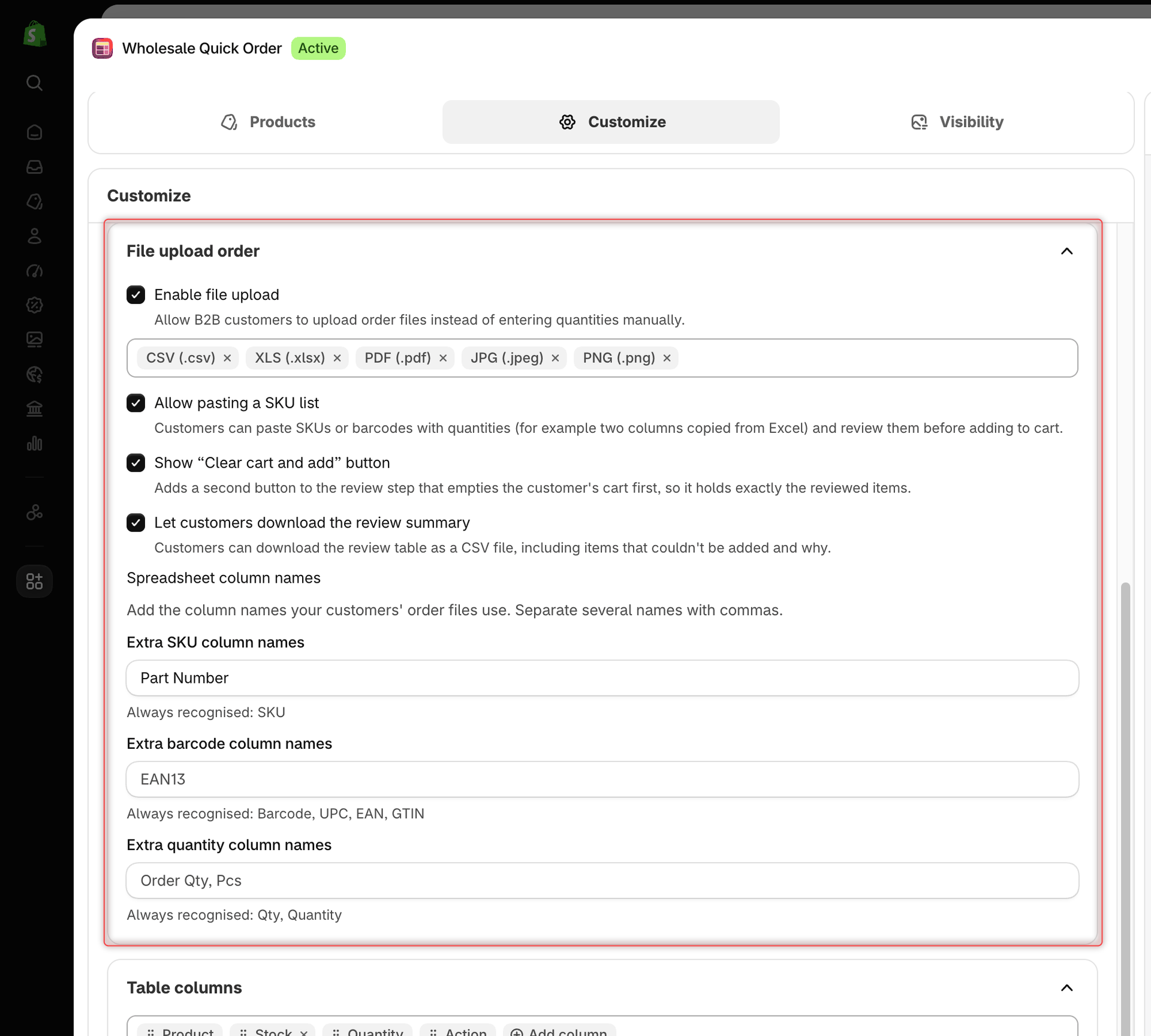
In the left sidebar, click **Customize**. In the **File upload order** section:

1. Select **Enable file upload**. More options appear below it.
2. Optional: select **Show “Clear cart and add” button** and **Let customers download the review summary** to add those buttons to the review step.
3. Optional: under **Spreadsheet column names**, type the column headings your buyers' spreadsheets use, if the app doesn't already recognise them. See [Spreadsheet column names](#spreadsheet-column-names).

Every option is described in [Options in File upload order](#options-in-file-upload-order).

<figure><img src="https://4205698016-files.gitbook.io/~/files/v0/b/gitbook-x-prod.appspot.com/o/spaces%2FcOPpR31lfLzPdPWnPtOU%2Fuploads%2Fgit-blob-caa653880abceb116c9d8903e46cc4940b455e82%2Fscreenshot-quick-order-file-upload-order.png?alt=media" alt="Quick Order form editor, Customize tab, File upload order section with Enable file upload, Allow pasting a SKU list and both review options selected, the CSV, XLS, PDF, JPG and PNG file type chips, and Part Number entered as an extra SKU column name"><figcaption><p>All file upload and paste options are in the File upload order section of the Customize tab.</p></figcaption></figure>
{% endstep %}

{% step %}

### Save

Click **Save** in the save bar. The message **Form updated** confirms it (**Form created** for a new form).

The editor's preview shows the **Bulk order** button, but clicking it there does nothing. Test file upload on your storefront.
{% endstep %}

{% step %}

### Check it on your storefront

Open the page that shows your form. The **Bulk order** button sits in the **Order table** heading, next to **Clear**.

If you don't see the form or the button, check that the form is **Active**, that it was saved, and that the page and the buyer match its [visibility settings](/globo-b2b-bulk-order/quick-order-form/visibility.md). More fixes are in [Troubleshooting](/globo-b2b-bulk-order/help/troubleshooting.md).
{% endstep %}
{% endstepper %}

## Options in File upload order

| Setting                                       | What it does                                                                                                                                                                                                                              | Default                         |
| --------------------------------------------- | ----------------------------------------------------------------------------------------------------------------------------------------------------------------------------------------------------------------------------------------- | ------------------------------- |
| **Enable file upload**                        | Adds the **Bulk order** button and the upload area to the form.                                                                                                                                                                           | Off                             |
| File type chips                               | Shown when **Enable file upload** is on. **Add file type** adds **PDF (.pdf)**, **JPG (.jpeg)** or **PNG (.png)**. Click a chip's **×** to remove it; the last chip can't be removed. The chips don't limit uploads (see the note below). | **CSV (.csv)**, **XLS (.xlsx)** |
| **Allow pasting a SKU list**                  | Adds a **Paste list** tab next to **Upload file**. See [Let buyers paste a SKU list](/globo-b2b-bulk-order/quick-order-form/paste-a-sku-list.md).                                                                                         | Off                             |
| **Show “Clear cart and add” button**          | Adds **Clear cart and add** to the review step. It empties the buyer's cart first, so the cart holds exactly the reviewed items.                                                                                                          | Off                             |
| **Let customers download the review summary** | Adds **Download summary** to the review step. It downloads the review as a CSV file, including items that couldn't be added and why.                                                                                                      | Off                             |
| **Spreadsheet column names**                  | Extra column headings to recognise in CSV and Excel files. Shown when **Enable file upload** is on.                                                                                                                                       | Empty                           |

The two review options appear when **Enable file upload** or **Allow pasting a SKU list** is on. They apply to uploaded files and pasted lists alike.

{% hint style="info" %}
The file type chips are saved with the form, but the storefront doesn't check them. Buyers can always upload every file type listed in [Accepted files and limits](#accepted-files-and-limits), whichever chips you keep.
{% endhint %}

## Accepted files and limits

| File type | Extensions                                                          | Largest file | How it's read                                                                                                      |
| --------- | ------------------------------------------------------------------- | ------------ | ------------------------------------------------------------------------------------------------------------------ |
| CSV       | `.csv`                                                              | 15 MB        | In the buyer's browser. Columns must be separated by commas.                                                       |
| Excel     | `.xlsx` (older `.xls` files work when dragged onto the upload area) | 15 MB        | In the buyer's browser. Only the first sheet is read.                                                              |
| PDF       | `.pdf`                                                              | 8 MB         | The app reads the PDF's text, using AI when the layout isn't a simple table. The PDF must contain selectable text. |
| Image     | `.jpg`, `.jpeg`, `.png`, `.gif`, `.webp`                            | 8 MB         | AI reads the image.                                                                                                |

How CSV and Excel files are read:

* The header row is the first row with a SKU or barcode heading. Rows above it, such as a company name or address, are ignored. So are other columns, such as product name or price.
* A file needs a SKU column or a barcode column. The quantity column is optional.
* Without a quantity column, every row gets quantity 1. A blank or non-numeric quantity also counts as 1, and decimals are rounded down (2.9 becomes 2).
* Rows with a quantity of 0 or less, and rows with neither a SKU nor a barcode, are skipped.

Tips for buyers:

* If Excel saves the CSV with semicolons between columns (common in some regions), upload the `.xlsx` file instead.
* A scanned PDF is a picture with no text, so it can't be read. Upload the scan as a JPG or PNG image instead.

Reading PDFs and images has usage limits: 10 files a minute from the same IP address, and 60 a minute or 500 a day for your store. Above that, buyers see **We couldn't read this image automatically. Please try a CSV or XLSX file.** CSV and Excel files have no such limit.

### PDFs and images

AI reads the file and picks out the SKU, barcode and quantity of each line. It skips lines without a quantity of 1 or more and doesn't guess missing values. It also looks for one purchase order or order number in the document and fills it in the **PO / Order # (optional)** field of the review.

To see what is sent to the AI service, read [Permissions & data](/globo-b2b-bulk-order/reference/permissions-and-data.md).

## Spreadsheet column names

CSV and Excel files are matched on their column headings. These headings are always recognised, and you can add your own under **Spreadsheet column names**:

| Field                           | Always recognised               | Example of extra names |
| ------------------------------- | ------------------------------- | ---------------------- |
| **Extra SKU column names**      | `SKU`                           | `Part Number, Item #`  |
| **Extra barcode column names**  | `Barcode`, `UPC`, `EAN`, `GTIN` | `EAN13`                |
| **Extra quantity column names** | `Qty`, `Quantity`               | `Order Qty, Pcs`       |

* Separate several names with commas.
* Upper and lower case and extra spaces don't matter, but the whole heading must match. For example, `Item SKU` isn't recognised unless you add it.
* The `SKU`, `Barcode` and `Quantity` headings of the [Order export](/globo-b2b-bulk-order/settings/order-export.md) file are recognised automatically, in every published language.
* PDFs and images don't use these names.

For example, with `Item #`, `EAN13` and `Order Qty` added, this buyer file is read as 24 × `TEE-CRW-TEA-M` and 50 of the item with barcode `2007110000010`. The first two rows are ignored:

```csv
Purchase order for Demo Wholesale Co.
PO number,PO-10452
Item #,EAN13,Order Qty
TEE-CRW-TEA-M,,24
,2007110000010,50
```

## What buyers see

{% stepper %}
{% step %}

### Open the bulk order window

The buyer clicks **Bulk order** in the form. A window titled **Upload order file** opens, with the text **Import products from CSV, XLSX, PDF, JPEG, or PNG.**

If **Allow pasting a SKU list** is also on, the window has two tabs: **Upload file** (selected) and **Paste list**.
{% endstep %}

{% step %}

### Start from a sample (optional)

Two buttons in the upload area help buyers get started:

* **Download sample file** downloads `quick-order-sample.xlsx` with the columns `SKU`, `Quantity` and `Product`. It's pre-filled with up to 3 SKUs from your form at quantity 1. If none of your form's products has a SKU, it holds two example rows instead. The `Product` column is only there for reference.
* **Use demo file** skips the upload and shows a review of up to 3 products from your form at quantity 1. Adding from this review really adds the items to the cart.
  {% endstep %}

{% step %}

### Upload the file

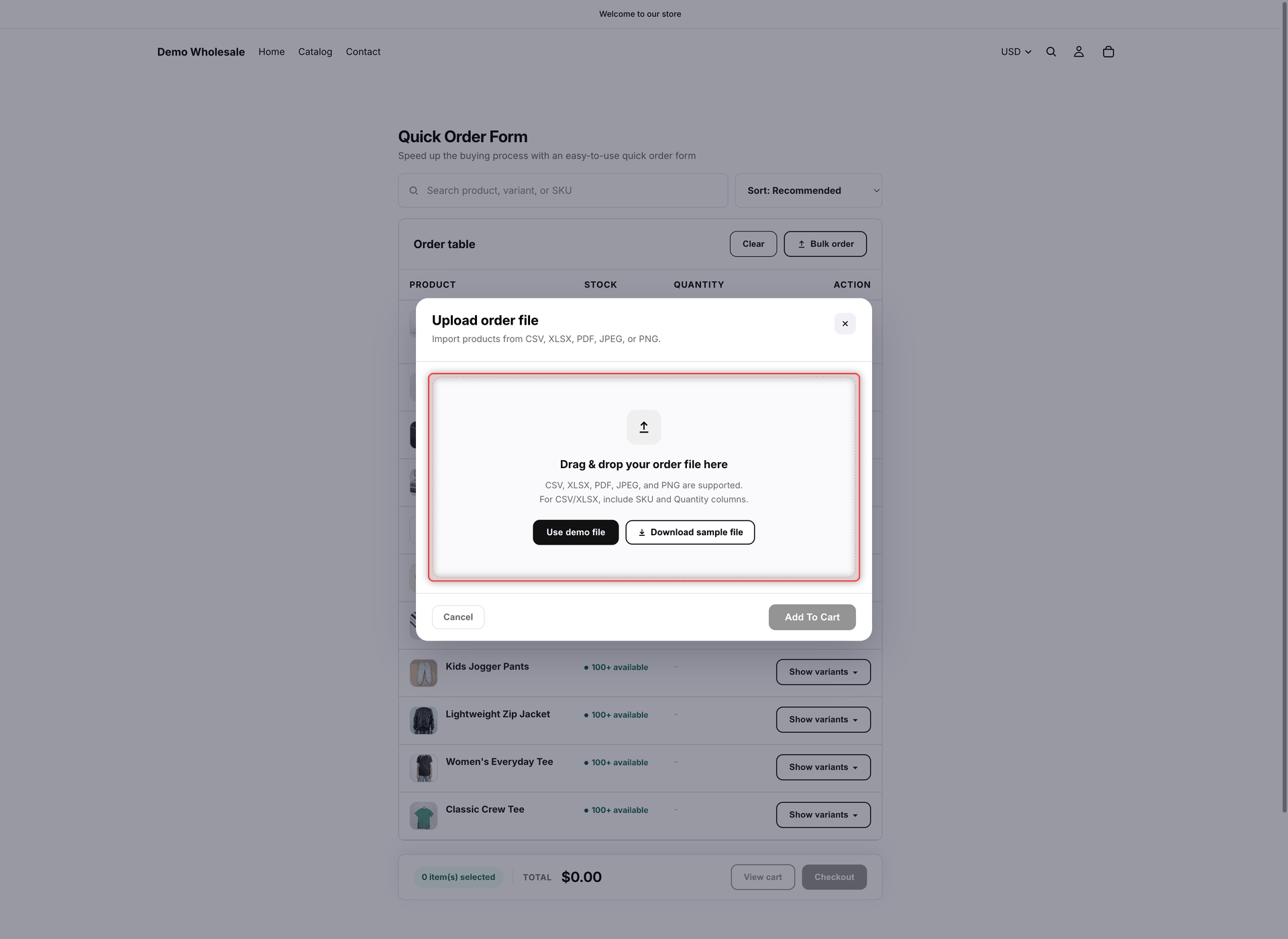
The buyer drags the file onto **Drag & drop your order file here**, or clicks the area to choose a file. One file is read at a time.

A spinner shows while the file is read and matched. If the form's product list is still loading, the app first looks up just the file's codes. When every code is found, the review opens right away. Otherwise the review opens once the whole list has loaded. The spinner has no visible text: screen readers announce these steps as **Matching your items…** and **Finishing loading the product list before matching your file…**.

<figure><img src="https://4205698016-files.gitbook.io/~/files/v0/b/gitbook-x-prod.appspot.com/o/spaces%2FcOPpR31lfLzPdPWnPtOU%2Fuploads%2Fgit-blob-32696803ebdfae68bcd427c8dc6edbb5e4429f29%2Fscreenshot-storefront-bulk-order-upload.png?alt=media" alt="Storefront Upload order file window with the Drag &#x26; drop your order file here area and the Use demo file and Download sample file buttons"><figcaption><p>Buyers drop their order file here, or start from the sample file.</p></figcaption></figure>
{% endstep %}

{% step %}

### Review the items

The review lists every matched item with notes about stock. The buyer can change quantities and add a PO number. See [The review step](#the-review-step).
{% endstep %}

{% step %}

### Add to cart

* **Add To Cart** adds the reviewed quantities to what's already in the cart, up to the available stock.
* **Clear cart and add** (if you turned it on) empties the whole cart first, then adds exactly the reviewed quantities.

The window closes, the table and the footer total update, and a toast shows **{{count}} item(s) added to your order.** (`{{count}}` is the number of different items added). If Shopify refuses some lines, for example because an item just sold out, the other lines are still added and an error toast names up to 3 items that weren't. Toasts only appear when **Show toast after add to cart** is on in [Toast notifications](/globo-b2b-bulk-order/settings/cart-notifications.md).

**Cancel**, **×** or a click outside the window closes it without changing the cart.
{% endstep %}
{% endstepper %}

## The review step

From top to bottom, the review shows:

* **Summary line**: **{{matched}} of {{total}} row(s) matched a product in this list.** Next to it are **Download summary** (if you turned it on) and **Cancel**, which goes back to the upload area.
* **PO / Order # (optional)**: for PDFs and images, the app fills in the PO or order number it finds. Buyers can change or clear it, or type one for CSV and Excel files. When at least one item is added, the number is saved on the order as `Customer PO #` (shown under **Additional details**) and as a line `Customer PO #: …` in the order note.
* **Matched items**: columns **Product**, **Price**, **Stock** and **Qty**. Each row shows the product and variant name, the code from the file, any notes, the price, the stock badge and a quantity box (from 1 up to the available stock).
* **Codes that didn't match**: listed as **SKU "{{sku}}" not found** (barcodes too). They're never added.

If nothing matched, **Add To Cart** and **Clear cart and add** stay disabled. The buyer clicks **Cancel** and tries another file.

Only products in this form can match. Matching ignores upper and lower case. A row's SKU is matched first, then its barcode if the SKU finds nothing. A barcode typed in the SKU column doesn't match, so barcodes need their own column. Prices in the review and in the summary file are your regular storefront prices. If you use [Globo B2B Wholesale Pricing](https://apps.shopify.com/wholesale-sami), its prices apply once the items are in the cart.

### Notes on each line

| Note                                                            | When it appears                                                                                 | What gets added               |
| --------------------------------------------------------------- | ----------------------------------------------------------------------------------------------- | ----------------------------- |
| **Out of stock — won't be added**                               | The item has no stock.                                                                          | Nothing                       |
| **All available stock is already in your cart**                 | The cart already holds all the stock.                                                           | Nothing                       |
| **Only {{available}} available — {{quantity}} will be added**   | The file asks for more than the stock left.                                                     | The stock left                |
| **{{count}} products share this code — the first one was used** | Several variants in the form have the same SKU or barcode.                                      | The first matching variant    |
| **{{count}} lines combined**                                    | The same item appears on several lines, such as the same SKU twice, or its SKU and its barcode. | The quantities added together |
| (no note)                                                       | Nothing to flag. In the summary file the note reads **Ready**.                                  | The quantity in the box       |

* Words in double curly brackets, such as `{{available}}`, are replaced with real numbers.
* Notes update when the buyer changes a quantity.
* Items that don't track inventory are never reduced. Items set to continue selling when out of stock are limited to their stock while they still have some, and aren't limited once their stock is 0.
* Notes assume the items already in the cart stay there. **Clear cart and add** empties the cart first, so it can also add items marked **All available stock is already in your cart**.

If nothing in the review can be added, an error toast shows **None of these items can be added — they're out of stock or already in your cart.** and the review stays open.

{% hint style="warning" %}
**Clear cart and add** removes everything from the buyer's cart, including items added outside the Quick Order form. Turn it on only if your buyers expect the cart to hold exactly one order.
{% endhint %}

### Download summary

**Download summary** saves `order-summary.csv` with the columns `SKU / Barcode`, `Product`, `Requested`, `To add`, `Price` and `Note`. Codes that didn't match are included with `To add` = 0 and the note **SKU "{{sku}}" not found**. The file opens correctly in Excel.

## Reorder from an order export file

When you turn on [Order export](/globo-b2b-bulk-order/settings/order-export.md), buyers can download a past order as a CSV file from their customer account (Shopify's new customer accounts) and upload it here to order the same items again.

1. In their customer account, the buyer opens the order's menu and clicks **Download CSV**, then **Download CSV** in the **Download order** window. When at least one Active form has **Enable file upload** on, the window also says **To order these items again, upload this file to the quick order form.**
2. On your Quick Order form, the buyer clicks **Bulk order** and uploads the file. The usual review follows, based on current stock.

For this to work:

* Keep a **SKU** or **Barcode** column, and the **Quantity** column, in the export. They're included by default. Without **Quantity**, every line comes back as quantity 1.
* Items that aren't in this form show as **SKU "{{sku}}" not found**.
* The export's **PO number** column isn't copied into the **PO / Order # (optional)** field. The buyer types it again if needed.

## Messages buyers may see

<details>

<summary>Upload messages and what causes them</summary>

Each message shows in the bulk order window with a **Try again** button, which goes back to the upload area.

| Message                                                                                     | Cause                                                                                                                                                                       |
| ------------------------------------------------------------------------------------------- | --------------------------------------------------------------------------------------------------------------------------------------------------------------------------- |
| **This file type isn't supported for automatic import yet. Please use a CSV or XLSX file.** | A file type not listed in [Accepted files and limits](#accepted-files-and-limits) was dragged in.                                                                           |
| **This file is too large to import. Please use a file smaller than 15 MB.**                 | The file is over 15 MB.                                                                                                                                                     |
| **PDFs and images must be smaller than 8 MB. Please use a smaller file.**                   | A PDF or image is over 8 MB.                                                                                                                                                |
| **Couldn't read this file. Please check the format and try again.**                         | The CSV or Excel file is damaged or isn't really that format.                                                                                                               |
| **No matching SKU/Quantity rows were found in this file.**                                  | No SKU or barcode heading was found, the CSV uses semicolons, the PDF has no text, or the AI found no lines. **Use demo file** also shows it when the form has no products. |
| **We couldn't read this image automatically. Please try a CSV or XLSX file.**               | The PDF or image couldn't be read: a connection problem, a temporary error, or a usage limit was reached.                                                                   |

</details>

To change any of this wording, or translate it, go to **Settings** > **Translations**, click the pencil icon (**Translate**) in the row of a language, then click **Quick Order Form Table** under **Storefront sections**. These texts are in the **File upload** group. See [Edit translations](/globo-b2b-bulk-order/settings/edit-translations.md).

## Next steps

* [Let buyers paste a SKU list](/globo-b2b-bulk-order/quick-order-form/paste-a-sku-list.md)
* [Set up Order export](/globo-b2b-bulk-order/settings/order-export.md) so buyers can reorder from past orders
* [Toast notifications](/globo-b2b-bulk-order/settings/cart-notifications.md) control the messages shown after items are added
* [Troubleshooting](/globo-b2b-bulk-order/help/troubleshooting.md)