> For the complete documentation index, see [llms.txt](https://docs.globo.io/llms.txt). Markdown versions of documentation pages are available by appending `.md` to page URLs; this page is available as [Markdown](https://docs.globo.io/globo-b2b-bulk-order/quick-order-form/visibility.md).

# Choose who sees the form and where

Control which pages show a Quick Order form and which customers can see it, and copy the form's embed code.

The **Visibility** tab of a Quick Order form decides on which pages the form can appear and which customers can see it. It also holds the embed code you use to place the form. When a page or a customer doesn't match your rules, the form doesn't appear. Buyers see no message in its place.

## Before you start

* Turn on the **Globo Bulk Order** app embed. See [Enable the app embed](/globo-b2b-bulk-order/getting-started/enable-app-embed.md).
* Create and save a Quick Order form, and add it to at least one page. See [Create a Quick Order form](/globo-b2b-bulk-order/quick-order-form/create-a-form.md).
* To target B2B buyers by tag, add tags to those customers first. In Shopify admin, go to **Customers**, open a customer, and add a tag such as `wholesale` under **Tags**.

## How visibility works

**Display location** doesn't add the form to any page. You place the form with the **GloboBO quick order form** block or its embed code, and the **Globo Bulk Order** app embed must be on. On each page load, the form then appears only when all of these are true:

1. The form is **Active**.
2. The page matches **Display location**.
3. The customer matches **Who can see this form?** and has none of the **Exclude customer tags**.

## Open the Visibility tab

In Shopify admin, go to **Apps** > **Globo B2B Bulk Order**, then click **Quick Order** in the app navigation. Click the pencil icon (**Edit**) on the form's row, then click the **Visibility** tab in the editor's left sidebar.

The tab has three sections: **Display location**, **Customer visibility** and **Publishing**. Click a section's header to collapse or expand it.

## Display location

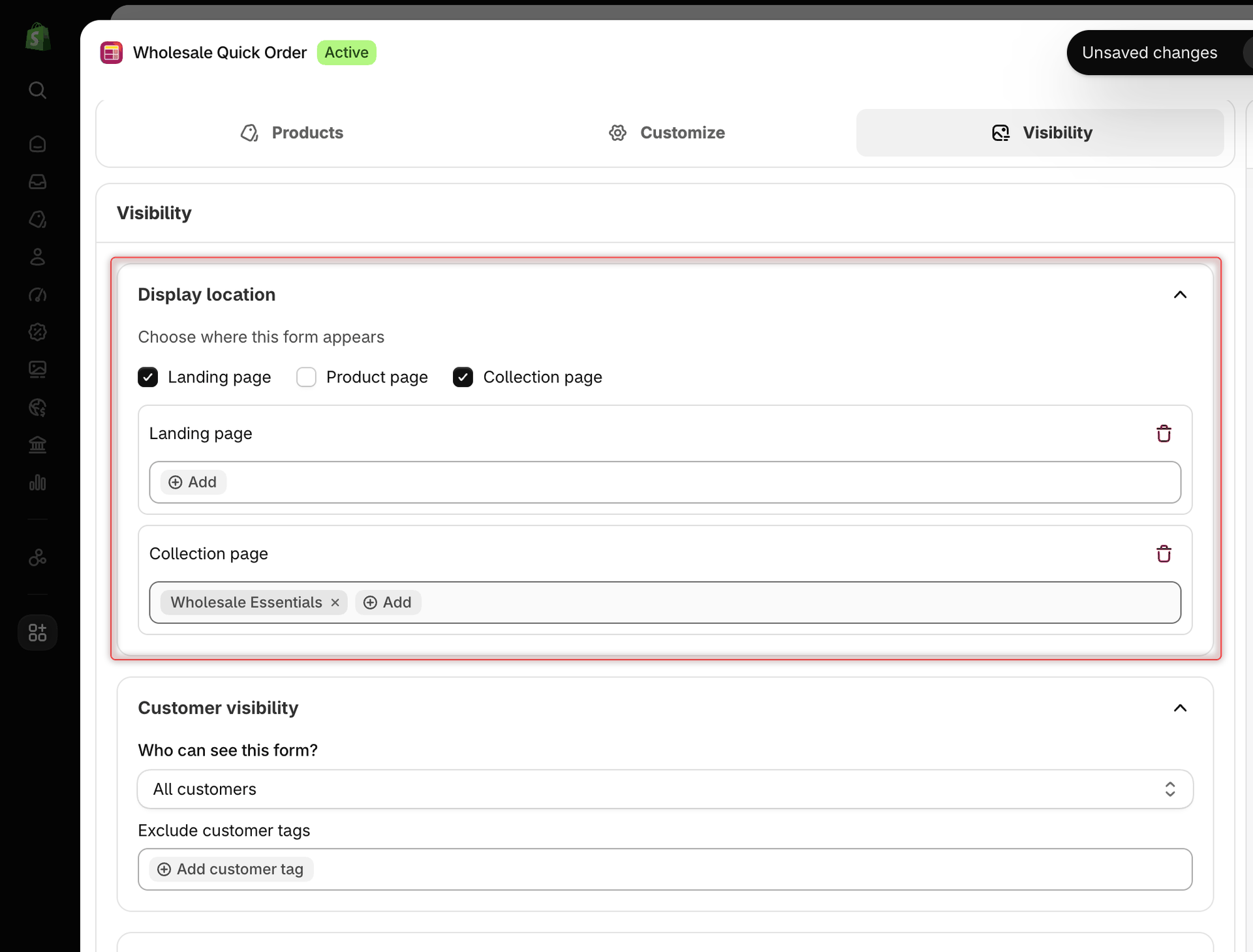
Under **Choose where this form appears**, tick one or more page types. New forms have **Landing page** ticked.

| Page type           | Pages it covers                                                                                                                                                                | Pick specific pages with **Add**                                                                                             |
| ------------------- | ------------------------------------------------------------------------------------------------------------------------------------------------------------------------------ | ---------------------------------------------------------------------------------------------------------------------------- |
| **Landing page**    | Your home page, plus every page that isn't a product, collection or search page. This includes pages you create in **Online Store** > **Pages**, blog pages and the cart page. | A list with **Home page (home\_page)** and your online store pages, shown as "Title (ID)". Search by title, then tick pages. |
| **Product page**    | All product pages.                                                                                                                                                             | Shopify's product picker. See the warning below.                                                                             |
| **Collection page** | All collection pages.                                                                                                                                                          | Shopify's collection picker.                                                                                                 |

When you tick a page type, a box with its name appears below the checkboxes. In that box:

* With no specific pages added, the form can appear on **every** page of that type.
* Click **Add** to limit the form to specific pages. Each pick shows as a chip. Click a chip's **×** to remove it.
* Click the trash icon to remove the page type. This also unticks its checkbox.

Keep in mind:

* If you add specific landing pages but not **Home page**, the form no longer shows on your home page.
* If the form's block is on a page type you didn't tick, the form stays empty there. For example, a form with only **Landing page** ticked doesn't show on a product template.
* If you untick all three page types, the form can appear on any page where you placed it, including search results. The **Display pages** column on the list then shows **All**. Remove a page type's chips before you untick it: the app keeps them, and they still limit the form when no page type is ticked.
* Search results pages show the form only when no page type is ticked.

**Example:** to show a form on your home page and on the **Wholesale Essentials** collection page only:

1. With **Landing page** ticked, click **Add** in its box and tick **Home page (home\_page)**.
2. Tick **Collection page**. In its box, click **Add**, pick **Wholesale Essentials** and confirm.
3. Make sure the form's block is on both the home page and the collection template.

<figure><img src="https://4205698016-files.gitbook.io/~/files/v0/b/gitbook-x-prod.appspot.com/o/spaces%2FcOPpR31lfLzPdPWnPtOU%2Fuploads%2Fgit-blob-cf38dd9e5ca158147678e7d7fe1af23a6071afdf%2Fscreenshot-quick-order-visibility-display-location.png?alt=media" alt="Display location section with Landing page and Collection page ticked, and the Wholesale Essentials collection added under Collection page"><figcaption><p>Tick a page type, then click Add to limit the form to specific pages.</p></figcaption></figure>

{% hint style="warning" %}
**Don't add specific products under Product page.** At the moment, a form limited to specific products under **Product page** doesn't appear on any product page. With no products added, it appears on every product page that has the block. To show the form on only some products, add the block to a separate product template and assign that template to those products.
{% endhint %}

## Customer visibility

Choose an option in **Who can see this form?**:

| Option                       | Who sees the form                                                                       |
| ---------------------------- | --------------------------------------------------------------------------------------- |
| **All customers** (default)  | Everyone, logged in or not.                                                             |
| **Logged-in customers only** | Buyers who are logged in to a customer account on your store.                           |
| **Guest customers only**     | Visitors who aren't logged in.                                                          |
| **Customers with tags**      | Logged-in customers who have **at least one** of the tags in **Include customer tags**. |

Below the menu:

* **Include customer tags** appears when you choose **Customers with tags**. Add at least one tag, or saving shows **Add at least one customer tag**.
* **Exclude customer tags** appears for every option except **Guest customers only**. A customer with **any** of these tags doesn't see the form, even if they match the option above.

To add a tag, click **Add customer tag**. A list of your store's customer tags opens. Tick the tags you want, or type to search. To use a tag that isn't in the list yet, type it and click **Add "…"**. You can type several tags separated by commas. To remove a tag, click its **×**.

**Example:** for a form only your B2B buyers see, choose **Customers with tags** and include `wholesale` and `b2b`. A logged-in customer with either tag sees the form. Guests and customers without these tags don't.

<figure><img src="https://4205698016-files.gitbook.io/~/files/v0/b/gitbook-x-prod.appspot.com/o/spaces%2FcOPpR31lfLzPdPWnPtOU%2Fuploads%2Fgit-blob-fdcf71c360c5e7b2504e65a05299525a992dd122%2Fscreenshot-quick-order-visibility-customer-tags.png?alt=media" alt="Customer visibility section with Customers with tags selected and the tags wholesale and b2b under Include customer tags"><figcaption><p>Show the form only to customers who have one of the included tags.</p></figcaption></figure>

{% hint style="info" %}
**Tags must match exactly**, including upper and lower case. `Wholesale` doesn't match a customer tagged `wholesale`. Pick tags from the list rather than typing them, to avoid typos. Guests have no tags, so **Customers with tags** always requires buyers to log in.
{% endhint %}

Buyers who don't match see nothing where the form would be. There's no login prompt. If the form is for logged-in buyers, consider adding a short text to the page that asks guests to log in.

If a tagged buyer still doesn't see the form, see [A buyer with the right tag doesn't see the form](/globo-b2b-bulk-order/help/troubleshooting.md#a-buyer-with-the-right-tag-doesnt-see-the-form). For how customer targeting works in Collection Quick Order and Variant Table, see [Customer & product targeting](/globo-b2b-bulk-order/targeting-and-design/customer-and-product-targeting.md).

## Publishing

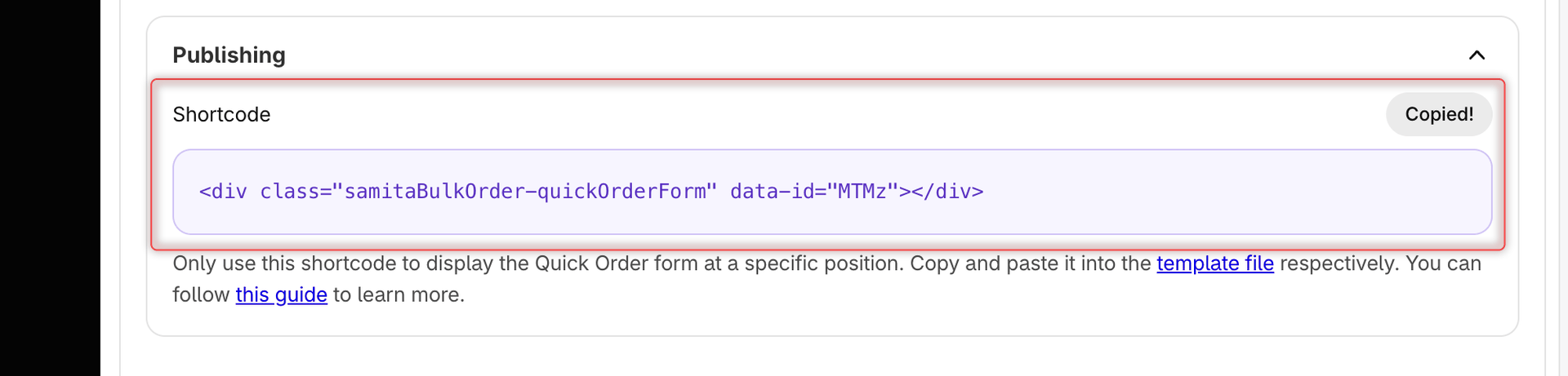
**Publishing** shows the form's embed code under **Shortcode**:

* Click **Copy** to copy the code. The button briefly changes to **Copied!**.
* Before you save a new form, the box shows **Save the form to generate a shortcode.** and **Copy** is disabled.

Paste the code into the **Shortcode** setting of the **GloboBO quick order form** block in your theme editor. If you edit your theme's code, you can paste it into a template file instead. For the full steps, see [Add the form block in the theme editor](/globo-b2b-bulk-order/quick-order-form/create-a-form.md#add-the-form-block-in-the-theme-editor).

<figure><img src="https://4205698016-files.gitbook.io/~/files/v0/b/gitbook-x-prod.appspot.com/o/spaces%2FcOPpR31lfLzPdPWnPtOU%2Fuploads%2Fgit-blob-830e58afe441aab8fef81bcfdedebfbded9fe31d%2Fscreenshot-quick-order-visibility-publishing.png?alt=media" alt="Publishing section of the Visibility tab in the Quick Order form editor, showing the form&#x27;s embed code and the Copy button next to Shortcode, which reads Copied! after a click"><figcaption><p>Copy the form's embed code from the Publishing section after you save.</p></figcaption></figure>

Visibility changes don't change the embed code. After you edit these settings, you only need to save the form. You don't need to update the block.

## Save and test your rules

{% stepper %}
{% step %}

### Save the form

Click **Save** in the save bar at the top of the form editor. A **Form updated** message appears. If you see **Fix errors to save**, fix each listed item and save again.
{% endstep %}

{% step %}

### Test as a guest

Open the page in a private or incognito browser window, so you aren't logged in. The form should appear only if your rules allow guests, that is with **All customers** or **Guest customers only**. Changes can take a few moments to reach your storefront, so reload the page if needed.
{% endstep %}

{% step %}

### Test as a matching customer

Log in to your online store as a customer who matches your rules, and open the page. The form should appear. For **Customers with tags**, first give a test customer one of the included tags, for example `wholesale`: in Shopify admin, open the customer under **Customers** and add the tag under **Tags**.
{% endstep %}

{% step %}

### Check the other pages

Open a page type you didn't tick in **Display location**, if it also has the block. The form should stay empty there. If something doesn't look right, see [Troubleshooting](/globo-b2b-bulk-order/help/troubleshooting.md).
{% endstep %}
{% endstepper %}

## Next steps

* [Customize the form](/globo-b2b-bulk-order/quick-order-form/customize-the-form.md)
* [Customer & product targeting](/globo-b2b-bulk-order/targeting-and-design/customer-and-product-targeting.md)
* [Create a Quick Order form](/globo-b2b-bulk-order/quick-order-form/create-a-form.md)
* [Troubleshooting](/globo-b2b-bulk-order/help/troubleshooting.md)