> For the complete documentation index, see [llms.txt](https://docs.globo.io/llms.txt). Markdown versions of documentation pages are available by appending `.md` to page URLs; this page is available as [Markdown](https://docs.globo.io/globo-b2b-bulk-order/settings/auto-translate.md).

# Auto-translate with AI

Fill in a language's untranslated storefront wording with AI, review the results, and save them to your store.

**Auto-translate** fills in every string of a language that is still untranslated or outdated, in all six storefront sections at once. AI writes the translations into the editor as unsaved changes, so you can read and edit them first. Buyers see them only after you save.

## Before you start

* Add the language to your store in Shopify and in **Settings** > **Translations**. See [Add a language](/globo-b2b-bulk-order/settings/edit-translations.md#add-a-language).
* Auto-translate works for every language except English. English is the wording all translations are made from, so the English editor (**English wording**) has no **Auto-translate** button.
* If you plan to change your English wording, do it first. Auto-translate translates from the **English** column, which shows your English wording. See [Change your English wording](/globo-b2b-bulk-order/settings/edit-translations.md#change-your-english-wording).
* Auto-translate uses your store's monthly AI allowance. See **Usage** in the translation editor, described in [Check your monthly AI allowance](#check-your-monthly-ai-allowance).
* To check the result on your storefront, the **Globo Bulk Order** app embed must be on and a Globo B2B Bulk Order tool must be on a storefront page. See [Enable the app embed](/globo-b2b-bulk-order/getting-started/enable-app-embed.md).

## Translate a language

{% stepper %}
{% step %}

### Open the language

In Shopify admin, go to **Apps** > **Globo B2B Bulk Order**, then click **Settings** in the app navigation. Settings opens on **Translations**.

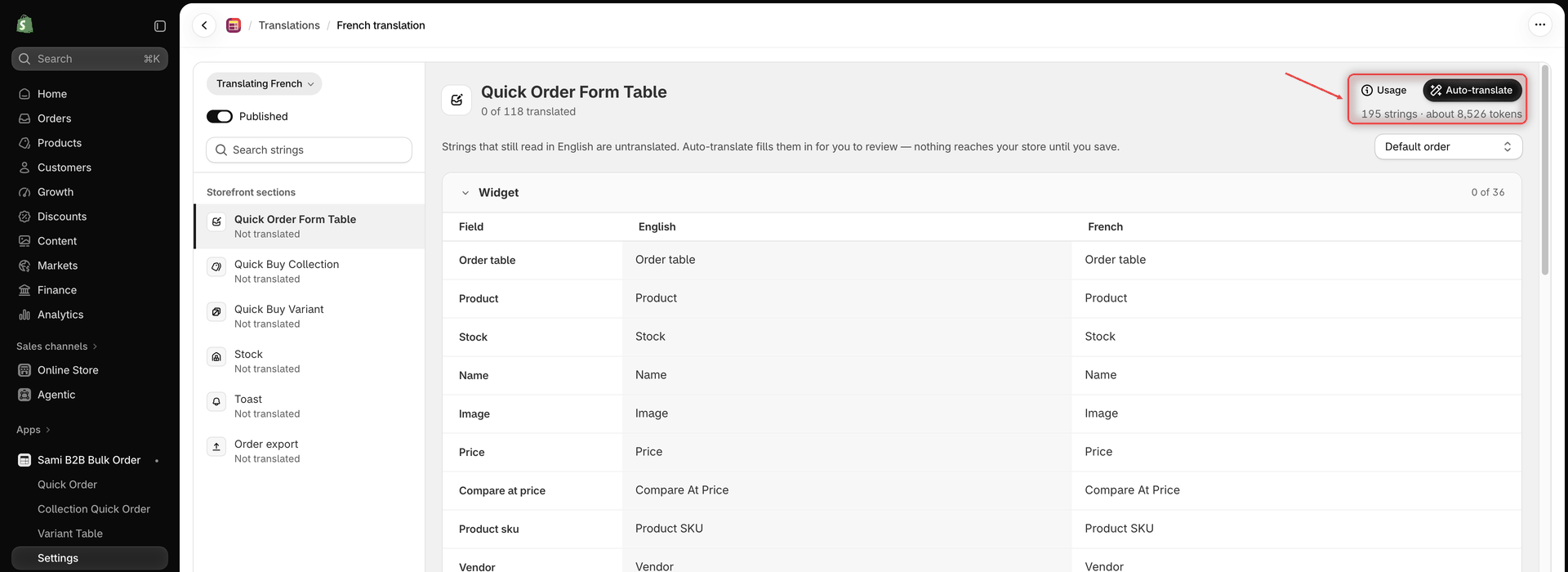
In the row of the language you want, for example French, click the pencil icon (**Translate**). The editor opens as **French translation**. **Usage** and **Auto-translate** are at the top right of the right-hand pane.
{% endstep %}

{% step %}

### Check what will be translated

Read the line under **Auto-translate**. It covers the whole language, not only the open section. Usually it reads **{{count}} strings · about {{tokens}} tokens**: how many strings will be filled in, and about how many AI tokens that takes. In the editor, `{{count}}`, `{{tokens}}`, `{{left}}` and `{{date}}` show as real numbers and a date, for example "195 strings".
| Line under the button                                              | What it means                                                                                                                                                                                                                                         |
| ------------------------------------------------------------------ | ----------------------------------------------------------------------------------------------------------------------------------------------------------------------------------------------------------------------------------------------------- |
| **{{count}} strings · about {{tokens}} tokens**                    | Ready to run.                                                                                                                                                                                                                                         |
| **{{count}} strings from earlier translations · no tokens needed** | Every string can be copied from translations this language already has. No AI tokens are used.                                                                                                                                                        |
| **Every string is translated**                                     | Nothing is left to fill in. The button is greyed out.                                                                                                                                                                                                 |
| **Save this language once before using Auto-translate.**           | The language hasn't been saved yet. Type one translation, click **Save** in the save bar, then come back to this step.                                                                                                                                |
| **Needs about {{tokens}} tokens, {{left}} left this month**        | Your allowance doesn't cover the whole language. Auto-translate translates what the allowance covers, then stops. If too little is left for even a small part, the button is greyed out, unless some strings can be copied from earlier translations. |
| **No AI tokens left this month. They reset {{date}}.**             | Your allowance is used up. The button is greyed out unless some strings can be copied from earlier translations.                                                                                                                                      |

<figure><img src="https://4205698016-files.gitbook.io/~/files/v0/b/gitbook-x-prod.appspot.com/o/spaces%2FcOPpR31lfLzPdPWnPtOU%2Fuploads%2Fgit-blob-cd01d0b34132c68c781ab1e9a969f41739973734%2Fscreenshot-settings-translations-auto-translate.png?alt=media" alt="French translation editor with the Usage and Auto-translate buttons and, under them, the line with the number of strings and the estimated tokens"><figcaption><p>The line under Auto-translate shows how many strings it will fill in and about how many AI tokens that takes.</p></figcaption></figure>
{% endstep %}

{% step %}

### Click Auto-translate

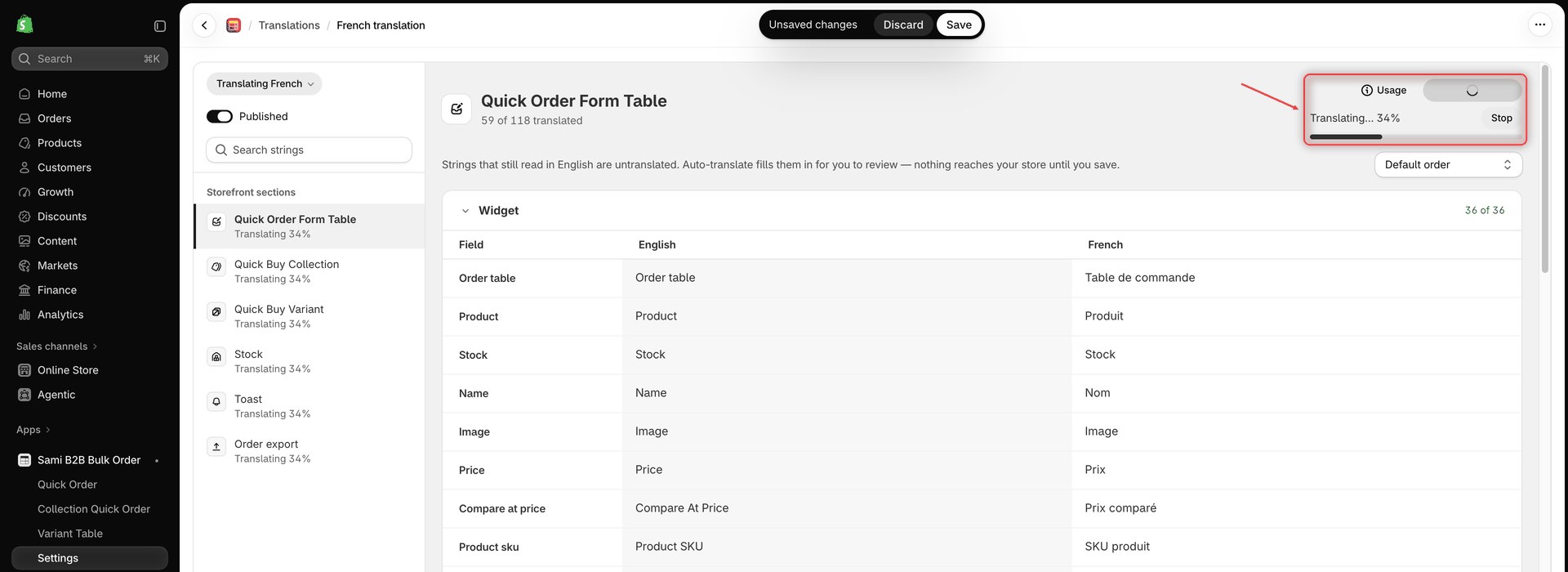
Click **Auto-translate**. The line under the button changes to **Waiting to start…**, then to **Translating… 45%** (for example) with a progress bar. Each section in the left pane shows the progress too, such as **Translating 45%**.

Strings that can be copied from earlier translations are filled in at once. If that covers everything, no progress bar appears, and you go straight to the next step.

Translations appear in the boxes as they arrive. You can keep working while it runs: a box you type in keeps what you typed.

To stop early, click **Stop**. Translations that have already arrived stay in the editor.

<figure><img src="https://4205698016-files.gitbook.io/~/files/v0/b/gitbook-x-prod.appspot.com/o/spaces%2FcOPpR31lfLzPdPWnPtOU%2Fuploads%2Fgit-blob-6b6e0e1a56ada45b758578e102f6b341dd43a24e%2Fscreenshot-settings-translations-auto-translate-progress.png?alt=media" alt="Translation editor during Auto-translate, showing the Translating progress text, the progress bar and the Stop button"><figcaption><p>While Auto-translate runs, the progress bar shows how far it got, and Stop ends it early.</p></figcaption></figure>
{% endstep %}

{% step %}

### Review the translations

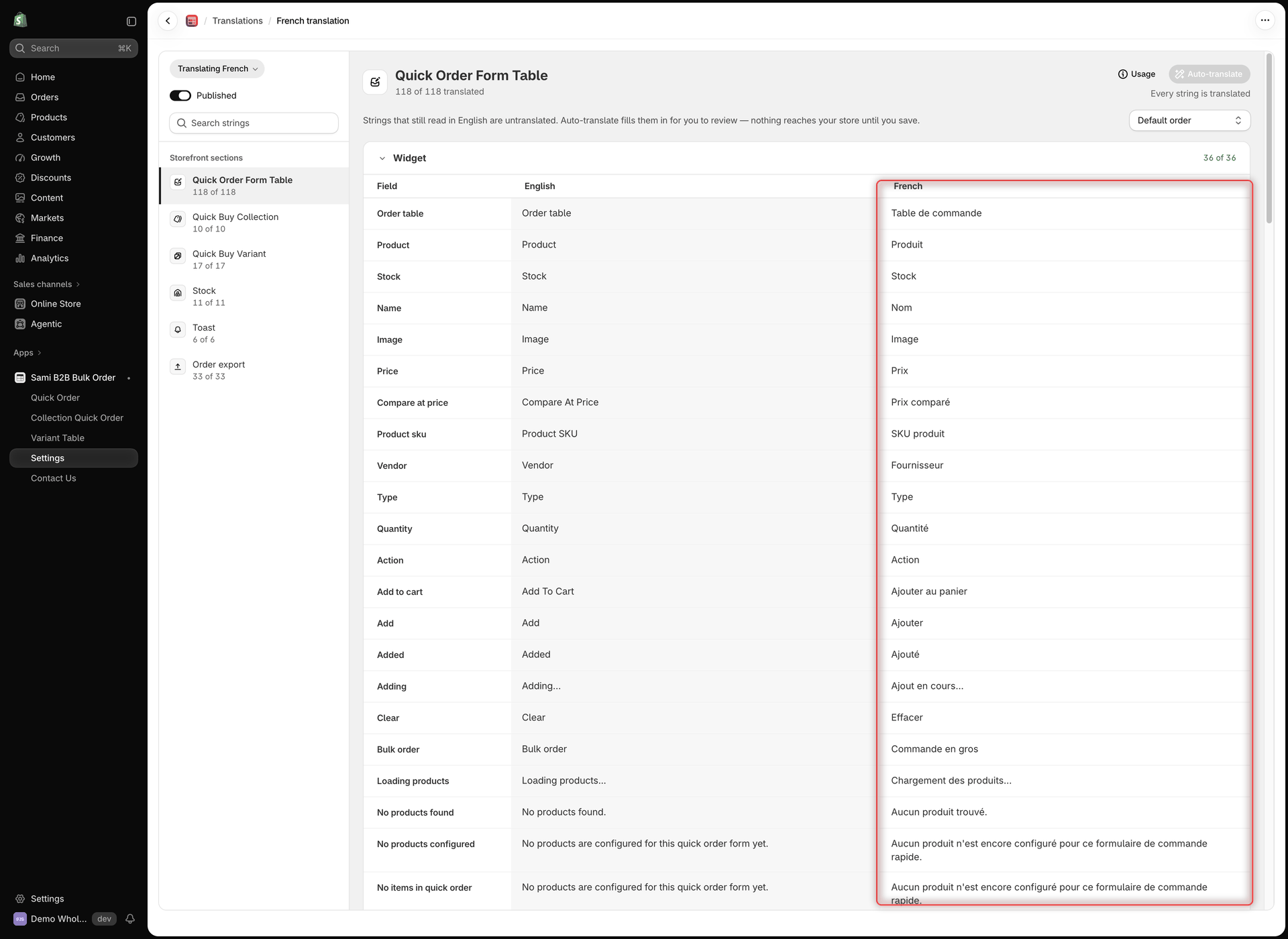
When it finishes, the message **Translations added. Review them, then save.** appears. The translations are unsaved changes in every section.

Go through the sections under **Storefront sections** and correct anything you'd word differently. To see what's still missing, set **Sort** to **Untranslated first**. If a banner appears above the strings, see [Messages](#messages).
{% endstep %}

{% step %}

### Save

Click **Save** in Shopify's save bar at the top of the page. The message **Translation updated** confirms it.

**Discard** removes every change since your last save, including all Auto-translate results, and stops a run that's still going.

<figure><img src="https://4205698016-files.gitbook.io/~/files/v0/b/gitbook-x-prod.appspot.com/o/spaces%2FcOPpR31lfLzPdPWnPtOU%2Fuploads%2Fgit-blob-24f70f24e3aab08e5b3af6de6edb0b2ef3e4a250%2Fscreenshot-settings-translations-editor.png?alt=media" alt="French translation editor with the language button, Published switch, Search strings box and Storefront sections list on the left, and the Widget group of Quick Order Form Table with its Field, English and French columns filled in on the right"><figcaption><p>Review the filled-in translations, then click Save to publish them to your store.</p></figcaption></figure>
{% endstep %}

{% step %}

### Publish and check your storefront

If the language's **Published** switch is off, turn it on and click **Save** again. Then open your store in that language with your theme's language selector and reload a page that shows a Globo B2B Bulk Order tool. Your changes reach the storefront shortly after you save.

If you still see English, make sure the language is published both here and in Shopify (**Settings** > **Languages** in Shopify admin).
{% endstep %}
{% endstepper %}

{% hint style="warning" %}
Leaving the editor doesn't stop a run. If you leave before it finishes, open the same language again within 24 hours and its translations are filled in again. Once the results are in an editor, they aren't offered again: if you then leave without saving, run **Auto-translate** again.
{% endhint %}

## What Auto-translate changes

* **All six sections at once**, not only the section that's open.
* **Untranslated and outdated strings only.** Strings that are already translated are never changed. An outdated string gets a new translation that replaces the old one, so review it before you save.
* **Copies before it translates.** If this language already has a translation of the same English text, for example in another section, it's copied and uses no AI tokens. The same English text is translated only once.
* **Keeps placeholders.** Words in double curly brackets, such as `{{count}}` or `{{sku}}`, stay as they are. If a translation loses or changes a placeholder, it's left out and the string stays untranslated.
* **Keeps names and common terms.** The AI is asked to leave abbreviations such as SKU, MSRP, CSV and PDF, web addresses, and brand, store and product names unchanged.
* **One run per language.** While a run is going, the button is greyed out. If you open the same language in another browser tab and click **Auto-translate** there, that tab follows the run that's already going.

To learn how your wording is processed, see [Permissions & data](/globo-b2b-bulk-order/reference/permissions-and-data.md#ai-processing).

## Check your monthly AI allowance

Each store has a monthly AI allowance for Auto-translate. To see how much is left, click **Usage** next to **Auto-translate**. The popover shows:

* **Monthly AI tokens**, with the date it resets (for example, **resets Nov 1**) and the share already used, in percent
* a progress bar
* **{{used}} of {{limit}} tokens used**

The allowance resets on the 1st of every month (UTC). Only Auto-translate uses it, and strings copied from earlier translations don't count. If the popover shows **Usage isn't available right now.**, reload the page and open it again.

When the allowance runs out during a run, Auto-translate stops. The translations it already made stay in the editor. You can save them, write the rest yourself, or run **Auto-translate** again after the reset date.

## Messages

| Message                                                                   | When you see it                                                           | What to do                                                                                                                                 |
| ------------------------------------------------------------------------- | ------------------------------------------------------------------------- | ------------------------------------------------------------------------------------------------------------------------------------------ |
| **Translations added. Review them, then save.**                           | Auto-translate filled in at least one string.                             | Review the translations, then click **Save**.                                                                                              |
| **{{count}} strings weren't translated. Try again, or write them in.**    | The run finished, but some strings got no usable translation.             | Click **Auto-translate** again: only the missing strings are sent. Or type them yourself.                                                  |
| **Only {{left}} AI tokens are left this month, not enough for the rest.** | The allowance ran out during the run, or too little was left to start it. | Save what was translated, then write the rest yourself or wait for the reset.                                                              |
| **This month's AI tokens are used up. They reset {{date}}.**              | The allowance is used up.                                                 | Save what was translated, then write the remaining strings yourself, or run **Auto-translate** after the reset date.                       |
| **Auto-translate didn't work. Try again.**                                | The run couldn't start or failed.                                         | Wait a minute and click **Auto-translate** again. If it keeps happening, [contact support](/globo-b2b-bulk-order/help/contact-support.md). |
| **Auto-translate isn't available right now.**                             | Auto-translate is temporarily unavailable.                                | Try again later. If it keeps happening, [contact support](/globo-b2b-bulk-order/help/contact-support.md).                                  |

The banners appear above the strings. Close one with its close button.

## Next steps

* [Edit translations](/globo-b2b-bulk-order/settings/edit-translations.md): edit by hand, publish and delete languages
* [Translations](/globo-b2b-bulk-order/settings/overview.md): how languages, publishing and fallback work
* [Order export](/globo-b2b-bulk-order/settings/order-export.md)