> For the complete documentation index, see [llms.txt](https://docs.globo.io/llms.txt). Markdown versions of documentation pages are available by appending `.md` to page URLs; this page is available as [Markdown](https://docs.globo.io/globo-b2b-bulk-order/settings/cart-notifications.md).
# Toast notifications
Choose where the add-to-cart message (toast) appears on your storefront, how long it stays, how it looks and whether it links to the cart.
A toast is the small message that pops up in a corner of the screen when a buyer adds items to the cart with the Quick Order form, the Variant Table or Collection Quick Order, or when adding fails. You set its position, duration, colors and cart link in the app's **Settings** > **Toast** page.
## Before you start
* The **Globo Bulk Order** app embed is on in your theme. See [Enable the app embed](/globo-b2b-bulk-order/getting-started/enable-app-embed.md).
* You have at least one **Active** Quick Order form, Variant Table or Collection Quick Order on your storefront, so you can test the toast.
## Set up the toast
{% stepper %}
{% step %}
### Open the Toast settings
In Shopify admin, go to **Apps** > **Globo B2B Bulk Order**, then click **Settings** in the app navigation. Settings opens on **Translations**. In the Settings menu on the left, click **Toast**.
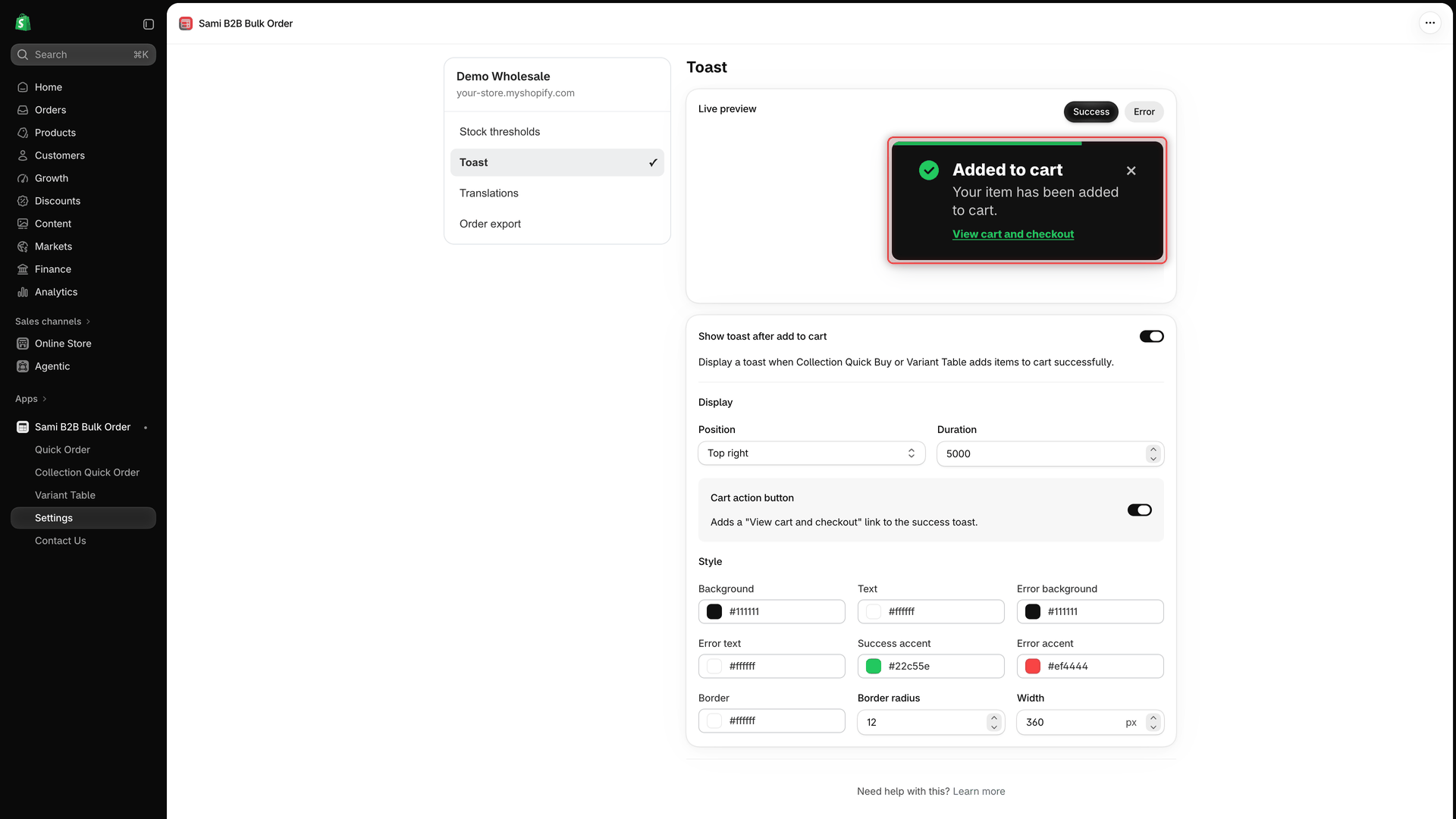
The page has two cards: **Live preview** at the top, and the toast settings below it.
{% endstep %}
{% step %}
### Keep the toast turned on
**Show toast after add to cart** is on by default. Leave it on to show toasts.
The help text under it reads **Display a toast when Collection Quick Buy or Variant Table adds items to cart successfully.** The switch also controls the Quick Order form's toasts. If you turn it off, the rest of the settings are hidden and buyers see no toast at all, error messages included.
{% endstep %}
{% step %}
### Choose the position, duration and cart link
Under **Display**:
* **Position**: the corner of the screen where toasts appear.
* **Duration**: how long each toast stays, in milliseconds. For example, 5000 is 5 seconds.
Below it, the **Cart action button** switch adds a **View cart and checkout** link to success toasts. It's on by default.
{% endstep %}
{% step %}
### Style the toast
Under **Style**, set the colors, the **Border radius** and the **Width**. Success and error toasts each have their own background, text and accent colors. All options are listed in [Toast settings](#toast-settings).
{% endstep %}
{% step %}
### Check the live preview
At the top of the page, click **Success** or **Error** to see that type of toast in **Live preview**. The preview sits in the corner you chose and shows your colors, border, corner radius, width and cart link. It doesn't count down the **Duration**, so check that on your storefront.
The Live preview shows a success or error toast with your current settings.
The preview always uses the app's built-in English wording, and its link can't be clicked. Your buyers see the wording described in [Which text each toast shows](#which-text-each-toast-shows).
{% endstep %}
{% step %}
### Save
Click **Save** in the save bar. The message **Toast settings saved** confirms it.
{% endstep %}
{% step %}
### Test it on your storefront
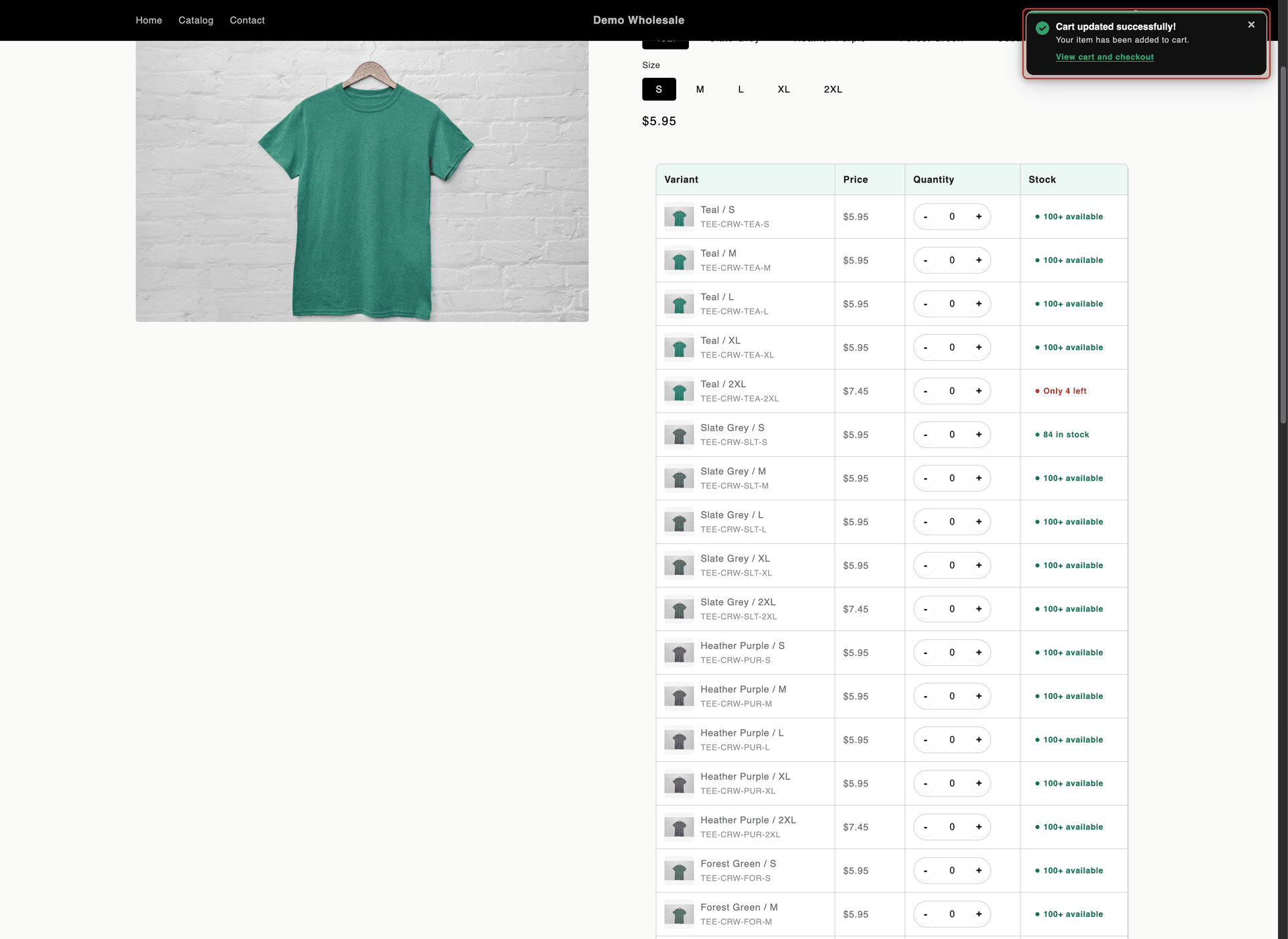
Reload a storefront page with one of your tools and add an item to the cart. For example, on a product page with a Variant Table, enter a quantity for one variant and click the table's **Add to Cart** button. The toast appears in the corner you chose and closes after the **Duration**.
Your changes reach the storefront shortly after you save, so reload again if you still see the old toast.
{% endstep %}
{% endstepper %}
{% hint style="info" %}
While a Settings page has unsaved changes, the other items in the Settings menu don't respond. Click **Save** or **Discard** in the save bar first, then switch pages.
{% endhint %}
## Toast settings
| Setting | What it does | Default |
| -------------------------------- | ------------------------------------------------------------------------------------------------------------------------------------------------- | ------------- |
| **Show toast after add to cart** | Shows toasts on the storefront. When it's off, no toast appears for any tool, and the other settings are hidden. | On |
| **Position** | The corner where toasts appear, 16 px from the edges: **Top right**, **Top left**, **Bottom right** or **Bottom left**. | **Top right** |
| **Duration** | How long each toast stays before it closes, in milliseconds, from 1200 to 12000. A thin bar along the top of the toast fills up during this time. | 5000 |
| **Cart action button** | Adds the **View cart and checkout** link to success toasts. Error toasts never have the link. | On |
| **Background** | Background color of success toasts. | `#111111` |
| **Text** | Text color of success toasts. | `#ffffff` |
| **Error background** | Background color of error toasts. | `#111111` |
| **Error text** | Text color of error toasts. | `#ffffff` |
| **Success accent** | Color of the check icon, the progress bar and the link on success toasts. | `#22c55e` |
| **Error accent** | Color of the icon and the progress bar on error toasts. | `#ef4444` |
| **Border** | Color of the thin border around both toast types. | `#ffffff` |
| **Border radius** | How rounded the corners are, from 0 to 28 px. | 12 |
| **Width** | Toast width, from 260 to 520 px. On small screens, the toast is never wider than the screen. | 360 |
## What buyers see
Each toast shows an icon (a check for success, an alert for errors), a bold heading, a shorter message, and on success toasts the **View cart and checkout** link. Buyers can close it early with **×** in its top-right corner.
After a buyer adds items with the Variant Table, a success toast appears in the corner you chose.
* New toasts appear on top of older ones. Up to 5 show at once.
* The **View cart and checkout** link opens your cart page. If your store uses the cart drawer of [Globo B2B Wholesale Pricing](https://apps.shopify.com/wholesale-sami), the link opens that drawer instead.
### Which text each toast shows
Each tool gives its success toasts its own heading, so the heading text is edited in that tool's section of **Translations**. The link always comes from the **Toast** section, and so does the second line, except on the **Clear** toast and when reviewed items couldn't be added. The defaults below are the English wording.
| When | Heading | Second line | Link |
| ---------------------------------------------------------------------- | ---------------------------------------------------------------------------------------- | -------------------------------------------------------------- | -------------------------- |
| Collection Quick Order adds an item | **Added to cart successfully** | **Your item has been added to cart.** | **View cart and checkout** |
| Variant Table adds items | **Cart updated successfully!** | **Your item has been added to cart.** | **View cart and checkout** |
| Quick Order form: a row is added with **Add** | **Added to order.** | **Your item has been added to cart.** | **View cart and checkout** |
| Quick Order form: items from an uploaded file or pasted list are added | **{{count}} item(s) added to your order.**, for example "3 item(s) added to your order." | **Your item has been added to cart.** | **View cart and checkout** |
| Quick Order form: the buyer clicks **Clear** | **Order has been cleared.** | **All quantities have been reset and your cart is now empty.** | None |
| Collection Quick Order or Variant Table can't add to the cart | **Couldn't add to cart** | **This item is out of stock. Try again later.** | None |
| Quick Order form: the cart can't be updated | **Couldn't update your cart. Please try again.** | **This item is out of stock. Try again later.** | None |
| Quick Order form: **View cart** with an empty cart | **Your cart is currently empty.** | **This item is out of stock. Try again later.** | None |
| Quick Order form: **Checkout** with an empty cart | **Add at least one item before checkout.** | **This item is out of stock. Try again later.** | None |
| Quick Order form: none of the reviewed items can be added | **None of these items can be added — they're out of stock or already in your cart.** | **This item is out of stock. Try again later.** | None |
| Quick Order form: some reviewed items couldn't be added | **Couldn't update your cart. Please try again.** | The items that couldn't be added, and why | None |
{% hint style="warning" %}
Error toasts show the same second line, **This item is out of stock. Try again later.**, whatever the cause, such as an empty cart or a connection problem. Only the toast for reviewed items that couldn't be added lists them instead. To avoid confusing buyers, change the Toast section's **Error message** to something general, for example "Please check your cart and try again."
{% endhint %}
## Change the toast wording
{% stepper %}
{% step %}
### Open the language
In the Settings menu on the left, click **Translations**. In the row of the language, click the pencil icon (**Translate**).
{% endstep %}
{% step %}
### Find the text
Under **Storefront sections**, click the section from the table below, then edit the field in its group.
{% endstep %}
{% step %}
### Save
Click **Save** in the save bar. The message **Translation updated** confirms it.
{% endstep %}
{% endstepper %}
| Text | Section | Group | Field |
| -------------------------------------------------------------------------------------------------------------------------------------------------------------------------------------------------------------------------------- | -------------------------- | ----------------- | ----------------------------------------------------------------------------------------------------------------------------- |
| Second line of success toasts | **Toast** | **Success toast** | **Success message** |
| Link on success toasts | **Toast** | **Success toast** | **View cart and checkout** |
| Heading of Collection Quick Order and Variant Table error toasts | **Toast** | **Error toast** | **Error heading** |
| Second line of all error toasts | **Toast** | **Error toast** | **Error message** |
| Screen-reader label of the **×** button | **Toast** | **Accessibility** | **Close** |
| Collection Quick Order success heading | **Quick Buy Collection** | **Cart widget** | **Added to cart successfully** |
| Variant Table success heading | **Quick Buy Variant** | **Cart widget** | **Cart updated success** |
| Quick Order form headings: **Added to order.**, **Order has been cleared.** and its second line, **Your cart is currently empty.**, **Add at least one item before checkout.**, **Couldn't update your cart. Please try again.** | **Quick Order Form Table** | **Messages** | **Added to order**, **Order cleared**, **Order cleared message**, **Empty cart**, **Add before checkout**, **Cart add error** |
| Quick Order form headings after a file upload or pasted list | **Quick Order Form Table** | **File upload** | **Import applied to cart**, **Import nothing to add** |
The Toast section also has a **Success heading** field. No storefront toast uses it, because each tool shows its own heading. For more about the editor, see [Edit translations](/globo-b2b-bulk-order/settings/edit-translations.md).
## Next steps
* [Stock thresholds](/globo-b2b-bulk-order/settings/stock-status.md): set the stock labels shown next to each product.
* [Translations](/globo-b2b-bulk-order/settings/overview.md): translate the toast wording into your store's languages.
* [Let buyers upload an order file](/globo-b2b-bulk-order/quick-order-form/upload-an-order-file.md): the Quick Order form shows a toast when imported items are added.
* [Troubleshooting](/globo-b2b-bulk-order/help/troubleshooting.md)