> For the complete documentation index, see [llms.txt](https://docs.globo.io/llms.txt). Markdown versions of documentation pages are available by appending `.md` to page URLs; this page is available as [Markdown](https://docs.globo.io/globo-b2b-bulk-order/settings/edit-translations.md).

# Edit translations

Add a language, edit its storefront wording in the two-pane editor, change your English wording, and publish the result to your store.

In **Settings** > **Translations**, you edit the wording of Globo B2B Bulk Order one language at a time. This covers the Quick Order form, Collection Quick Order, Variant Table, stock labels, add-to-cart toasts and the order download in customer accounts. After you save, buyers who browse your store in that language see your wording.

## Before you start

* Add the language to your store in Shopify first. In Shopify admin (not in the app), go to **Settings** > **Languages**. See [Managing your store's languages](https://help.shopify.com/en/manual/international/languages/manage-languages). Buyers can only switch to languages that are published there.
* To check the result, the **Globo Bulk Order** app embed must be on and the tool must be on a storefront page. See [Enable the app embed](/globo-b2b-bulk-order/getting-started/enable-app-embed.md).
* To fill in a whole language at once, use [Auto-translate with AI](/globo-b2b-bulk-order/settings/auto-translate.md), then review the result in this editor.

## Open Translations

In Shopify admin, go to **Apps** > **Globo B2B Bulk Order**, then click **Settings** in the app navigation. Settings opens on **Translations**. From another Settings page, click **Translations** in the menu on the left.

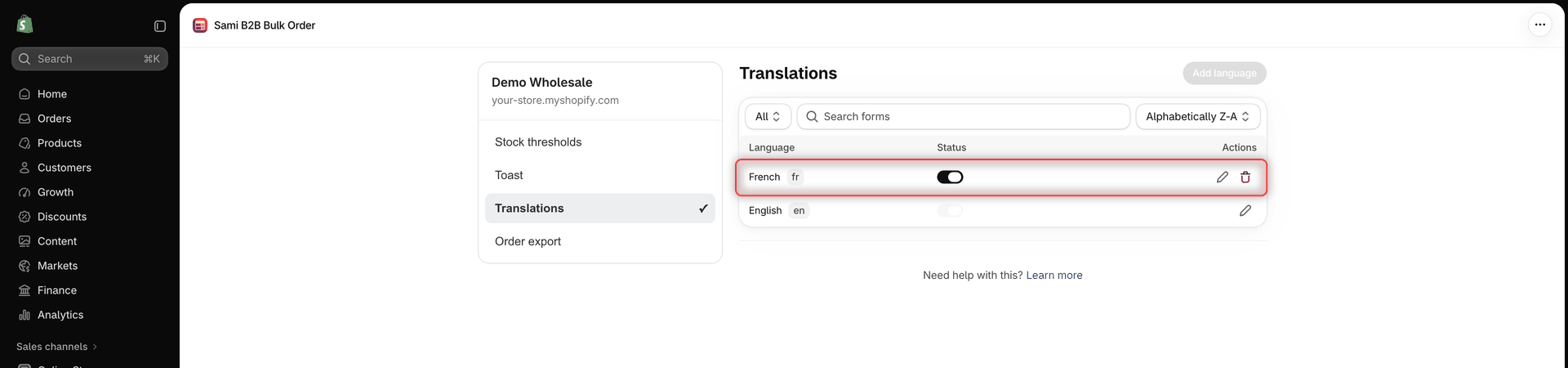
The list shows every language you've added. English is always there.

| Column       | What it shows                                                                                             |
| ------------ | --------------------------------------------------------------------------------------------------------- |
| **Language** | The language name with its code, for example French `fr`.                                                 |
| **Status**   | A switch: on means **Published**, off means **Not published**.                                            |
| **Actions**  | The pencil icon (**Translate**) opens the language in the editor. The trash icon (**Delete**) deletes it. |

Above the list, you can filter by **All**, **Published** or **Not published**. The search box (it reads **Search forms**) finds a language by name or code. The sort menu offers **Newest first**, **Oldest first**, **Alphabetically A-Z** and **Alphabetically Z-A**. The list starts sorted **Alphabetically Z-A**.

## Add a language

{% stepper %}
{% step %}

### Click Add language

At the top right of the **Translations** page, click **Add language**. The **Add language** window opens.

If the button is greyed out, every language in your Shopify store is already in the list.
{% endstep %}

{% step %}

### Choose the language

Open the **Language** list (it starts at **Select...**) and choose a language, for example **French (fr)**. The list shows the languages added to your store in Shopify that aren't in the app yet, whether they're published in Shopify or not.
{% endstep %}

{% step %}

### Click Next

Click **Next**. The window closes and the language appears in the list with its **Status** switch on. The editor doesn't open by itself: click the pencil icon in the language's row to start translating.
{% endstep %}
{% endstepper %}

{% hint style="info" %}
A new language is published right away. It starts with the app's default English wording, not with English wording you edited. To keep showing buyers your own English wording until the translation is ready, turn the language's **Status** switch off, then turn it on when you're done.
{% endhint %}

## Open a language in the editor

In the language's row, click the pencil icon. The editor opens full width. Its title is the language name, for example **French translation**. For English, it's **English wording**. To go back to the list, click **Translations** at the top.

<figure><img src="https://4205698016-files.gitbook.io/~/files/v0/b/gitbook-x-prod.appspot.com/o/spaces%2FcOPpR31lfLzPdPWnPtOU%2Fuploads%2Fgit-blob-62b0370c9791e5dd11553a49dadf76882393a7ca%2Fscreenshot-settings-translations-list.png?alt=media" alt="Translations list with French and English rows, each with a Status switch and a pencil icon in the Actions column, and a trash icon only on the French row"><figcaption><p>Click the pencil icon in a language's row to open it in the editor.</p></figcaption></figure>

## The editor at a glance

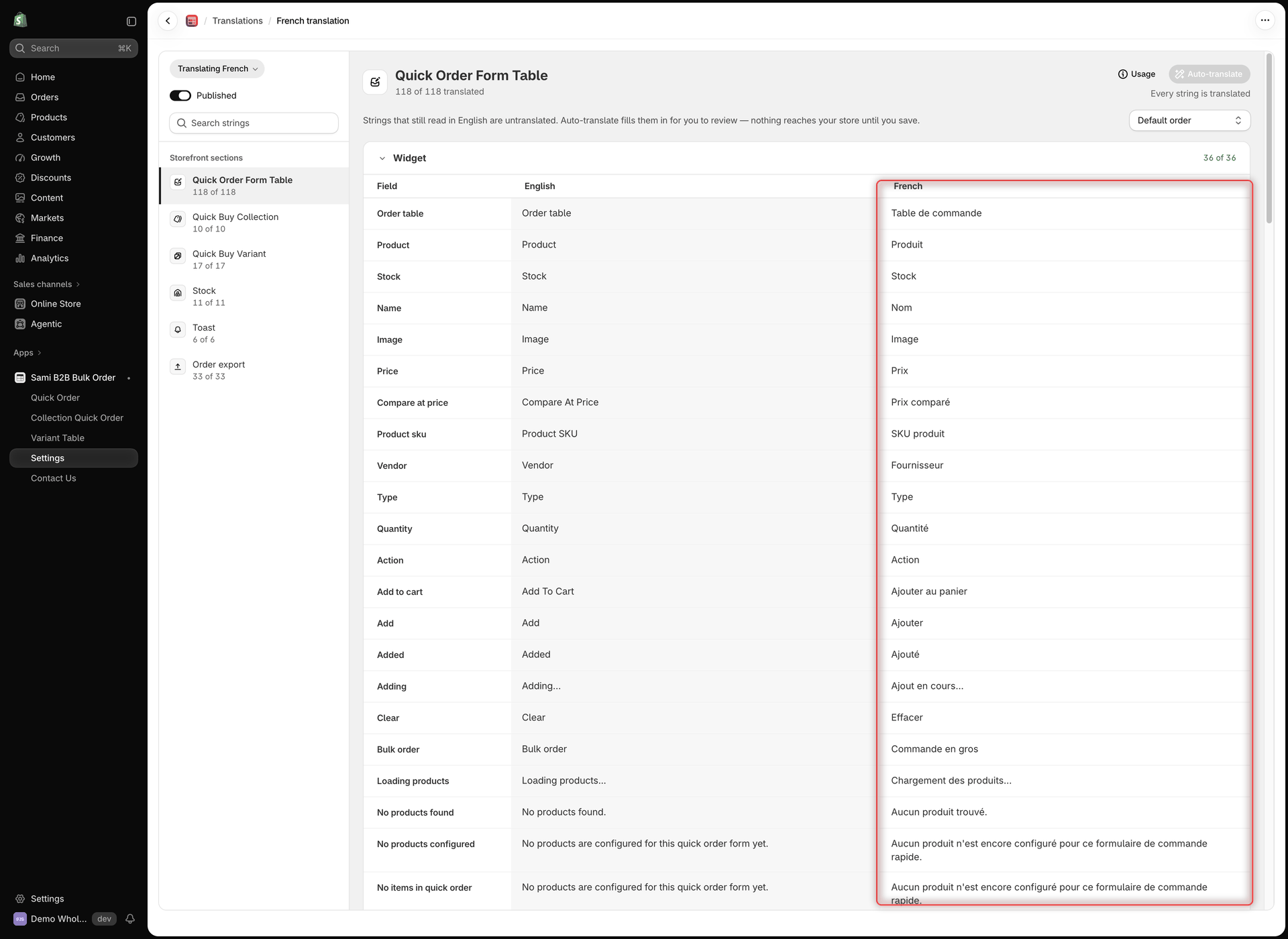
The editor has two panes. On the left, you choose what to work on. On the right, you edit the wording.

<figure><img src="https://4205698016-files.gitbook.io/~/files/v0/b/gitbook-x-prod.appspot.com/o/spaces%2FcOPpR31lfLzPdPWnPtOU%2Fuploads%2Fgit-blob-24f70f24e3aab08e5b3af6de6edb0b2ef3e4a250%2Fscreenshot-settings-translations-editor.png?alt=media" alt="French translation editor with the language button, Published switch, Search strings box and Storefront sections list on the left, and the Widget group of Quick Order Form Table with its Field, English and French columns filled in on the right"><figcaption><p>Pick a section under Storefront sections, then type the translations in the right-hand column.</p></figcaption></figure>

**Left pane**, from top to bottom:

| Item                                                                | What it does                                                                                                                                                                                                                      |
| ------------------------------------------------------------------- | --------------------------------------------------------------------------------------------------------------------------------------------------------------------------------------------------------------------------------- |
| **Translating French** (in the English editor: **Editing English**) | Opens a menu of the languages you've added, such as **French (fr)**, so you can switch language.                                                                                                                                  |
| **Published**                                                       | Turns the language on or off for buyers. The change is saved when you click **Save**.                                                                                                                                             |
| **Search strings**                                                  | Finds a text in all sections. It searches the English text, your translations and the field names. While you search, each section shows how many strings match, such as **3 matches**, and the groups in the open section expand. |
| **Storefront sections**                                             | The six sections, each with its progress: **Not translated**, or a count such as **20 of 118**. If some translations are outdated, the count adds **· 2 outdated**, for example.                                                  |

The six sections and their groups:

| Section                    | Tool                                | Groups                                                         |
| -------------------------- | ----------------------------------- | -------------------------------------------------------------- |
| **Quick Order Form Table** | Quick Order form                    | **Widget**, **Sort and filter**, **File upload**, **Messages** |
| **Quick Buy Collection**   | Collection Quick Order              | **Widget**, **Cart widget**                                    |
| **Quick Buy Variant**      | Variant Table                       | **Widget**, **Cart widget**                                    |
| **Stock**                  | Stock labels in all three tools     | **Stock**                                                      |
| **Toast**                  | Add-to-cart toasts                  | **Success toast**, **Error toast**, **Accessibility**          |
| **Order export**           | Order download in customer accounts | **Customer account**, **File column headings**                 |

**Right pane**, from top to bottom:

* The section name and its progress, for example **20 of 118 translated**.
* **Usage** and **Auto-translate** (not in the English editor). See [Auto-translate with AI](/globo-b2b-bulk-order/settings/auto-translate.md).
* The note **Strings that still read in English are untranslated. Auto-translate fills them in for you to review — nothing reaches your store until you save.**
* **Sort**: **Default order**, **Untranslated first** or **Translated first**.
* One card per group, such as **Widget**, with its own count, such as **8 of 36**. Click a group's name to collapse or expand it.

Each card has three columns:

* **Field**: the name of the text, for example **Add to cart** or **Pagination range**, with the label **Source: English**.
* **English**: the English wording the translation is made from. If you changed the English wording, this column shows your version.
* The language name, for example **French**: the box you type the translation in. An empty box shows the English text in grey.

### Translation status

Each string has one of three statuses. The counts in the editor are based on them.

| Status       | What it means                                                                                                             | How you see it                                                                                                                   |
| ------------ | ------------------------------------------------------------------------------------------------------------------------- | -------------------------------------------------------------------------------------------------------------------------------- |
| Translated   | The box holds a translation that you typed or Auto-translate filled in.                                                   | It's counted in the progress, such as **12 of 36**.                                                                              |
| Untranslated | The box is empty, or it still reads exactly like the English text. Every string of a new language starts as untranslated. | The box shows English text. **Sort** > **Untranslated first** puts these strings first.                                          |
| Outdated     | The string was translated, but its English wording was changed later.                                                     | An **Outdated** badge next to the field name, and **· 1 outdated** in the counts. It stays until you translate the string again. |

## Translate wording

{% stepper %}
{% step %}

### Choose a section

Under **Storefront sections**, click the section you want, for example **Quick Order Form Table**. To find one text, type it in **Search strings**, for example `View cart`. If no string in the open section matches, you see **No strings in this section match "{{query}}".**, with your search text in place of `{{query}}`.
{% endstep %}

{% step %}

### Show what's left first

Set **Sort** to **Untranslated first**. In each group, untranslated and outdated strings move to the top.
{% endstep %}

{% step %}

### Type the translations

In the column with the language name, click the box next to the English text and type the translation. Each text is one line: pressing Enter doesn't add a line break.

You can change several sections before you save. Your changes stay while you switch sections.
{% endstep %}

{% step %}

### Save

When you change something, Shopify's save bar appears at the top of the page. Click **Save**. The message **Translation updated** confirms it. If you see **Unable to save translation**, click **Save** again.

To undo every change since your last save, click **Discard** instead.
{% endstep %}

{% step %}

### Check your storefront

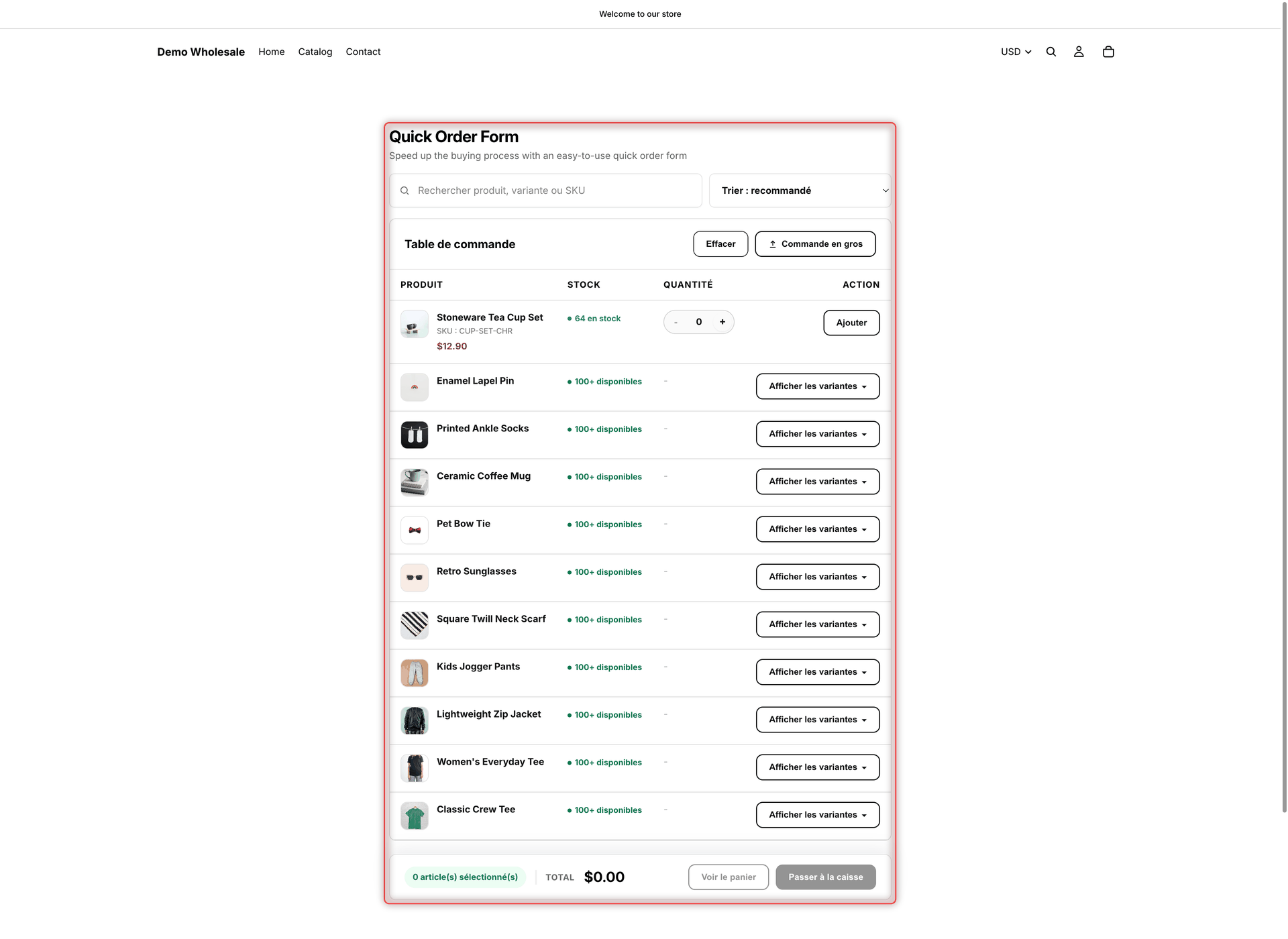
Open your store in that language with your theme's language selector, then reload a page that shows the tool. Your changes reach the storefront shortly after you save.

If you still see English, make sure the language is published both here and in Shopify.

<figure><img src="https://4205698016-files.gitbook.io/~/files/v0/b/gitbook-x-prod.appspot.com/o/spaces%2FcOPpR31lfLzPdPWnPtOU%2Fuploads%2Fgit-blob-a5a5096e5442f38bb67a2de4b140383f5c8d5a46%2Fscreenshot-storefront-quick-order-form-french.png?alt=media" alt="Quick Order form on the storefront with its column headers, search box, sort menu and buttons shown in French"><figcaption><p>Buyers who browse your store in French see the form's wording in French.</p></figcaption></figure>
{% endstep %}
{% endstepper %}

{% hint style="warning" %}
Words in double curly brackets, such as `{{count}}`, `{{sku}}` or `{{total_price}}`, are replaced with real values on the storefront. Copy them into your translation exactly as they are. Don't translate, rename or remove them.
{% endhint %}

## Change your English wording

The English editor sets the wording buyers see in English. It's also the wording every other language is translated from.

{% stepper %}
{% step %}

### Open English

In the **Translations** list, click the pencil icon in the **English** row. The editor opens as **English wording**.
{% endstep %}

{% step %}

### Edit the wording

Choose a section and type your wording in the **English** column. The **Default** column shows the app's built-in wording for comparison.
{% endstep %}

{% step %}

### Save

Click **Save** in the save bar. The message **Translation updated** confirms it.
{% endstep %}
{% endstepper %}

The English editor differs from the others:

* The language button reads **Editing English**, and the columns are **Field**, **Default** and **English**.
* Section progress shows **Default wording**, or how many strings you changed, such as **3 changed**. The pane shows, for example, **5 of 118 changed from the default**. On a new store, **Quick Order Form Table** already shows **1 changed**: your English wording says **Show variants** where the built-in wording says **Choose variants**.
* **Sort** offers **Default order**, **Unchanged first** and **Changed first**.
* The note reads **The wording buyers see in English. Changing a string here marks the other languages' translations of it as outdated.**
* There's no **Usage** or **Auto-translate**.

After you change an English string, its translations in other languages show the **Outdated** badge. Update them by hand, or open each language and click **Auto-translate**, which translates outdated strings again.

If you empty an English field, buyers see the app's built-in English text for it.

To edit the wording of the order download, you can also go to **Settings** > **Order export** and click **Edit wording**. It opens this English editor at the **Order export** section. See [Order export](/globo-b2b-bulk-order/settings/order-export.md).

## Switch to another language

Click the language button at the top of the left pane, for example **Translating French**, and choose another language. The language you're editing is greyed out in the menu.

If you have unsaved changes, the window **Leave without saving?** opens with **Your unsaved changes to this language will be lost.** Click **Leave** to switch without saving, or **Cancel** to stay and save first.

## Publish or unpublish a language

Buyers see a language's wording only while it's published. When a language isn't published, buyers who browse in it see your English wording.

{% tabs %}
{% tab title="In the list" %}
In the **Translations** list, click the language's **Status** switch. The change is saved right away, and the message **Status updated** confirms it.
{% endtab %}

{% tab title="In the editor" %}
In the left pane of the editor, turn **Published** on or off, then click **Save** in the save bar.
{% endtab %}
{% endtabs %}

Your default language is always published. Its switch is greyed out, and the editor shows **Your store's default language is always published.** The default language is the language you use the app in, chosen with the language button on the Dashboard. For most stores, it's English. See [Translations](/globo-b2b-bulk-order/settings/overview.md#published-and-not-published).

## Delete a language

1. In the **Translations** list, click the trash icon in the language's row.
2. In the **Delete** window, which asks, for example, **Delete French (fr)?**, click **Delete**.

This removes all wording for that language. Buyers who browse in it then see your English wording. Your default language has no trash icon. English can't be deleted: if you use the app in another language, English shows a trash icon, but deleting it has no effect.

<details>

<summary>Fields that don't change your storefront</summary>

A few fields are kept for older forms. In a normal setup, changing them doesn't change what buyers see. A field marked "backup" is used only when the field named next to it is empty. Edit that field instead.

| Section › group                                                                        | Field                                                                    | What to know                                                                                                                                                                                                                                                                                               |
| -------------------------------------------------------------------------------------- | ------------------------------------------------------------------------ | ---------------------------------------------------------------------------------------------------------------------------------------------------------------------------------------------------------------------------------------------------------------------------------------------------------- |
| **Quick Order Form Table** › **Widget**                                                | **No products found**                                                    | Shown only in rare cases. The usual empty-form and no-results messages are **No products configured** and **No products match**.                                                                                                                                                                           |
| **Quick Order Form Table** › **Widget**                                                | **No items in quick order**                                              | Backup for **No products configured**.                                                                                                                                                                                                                                                                     |
| **Quick Order Form Table** › **Widget**                                                | **Cart total**                                                           | Backup for **Total**.                                                                                                                                                                                                                                                                                      |
| **Quick Order Form Table** › **Widget**                                                | **View cart and checkout**                                               | Backup for **View cart**.                                                                                                                                                                                                                                                                                  |
| **Quick Order Form Table** › **Widget**                                                | **Check out**                                                            | Backup for **Checkout**.                                                                                                                                                                                                                                                                                   |
| **Quick Order Form Table** › **Sort and filter**                                       | **Search products**                                                      | Backup for **Search placeholder**.                                                                                                                                                                                                                                                                         |
| **Quick Order Form Table** › **Sort and filter**                                       | **Hide variant**                                                         | Backup for **Hide variants** in the **Widget** group.                                                                                                                                                                                                                                                      |
| **Quick Order Form Table** › **Sort and filter**                                       | **Alphabet az**, **Alphabet za**                                         | Backups for **Name asc** and **Name desc**.                                                                                                                                                                                                                                                                |
| **Quick Order Form Table** › **Sort and filter**                                       | **Price low to high**, **Price high to low**                             | Backups for **Price asc** and **Price desc**.                                                                                                                                                                                                                                                              |
| **Quick Order Form Table** › **Sort and filter**                                       | **Search**, **All products**, **Choose variant**, **Stock asc**          | Not used.                                                                                                                                                                                                                                                                                                  |
| **Quick Buy Collection** › **Widget**                                                  | **Volume discount apply**                                                | Not used.                                                                                                                                                                                                                                                                                                  |
| **Quick Buy Collection** › **Cart widget** and **Quick Buy Variant** › **Cart widget** | **View cart and checkout**                                               | Backup for **View cart and checkout** in **Toast** › **Success toast**.                                                                                                                                                                                                                                    |
| **Quick Buy Variant** › **Widget**                                                     | **Volume discount apply**, **Msrp**, **Error**, **Sold out**             | Not used.                                                                                                                                                                                                                                                                                                  |
| **Quick Buy Variant** › **Widget**                                                     | **Variant**, **Price**, **Stock**, **Quantity**, **Action**, **Barcode** | Used only for a column without a title of its own. Variant Tables you create always have column titles, saved in the app language.                                                                                                                                                                         |
| **Quick Buy Variant** › **Widget**                                                     | **In stock**, **Out of stock**                                           | The fields with the same names in the **Stock** section are used.                                                                                                                                                                                                                                          |
| **Stock** › **Stock**                                                                  | **Low stock label**, **Last items label**                                | Backups for **Low stock legend** and **Last items legend**.                                                                                                                                                                                                                                                |
| **Toast** › **Success toast**                                                          | **Success heading**                                                      | Not shown on the storefront. Each tool's success toast has its own heading: **Added to order.** in **Quick Order Form Table** › **Messages**, **Added to cart successfully** in **Quick Buy Collection** › **Cart widget**, and **Cart updated successfully!** in **Quick Buy Variant** › **Cart widget**. |

</details>

## Next steps

* [Auto-translate with AI](/globo-b2b-bulk-order/settings/auto-translate.md)
* [Translations](/globo-b2b-bulk-order/settings/overview.md): how languages, publishing and fallback work
* [Toast notifications](/globo-b2b-bulk-order/settings/cart-notifications.md)
* [Order export](/globo-b2b-bulk-order/settings/order-export.md)