> For the complete documentation index, see [llms.txt](https://docs.globo.io/llms.txt). Markdown versions of documentation pages are available by appending `.md` to page URLs; this page is available as [Markdown](https://docs.globo.io/globo-b2b-bulk-order/settings/order-export.md).
# Order export
Let buyers download any of their orders as a CSV file from their Shopify customer account, with the columns you choose, and reorder by uploading the file to a Quick Order form.
Turn on Order export and every order in your buyers' customer accounts gets a **Download CSV** action. Buyers download the order's items as a spreadsheet, with the columns you choose, and can upload that file to your Quick Order form to order the same items again.
## Before you start
* **Your store uses customer accounts, not legacy customer accounts.** The **Download CSV** action only exists in Shopify's new customer accounts. Check this in your Shopify admin under **Settings** > **Customer accounts**. See [Shopify Help: Customer accounts](https://help.shopify.com/en/manual/customers/customer-accounts).
* **Know who can download.** A signed-in customer can download the orders they placed. For B2B, a company contact with the **Location admin** role can also download every order of that company location. The page in the app says "B2B buyers", but any customer can download their own orders.
* **For reordering (optional):** you have an **Active** Quick Order form with **Enable file upload** on. See [Let buyers upload an order file](/globo-b2b-bulk-order/quick-order-form/upload-an-order-file.md).
Order export doesn't use your theme, so it works whether or not the app embed is on. Reordering through the Quick Order form does need the app embed.
## Turn on Order export
{% stepper %}
{% step %}
### Open Order export
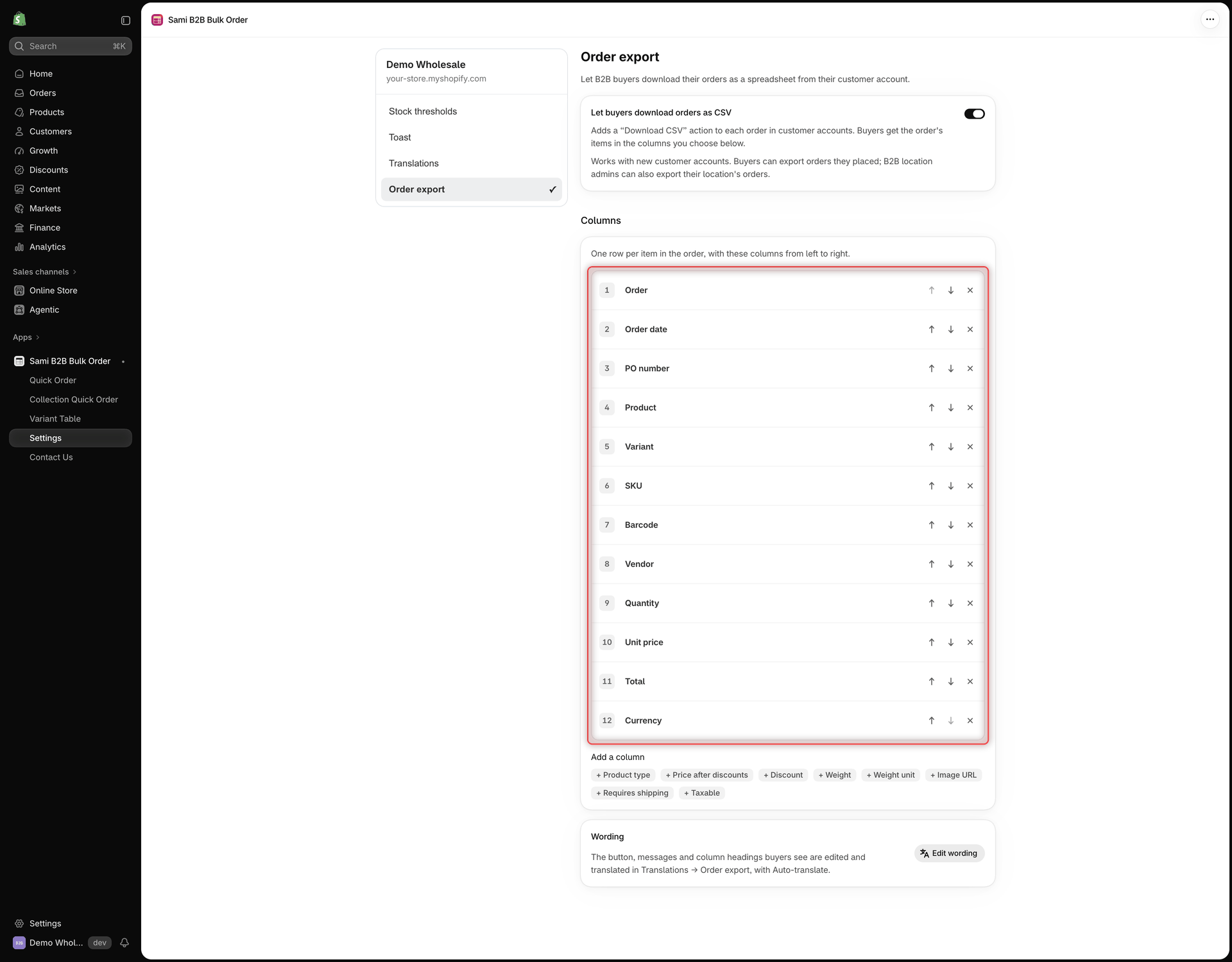
In Shopify admin, go to **Apps** > **Globo B2B Bulk Order**, then click **Settings** in the app navigation. Settings opens on **Translations**. In the Settings menu on the left, click **Order export**.
The page heading is **Order export**, with the text **Let B2B buyers download their orders as a spreadsheet from their customer account.**
{% endstep %}
{% step %}
### Turn on the download
Turn on **Let buyers download orders as CSV**. It's off by default.
The **Columns** and **Wording** sections appear below it.
{% endstep %}
{% step %}
### Choose the columns
The **Columns** section lists the columns of the file, numbered from left to right. Each line in the order becomes one row of the file.
* To move a column, click its up or down arrow.
* To remove a column, click its **×**. At least one column must stay.
* To add a column, click its chip under **Add a column**, for example **+ Product type**. It's added at the end of the list.
Turn on the download, then arrange the file's columns in the order you want.
All columns are described in [Columns in the file](#columns-in-the-file).
{% endstep %}
{% step %}
### Save
Click **Save** in the save bar. The message **Order export settings saved** confirms it. From now on, buyers see **Download CSV** on their orders.
If you turn the download off later, your column arrangement is kept for the next time you turn it on.
{% endstep %}
{% step %}
### Change the wording (optional)
In the **Wording** section, click **Edit wording**. The **English wording** editor opens on the **Order export** section, with two groups: **Customer account** (the button and messages buyers see) and **File column headings**. Edit what you need, then click **Save** in the save bar.
Save your Order export settings before you click **Edit wording**, because it leaves the page. See [Change or translate the wording](#change-or-translate-the-wording).
{% endstep %}
{% step %}
### Test it as a buyer
Place a test order with an email address you can open. Then sign in to your store's customer account with that email, open the order and download it as described in [What buyers see](#what-buyers-see).
If **Download CSV** doesn't appear, reload the customer account page. See [Troubleshooting](/globo-b2b-bulk-order/help/troubleshooting.md#buyers-dont-see-download-csv-on-their-orders).
{% endstep %}
{% endstepper %}
{% hint style="info" %}
While a Settings page has unsaved changes, the other items in the Settings menu don't respond. Click **Save** or **Discard** in the save bar first, then switch pages.
{% endhint %}
## Columns in the file
The first row of the file holds the column headings. Each following row is one line of the order.
| Column | What it contains | Included by default |
| ------------------------- | ------------------------------------------------------------------------------- | ------------------- |
| **Order** | The order name, for example `#1001` | Yes |
| **Order date** | The date the order was placed, as `YYYY-MM-DD`, in your store's time zone | Yes |
| **PO number** | The order's PO number, empty if it has none | Yes |
| **Product** | The product title | Yes |
| **Variant** | The variant title, for example `Teal / M`. Empty for products without variants. | Yes |
| **SKU** | The variant's SKU | Yes |
| **Barcode** | The variant's barcode | Yes |
| **Vendor** | The product vendor | Yes |
| **Product type** | The product type | No |
| **Quantity** | The quantity ordered | Yes |
| **Unit price** | The unit price before discounts | Yes |
| **Price after discounts** | The unit price after all discounts | No |
| **Discount** | The total discount on the line | No |
| **Total** | The line total after discounts | Yes |
| **Currency** | The currency code the order was paid in, for example `USD` | Yes |
| **Weight** | The variant's weight, as a number | No |
| **Weight unit** | The unit of that weight, for example `grams` | No |
| **Image URL** | A link to the line item's image | No |
| **Requires shipping** | `Yes` or `No` | No |
| **Taxable** | `Yes` or `No` | No |
About the file:
* It's named after the order, for example `order-1001.csv`.
* Amounts are in the currency the order was paid in, with two decimals, a dot as the decimal separator and no currency symbol.
* The file opens correctly in common spreadsheet apps, including accented and non-Latin characters.
* `Yes` and `No` are always in English.
* A text cell that starts with `=`, `+`, `-` or `@` gets an apostrophe in front, so spreadsheet apps don't run it as a formula. Numbers are left as they are.
* The file holds up to 1,000 lines per order.
* The file is created from your Shopify order when the buyer asks for it. The app doesn't store it. See [Permissions & data](/globo-b2b-bulk-order/reference/permissions-and-data.md).
## What buyers see
{% stepper %}
{% step %}
### Open the order's menu
The buyer signs in to their customer account and goes to **Orders**. They open the actions menu of an order, on the order list or on the order's own page, and click **Download CSV**.
{% endstep %}
{% step %}
### Wait for the file
A **Download order** window opens with **Preparing your file…**. After a moment it shows **order-1001.csv is ready.** and **The download link works for 10 min.**
If you have at least one **Active** Quick Order form with **Enable file upload** on, the window also says **To order these items again, upload this file to the quick order form.**
{% endstep %}
{% step %}
### Download the file
The buyer clicks **Download CSV**. The file opens in a new browser tab and downloads. **Close** closes the window.
The link works for 10 minutes. After that, the buyer clicks **Download CSV** in the order's menu again to get a new link.
{% endstep %}
{% endstepper %}
### Messages buyers may see
| Message | Why it appears | What the buyer can do |
| -------------------------------------------------------- | ----------------------------------------------------------------------------------------------------------------------------------------------------------------------------------------------------------------------------------------------------------------------------------- | ------------------------------------------------------------------------------------------------------------------------------------------ |
| **Sign in to download your orders.** | The buyer isn't signed in to their customer account. | Sign in and try again. |
| **This order can't be downloaded.** | The order isn't theirs, or isn't one of their company location's orders. It also appears for orders older than the app can read (by default, Shopify lets apps read the last 60 days of orders). See [Permissions & data](/globo-b2b-bulk-order/reference/permissions-and-data.md). | Nothing. Only the buyer who placed it, or a **Location admin** of its location, can download it, and only while the app can still read it. |
| **Downloading orders isn't available right now.** | You turned Order export off after the buyer opened the page. | Nothing, until you turn Order export back on. |
| **We couldn't prepare the file. Try again in a moment.** | Something else went wrong, such as a connection problem. | Click **Try again**. |
## Reorder from the file
The downloaded file uploads straight back to a Quick Order form:
1. On your Quick Order form, the buyer clicks **Bulk order** and uploads the CSV file.
2. The review step lists the items with their current stock. The buyer adjusts quantities if needed and adds them to the cart.
For this to work, keep a **SKU** or **Barcode** column, and the **Quantity** column, in your export. All three are included by default. Without **Quantity**, every line is added with quantity 1. Translated column headings are recognised too, as long as their language is **Published** in Translations.
Full details, including what happens to items the form doesn't contain, are in [Reorder from an order export file](/globo-b2b-bulk-order/quick-order-form/upload-an-order-file.md#reorder-from-an-order-export-file).
## Change or translate the wording
Buyers see the button, the window's messages and the column headings in the language of their customer account.
* In Globo B2B Bulk Order, go to **Settings** > **Translations**, click the pencil icon (**Translate**) in the row of a language, then open **Order export** under **Storefront sections**. **Edit wording** on the Order export page opens the same section in the **English wording** editor.
* **Customer account** holds the texts of the button and the window, such as **Menu item** (**Download CSV**), **Modal heading** (**Download order**) and **Reorder hint**. Keep `{{fileName}}` in **Ready** and `{{minutes}}` in **Expires**.
* **File column headings** holds one heading per column, such as **PO number** or **Quantity**.
* Click **Save** in the save bar. The message **Translation updated** confirms it.
The button and messages come with built-in translations in 20 languages. Text you change in Translations replaces the built-in text for that language, as long as the language is **Published**. Column headings you haven't translated use your English headings. To translate everything at once, see [Auto-translate with AI](/globo-b2b-bulk-order/settings/auto-translate.md).
Languages with built-in wording for the button and messages
Chinese (Simplified), Chinese (Traditional), Czech, Danish, Dutch, English, Finnish, French, German, Italian, Japanese, Korean, Norwegian Bokmål, Polish, Portuguese (Brazil), Portuguese (Portugal), Spanish, Swedish, Turkish and Vietnamese.
## Next steps
* [Let buyers upload an order file](/globo-b2b-bulk-order/quick-order-form/upload-an-order-file.md): turn on file upload so buyers can reorder from the CSV.
* [Edit translations](/globo-b2b-bulk-order/settings/edit-translations.md): change the button, messages and column headings.
* [Permissions & data](/globo-b2b-bulk-order/reference/permissions-and-data.md): what the app reads to build the file.
* [Troubleshooting](/globo-b2b-bulk-order/help/troubleshooting.md)