> For the complete documentation index, see [llms.txt](https://docs.globo.io/llms.txt). Markdown versions of documentation pages are available by appending `.md` to page URLs; this page is available as [Markdown](https://docs.globo.io/globo-b2b-bulk-order/settings/stock-status.md).

# Stock thresholds

Set the stock quantities and colors behind the stock labels buyers see in the Quick Order form, Variant Table and Collection Quick Order.

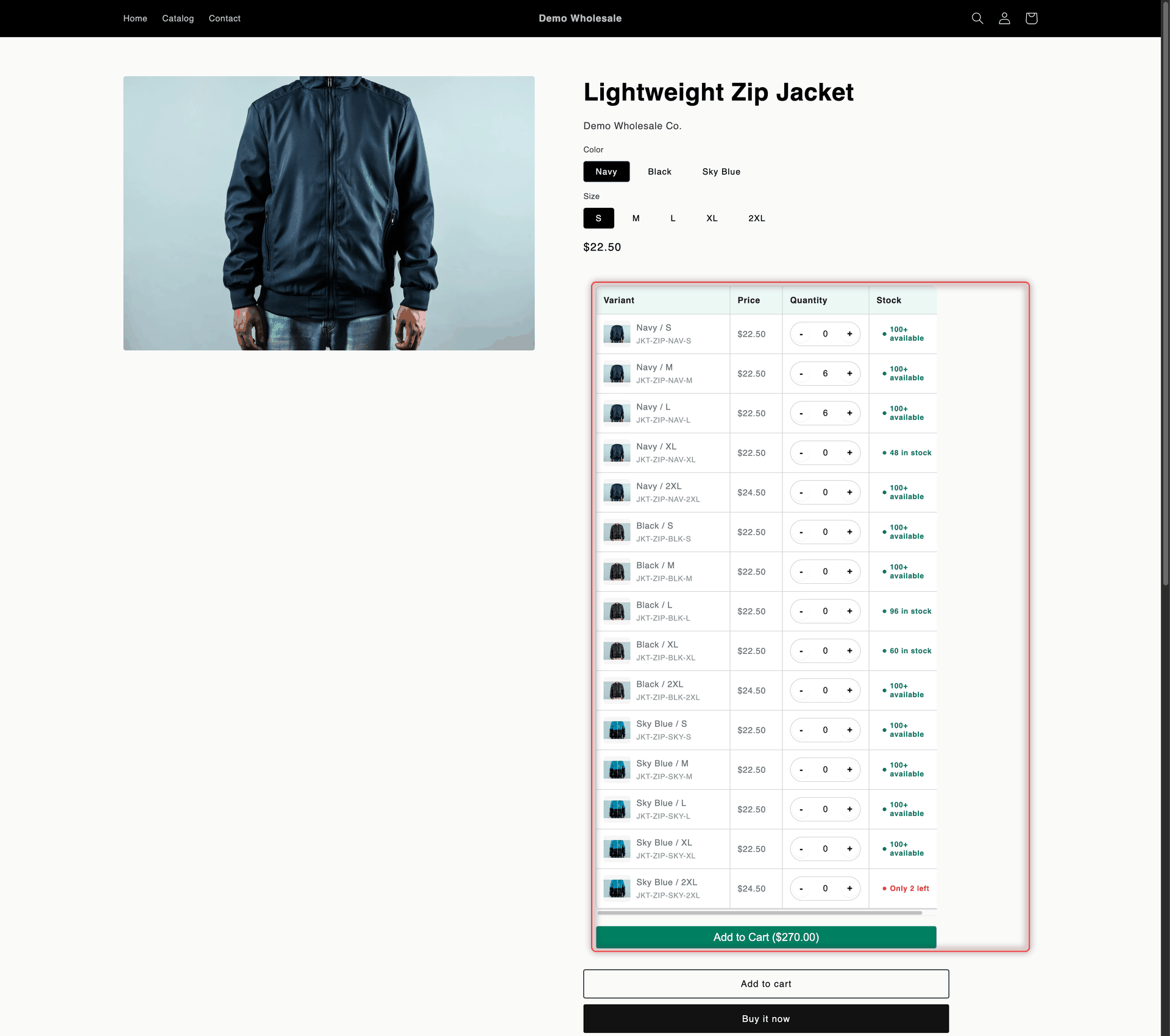
Stock thresholds decide which stock label a buyer sees next to each product or variant, such as **Only 4 left** or **100+ available**, and the color and size of that label. One set of thresholds applies to every tool in Globo B2B Bulk Order: the Quick Order form, the Variant Table and Collection Quick Order.

Stock thresholds is one of four pages in the app's **Settings**:

* **Stock thresholds** (this page): the quantity ranges, colors and text size of the stock labels.
* **Toast**: the message that pops up after items are added to the cart. See [Toast notifications](/globo-b2b-bulk-order/settings/cart-notifications.md).
* **Translations**: the wording buyers see in every tool, in each language. See [Translations](/globo-b2b-bulk-order/settings/overview.md).
* **Order export**: lets buyers download their orders as CSV files from their customer account. See [Order export](/globo-b2b-bulk-order/settings/order-export.md).

## Before you start

* The **Globo Bulk Order** app embed is on in your theme. Without it, no stock labels appear. See [Enable the app embed](/globo-b2b-bulk-order/getting-started/enable-app-embed.md).
* Your products track inventory in Shopify. Variants that don't track inventory always show the **High stock** label (see [Untracked stock and Continue selling](#untracked-stock-and-continue-selling)).
* The tool you use shows its **Stock** column. See [Where buyers see stock labels](#where-buyers-see-stock-labels).

## The five stock statuses

Every variant gets one of five statuses, based on its available quantity in Shopify. With the default thresholds:

| Status           | Available quantity | Default label on the storefront                            | Default color |
| ---------------- | ------------------ | ---------------------------------------------------------- | ------------- |
| **Out of stock** | 0                  | **Out of stock**                                           | `#e51c00`     |
| **Last items**   | 1 to 10            | **Only {{count}} left**, for example "Only 4 left"         | `#d9550f`     |
| **Low stock**    | 11 to 30           | **Low stock · {{count}}**, for example "Low stock · 24"    | `#e6a100`     |
| **In stock**     | 31 to 100          | **{{count}} in stock**, for example "48 in stock"          | `#29845a`     |
| **High stock**   | More than 100      | **{{threshold}}+ available**, for example "100+ available" | `#0e7a4f`     |

In the labels, `{{count}}` is the variant's available quantity and `{{threshold}}` is the **Up to quantity** of **In stock**. Every label uses a 12 px font with font weight 700 by default.

## Set your thresholds

{% stepper %}
{% step %}

### Open Stock thresholds

In Shopify admin, go to **Apps** > **Globo B2B Bulk Order**, then click **Settings** in the app navigation. Settings opens on **Translations**. In the Settings menu on the left, click **Stock thresholds**.

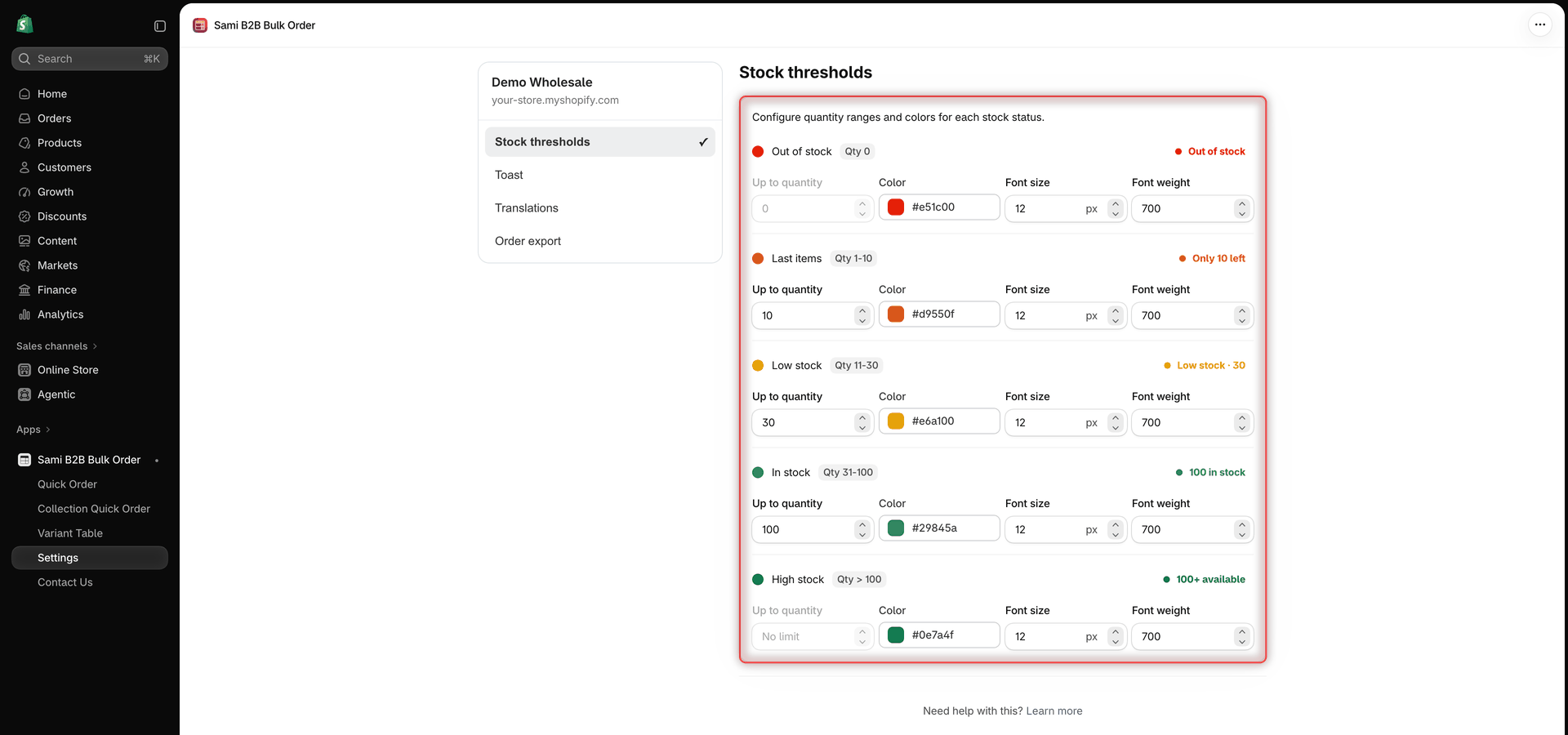
The page shows one card per status, from **Out of stock** to **High stock**. Each card header shows the status color, the status name, a badge with its quantity range (for example **Qty 1-10**) and, on the right, a preview of the label.

<figure><img src="https://4205698016-files.gitbook.io/~/files/v0/b/gitbook-x-prod.appspot.com/o/spaces%2FcOPpR31lfLzPdPWnPtOU%2Fuploads%2Fgit-blob-0f90293312af5610b441930b121c4339b8a05348%2Fscreenshot-settings-stock-thresholds.png?alt=media" alt="Settings, Stock thresholds page with five status cards from Out of stock to High stock, each with a Qty range badge, a label preview and the Up to quantity, Color, Font size and Font weight fields"><figcaption><p>Each stock status has its own card with a quantity range, a label preview and four fields.</p></figcaption></figure>
{% endstep %}

{% step %}

### Set the quantity ranges

Enter an **Up to quantity** in the **Last items**, **Low stock** and **In stock** cards. It's the highest quantity that still gets this status. The next status starts one unit higher.

* **Out of stock** is fixed at 0 and can't be changed.
* **High stock** covers everything above **In stock**, so its field shows **No limit**.
* Each value must be a whole number of at least 1, and lower than the value of the next status.

The **Qty** badges update as you type. For example, with **Last items** at 5, **Low stock** at 20 and **In stock** at 50, the badges read **Qty 1-5**, **Qty 6-20**, **Qty 21-50** and **Qty > 50**.
{% endstep %}

{% step %}

### Choose the colors and text size

In each card, set the label's **Color**, **Font size** and **Font weight**. The preview on the right of the card updates as you change them.
{% endstep %}

{% step %}

### Save

Click **Save** in the save bar. The message **Stock thresholds saved** confirms it.

If a red **Error** banner appears instead, nothing was saved. Fix the fields it names (see [Save errors](#save-errors)) and save again.
{% endstep %}

{% step %}

### Check your storefront

Reload a storefront page with a Quick Order form, a Variant Table or Collection Quick Order. The stock labels use your new ranges and colors. Your changes reach the storefront shortly after you save, so reload again if you still see the old labels.

If you don't see any stock labels, check that the tool's **Stock** column is shown (see [Where buyers see stock labels](#where-buyers-see-stock-labels)) and that the app embed is on.
{% endstep %}
{% endstepper %}

{% hint style="info" %}
While a Settings page has unsaved changes, the other items in the Settings menu don't respond. Click **Save** or **Discard** in the save bar first, then switch pages.
{% endhint %}

## Fields on each status card

| Field              | What it does                                                                                                                                                                                                   | Default                                                                                                                   |
| ------------------ | -------------------------------------------------------------------------------------------------------------------------------------------------------------------------------------------------------------- | ------------------------------------------------------------------------------------------------------------------------- |
| **Up to quantity** | The highest available quantity that gets this status. Only **Last items**, **Low stock** and **In stock** can be changed. If you clear the field, it goes back to its previous value when you click elsewhere. | **Last items** 10, **Low stock** 30, **In stock** 100. **Out of stock** is fixed at 0, **High stock** shows **No limit**. |
| **Color**          | The color of the label text and its dot. Pick a color in the color picker, or type a value such as `#d9550f`.                                                                                                  | See [The five stock statuses](#the-five-stock-statuses)                                                                   |
| **Font size**      | The label's text size, from 8 to 60 px.                                                                                                                                                                        | 12                                                                                                                        |
| **Font weight**    | How bold the label is, from 0 to 1000 in steps of 100. 400 is regular and 700 is bold.                                                                                                                         | 700                                                                                                                       |

The preview in each card shows the label at the top of that status's range, such as **Only 10 left** or **100+ available**. It uses the app's built-in wording in your admin language. Your buyers see the wording from **Translations** (see [Change the label wording](#change-the-label-wording)).

## Save errors

The thresholds must go up from one status to the next. If they don't, saving shows a red **Error** banner, the fields involved show the same message, and nothing is saved:

| Message                                                        | How to fix it                                                         |
| -------------------------------------------------------------- | --------------------------------------------------------------------- |
| **Last items threshold must be less than low stock threshold** | Make **Last items** lower than **Low stock**, or raise **Low stock**. |
| **Low stock threshold must be less than in stock threshold**   | Make **Low stock** lower than **In stock**, or raise **In stock**.    |

Two statuses can't share the same value. The app doesn't change the other fields for you. For example, if you type 40 in **Last items** while **Low stock** is 30, **Low stock** stays at 30, so saving shows the first message.

The **Qty** badges warn you before you save. In the example above, the **Low stock** badge reads **Qty 41-30**. A range that runs backwards like this means you need to raise the next status's **Up to quantity**.

## Where buyers see stock labels

| Tool                   | Where the label appears                                                                                                                                                                                                                                        | How to show or hide it                                                                                                                                                                                                                                         |
| ---------------------- | -------------------------------------------------------------------------------------------------------------------------------------------------------------------------------------------------------------------------------------------------------------- | -------------------------------------------------------------------------------------------------------------------------------------------------------------------------------------------------------------------------------------------------------------- |
| Quick Order form       | On each product row and each variant row. A product with several variants shows the total stock of its variants. Labels also appear in the review step when buyers upload a file or paste a list.                                                              | **Stock** column, shown by default. In the form editor, open **Customize** > **Table columns**. See [Customize the form](/globo-b2b-bulk-order/quick-order-form/customize-the-form.md#table-columns).                                                          |
| Variant Table          | **Default** template: in the **Stock** column of each variant row. **Matrix column** template: as a colored dot in each cell, with a legend below the grid.                                                                                                    | **Stock** column, shown by default. In the table editor, open **Customize** > **Show columns**. See [Create a Variant Table](/globo-b2b-bulk-order/variant-table/create-a-variant-table.md#show-columns).                                                      |
| Collection Quick Order | **Classic** template (**Button below product**): in the row of controls below the product, for the selected variant. In the variant list of the **Floating** template (**Icon on image**), or of **Show variants in a popover**: next to each variant's price. | **Stock** column, hidden by default. In the form editor, open **Customize** > **Show columns**, click **Add column** and tick **Stock**. See [Add a button below products](/globo-b2b-bulk-order/collection-quick-order/button-below-product.md#show-columns). |

Variants with the **Out of stock** status can't be added to the cart. Their quantity controls and add buttons are turned off.

<figure><img src="https://4205698016-files.gitbook.io/~/files/v0/b/gitbook-x-prod.appspot.com/o/spaces%2FcOPpR31lfLzPdPWnPtOU%2Fuploads%2Fgit-blob-fc2eb502295762af9a8fabd35b3f0113860b1bd3%2Fscreenshot-storefront-variant-table.png?alt=media" alt="Product page for the Lightweight Zip Jacket with a Variant Table listing each color and size with its SKU, price, quantity stepper and stock label, and an Add to Cart button with the total"><figcaption><p>On the storefront, each variant's stock label uses the range and color of its status.</p></figcaption></figure>

### Colors that don't follow your settings

{% hint style="warning" %}
In the row of controls under the price, **Collection Quick Order** always shows the **In stock** label in green (`#279a4b`) and the **Out of stock** label in red (`#cc1313`). Its **Last items**, **Low stock** and **High stock** labels use your colors, and all five use your font size and weight.
{% endhint %}

To give those two labels your own colors, add CSS like this to the **Custom CSS** of the Collection Quick Order form, then save the form. See [Design & custom CSS](/globo-b2b-bulk-order/targeting-and-design/design-and-custom-css.md).

```css
.samitaBO-collection-quick-buy-stock[data-samita-bo-stock-status="in-stock"] { color: #29845a !important; }
.samitaBO-collection-quick-buy-stock[data-samita-bo-stock-status="out-of-stock"] { color: #e51c00 !important; }
```

In the Variant Table's **Matrix column** template, the dot in each cell uses your colors, but the dots in the legend below the grid always use the same fixed colors.

## Untracked stock and Continue selling

The label depends on what Shopify reports for each variant:

| Variant in Shopify                                                               | Label                                                                                                      | Can buyers add it?                                     |
| -------------------------------------------------------------------------------- | ---------------------------------------------------------------------------------------------------------- | ------------------------------------------------------ |
| Tracks inventory, quantity above 0                                               | The status that matches its quantity. This also applies when **Continue selling when out of stock** is on. | Yes. The **+** button stops at the available quantity. |
| Tracks inventory, quantity 0, **Continue selling when out of stock** off         | **Out of stock**                                                                                           | No                                                     |
| Tracks inventory, quantity 0 or below, **Continue selling when out of stock** on | **High stock**, for example "100+ available"                                                               | Yes, with no quantity limit                            |
| Doesn't track inventory                                                          | **High stock**                                                                                             | Yes, with no quantity limit                            |
| The storefront can't read its quantity                                           | **High stock**                                                                                             | Yes                                                    |

For example, if **Ceramic Coffee Mug** sells on backorder, the Midnight Blue mug with 6 in stock shows **Only 6 left**, and the White mug with 0 in stock shows **100+ available**.

Your thresholds only change the labels. Whether a variant can be bought depends only on its stock and inventory settings in Shopify.

## Change the label wording

The label text is set per language in **Translations**, not on this page.

{% stepper %}
{% step %}

### Open the Stock wording

In the Settings menu on the left, click **Translations**. In the row of the language, click the pencil icon (**Translate**). Under **Storefront sections**, click **Stock**.
{% endstep %}

{% step %}

### Edit the labels

Type your text in the box next to each field. The fields are listed in the table below.
{% endstep %}

{% step %}

### Save

Click **Save** in the save bar. The message **Translation updated** confirms it.
{% endstep %}
{% endstepper %}

The **Stock** section lists its fields in this order:

| Field                 | Default (English)            | Where it shows                                        |
| --------------------- | ---------------------------- | ----------------------------------------------------- |
| **In stock**          | **In stock**                 | Matrix legend                                         |
| **Item in stock**     | **{{count}} in stock**       | **In stock** label                                    |
| **Out of stock**      | **Out of stock**             | **Out of stock** label, and the matrix legend         |
| **Last items**        | **Only {{count}} left**      | **Last items** label                                  |
| **Low stock**         | **Low stock · {{count}}**    | **Low stock** label                                   |
| **High stock**        | **{{threshold}}+ available** | **High stock** label                                  |
| **Available**         | **Available**                | Matrix legend                                         |
| **Low stock legend**  | **Low stock**                | Matrix legend                                         |
| **Low stock label**   | **Low stock**                | Matrix legend, only if **Low stock legend** is empty  |
| **Last items legend** | **Last stock**               | Matrix legend                                         |
| **Last items label**  | **Last stock**               | Matrix legend, only if **Last items legend** is empty |

Keep `{{count}}` and `{{threshold}}` in your text where you want the numbers to appear. For more about the editor, see [Edit translations](/globo-b2b-bulk-order/settings/edit-translations.md).

## Next steps

* [Toast notifications](/globo-b2b-bulk-order/settings/cart-notifications.md): style the message buyers see after adding to the cart.
* [Edit translations](/globo-b2b-bulk-order/settings/edit-translations.md): change the stock wording in each language.
* [Create a Variant Table](/globo-b2b-bulk-order/variant-table/create-a-variant-table.md): show stock for every variant on product pages.
* [Troubleshooting](/globo-b2b-bulk-order/help/troubleshooting.md)