> For the complete documentation index, see [llms.txt](https://docs.globo.io/llms.txt). Markdown versions of documentation pages are available by appending `.md` to page URLs; this page is available as [Markdown](https://docs.globo.io/globo-b2b-bulk-order/targeting-and-design/customer-and-product-targeting.md).

# Customer & product targeting

Choose which buyers see each Quick Order form, Variant Table and Collection Quick Order, on which pages, and for which products.

Each Quick Order form, Variant Table and Collection Quick Order has its own targeting rules. The rules decide which buyers see it, on which pages it can appear and which products it covers. When a buyer or a page doesn't match, nothing appears in its place: there's no message and no login prompt.

## Before you start

* Turn on the **Globo Bulk Order** app embed in your theme. See [Enable the app embed](/globo-b2b-bulk-order/getting-started/enable-app-embed.md).
* Create the form or table you want to target. See [Create a Quick Order form](/globo-b2b-bulk-order/quick-order-form/create-a-form.md), [Create a Variant Table](/globo-b2b-bulk-order/variant-table/create-a-variant-table.md) or [Collection Quick Order](/globo-b2b-bulk-order/collection-quick-order/overview.md).
* For a Quick Order form, add it to a page of your theme first. Targeting only decides whether a placed form shows. See [Add the form to a page](/globo-b2b-bulk-order/getting-started/getting-started.md#add-the-form-to-a-page).
* To target buyers by tag, tag them in Shopify admin first. Go to **Customers**, open a customer and add a tag such as `wholesale` under **Tags**.

## Which tool supports which targeting

|                                                          | Quick Order Form                                                  | Variant Table                          | Collection Quick Order                                                                                          |
| -------------------------------------------------------- | ----------------------------------------------------------------- | -------------------------------------- | --------------------------------------------------------------------------------------------------------------- |
| Header of the **Products** tab                           | **Display Products**                                              | **Product targeting**                  | **Product targeting**                                                                                           |
| What the **Products** tab decides                        | Which products the form lists                                     | Which product pages show the table     | Which product cards get the widget                                                                              |
| **All products**                                         | Yes                                                               | Yes                                    | Yes (default)                                                                                                   |
| **Specific products**                                    | Yes (default)                                                     | Yes (default)                          | Yes                                                                                                             |
| **Specific collections**                                 | Yes                                                               | No                                     | No                                                                                                              |
| **Conditions**                                           | No                                                                | Yes                                    | Yes                                                                                                             |
| Customer section on the **Visibility** tab               | **Customer visibility**                                           | **Customer targeting**                 | **Customer targeting**                                                                                          |
| **Who can see this form?** with include and exclude tags | Yes                                                               | Yes                                    | Yes                                                                                                             |
| **Display location**                                     | **Landing page** (default), **Product page**, **Collection page** | None: product pages only               | **Home page**, **Collection page**, **Search page**, **Featured and related products** (none ticked by default) |
| When several match                                       | Every form you placed appears                                     | One table per product: the newest wins | One widget per product card: the newest wins                                                                    |

## How targeting works

A form, table or Collection Quick Order appears only when all of these are true:

1. It's **Active**. **Draft** items never appear on your storefront.
2. The page matches its **Display location** (Quick Order form and Collection Quick Order only).
3. The buyer matches **Who can see this form?** and has none of the **Exclude customer tags**.
4. The product matches the **Products** tab (Variant Table and Collection Quick Order only).

**Display location** is a filter. It doesn't add anything to a page. You place a Quick Order form yourself with its theme block or embed code. Variant Tables and Collection Quick Order add themselves to the pages and product cards that match.

To set or change the rules of a form or table:

{% stepper %}
{% step %}

### Open the tool

In Shopify admin, go to **Apps** > **Globo B2B Bulk Order**. In the app navigation, click **Quick Order**, **Variant Table** or **Collection Quick Order**.
{% endstep %}

{% step %}

### Open the editor

Click the pencil icon in the row you want to change. To start a new one, click **Create form**. The editor opens in a full-screen window.
{% endstep %}

{% step %}

### Change the rules and save

Click the **Products** tab for product targeting, or the **Visibility** tab for buyers and pages. Make your changes, then click **Save** in the save bar. Changes can take a few moments to reach your storefront, so reload the page if you don't see them.
{% endstep %}
{% endstepper %}

## Customer targeting

All three tools use the same setting, **Who can see this form?**, on the **Visibility** tab. On a Quick Order form it's in the **Customer visibility** section. On a Variant Table and a Collection Quick Order it's in the **Customer targeting** section.

| Option                       | Who sees it                                                                          |
| ---------------------------- | ------------------------------------------------------------------------------------ |
| **All customers** (default)  | Everyone, logged in or not.                                                          |
| **Logged-in customers only** | Buyers who are logged in to a customer account on your store.                        |
| **Guest customers only**     | Visitors who aren't logged in.                                                       |
| **Customers with tags**      | Logged-in buyers who have **at least one** of the tags in **Include customer tags**. |

Below the menu:

* **Include customer tags** appears only when you choose **Customers with tags**. Add at least one tag, or saving shows **Add at least one customer tag**.
* **Exclude customer tags** appears for every option except **Guest customers only**. A buyer with **any** of these tags never sees the form or table, even when they match the option above.

To add a tag, click **Add customer tag**. Tick a tag from your store's customer tags, or type to search the list. To use a tag that no customer has yet, type it and click **Add "…"**. You can type several tags separated by commas. To remove a tag, click its **×**.

<figure><img src="https://4205698016-files.gitbook.io/~/files/v0/b/gitbook-x-prod.appspot.com/o/spaces%2FcOPpR31lfLzPdPWnPtOU%2Fuploads%2Fgit-blob-fdcf71c360c5e7b2504e65a05299525a992dd122%2Fscreenshot-quick-order-visibility-customer-tags.png?alt=media" alt="Customer visibility section with Customers with tags selected and the tags wholesale and b2b under Include customer tags"><figcaption><p>With Customers with tags, only logged-in buyers who have one of the included tags see the form.</p></figcaption></figure>

{% hint style="info" %}
**Customer tags must match exactly**, including upper and lower case. `Wholesale` doesn't match a customer tagged `wholesale`. Spaces at the start or end of a tag are ignored. Guests have no tags, so **Customers with tags** always requires buyers to log in.
{% endhint %}

**Example:** to show a form or table only to your wholesale buyers:

{% stepper %}
{% step %}

### Tag your wholesale buyers

In Shopify admin, go to **Customers**. Open each wholesale buyer and add the tag `wholesale` under **Tags**.
{% endstep %}

{% step %}

### Choose Customers with tags

Open the form or table and click the **Visibility** tab. In **Who can see this form?**, choose **Customers with tags**. Click **Add customer tag** and tick `wholesale`. Click **Save**.
{% endstep %}

{% step %}

### Test it

Open your store in a private browser window. The form or table shouldn't appear. Then log in as a customer tagged `wholesale`. It should appear.
{% endstep %}
{% endstepper %}

## Display location

Display location controls the page types where a Quick Order form or a Collection Quick Order can appear. It's the **Display location** section of the **Visibility** tab: the first section in a Quick Order form, and the one below **Customer targeting** in a Collection Quick Order. The section starts with the text **Choose where this form appears**.

{% tabs %}
{% tab title="Quick Order Form" %}
Tick one or more page types. New forms have **Landing page** ticked.

| Page type           | Pages it covers                                                                                                                          |
| ------------------- | ---------------------------------------------------------------------------------------------------------------------------------------- |
| **Landing page**    | Your home page and every page that isn't a product, collection or search page, such as your online store pages, blog posts and the cart. |
| **Product page**    | Product pages.                                                                                                                           |
| **Collection page** | Collection pages.                                                                                                                        |

* Each ticked type shows a box with an **Add** button. Use it to limit the form to specific pages. Under **Landing page** you can pick **Home page (home\_page)** and your online store pages. Under **Collection page** you pick collections. With nothing added, the form can appear on every page of that type.
* If you untick all three types, the form can appear on any page where you placed it, including search results.

For the full details, see [Choose who sees the form and where](/globo-b2b-bulk-order/quick-order-form/visibility.md#display-location).
{% endtab %}

{% tab title="Collection Quick Order" %}
Tick the page types whose product cards get the widget:

| Checkbox                          | Product cards it covers                                                                                                                                                                              |
| --------------------------------- | ---------------------------------------------------------------------------------------------------------------------------------------------------------------------------------------------------- |
| **Home page**                     | Product cards on your home page, for example in a featured collection section.                                                                                                                       |
| **Collection page**               | Product cards on collection pages. To limit the widget to some collections, click **Add** in the **Collection page** box and pick them. With no collections picked, every collection page qualifies. |
| **Search page**                   | Product cards in search results.                                                                                                                                                                     |
| **Featured and related products** | Product cards shown on product pages, such as related or recommended products.                                                                                                                       |

* New forms have nothing ticked, and the section shows **No display locations selected. This form will appear on all pages where the app can render it.** The widget then appears on product cards on any page.
* Once you tick at least one box, the widget appears only on those page types.
* To remove a page type, untick it or click the trash icon in its box.
  {% endtab %}

{% tab title="Variant Table" %}
A Variant Table has no **Display location** section. It always appears on the product pages of the products it targets, just above your theme's own Add to cart button.
{% endtab %}
{% endtabs %}

{% hint style="warning" %}
**Quick Order Form: don't add specific products under Product page.** At the moment, a form limited to specific products under **Product page** doesn't appear on any product page. With no products added, it appears on every product page where you placed it. See [Choose who sees the form and where](/globo-b2b-bulk-order/quick-order-form/visibility.md#display-location) for a workaround.
{% endhint %}

## Product targeting

The **Products** tab works differently in each tool:

* In a **Quick Order form**, the tab's header is **Display Products**. It chooses the products that the form lists.
* In a **Variant Table** and a **Collection Quick Order**, the tab's header is **Product targeting**. It chooses the products that get the table on their product page, or the widget on their product card.

| Option                   | Quick Order Form                                                                             | Variant Table                                                                  | Collection Quick Order                                                         |
| ------------------------ | -------------------------------------------------------------------------------------------- | ------------------------------------------------------------------------------ | ------------------------------------------------------------------------------ |
| **All products**         | The form lists every product in your store.                                                  | The table appears on every product page.                                       | Every product card gets the widget. Default for new forms.                     |
| **Specific products**    | Only the products you pick. Default for new forms.                                           | Only the pages of the products you pick. Default for new tables.               | Only the cards of the products you pick.                                       |
| **Specific collections** | Products in the collections you pick, including products you add to those collections later. | Not available                                                                  | Not available                                                                  |
| **Conditions**           | Not available                                                                                | Products that match your rules. See [Product conditions](#product-conditions). | Products that match your rules. See [Product conditions](#product-conditions). |

With **Specific products**:

* Click **Add products** to pick products in Shopify's product picker. You pick whole products, and every variant of a product is included.
* Click **Add from collection** to pick products from one collection. This copies the products once. Products you add to that collection later aren't added. To follow a collection as it changes, use **Specific collections** in a Quick Order form, or a **Collection** condition in a Variant Table or Collection Quick Order.
* Saving with no product picked shows **Select at least one product**. In a Quick Order form, **Specific collections** with none picked shows **Select at least one collection**.

## Product conditions

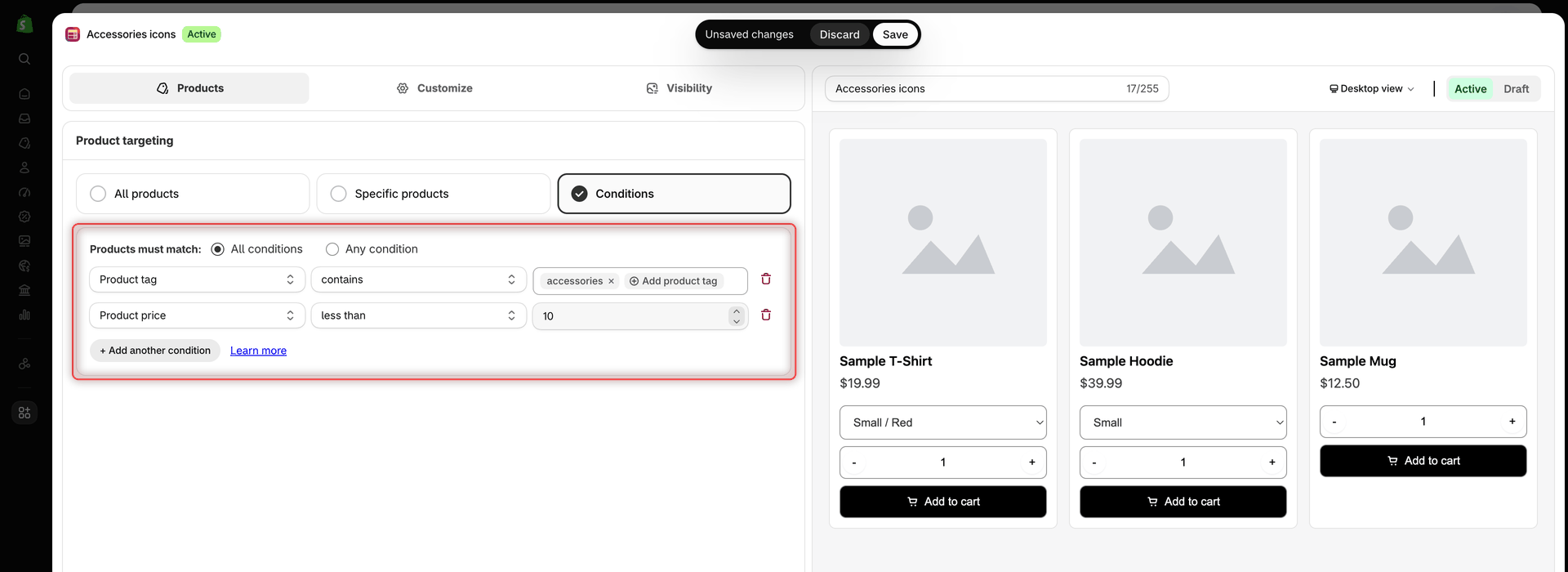
Conditions target products by rules instead of a fixed list. They're available in a Variant Table and a Collection Quick Order, on the **Products** tab under **Conditions**.

{% stepper %}
{% step %}

### Choose Conditions

Open the Variant Table or Collection Quick Order, click the **Products** tab and click **Conditions**.
{% endstep %}

{% step %}

### Choose how rules combine

Under **Products must match:**, choose **All conditions** (the default) so a product must match every rule, or **Any condition** so one matching rule is enough.
{% endstep %}

{% step %}

### Set up the first rule

Each rule has a field, an operator and a value. The first rule starts as **Product title** · **is not equal to** with an empty value, so change it to the rule you want. When you change a rule's field, its operator and value are reset.
{% endstep %}

{% step %}

### Add more rules and save

Click **+ Add another condition** for each extra rule. To remove a rule, click its trash icon. Removing the only rule resets it to the starting rule. Then click **Save** in the save bar, and open a product page (Variant Table) or a page with product cards (Collection Quick Order) to check which products get the widget.
{% endstep %}
{% endstepper %}

<figure><img src="https://4205698016-files.gitbook.io/~/files/v0/b/gitbook-x-prod.appspot.com/o/spaces%2FcOPpR31lfLzPdPWnPtOU%2Fuploads%2Fgit-blob-646263086d97e8e337ad9e030e4b3b1133ba37df%2Fscreenshot-collection-quick-order-products-conditions.png?alt=media" alt="Product targeting tab of a Collection Quick Order with Conditions selected, All conditions chosen, and two rules: Product tag contains accessories, and Product price less than 10"><figcaption><p>Combine rules with All conditions or Any condition to target products without picking them one by one.</p></figcaption></figure>

### Fields and operators

| Field                | Value you enter                                                                                               | Operators                                                                                                                      | Compared with                                                                    |
| -------------------- | ------------------------------------------------------------------------------------------------------------- | ------------------------------------------------------------------------------------------------------------------------------ | -------------------------------------------------------------------------------- |
| **Product title**    | Text                                                                                                          | **is equal to**, **is not equal to**, **contains**, **does not contain**                                                       | The product's title                                                              |
| **Product type**     | Text                                                                                                          | **is equal to**, **is not equal to**, **contains**, **does not contain**                                                       | The product type                                                                 |
| **Product vendor**   | Text                                                                                                          | **is equal to**, **is not equal to**, **contains**, **does not contain**                                                       | The product's vendor                                                             |
| **Product price**    | Number                                                                                                        | **is equal to**, **is not equal to**, **greater than**, **greater than or equal to**, **less than**, **less than or equal to** | The price of the product's cheapest variant                                      |
| **Product in stock** | Number                                                                                                        | **is equal to**, **is not equal to**, **greater than**, **greater than or equal to**, **less than**, **less than or equal to** | The product's total inventory: the quantities of all its variants added together |
| **Product tag**      | One or more tags. Click **Add product tag**, then tick tags from your store or type one and click **Add "…"** | **contains**, **does not contain**                                                                                             | The product's tags                                                               |
| **Collection**       | One or more collections. Click **Add**, then pick them in Shopify's collection picker                         | **is equal to**, **is not equal to**                                                                                           | The collections the product belongs to                                           |

### How values are matched

* **Text fields** ignore upper and lower case, and spaces at the start or end. **is equal to** needs the whole value to match. **contains** matches part of it: **Product title** **contains** `tee` matches both "Classic Crew Tee" and "Women's Everyday Tee".
* **Product tag** **contains** matches when the product has at least one of the listed tags. **does not contain** matches when it has none of them. Each tag must match a whole tag, but upper and lower case don't matter. (Customer tags, by contrast, must match exactly.)
* **Collection** **is equal to** matches when the product is in at least one of the picked collections. **is not equal to** matches when it's in none of them.
* **Product price** and **Product in stock** take a plain number, such as `5` or `12.50`, without a currency symbol.

Every rule needs a value. A rule without one blocks saving with **Enter value for {{field}} {{operator}}.**, for example **Enter value for Product title is not equal to.** The list of errors is titled **Fix errors to save** in a Variant Table and **There are errors with this collection:** in a Collection Quick Order.

The editor's preview doesn't apply your conditions: it shows sample products. Check the result on your storefront after you save.

### Examples

| Goal                             | Products must match | Rules                                                                                                  |
| -------------------------------- | ------------------- | ------------------------------------------------------------------------------------------------------ |
| Apparel priced over 5            | **All conditions**  | Rule 1: **Product tag** **contains** `apparel`. Rule 2: **Product price** **greater than** `5`.        |
| Everything except one collection | **All conditions**  | Rule 1: **Collection** **is not equal to** **Drinkware**.                                              |
| Tees or jackets                  | **Any condition**   | Rule 1: **Product type** **is equal to** `T-Shirt`. Rule 2: **Product type** **is equal to** `Jacket`. |

## When several forms match

* **Quick Order Form:** each form you place on a page is checked on its own. If you place two forms on one page and both match, both appear.
* **Variant Table:** a product page shows one table at most. If several Active tables match the product and the buyer, the one you **created** most recently appears. Editing an older table doesn't make it newer. A copy made with **Duplicate** counts as newer than its original.
* **Collection Quick Order:** each product card shows one widget at most, chosen the same way. Different cards on the same page can show widgets from different forms.
* Variant Tables and Collection Quick Order don't affect each other. A product page can show a Variant Table and also Collection Quick Order widgets on its related product cards.

{% hint style="info" %}
**Show wholesale buyers a different Variant Table.** Create a general table for **All customers** and a second table for **Customers with tags** with `wholesale`. If the wholesale table is the newer one, wholesale buyers see it and everyone else sees the general table. If the general table is newer, add `wholesale` to its **Exclude customer tags**.
{% endhint %}

## Next steps

* [Choose who sees the form and where](/globo-b2b-bulk-order/quick-order-form/visibility.md)
* [Create a Variant Table](/globo-b2b-bulk-order/variant-table/create-a-variant-table.md)
* [Collection Quick Order](/globo-b2b-bulk-order/collection-quick-order/overview.md)
* [Troubleshooting](/globo-b2b-bulk-order/help/troubleshooting.md)