> For the complete documentation index, see [llms.txt](https://docs.globo.io/llms.txt). Markdown versions of documentation pages are available by appending `.md` to page URLs; this page is available as [Markdown](https://docs.globo.io/globo-b2b-bulk-order/variant-table/create-a-variant-table.md).

# Create a Variant Table

Build a Variant Table, choose which products and customers it applies to, pick a layout, and check it on your product pages.

This guide walks you through building a Variant Table from start to finish. When you're done, the products you chose show a table of all their variants, each with a quantity box and one **Add to Cart** button that adds everything at once.

## Before you start

* Turn on the **Globo Bulk Order** app embed in your theme. The table can't appear without it. On the app's Dashboard, click **Activate app embed**. Your theme editor opens with **Globo Bulk Order** turned on. Click **Save** there. For details, see [Enable the app embed](/globo-b2b-bulk-order/getting-started/enable-app-embed.md).
* You don't need an app block or a shortcode. The app places the table on matching product pages by itself.
* A Variant Table works best on products with several variants. A product with a single variant shows one row named **Default Title**.

## Open the builder and choose products

{% stepper %}
{% step %}

### Open Variant Table

In Shopify admin, go to **Apps** > **Globo B2B Bulk Order**, then click **Variant Table** in the app navigation.
{% endstep %}

{% step %}

### Create a new table

Click **Create form**. The builder opens with the name **Variant Table** and an **Active** badge at the top.

You can also open the builder from the app's Dashboard: in **Bulk order tools**, click **Create form** on the **Variant Table** card.

To rename the table, click the name at the top and type a new one, for example `Tees - wholesale`. The name is only shown in the app, never to buyers.

The builder has three tabs on the left: **Products**, **Customize** and **Visibility**. The preview on the right updates as you change settings.
{% endstep %}

{% step %}

### Choose the products

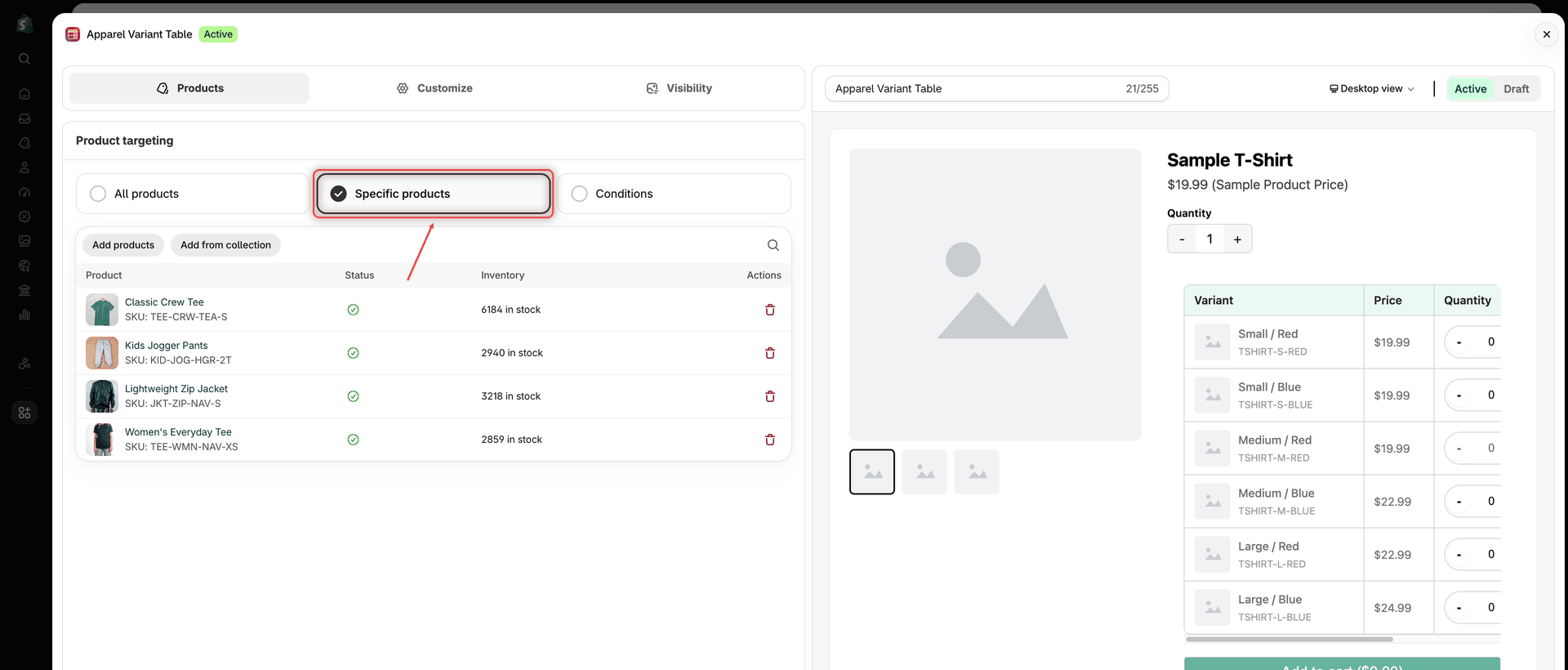
On the **Products** tab (heading **Product targeting**), pick one of three options:

| Option                                           | Where the table appears                            |
| ------------------------------------------------ | -------------------------------------------------- |
| **All products**                                 | On every product page in your store.               |
| **Specific products** (selected for a new table) | Only on the product pages you pick.                |
| **Conditions**                                   | On product pages whose product matches your rules. |

**Specific products:** click **Add products**, select products in the Shopify product picker (for example **Classic Crew Tee** and **Lightweight Zip Jacket**), then click **Select**. To pick from a collection instead, click **Add from collection**, choose a collection such as **Wholesale Essentials**, tick the products you want and click **Add products**, or click **Add all products** to take the whole collection.

**Conditions:** under **Products must match:**, choose **All conditions** or **Any condition**. Then set each rule's field, operator and value, for example **Product tag** **contains** `tees`. Click **+ Add another condition** for more rules. A new table starts with the rule **Product title** **is not equal to** and an empty value, and every rule needs a value before you can save. To target a collection, use the **Collection** field. For every field and operator, see [Product conditions](/globo-b2b-bulk-order/targeting-and-design/customer-and-product-targeting.md#product-conditions).

<figure><img src="https://4205698016-files.gitbook.io/~/files/v0/b/gitbook-x-prod.appspot.com/o/spaces%2FcOPpR31lfLzPdPWnPtOU%2Fuploads%2Fgit-blob-1d5d1f471caafbca5f5713e5f70ffcee6b534ff1%2Fscreenshot-variant-table-products-specific.png?alt=media" alt="Variant Table builder on the Products tab with Specific products selected and Classic Crew Tee, Kids Jogger Pants, Lightweight Zip Jacket and Women&#x27;s Everyday Tee in the product list"><figcaption><p>Pick Specific products, All products or Conditions on the Products tab.</p></figcaption></figure>
{% endstep %}
{% endstepper %}

## Customize the table

Click the **Customize** tab. It has five sections, in this order: **Template**, **Show columns**, **Advanced restrictions**, **Style** and **Custom CSS**.

{% hint style="info" %}
The preview always uses a built-in **Sample T-Shirt** with sizes and colors, not your own products. Open a real product page after saving to see the table with your variants.
{% endhint %}

### Template

In **Template**, pick how the variants are laid out.

{% tabs %}
{% tab title="Default" %}
**Default** (**Classic variant table layout.**) shows one row per variant. The columns are the ones you choose in **Show columns**.

This is the template a new table starts with, and it works for every product, including products with only one option.
{% endtab %}

{% tab title="Matrix column" %}
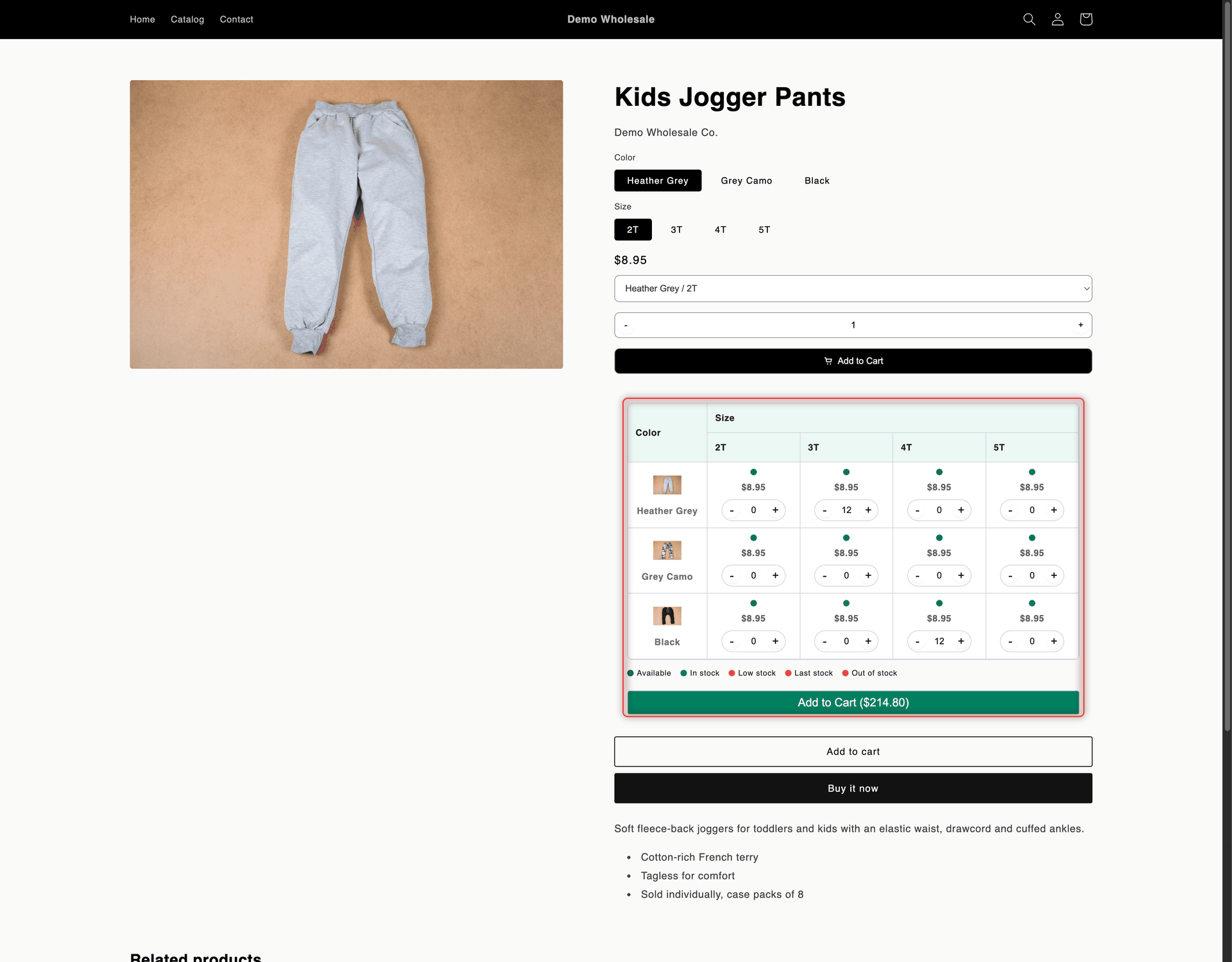
**Matrix column** (**Show variants in matrix-style columns.**) shows a grid:

* Each row is a value of the product's first option. For **Classic Crew Tee**, the rows are the colors: Teal, Slate Grey, Heather Purple, Forest Green and Cobalt Blue.
* Each column is a value of the other option. For **Classic Crew Tee**, the columns are the sizes S, M, L, XL and 2XL. With three options, the column names join the second and third values, for example `M / Cotton`.
* Each cell shows a stock dot, the price and a quantity stepper. A combination that doesn't exist shows `-`.
* A stock legend under the grid reads **Available**, **In stock**, **Low stock**, **Last stock** and **Out of stock**. The dots in the cells use your [Stock thresholds](/globo-b2b-bulk-order/settings/stock-status.md) colors, but the legend's dot colors are fixed.

When you select **Matrix column**, the app shows this note: **Products need at least 2 options to render as a matrix. Products with fewer options will be shown as a table.** Those products get the Default layout. The **Show columns** section is hidden, because the matrix doesn't use it.

<figure><img src="https://4205698016-files.gitbook.io/~/files/v0/b/gitbook-x-prod.appspot.com/o/spaces%2FcOPpR31lfLzPdPWnPtOU%2Fuploads%2Fgit-blob-b462b98d3761ad5a5697a0929454fab8b4d6263f%2Fscreenshot-storefront-variant-table-matrix.png?alt=media" alt="Kids Jogger Pants product page with a Variant Table in the Matrix column layout: colors as rows, sizes 2T to 5T as columns, a quantity stepper in each cell, a stock legend and an Add to Cart button with the total"><figcaption><p>The Matrix column layout puts the first option in rows and the other options in columns.</p></figcaption></figure>
{% endtab %}
{% endtabs %}

### Show columns

This section appears only with the **Default** template. The table has four columns:

| Column       | What buyers see                                                                                    | Can you hide it? |
| ------------ | -------------------------------------------------------------------------------------------------- | ---------------- |
| **Variant**  | The variant's image, name and SKU. If the variant has no image, the product's image is used.       | No               |
| **Price**    | The variant's price.                                                                               | No               |
| **Quantity** | A **-** and **+** stepper around a number box that starts at 0.                                    | No               |
| **Stock**    | The stock label and color from [Stock thresholds](/globo-b2b-bulk-order/settings/stock-status.md). | Yes              |

* **Reorder columns:** drag the column chips.
* **Hide Stock:** click the **x** on its chip. To show it again, click **Add column** and tick it under **Hidden columns**.

The column headers are saved in the app's admin language when you create the table. Changing the wording in **Settings** > **Translations** doesn't change these headers.

### Advanced restrictions

Turn on quantity rules here, such as a minimum order quantity, fixed pack sizes or quantity steps. The section is optional. All rules are off for a new table. For each rule's settings and the messages buyers see, see [Set quantity rules](/globo-b2b-bulk-order/variant-table/quantity-rules.md).

### Style

**Style** has five sub-tabs:

| Sub-tab    | What you can change                                                                                                                                       |
| ---------- | --------------------------------------------------------------------------------------------------------------------------------------------------------- |
| **Layout** | **Form width** (default 100%), **Content padding** (20 px) and **Section gap** (16 px), the space between the table and the button.                       |
| **Header** | **Header font size** (14 px) and **Font weight** (500) of the column headers.                                                                             |
| **Table**  | **Row font size** (14 px), **Border width** (1 px), **Border style** (**Solid**, **Dashed** or **Dotted**) and **Border radius** (8 px).                  |
| **Button** | **Same style as theme button** (off), or the button's **Text size** (18 px), **Text weight** (500), **Border width** (1 px) and **Border radius** (4 px). |
| **Colors** | Colors for **Add to Cart button in the variant table**, **Variant table** (header, rows, row hover, border, dividers) and **Restriction message**.        |

When you turn on **Same style as theme button**, the app stops styling the button and hides the button's size and color settings. The button then takes your theme's general button styles, so the result depends on your theme.

For more on these settings, see [Design & custom CSS](/globo-b2b-bulk-order/targeting-and-design/design-and-custom-css.md).

### Custom CSS

This section starts collapsed. Click **Custom CSS** to open it, then type CSS in the box. Under **Available CSS classes**, click a class, for example `.samitaBO-quick-buy-variant-add` (**Add to cart button**), to add it to the box.

Your CSS is added to the whole product page, not only to this table. Start your selectors with the Variant Table classes so they don't change other parts of your theme. See [Design & custom CSS](/globo-b2b-bulk-order/targeting-and-design/design-and-custom-css.md).

## Choose who sees the table

Click the **Visibility** tab. In **Customer targeting**, choose an option under **Who can see this form?**:

| Option                       | Who sees the table                                                                             |
| ---------------------------- | ---------------------------------------------------------------------------------------------- |
| **All customers** (default)  | Everyone, logged in or not.                                                                    |
| **Logged-in customers only** | Only customers who are logged in to their account.                                             |
| **Guest customers only**     | Only visitors who aren't logged in.                                                            |
| **Customers with tags**      | Logged-in customers who have at least one of the tags you add under **Include customer tags**. |

To add a tag, click **Add customer tag**, then tick one of your store's customer tags. To use a tag that isn't in the list, type it, for example `wholesale`, and click **Add "…"**. Tags must match the customer's tag exactly, including capital letters.

Use **Exclude customer tags** to hide the table from customers with any of those tags, for example `retail`. This field isn't shown with **Guest customers only**.

For more examples, see [Customer & product targeting](/globo-b2b-bulk-order/targeting-and-design/customer-and-product-targeting.md).

## Activate and save

{% stepper %}
{% step %}

### Check the status

At the top of the builder, make sure **Active** is selected. Choose **Draft** if you aren't ready to publish yet. Draft tables never appear on your storefront.
{% endstep %}

{% step %}

### Save the table

Click **Save** in the save bar at the top of the screen. The message **Variant table created** confirms it. The builder stays open, so you can keep editing. Later saves show **Variant table updated**.

If something is missing, a red banner titled **Fix errors to save** lists the problems and the builder opens the tab with the first one:

| Message                                            | How to fix it                                                                                                     |
| -------------------------------------------------- | ----------------------------------------------------------------------------------------------------------------- |
| **Name can't be blank**                            | Enter a name at the top of the builder.                                                                           |
| **Select at least one product**                    | On **Products**, add a product or choose another option.                                                          |
| **Enter value for Product title is not equal to.** | On **Products**, fill in the value of that condition. The message names the field and operator of the empty rule. |
| **Add at least one customer tag**                  | On **Visibility**, add a tag under **Include customer tags**.                                                     |
| {% endstep %}                                      |                                                                                                                   |

{% step %}

### Check your storefront

Open one of the products the table applies to on your online store. If you limited the table to tagged customers, log in as a customer with that tag first. It can take a few moments after saving for the table to appear, so refresh the page if you don't see it yet.

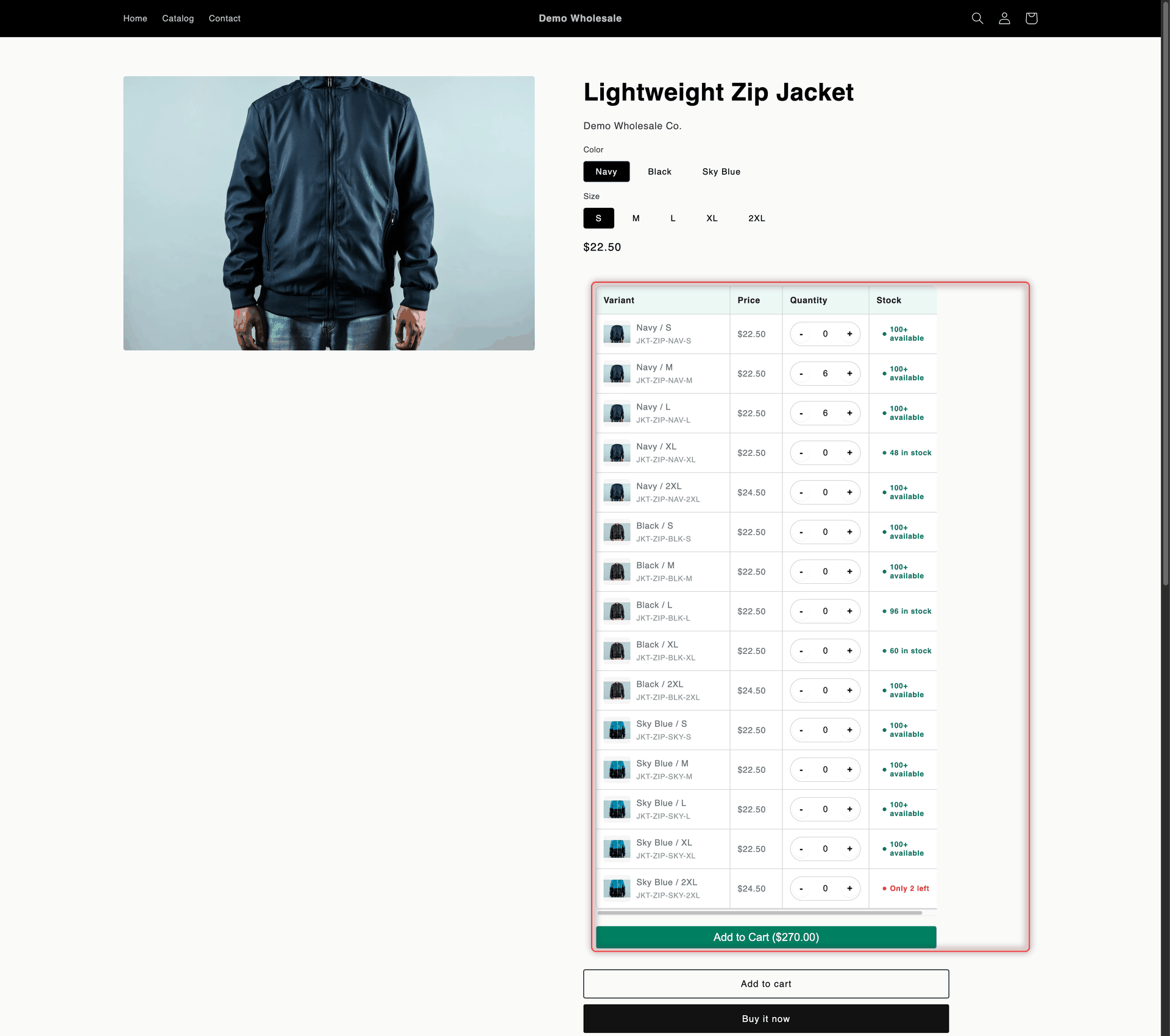
The table sits just above your theme's Add to cart button. Buyers:

1. Enter quantities with **-** and **+** or by typing. The buttons stop at the available stock. Out-of-stock variants can't be selected.
2. Click **Add to Cart**, which shows the running total, for example **Add to Cart ($270.00)** for 12 jackets. The button stays disabled until the total is above 0 and every [quantity rule](/globo-b2b-bulk-order/variant-table/quantity-rules.md) you turned on is met.
3. See a message with the heading **Cart updated successfully!**, the text **Your item has been added to cart.** and a **View cart and checkout** link. The quantities reset to 0 and the cart count updates. The cart drawer doesn't open automatically.

To change the wording, go to **Settings** > **Translations**. The button label and the message heading are in the **Quick Buy Variant** section. The message text and the link are in the **Toast** section. Whether the message shows, and how it looks, follows your [Toast notifications](/globo-b2b-bulk-order/settings/cart-notifications.md) settings.

<figure><img src="https://4205698016-files.gitbook.io/~/files/v0/b/gitbook-x-prod.appspot.com/o/spaces%2FcOPpR31lfLzPdPWnPtOU%2Fuploads%2Fgit-blob-fc2eb502295762af9a8fabd35b3f0113860b1bd3%2Fscreenshot-storefront-variant-table.png?alt=media" alt="Product page for the Lightweight Zip Jacket with a Variant Table listing each color and size with its SKU, price, quantity stepper and stock label, and an Add to Cart button with the total"><figcaption><p>The finished Variant Table appears above the theme's Add to cart button.</p></figcaption></figure>
{% endstep %}
{% endstepper %}

{% hint style="warning" %}
Table not showing? Check that the **Globo Bulk Order** app embed is on, the table is **Active**, the product matches the **Products** tab, and you're viewing as a customer who matches **Visibility**. A newer **Active** table for the same product may also show instead (see [When several tables match one product](#when-several-tables-match-one-product)). If all of these are right, your theme may need extra setup, so [contact support](/globo-b2b-bulk-order/help/contact-support.md). More fixes are in [Troubleshooting](/globo-b2b-bulk-order/help/troubleshooting.md#the-variant-table-doesnt-appear-on-a-product-page).
{% endhint %}

## When several tables match one product

A product page shows only one Variant Table. When more than one **Active** table matches the product and the buyer, the app shows the one you **created** most recently. Editing an older table doesn't move it ahead.

You can use this to give different buyers different tables. For example:

1. Create a table for **All products** and **All customers**.
2. Then create a second table for **Classic Crew Tee** with **Customers with tags** and the tag `wholesale`, and turn on a minimum order rule.

Buyers tagged `wholesale` see the second table on **Classic Crew Tee**, because it's newer. Everyone else sees the first table, because the second one doesn't match them.

**Duplicate** creates a new table named after the original with " (Copy)" added, with the same settings and status. Because the copy is newer, an Active copy replaces the original on the same products. Set the copy to **Draft** until you've finished editing it.

## Next steps

* [Set quantity rules](/globo-b2b-bulk-order/variant-table/quantity-rules.md)
* [Customer & product targeting](/globo-b2b-bulk-order/targeting-and-design/customer-and-product-targeting.md)
* [Design & custom CSS](/globo-b2b-bulk-order/targeting-and-design/design-and-custom-css.md)
* [Stock thresholds](/globo-b2b-bulk-order/settings/stock-status.md)