> For the complete documentation index, see [llms.txt](https://docs.globo.io/llms.txt). Markdown versions of documentation pages are available by appending `.md` to page URLs; this page is available as [Markdown](https://docs.globo.io/globo-b2b-bulk-order/variant-table/quantity-rules.md).
# Set quantity rules
Use Advanced restrictions to require minimum quantities, quantity steps, pack sizes or order values before buyers can add a Variant Table to the cart.
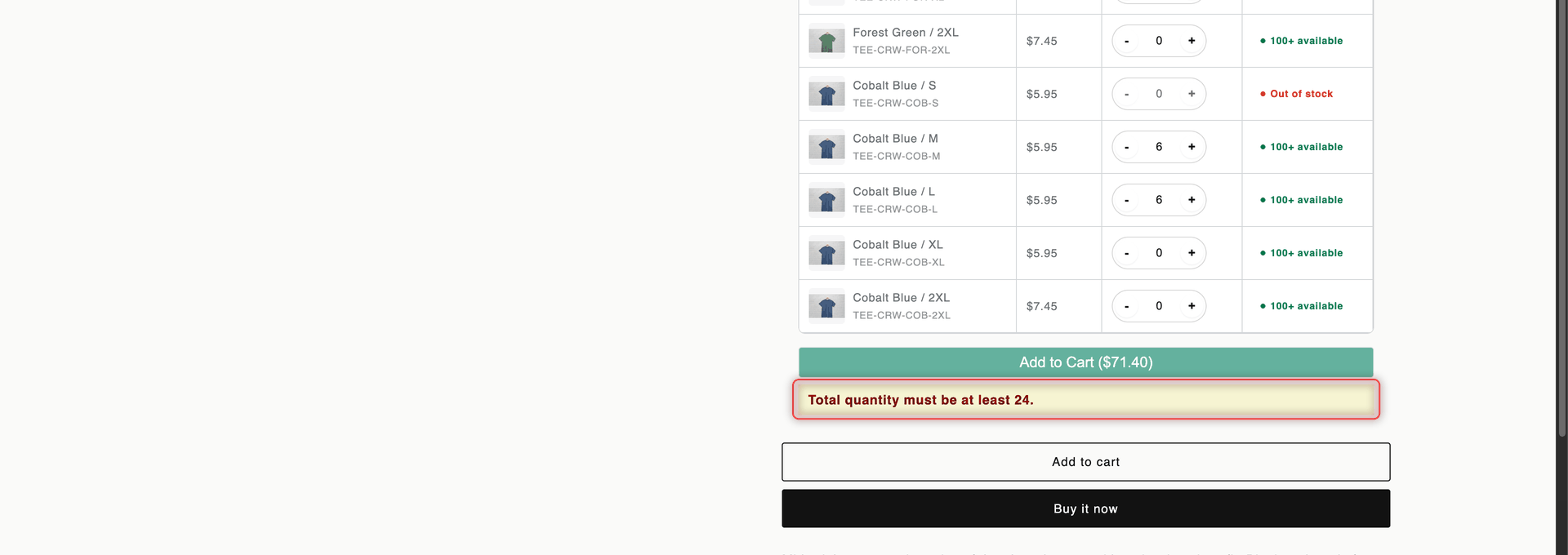
Quantity rules, called **Advanced restrictions** in the app, decide what a buyer must select in a Variant Table before **Add to Cart** works. For example, you can ask for at least 24 shirts per order, sell only in steps of 6, or allow only fixed pack sizes. While a rule isn't met, the table shows a message under the button and the button stays disabled.
## Before you start
* You need a Variant Table. If you don't have one yet, see [Create a Variant Table](/globo-b2b-bulk-order/variant-table/create-a-variant-table.md).
* The **Globo Bulk Order** app embed must be on, or the table won't appear. See [Enable the app embed](/globo-b2b-bulk-order/getting-started/enable-app-embed.md).
## Turn on a rule
{% stepper %}
{% step %}
### Open the table
In Shopify admin, go to **Apps** > **Globo B2B Bulk Order**, then click **Variant Table** in the app navigation. Click the pencil icon next to the table you want to change, or click **Create form** to start a new one.
{% endstep %}
{% step %}
### Open Advanced restrictions
Click the **Customize** tab, then go to the **Advanced restrictions** section. It lists eight rules, each in its own card. All rules are off until you turn them on.
{% endstep %}
{% step %}
### Turn on a rule and enter its limits
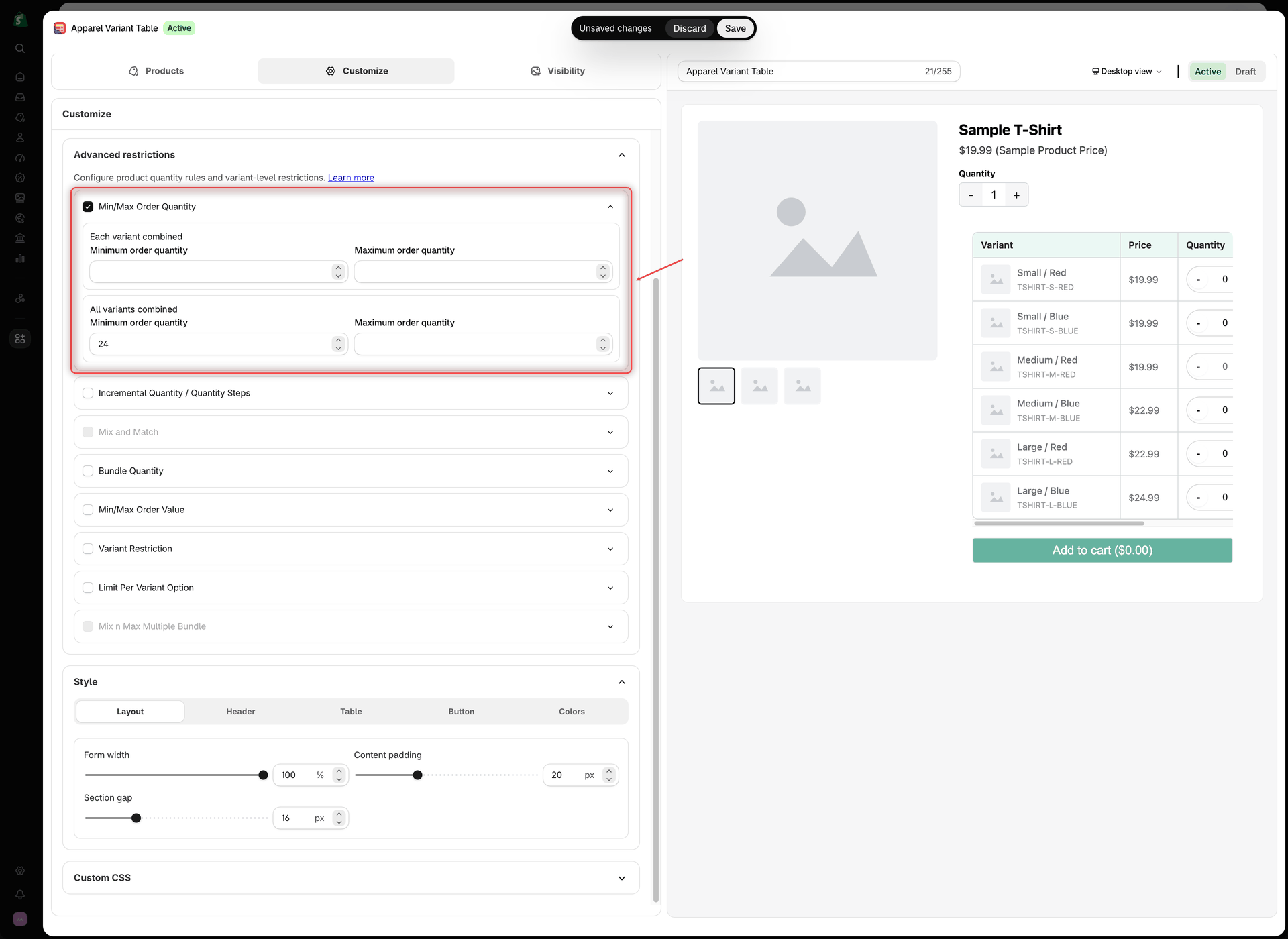
Tick the rule's checkbox to turn it on. Then click the arrow on the right of the card to show its fields, and enter your limits. The fields for each rule are in [Rule settings and messages](#rule-settings-and-messages).
* Leave a field empty or enter `0` for no limit.
* If you clear a field that had a value and click away, it goes back to its previous value. To remove a limit, enter `0` instead.
* The app doesn't check that a minimum is lower than its maximum, so test your numbers in the preview.
Tick a rule, open it with the arrow, then enter your limits.
{% endstep %}
{% step %}
### Test the rule in the preview
While every quantity in the preview is 0, the preview on the right shows the requirement of the first ticked rule in the list, as soon as that rule has a limit, so you can check its wording. Enter quantities in the preview to see what buyers will see. The preview uses a built-in **Sample T-Shirt**, not your products. Clicking the button in the preview only checks the rules and doesn't add anything to a cart.
{% endstep %}
{% step %}
### Save
Click **Save** in the save bar at the top of the screen. The message **Variant table updated** (or **Variant table created** for a new table) confirms it. Open the product page on your storefront to check the rule.
{% endstep %}
{% endstepper %}
## Rules that can't be combined
You can turn on several rules at once. Only these pairs are blocked:
| Rule | Can't be used with |
| ----------------------------------------- | ------------------------------------------------------------------------ |
| **Min/Max Order Quantity** | **Mix and Match**, **Mix n Max Multiple Bundle** |
| **Incremental Quantity / Quantity Steps** | **Bundle Quantity**, **Mix n Max Multiple Bundle** |
| **Mix and Match** | **Min/Max Order Quantity**, **Mix n Max Multiple Bundle** |
| **Bundle Quantity** | **Incremental Quantity / Quantity Steps**, **Mix n Max Multiple Bundle** |
| **Min/Max Order Value** | **Mix n Max Multiple Bundle** |
| **Variant Restriction** | **Mix n Max Multiple Bundle** |
| **Limit Per Variant Option** | **Mix n Max Multiple Bundle** |
| **Mix n Max Multiple Bundle** | Every other rule |
When a rule is on, the checkbox of each rule it conflicts with is unavailable. If you open one of those cards, it shows a note such as **Not applicable when Min/Max Order Quantity is applied**. To use that rule instead, untick the first one.
## Rule settings and messages
The messages below use example numbers. Buyers see the numbers you enter. "Selected variant" means a variant with a quantity above 0.
### Min/Max Order Quantity
Set a quantity range for the whole order, for each selected variant, or both. Use whole numbers.
| Group › field | What it checks | Message buyers see (example) |
| ------------------------------------------------------ | --------------------------------- | ----------------------------------------------------------- |
| **Each variant combined** › **Minimum order quantity** | Quantity of each selected variant | **Each selected variant quantity must be at least 6.** |
| **Each variant combined** › **Maximum order quantity** | Quantity of each selected variant | **Each selected variant quantity must be no more than 48.** |
| **All variants combined** › **Minimum order quantity** | Total quantity across the table | **Total quantity must be at least 24.** |
| **All variants combined** › **Maximum order quantity** | Total quantity across the table | **Total quantity must be no more than 120.** |
### Incremental Quantity / Quantity Steps
Make buyers order each variant in multiples of a step.
| Field | What it checks | Message buyers see (example) |
| ------------------------------------------------------ | ------------------------------------------------------------------------------------------------------------------------------------ | ----------------------------------------------- |
| **Quantity interval / quantity step** (lowest value 1) | Each selected variant's quantity is a multiple of the step. The **-** and **+** buttons also move by the step, for example 0, 6, 12. | **Quantity must be ordered in multiples of 6.** |
A step of 1 means no step.
### Mix and Match
Set a quantity range for each selected variant and a number of different variants. You can also limit the total quantity.
| Group › field | What it checks | Message buyers see (example) |
| ------------------------------------------------------ | ------------------------------------- | ----------------------------------------------------------- |
| **Each variant combined** › **Minimum quantity** | Quantity of each selected variant | **Each selected variant quantity must be at least 6.** |
| **Each variant combined** › **Maximum quantity** | Quantity of each selected variant | **Each selected variant quantity must be no more than 48.** |
| **Number of variants combined** › **Minimum variants** | Number of different variants selected | **Please select at least 3 different variant(s).** |
| **Number of variants combined** › **Maximum variants** | Number of different variants selected | **Please select no more than 5 different variant(s).** |
| **Additional bundle quantity** › **From** | Total quantity across the table | **Total quantity must be at least 24.** |
| **Additional bundle quantity** › **To** | Total quantity across the table | **Total quantity must be no more than 60.** |
Tick **Additional bundle quantity** to show the **From** and **To** fields.
### Bundle Quantity
Sell only in fixed pack sizes. The card shows the hint **Add bundle quantity values (e.g. 5, 10, 20).**
| Field | What it checks | Message buyers see (example) |
| -------------------------- | ----------------------------------------------------------------------------------------------------------------------- | --------------------------------------------- |
| **Bundle quantity values** | The total quantity across the table equals one of the values. Separate the values with commas, for example `6, 12, 24`. | **Total quantity must be one of: 6, 12, 24.** |
On the storefront, each variant's quantity box becomes a dropdown with 0 and your values. Values higher than a variant's available stock can't be selected. The rule checks the **total** of all variants, so 6 Teal / M plus 6 Slate Grey / M makes 12, which is allowed with the values above.
### Min/Max Order Value
Set a range for the order value, which is quantity × the variant price shown in the table. Decimals are allowed.
| Group › field | What it checks | Message buyers see (example) |
| --------------------------------------------------- | ------------------------------ | --------------------------------------------------------------- |
| **Each variant combined** › **Minimum order value** | Value of each selected variant | **Each selected variant order value must be at least 30.** |
| **Each variant combined** › **Maximum order value** | Value of each selected variant | **Each selected variant order value must be no more than 300.** |
| **All variants combined** › **Minimum order value** | Total value of the table | **Total order value must be at least 150.** |
| **All variants combined** › **Maximum order value** | Total value of the table | **Total order value must be no more than 1000.** |
The message shows the plain number, without a currency symbol.
### Variant Restriction
Set how many different variants a buyer must or may choose.
| Field | What it checks | Message buyers see (example) |
| -------------------------------- | ------------------------------------- | ------------------------------------- |
| **Minimum variants per product** | Number of different variants selected | **Select at least 2 variant(s).** |
| **Maximum variants per product** | Number of different variants selected | **Select no more than 4 variant(s).** |
This counts the same thing as **Mix and Match** › **Number of variants combined**. The difference is that **Variant Restriction** can be used together with **Min/Max Order Quantity**.
### Limit Per Variant Option
Set a quantity range for each option value, such as each color and each size.
| Field | What it checks | Message buyers see (example) |
| ---------------------- | ------------------------------------------------------------------------------------------------ | -------------------------------- |
| **Minimum per option** | For every option value in the selection, the total quantity of selected variants with that value | **Teal must have at least 12.** |
| **Maximum per option** | Same, as a maximum | **M must have no more than 48.** |
The limit applies to every option at once. On **Classic Crew Tee** with a minimum of 12, each color *and* each size the buyer orders needs at least 12. For example, 12 Teal / M plus 12 Teal / L meets the rule: Teal has 24, M has 12 and L has 12.
### Mix n Max Multiple Bundle
Cap the total quantity at a fixed number.
| Field | What it checks | Message buyers see (example) |
| -------------------------------------------------------------------------- | ---------------------------------------------------- | ------------------------------------------- |
| **Bundle max quantity**: **Please select**, `5`, `10`, `20`, `50` or `100` | Total quantity across the table is at most the value | **Total quantity must be no more than 50.** |
With **Please select**, the rule has no effect. This rule can't be combined with any other rule.
## What buyers see
* Before a buyer enters a quantity, no message shows and **Add to Cart** is disabled.
* When a rule isn't met, a message box appears under **Add to Cart** in the error text color, and the button stays disabled.
* When every rule is met, the box repeats the message of the first ticked rule that has a limit, now in the success text color, to confirm the requirement is met. The button is enabled.
* Only one message shows at a time. The app checks the rules in the order they're listed in **Advanced restrictions** and shows the first one that fails. Within **Min/Max Order Quantity** and **Min/Max Order Value**, the **All variants combined** limits are checked before the **Each variant combined** limits.
The message under the button tells buyers which rule they still need to meet.
To change the look of the message, go to **Customize** > **Style** > **Colors** > **Restriction message**:
| Setting | Default |
| ------------------------------ | ------------------------ |
| **Message box color** | `#f6f4d2` (light yellow) |
| **Error message text color** | `#780000` (dark red) |
| **Success message text color** | `#016016` (dark green) |
| **Message text size** | 16 px |
| **Message box radius** | 0 px |
In **Custom CSS**, the message uses the class `.samitaBO-quick-buy-variant-validation`.
## Example: Classic Crew Tee
You sell **Classic Crew Tee** ($5.95 for sizes S to XL) in packs of 6 per variant, with at least 24 shirts per order.
{% stepper %}
{% step %}
### Set the minimum total
Open the table that targets **Classic Crew Tee**. On the **Customize** tab, in **Advanced restrictions**, tick **Min/Max Order Quantity**. Click its arrow and, under **All variants combined**, enter `24` in **Minimum order quantity**.
{% endstep %}
{% step %}
### Set the step
Tick **Incremental Quantity / Quantity Steps**. Click its arrow and enter `6` in **Quantity interval / quantity step**. These two rules can be combined.
{% endstep %}
{% step %}
### Save and open the product page
Click **Save**, then open the **Classic Crew Tee** product page on your storefront.
{% endstep %}
{% endstepper %}
On the product page, the buyer sees this:
| Buyer does | Total | Message | Button |
| ------------------------------------------------------------------------- | ----- | ------------------------------------------------------ | ----------------------------------- |
| Clicks **+** once on Cobalt Blue / M and once on Cobalt Blue / L (6 each) | 12 | **Total quantity must be at least 24.** in red | Disabled, **Add to Cart ($71.40)** |
| Also adds 6 Forest Green / M and 6 Forest Green / L | 24 | **Total quantity must be at least 24.** in green | Enabled, **Add to Cart ($142.80)** |
| Types `10` for Forest Green / L | 28 | **Quantity must be ordered in multiples of 6.** in red | Disabled, **Add to Cart ($166.60)** |
## Language of the messages
The rule messages are always shown in English. You can't change or translate them in **Settings** > **Translations**, so buyers who shop in another language still see them in English.
Other Variant Table text can be translated in **Settings** > **Translations**, in the **Quick Buy Variant** section. This includes the **Add to Cart** button label (default `Add to Cart ({{total_price}})`, where `{{total_price}}` is the running total), **Adding...** and **Cart updated successfully!**. See [Translations](/globo-b2b-bulk-order/settings/overview.md).
{% hint style="warning" %}
The rules apply only inside the Variant Table. Your theme's own Add to cart button, the cart page and checkout don't check them, so a buyer can still change quantities there. Shopify's own quantity rules aren't checked by the table either. If Shopify refuses an item, the buyer sees an error toast titled **Couldn't add to cart**, as long as toast notifications are on.
{% endhint %}
## Next steps
* [Create a Variant Table](/globo-b2b-bulk-order/variant-table/create-a-variant-table.md)
* [Design & custom CSS](/globo-b2b-bulk-order/targeting-and-design/design-and-custom-css.md)
* [Translations](/globo-b2b-bulk-order/settings/overview.md)
* [Troubleshooting: the Add to Cart button stays disabled](/globo-b2b-bulk-order/help/troubleshooting.md#the-variant-tables-add-to-cart-button-stays-disabled)