> For the complete documentation index, see [llms.txt](https://docs.globo.io/llms.txt). Markdown versions of documentation pages are available by appending `.md` to page URLs; this page is available as [Markdown](https://docs.globo.io/globo-combined-listings/product-groups/group-by-title-pattern.md).

# Group by title pattern

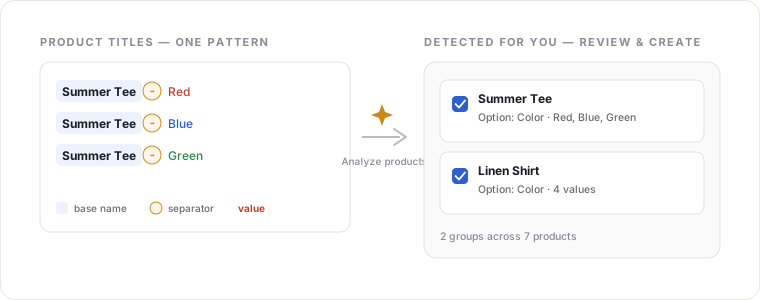
If your catalog names variations consistently — `Summer Tee - Red`, `Summer Tee - Blue`, `Summer Tee - Green` — the app can detect the shared base name and create single-option groups for you, in bulk.

<figure><img src="/files/vqvN8ahnIGMMEk4daqBE" alt="Titles are split at the separator into base name and value, and matching products become groups"><figcaption><p>Titles are split at your separator — matching products become groups you review before creating.</p></figcaption></figure>

Start it from **Groups → Create group → Group by title pattern** (the *Smart grouping* card).

## Step 1 — Configure detection

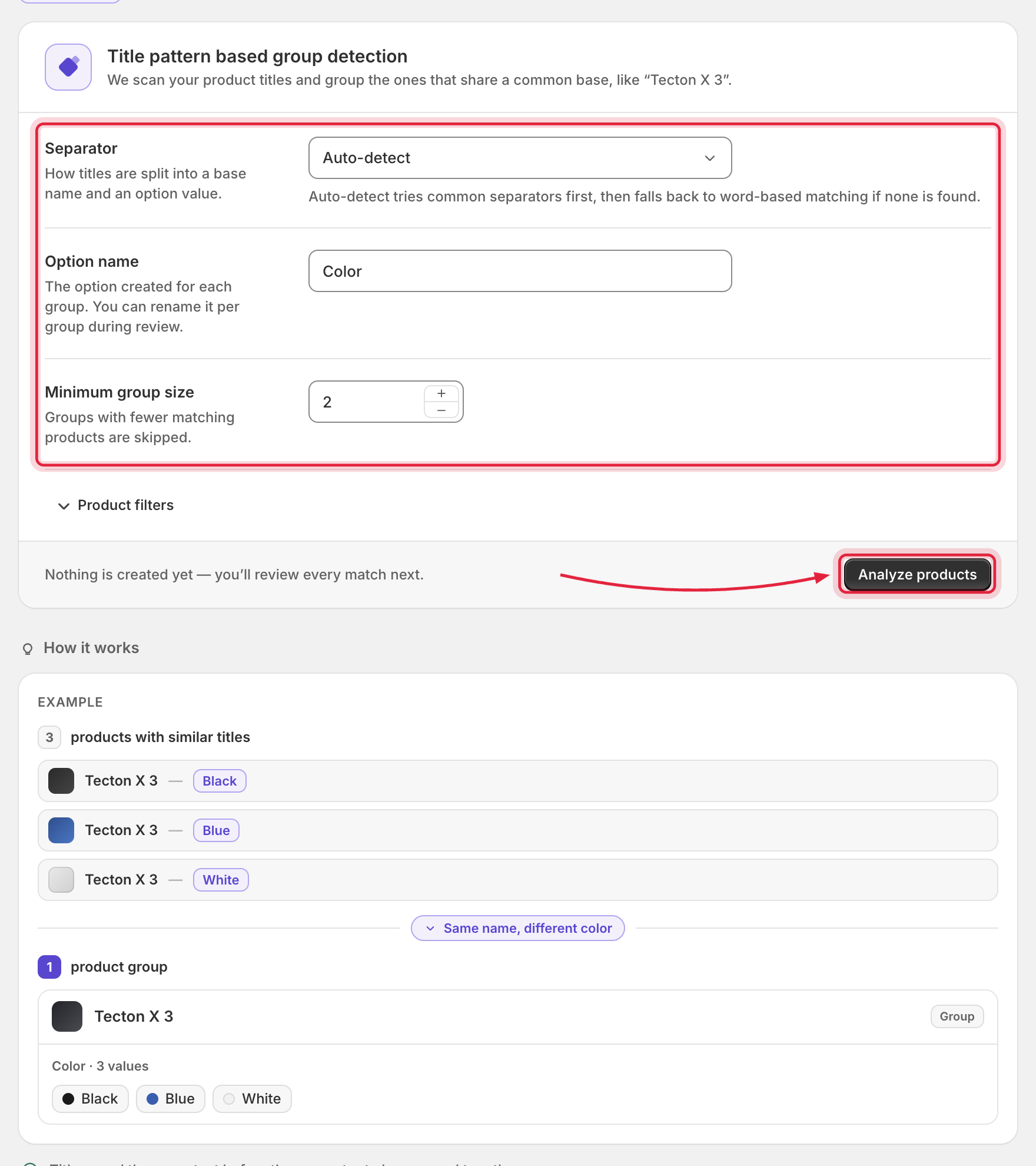
<figure><img src="/files/NWYUkUmV75uONWvRKO0N" alt="Title pattern detection settings form with the How it works panel"><figcaption><p>Configure how Combined Listings should detect groups from your product titles.</p></figcaption></figure>

| Setting                | What it does                                                                                            |
| ---------------------- | ------------------------------------------------------------------------------------------------------- |
| **Separator**          | The character(s) that split a title into *base name* + *option value* (e.g. `-` in `Summer Tee - Red`). |
| **Option name**        | The option created for every detected group (e.g. `Color`). You can rename it per group during review.  |
| **Minimum group size** | Groups with fewer matching products are skipped.                                                        |
| **Product filters**    | Optionally limit detection by product status (Any / Active / Draft), collection, or vendor.             |

Click **Analyze products** to run detection. Analysis reads your catalog directly — nothing is created yet.

## Step 2 — Review detected groups

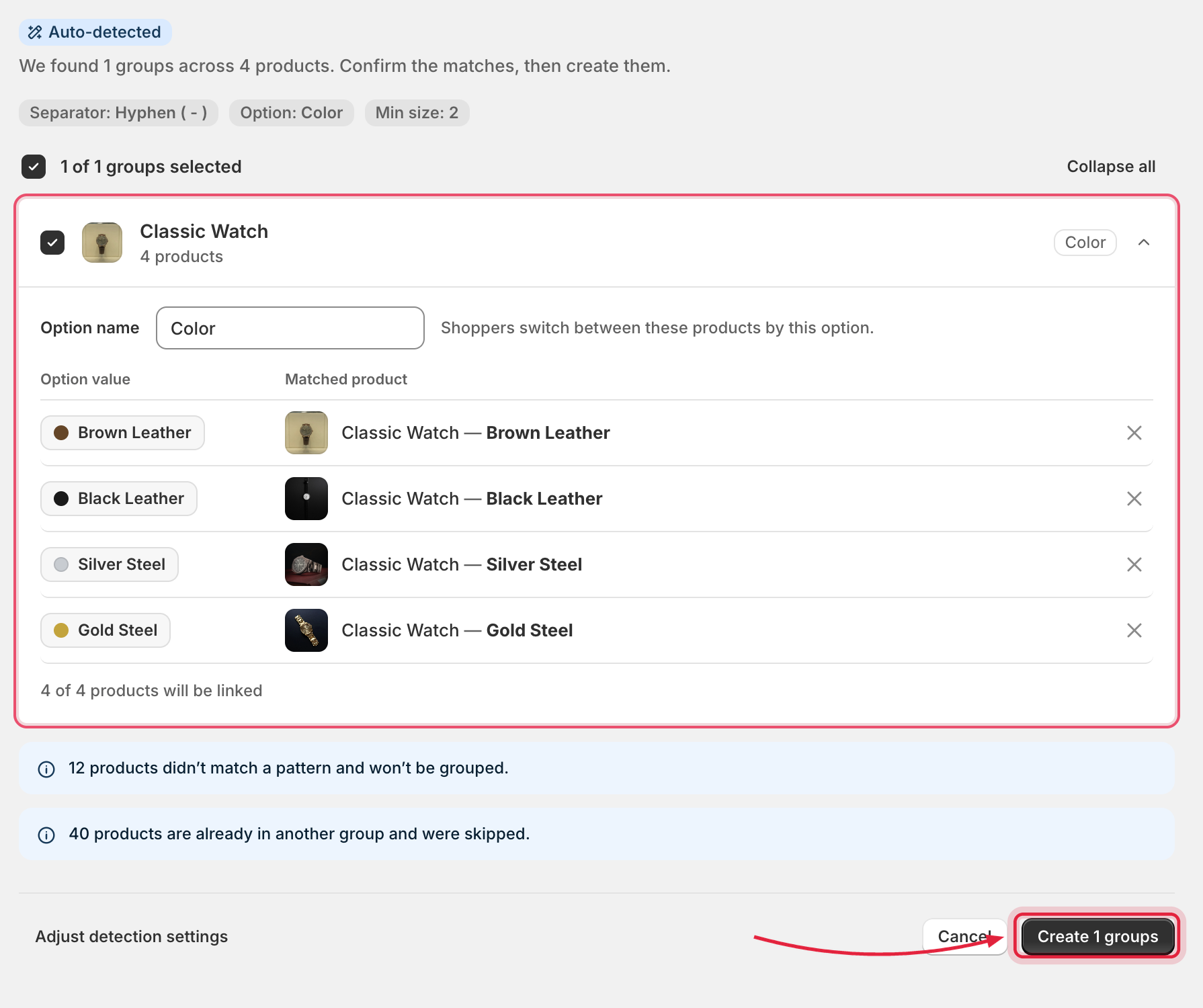
<figure><img src="/files/KjG9PJm6fjWaFbZOSGEU" alt="Review list showing detected groups across multiple products"><figcaption><p>Review every detected group before creating them in bulk.</p></figcaption></figure>

For each detected group you can:

* Select or deselect which groups get created.
* Rename the group's option.
* Exclude a wrongly matched product (and add it back).

The review also reports products that didn't match any pattern and products skipped because they already belong to a group.

## Step 3 — Create

Click **Create N groups**. Progress runs through: *Matching products by title → Creating groups → Applying the option → Publishing to your storefront*.

## Step 4 — Done

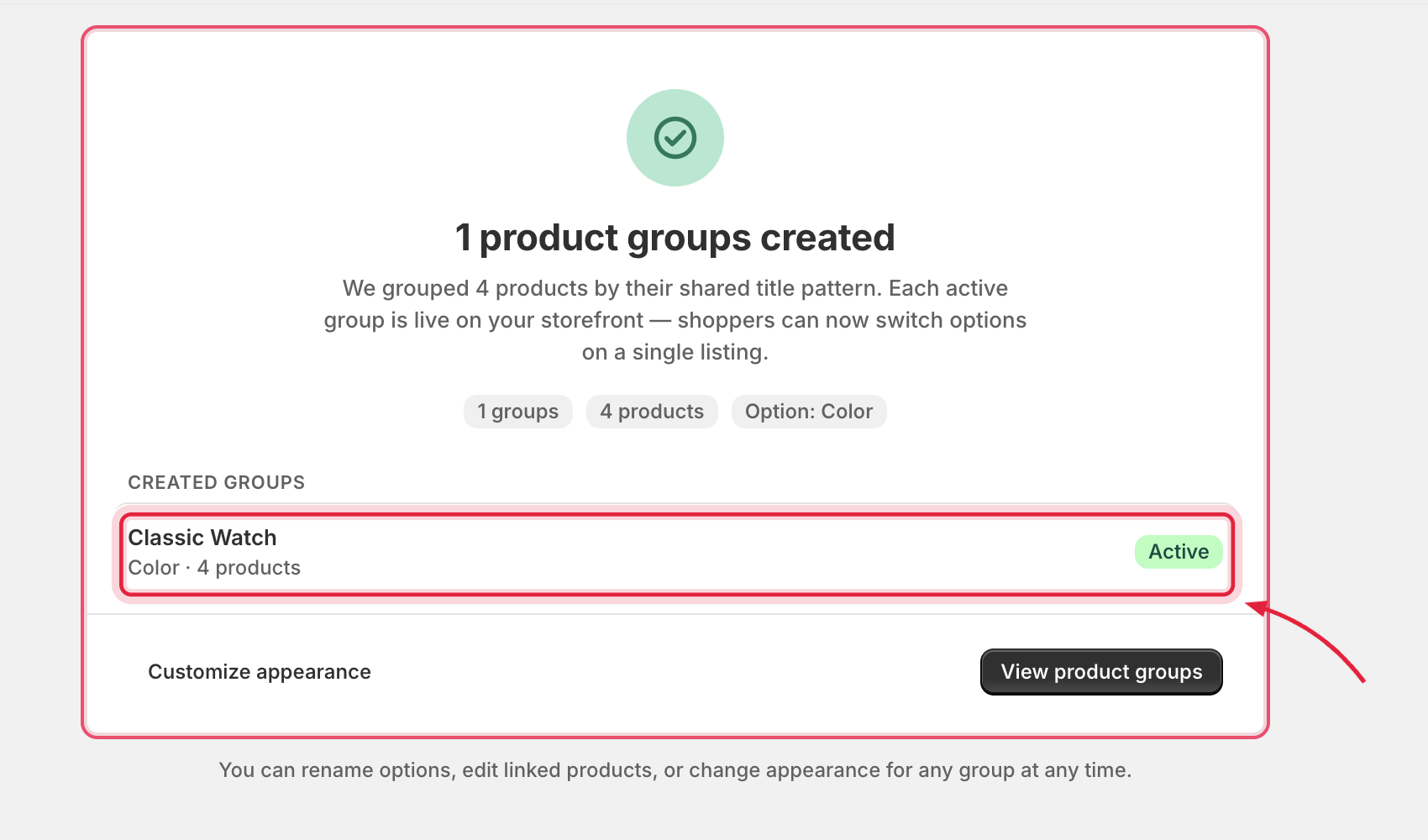
A summary shows how many groups were created and their statuses, with shortcuts to **Customize appearance** and **View product groups**.

<figure><img src="/files/1j5nvs8tYAWCmn9DNpEm" alt="Completion screen with created-group statistics"><figcaption><p>A summary of every group created and its status.</p></figcaption></figure>

{% hint style="info" %}
Created groups are ordinary [single-option groups](/globo-combined-listings/product-groups/group-types.md#group-by-single-option) — edit them afterwards like any other group.
{% endhint %}