> For the complete documentation index, see [llms.txt](https://docs.globo.io/llms.txt). Markdown versions of documentation pages are available by appending `.md` to page URLs; this page is available as [Markdown](https://docs.globo.io/globo-mega-menu/basic-knowledge/getting-started.md).

# Getting Started

Build mega menus, tabbed menus and a sticky mobile bottom bar for your Shopify store — no coding required.

**Globo Mega Menu** replaces your theme's header navigation with a richer menu that you build in a visual editor. This page walks you through your first menu — from creating it to seeing it live on your storefront — in about 5 minutes.

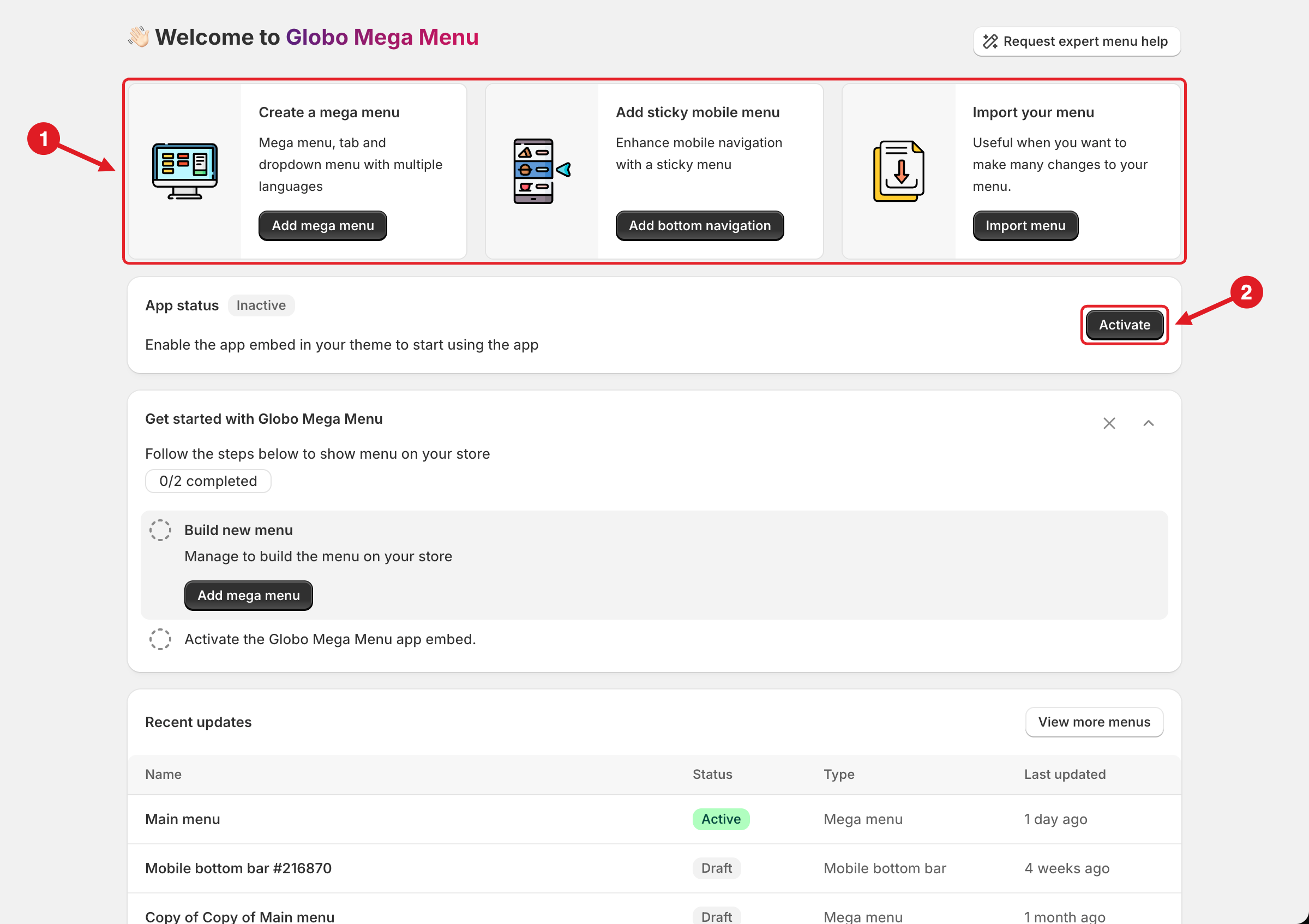
<figure><img src="https://2995734148-files.gitbook.io/~/files/v0/b/gitbook-x-prod.appspot.com/o/spaces%2FqP3YAfC1xaiWJzITQ9sI%2Fuploads%2Fgit-blob-6f389d77b41dfabd37c124a5ec9a18b38d56297a%2Fhome-dashboard.png?alt=media" alt="Home dashboard of Globo Mega Menu"><figcaption><p>Home dashboard: (1) quick actions to create or import a menu, (2) Activate the app embed</p></figcaption></figure>

## 🎯 What This App Does

With **Globo Mega Menu**, you can:

* Replace your theme's header navigation with a **mega menu**, **tabbed menu** or **dropdown menu**.
* Fill submenus with rich blocks: **products**, **collections**, **images**, **blog posts**, **countdowns**, **contact forms** and **custom HTML**.
* Add a sticky **mobile bottom bar** with quick actions such as Cart, Search, Chat or Call.
* **Translate** your menu, show different menus per **market** and **schedule** seasonal menus.
* Track clicks, impressions and assisted revenue in **Analytics**.

## 🧭 Two Types of Menu

| Menu type             | What it is                                                                                                                         | Best for                              |
| --------------------- | ---------------------------------------------------------------------------------------------------------------------------------- | ------------------------------------- |
| **Mega menu**         | Replaces your theme's header menu. Each top-level item can open a dropdown, a tabbed panel or a large mega menu panel with blocks. | Desktop and mobile header navigation  |
| **Mobile bottom bar** | A sticky bar of quick-access buttons (Home, Search, Cart, Account, Chat…).                                                         | Mobile-first stores and quick actions |

## 🚀 Quick Start Checklist

{% stepper %}
{% step %}

### Create a menu

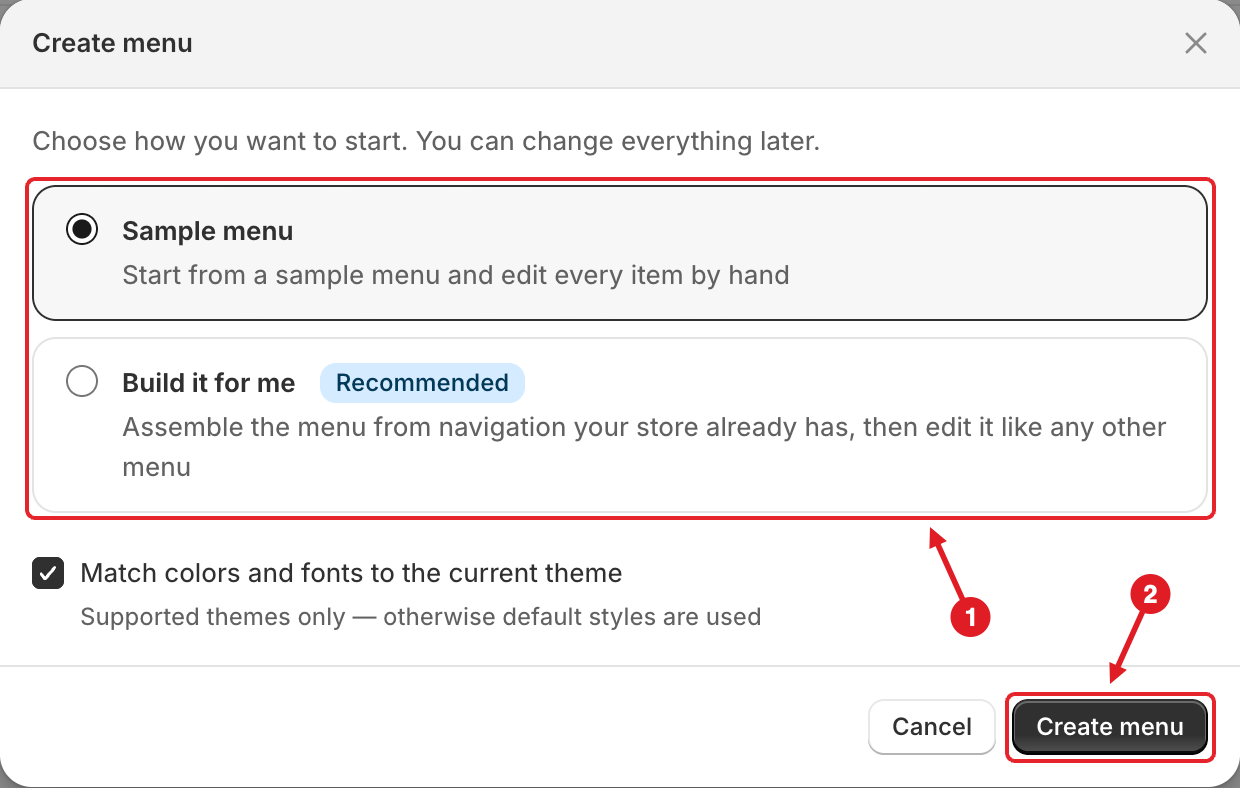
On **Home**, click **Add mega menu** (or go to **Menu manager** > **Create menu** > **Mega menu**). The **Create menu** dialog opens.

<figure><img src="https://2995734148-files.gitbook.io/~/files/v0/b/gitbook-x-prod.appspot.com/o/spaces%2FqP3YAfC1xaiWJzITQ9sI%2Fuploads%2Fgit-blob-5d291986d77295ed51a1e009f574371759681eee%2Fcreate-menu-modal.png?alt=media" alt="Create menu dialog"><figcaption><p>Create menu dialog: (1) choose how to start, (2) click Create menu</p></figcaption></figure>

Choose how you want to start **(1)**:

| Option                            | What happens                                                                                                                                                        |
| --------------------------------- | ------------------------------------------------------------------------------------------------------------------------------------------------------------------- |
| **Build it for me** (Recommended) | Builds the menu from navigation your store already has. When selected, a **Shopify menu** list appears — pick the Shopify navigation to copy (usually *Main menu*). |
| **Sample menu**                   | Creates a menu with example items that you edit by hand.                                                                                                            |

Leave **Match colors and fonts to the current theme** ticked (it's on by default) to reuse your theme's colors and fonts. This works on supported themes only — on other themes the app's default styles are used.

Click **Create menu (2)**. The menu editor opens.

{% hint style="info" %}
If the Shopify menu you picked has no items, the app creates the sample menu instead and shows a message. **Build it for me** is a one-time copy: later changes in Shopify **Navigation** are not synced to the app menu.
{% endhint %}
{% endstep %}

{% step %}

### Build your menu

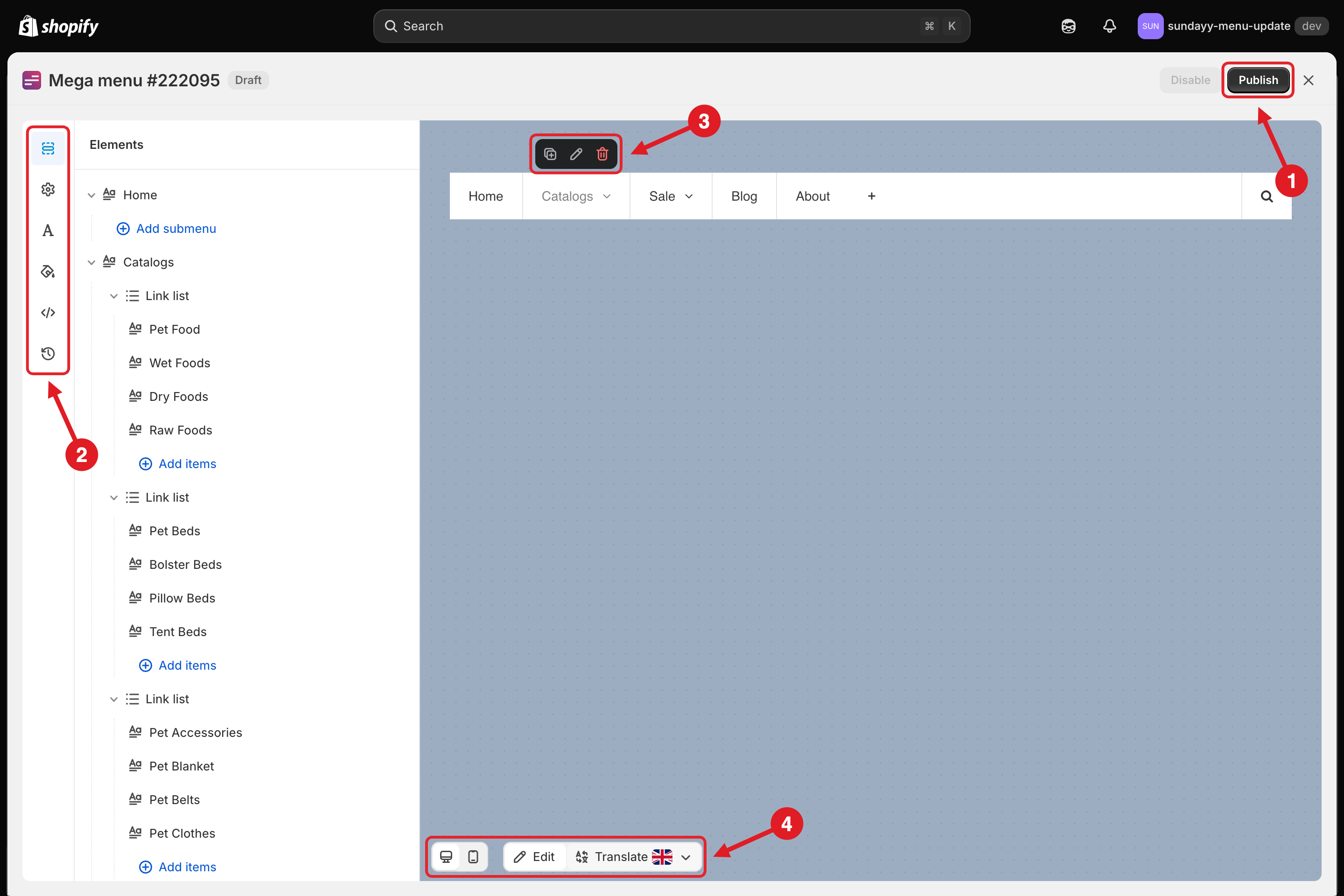
Add items, submenus and blocks in the menu editor, then adjust fonts and colors to match your store. Click **Save** when you're done.

<figure><img src="https://2995734148-files.gitbook.io/~/files/v0/b/gitbook-x-prod.appspot.com/o/spaces%2FqP3YAfC1xaiWJzITQ9sI%2Fuploads%2Fgit-blob-7c9ff79323281333fd5377dc729e6fd1549daa03%2Feditor-overview.png?alt=media" alt="Menu editor"><figcaption><p>Menu editor</p></figcaption></figure>

See [Menu Editor Overview](/globo-mega-menu/manage-menus/menu-editor-overview.md) for a tour of every panel.
{% endstep %}

{% step %}

### Publish the menu

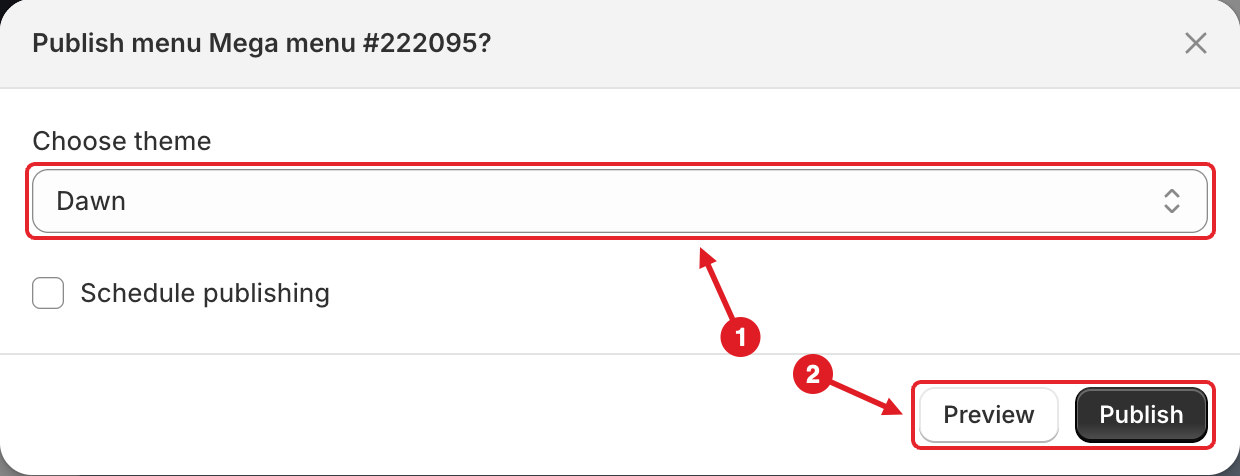
Click **Publish** in the top-right corner of the editor. In the dialog, pick the theme under **Choose theme (1)** and click **Publish (2)**. Use **Preview** first if you want to check the menu before customers see it.

<figure><img src="https://2995734148-files.gitbook.io/~/files/v0/b/gitbook-x-prod.appspot.com/o/spaces%2FqP3YAfC1xaiWJzITQ9sI%2Fuploads%2Fgit-blob-ea3fefcb18f40333b0e071173c8470caf9fb23f2%2Fpublish-dialog.png?alt=media" alt="Publish dialog"><figcaption><p>Publish dialog: (1) choose the theme, (2) Preview or Publish</p></figcaption></figure>

Full details: [Publish New Menu to Theme](/globo-mega-menu/basic-knowledge/publish-new-menu-to-theme.md).
{% endstep %}

{% step %}

### Enable the app embed

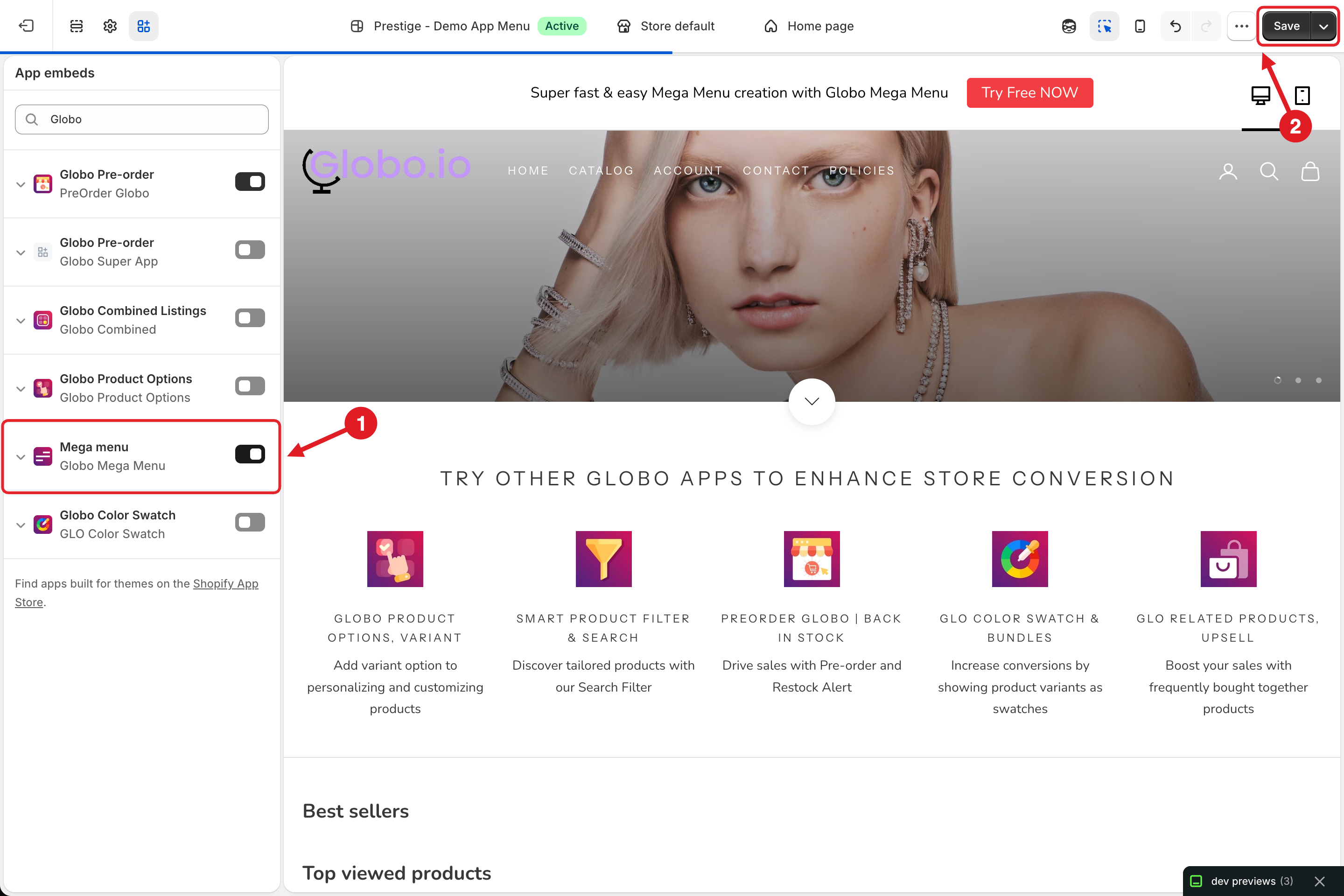
On **Home**, click **Activate** on the **App status** card. The theme editor opens on **App embeds**: turn **Mega menu** on **(1)** and click **Save (2)**.

<figure><img src="https://2995734148-files.gitbook.io/~/files/v0/b/gitbook-x-prod.appspot.com/o/spaces%2FqP3YAfC1xaiWJzITQ9sI%2Fuploads%2Fgit-blob-25d2e9f8b46647980f26af148673ee0fbed5b395%2Ftheme-editor-app-embed.png?alt=media" alt="App embeds in the theme editor"><figcaption><p>Theme editor: (1) turn on Mega menu, (2) Save</p></figcaption></figure>

{% hint style="warning" %}
The menu never appears on your storefront until the app embed is enabled on that theme. You only need to do this once per theme.
{% endhint %}
{% endstep %}

{% step %}

### Check your storefront

Open your store and hover over (or tap) the menu items, on both desktop and mobile. Publishing can take a few minutes to reach the storefront — wait a moment and refresh if you don't see changes yet.

If the menu shows in the wrong place, change **Settings** > **Position** in the editor. See [Publish New Menu to Theme](/globo-mega-menu/basic-knowledge/publish-new-menu-to-theme.md).
{% endstep %}
{% endstepper %}

## 🏠 The Home Dashboard

| Section                              | What it does                                                                                                                                                                                                                                                                                                   |
| ------------------------------------ | -------------------------------------------------------------------------------------------------------------------------------------------------------------------------------------------------------------------------------------------------------------------------------------------------------------- |
| **Quick actions (1)**                | **Add mega menu** opens the **Create menu** dialog. **Add bottom navigation** creates a [mobile bottom bar](/globo-mega-menu/mobile-bottom-bar/mobile-bottom-navigation-bar.md). **Import menu** loads a menu from a JSON file ([Import/Export Menu](/globo-mega-menu/basic-knowledge/import-export-menu.md)). |
| **App status (2)**                   | Shows whether the app embed is **Active** or **Inactive** on your theme. Click **Activate** to turn it on. When it's active, the button changes to **Manage in theme editor**.                                                                                                                                 |
| **Get started with Globo Mega Menu** | A 2-step checklist (**Build new menu**, **Activate the Globo Mega Menu app embed**) with a progress counter such as **0/2 completed**. Use **✕** to dismiss it or **^** to collapse it.                                                                                                                        |
| **Recent updates**                   | The menus you edited most recently, with **Status** (Active / Draft), **Type** and **Last updated**. Click **View more menus** to open **Menu manager**.                                                                                                                                                       |
| **Quick tutorials**                  | Short videos on creating, publishing and designing menus                                                                                                                                                                                                                                                       |
| **Request expert menu help**         | Send a screenshot or reference website and our team builds the menu for you                                                                                                                                                                                                                                    |

{% hint style="success" %}
**Tip:** Not sure where to start? Choose **Build it for me** — you get your existing navigation as a starting point and can then add submenus and blocks on top of it.
{% endhint %}

## 🔍 Need Help?

You can dive deeper into each feature in the other sections of this guide:

* [Enable App Embed](/globo-mega-menu/basic-knowledge/enable-app-embed.md)
* [Publish New Menu to Theme](/globo-mega-menu/basic-knowledge/publish-new-menu-to-theme.md)
* [Preview Menu Before Going Live](/globo-mega-menu/basic-knowledge/preview-menu-on-draft-theme.md)
* [Menu Editor Overview](/globo-mega-menu/manage-menus/menu-editor-overview.md)
* [Mobile Bottom Navigation Bar](/globo-mega-menu/mobile-bottom-bar/mobile-bottom-navigation-bar.md)

***

### Related Articles

{% content-ref url="/pages/A3ybekGYPMIrQCj905wO" %}
[Enable App Embed](/globo-mega-menu/basic-knowledge/enable-app-embed.md)
{% endcontent-ref %}

{% content-ref url="/pages/GicujsB7qcB0s3MYM7JU" %}
[Publish New Menu to Theme](/globo-mega-menu/basic-knowledge/publish-new-menu-to-theme.md)
{% endcontent-ref %}

{% content-ref url="/pages/2emGhof9opxewBZhmMTJ" %}
[Menu Editor Overview](/globo-mega-menu/manage-menus/menu-editor-overview.md)
{% endcontent-ref %}

{% content-ref url="/pages/uZRxVoy6Lr9mPJcevwai" %}
[Menu Manager](/globo-mega-menu/manage-menus/menu-manager.md)
{% endcontent-ref %}

***

**💬 Need help?**

Email us at **📧** [**contact@globo.io**](mailto:contact@globo.io) - we’re happy to assist!