> For the complete documentation index, see [llms.txt](https://docs.globo.io/llms.txt). Markdown versions of documentation pages are available by appending `.md` to page URLs; this page is available as [Markdown](https://docs.globo.io/globo-mega-menu/adjust-menu-styling/adjust-menu-font.md).
# Adjust Menu Font
Choose fonts, sizes and weights for each part of the menu.
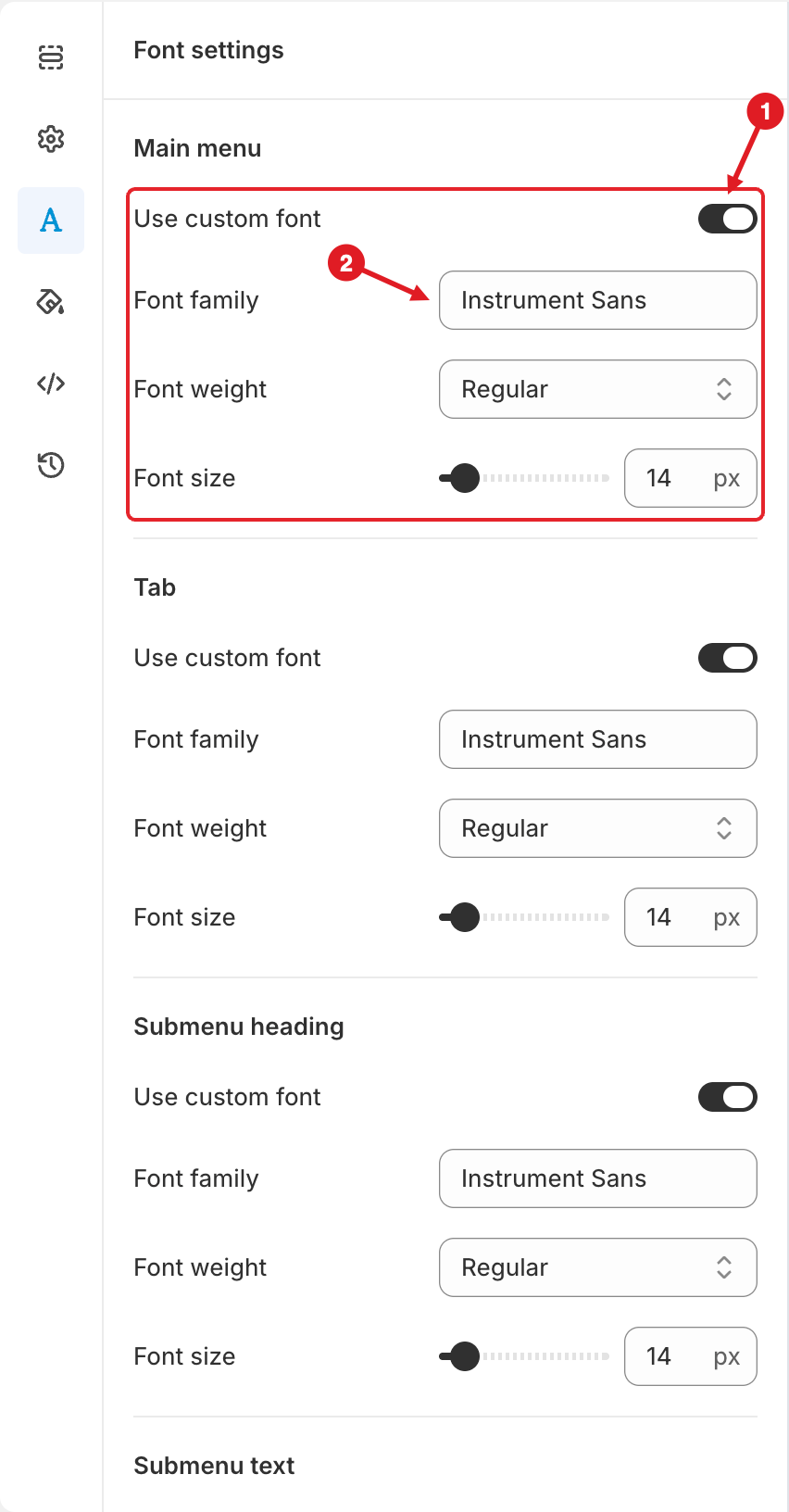
The **Font settings** tab lets you choose the font family, weight and size for each part of your menu. You can pick a Google Font from the built-in font picker, or use the font your theme already loads so the menu matches the rest of your store.
Font settings: turn on Use custom font (1), then type the font name (2)
## 🔤 Font Groups
The tab is split into five groups. Each group is styled on its own:
| Group | What it styles |
| ----------------------- | ----------------------------------------------- |
| **Main menu** | The top-level items in the menu bar |
| **Tab** | The tab names in a tabbed menu |
| **Submenu heading** | Headings inside submenus, e.g. link list titles |
| **Submenu text** | Links and text inside submenus |
| **Submenu description** | The small description text under items |
Each group has the same settings:
| Setting | What it does |
| ------------------- | -------------------------------------------------------------------------------------------------------------------------------------------------------------------- |
| **Use custom font** | **Off**: choose a font from the font picker. **On**: type the name of a font your theme already uses. |
| **Font family** | With **Use custom font** off, click it to open the font picker and choose a Google Font and style. With it on, it becomes a text field where you type the font name. |
| **Font weight** | Appears when **Use custom font** is on. Choose from **Thin** to **Black**, including italic styles. |
| **Font size** | Size in px. Drag the slider or type a value from **10** to **60**. |
## Choose a Google Font
{% stepper %}
{% step %}
### Open the Fonts tab
In the menu editor, click the **A** icon in the left sidebar. The **Font settings** panel opens.
{% endstep %}
{% step %}
### Pick the font
In the group you want to change (for example **Main menu**), make sure **Use custom font** is off, then click **Font family** and choose a font and style.
{% endstep %}
{% step %}
### Set the size
Adjust **Font size**, then check the preview.
{% endstep %}
{% step %}
### Save and publish
Click **Save**, then **Publish**. The app loads the Google Font on your storefront automatically.
{% endstep %}
{% endstepper %}
## Use Your Theme's Font
{% stepper %}
{% step %}
### Find your theme font
In Shopify admin, go to **Online Store** > **Themes** > **Customize** > **Theme settings** > **Typography** and note the font name exactly (for example `Instrument Sans`).
{% endstep %}
{% step %}
### Turn on Use custom font
In the **Fonts** tab, turn on **Use custom font** (1) in the group you want to change.
{% endstep %}
{% step %}
### Type the font name
Type the font name in **Font family** (2), then choose the **Font weight** and **Font size**. Repeat for the other groups if needed.
{% endstep %}
{% step %}
### Save and publish
Click **Save**, then **Publish**.
{% endstep %}
{% endstepper %}
{% hint style="warning" %}
With **Use custom font**, the app does **not** load the font file. It only uses the font name you type, so the font must already be loaded by your theme. If the name is misspelled or the theme doesn't load that font, the browser shows a fallback font instead.
{% endhint %}
{% hint style="info" %}
**Tip:** after publishing, check the font on your storefront. To test changes without affecting your live store, [preview the menu on a draft theme](/globo-mega-menu/basic-knowledge/preview-menu-on-draft-theme.md) first.
{% endhint %}
***
### Related Articles
{% content-ref url="/pages/uIc9BwQoCgt6BXeUB7aY" %}
[Adjust Menu Colors](/globo-mega-menu/adjust-menu-styling/adjust-menu-colors.md)
{% endcontent-ref %}
{% content-ref url="/pages/CJqRGoOfDUa2UWF1CrbS" %}
[Menu Settings](/globo-mega-menu/adjust-menu-styling/menu-settings.md)
{% endcontent-ref %}
{% content-ref url="/pages/BtejsCo8DyYok4eGTxPy" %}
[Custom CSS](/globo-mega-menu/adjust-menu-styling/custom-css.md)
{% endcontent-ref %}
***
**💬 Need help?**
Email us at **📧** [**contact@globo.io**](mailto:contact@globo.io) - we’re happy to assist!