> For the complete documentation index, see [llms.txt](https://docs.globo.io/llms.txt). Markdown versions of documentation pages are available by appending `.md` to page URLs; this page is available as [Markdown](https://docs.globo.io/globo-mega-menu/adjust-menu-styling/custom-css.md).

# Custom CSS

Add your own CSS to fine-tune the menu.

Use **Stylesheet / CSS** when the built-in [settings](/globo-mega-menu/adjust-menu-styling/menu-settings.md), [fonts](/globo-mega-menu/adjust-menu-styling/adjust-menu-font.md) and [colors](/globo-mega-menu/adjust-menu-styling/adjust-menu-colors.md) can't do what you need — for example a special hover effect, a different font size on one item, or a small fix for your theme. The CSS is saved with the menu and added to your storefront when you publish it.

{% hint style="info" %}
Custom CSS requires basic CSS knowledge. If you'd rather not write code, contact us — we help with small styling changes for free.
{% endhint %}

## <mark style="color:blue;">Add Custom CSS</mark>

{% stepper %}
{% step %}

### Open the Advanced tab

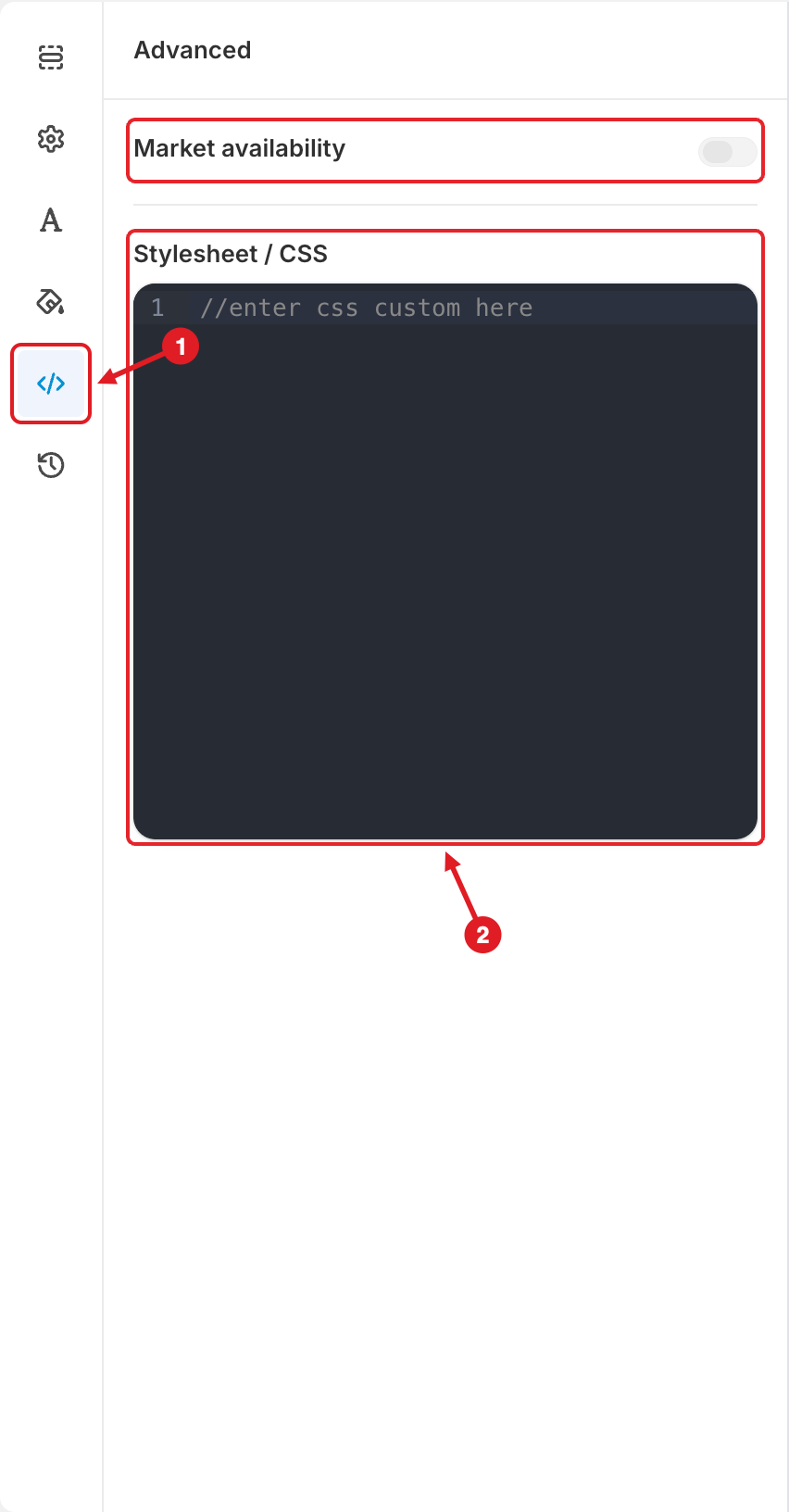
In the menu editor, click the **Advanced** icon (`</>`) in the left sidebar (1).

<figure><img src="https://2995734148-files.gitbook.io/~/files/v0/b/gitbook-x-prod.appspot.com/o/spaces%2FqP3YAfC1xaiWJzITQ9sI%2Fuploads%2Fgit-blob-5d84a07a62a143176f8b69bf3fc8f44ce6eea3ed%2Ftab-advanced.png?alt=media" alt="Advanced tab"><figcaption><p>Open the Advanced tab (1) and type your CSS in Stylesheet / CSS (2). The unnumbered Market availability box isn't needed here.</p></figcaption></figure>
{% endstep %}

{% step %}

### Add your CSS

Type or paste your CSS in the **Stylesheet / CSS** editor (2), replacing the `//enter css custom here` placeholder.
{% endstep %}

{% step %}

### Save and publish

Click **Save**, then **Publish**. Open your storefront and hard-refresh the page to see the result.
{% endstep %}
{% endstepper %}

## 🎯 Target the Right Elements

The CSS you enter is added to the page as it is — the app doesn't limit it to this menu. Write selectors that only match the menu, so you don't change other parts of your theme:

* Every menu uses the class `gm-menu`, and each menu also has its own class `gm-menu-<ID>` (right-click the menu on your storefront > **Inspect** to see it). Start your selectors with `.gm-menu` to target all menus, or with `.gm-menu-<ID>` to target just one.
* To style **one specific item**, give it an **Extra classname** in the **Advanced** section of the item's settings (see [Edit Menu Item](/globo-mega-menu/manage-menu-items/modify-main-menu-item.md)), then use that class in your CSS.

Example — make an item with the extra classname `sale-item` bold and red:

```css
.gm-menu .sale-item > .gm-target {
  color: #d72c0d !important;
  font-weight: 700 !important;
}
```

{% hint style="warning" %}
**Your CSS has no effect?**

* Check that you clicked **Publish** after saving.
* The app's own styles often use `!important`, so your rule may need `!important` too.
* Check your CSS for typos, such as a missing `}` — one error can stop the rules after it from working.
  {% endhint %}

{% hint style="info" %}
The same **Advanced** tab also has **Market availability**, which limits the menu to selected markets. See [Show Menus by Market](/globo-mega-menu/manage-menus/show-menus-by-market.md).
{% endhint %}

***

### Related Articles

{% content-ref url="/pages/uIc9BwQoCgt6BXeUB7aY" %}
[Adjust Menu Colors](/globo-mega-menu/adjust-menu-styling/adjust-menu-colors.md)
{% endcontent-ref %}

{% content-ref url="/pages/QE8B60KCTUmW2hXn75BF" %}
[Adjust Menu Font](/globo-mega-menu/adjust-menu-styling/adjust-menu-font.md)
{% endcontent-ref %}

{% content-ref url="/pages/juoC3naBGncW8PAmEsCr" %}
[Edit Menu Item](/globo-mega-menu/manage-menu-items/modify-main-menu-item.md)
{% endcontent-ref %}

***

**💬 Need help?**

Email us at **📧** [**contact@globo.io**](mailto:contact@globo.io) - we’re happy to assist!
