> For the complete documentation index, see [llms.txt](https://docs.globo.io/llms.txt). Markdown versions of documentation pages are available by appending `.md` to page URLs; this page is available as [Markdown](https://docs.globo.io/globo-mega-menu/basic-knowledge/import-export-menu.md).
# Import/Export Menu
Back up a menu to a JSON file or copy it to another store.
**Export** saves a whole menu to a `.json` file on your computer. **Import** turns such a file back into a menu. Use it to:
* keep a **backup** before big changes;
* **copy a menu to another store** (for example from a staging store to your live store);
* start from a **Shopify navigation menu** saved as JSON.
{% hint style="info" %}
Import & Export is available on the **Pro Navigation** plan. On **Basic Navigation** and **Growth Navigation**, **Export** is greyed out with a note linking to the **Pro Navigation** plan on the Pricing page, and **Import** is disabled. See [Plans and Billing](/globo-mega-menu/analytics-and-billing/plans-and-billing.md).
{% endhint %}
## 📤 Export (Back Up) a Menu
{% stepper %}
{% step %}
### Open the menu actions
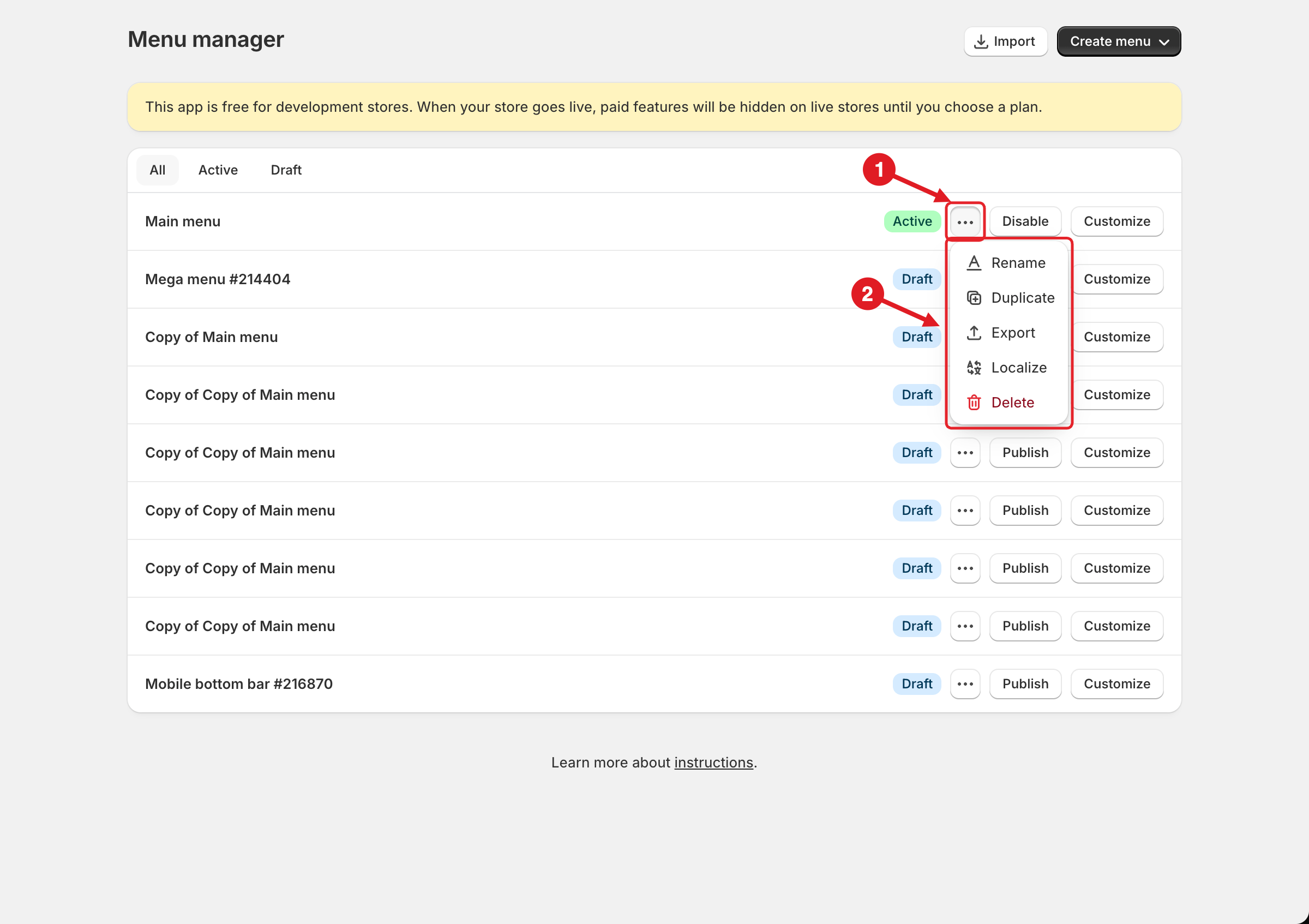
In **Menu manager**, click **⋯** (Menu actions) on the menu's row.
Menu actions
{% endstep %}
{% step %}
### Click Export
Click **Export**. A file named `globo_mega_menu_.json` is downloaded. It contains the whole menu: name, type, items, blocks, settings and position, plus the links to the images used in the menu.
{% endstep %}
{% endstepper %}
{% hint style="success" %}
**Tip:** rename the file after downloading (for example `main-menu-2026-09.json`) — every export from the same store gets the same file name.
{% endhint %}
## 📥 Import (Restore or Copy) a Menu
{% stepper %}
{% step %}
### Click Import
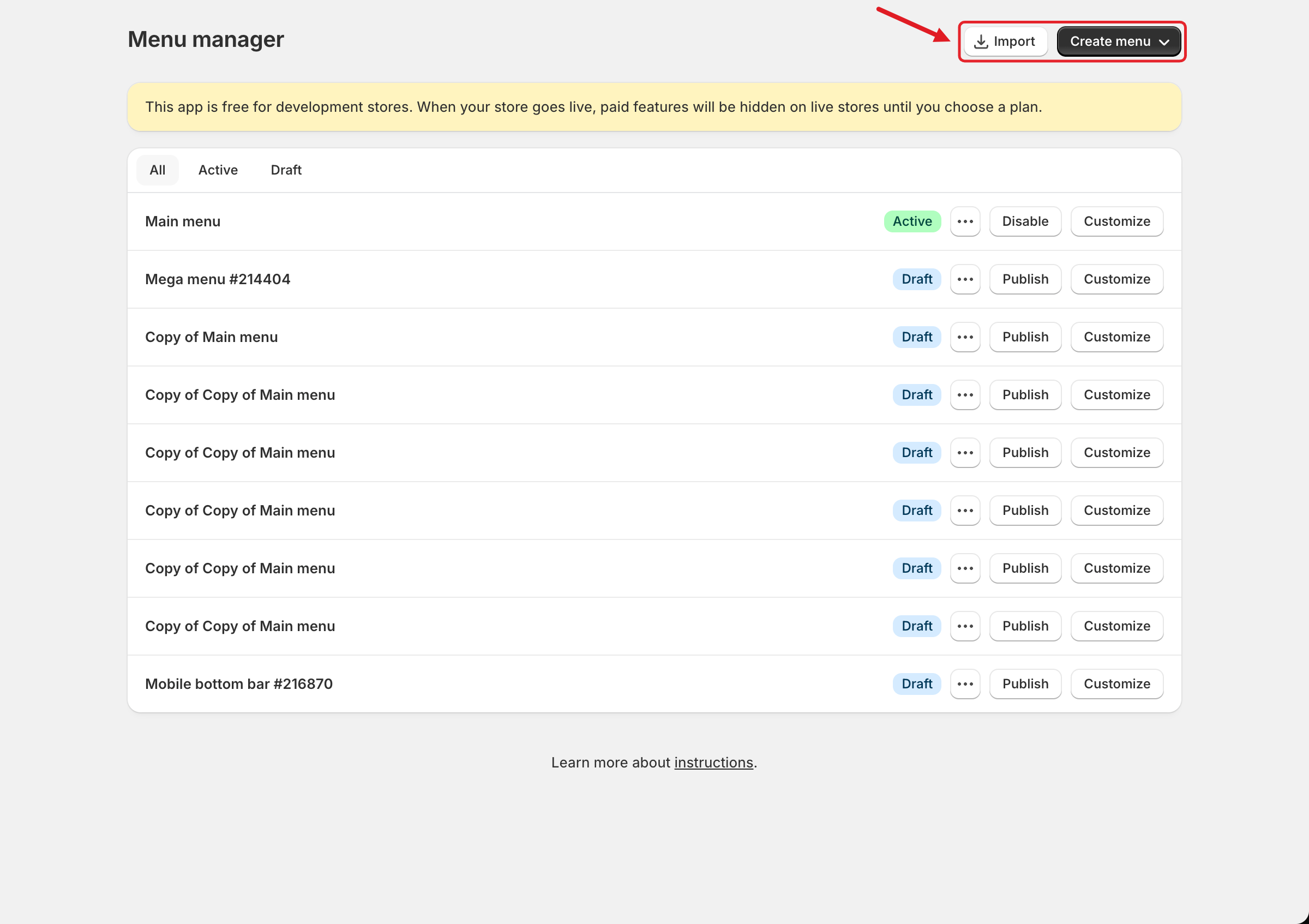
In **Menu manager**, click **Import** at the top of the page. You can also click **Import menu** on **Home**.
Import button in Menu manager
{% endstep %}
{% step %}
### Add the file
In the **Import menu** dialog, drop the `.json` file onto the upload area or click **Add file** to choose it. To pick a different file, click **Replace file**.
The **Import** button only becomes active when the file is valid JSON.
{% endstep %}
{% step %}
### Click Import
Click **Import**. When you see **Menu imported**, the new menu is in **Menu manager** as a **Draft**.
{% endstep %}
{% step %}
### Check and publish
Open the new menu with **Customize**, review it, then [publish it](/globo-mega-menu/basic-knowledge/publish-new-menu-to-theme.md). Imported menus are never published automatically.
{% endstep %}
{% endstepper %}
## 🔄 What Gets Created
| File you import | Result |
| ------------------------------------------------------------------ | -------------------------------------------------------------------------------------------------------------------------------------------------------- |
| A file exported from Globo Mega Menu (this store or another store) | A new menu named **Copy of** + the original name, with the same items, blocks, settings and position. Images from the file are copied to your store. |
| A Shopify navigation menu in JSON format | A new mega menu named after the Shopify menu, with its items (up to 7 levels deep) and the app's default styling and **Automatically replace** position. |
## ⚠️ Important Notes
* Import always creates a **new** menu — it never overwrites an existing one. To restore a backup, import it and then disable or delete the old menu.
* Files from other menu apps are **not** supported. You'll see **Import menu failed**.
* The position is copied as-is. If you copy a menu to a store with a different theme, check **Settings** > **Position** before publishing.
* Links in the menu point to the same URLs as in the original store. After copying to another store, make sure those products, collections and pages exist there.
* Import is blocked when your store already has **10 menus**. You'll see **Menu limit reached** — *Your store has a maximum of 10 menus. Remove unused menus to add more.*
Menu limit reached
***
### Related Articles
{% content-ref url="/pages/uZRxVoy6Lr9mPJcevwai" %}
[Menu Manager](/globo-mega-menu/manage-menus/menu-manager.md)
{% endcontent-ref %}
{% content-ref url="/pages/9nUonB2Yv5PPWudjIsAt" %}
[Version History](/globo-mega-menu/manage-menus/version-history.md)
{% endcontent-ref %}
{% content-ref url="/pages/GicujsB7qcB0s3MYM7JU" %}
[Publish New Menu to Theme](/globo-mega-menu/basic-knowledge/publish-new-menu-to-theme.md)
{% endcontent-ref %}
{% content-ref url="/pages/RZ0tOkDBtsU0FqS1hbYJ" %}
[Plans and Billing](/globo-mega-menu/analytics-and-billing/plans-and-billing.md)
{% endcontent-ref %}
***
**💬 Need help?**
Email us at **📧** [**contact@globo.io**](mailto:contact@globo.io) - we’re happy to assist!