> For the complete documentation index, see [llms.txt](https://docs.globo.io/llms.txt). Markdown versions of documentation pages are available by appending `.md` to page URLs; this page is available as [Markdown](https://docs.globo.io/globo-mega-menu/manage-menu-items/add-main-menu-item.md).
# Add Main Menu Item
Add a top-level item and link it to any page, collection, product or URL.
Main menu items are the top-level links in your menu bar, for example *Home*, *Shop*, *Sale* or *About*. Each one can link to a page and, if you want, open a [submenu](/globo-mega-menu/manage-menu-items/manage-submenu-items.md) with more links, images or products.
## Steps to Add an Item
{% stepper %}
{% step %}
### Open the menu in the editor
Go to **Menu manager** and open the menu you want to edit. The **Elements** tab on the left shows every item as a tree, and the preview on the right shows how the menu looks.
{% endstep %}
{% step %}
### Click Add items
At the bottom of the **Elements** tree, click **Add items**. You can also click **+** at the end of the menu bar in the preview.
A new item is added at the end of the menu and its **Edit Item** panel opens.
{% endstep %}
{% step %}
### Enter a title
In **Title**, type the text shoppers will see in the menu bar (up to 100 characters).
{% endstep %}
{% step %}
### Choose the link
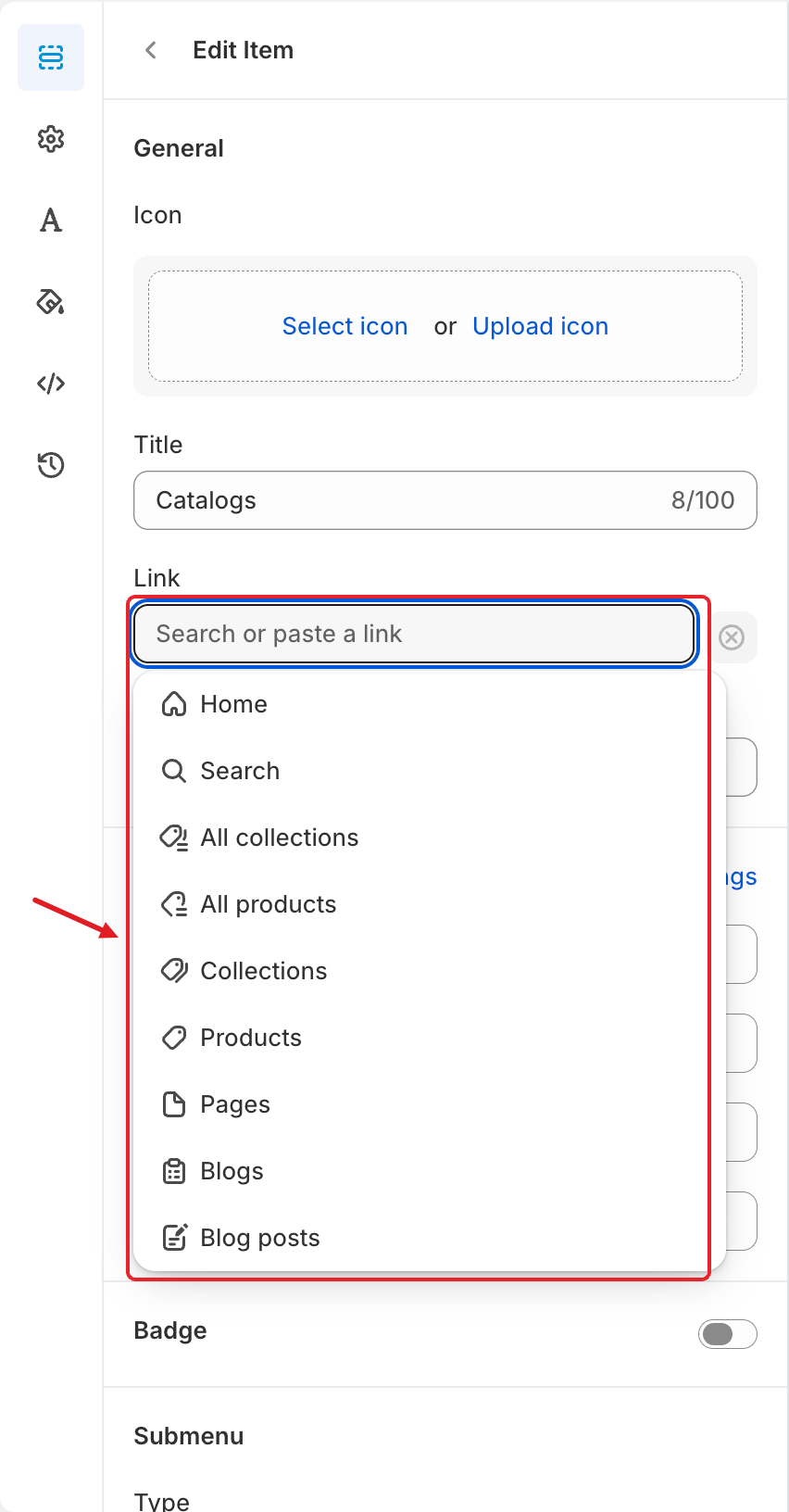
Click the **Link** field (*Search or paste a link*). A list of link types opens:
Click the Link field to see all link types
* Click **Home**, **Search**, **All collections** or **All products** to link there straight away.
* Click **Collections** or **Products**, then search for and click the one you want.
* Click **Pages**, **Blogs** or **Blog posts**, then click the one you want.
* Or type or paste your own link into the field (see the table below).
{% endstep %}
{% step %}
### Set the link options (optional)
Once a link is set, more options appear under the field:
* **Open in new tab**: opens the link in a new browser tab. Useful for links to other websites.
* **Filter collection with tags (optional)**: only shown when the link is a collection. Enter tags separated by commas (for example `Hats, blue, summer`). The link then opens the collection filtered to products that have these tags.
* The **⊗** button next to the field removes the link.
{% endstep %}
{% step %}
### Save and publish
Click **Save** in the top bar, then click **Publish** to show the changes on your store.
{% endstep %}
{% endstepper %}
## 🔗 What You Can Link To
| Link type | What it links to |
| ------------------------------------ | ------------------------------------------------------------------------------------------------------------------------------------------------------------------------------------------------------ |
| **Home** | Your home page (`/`) |
| **Search** | Your store's search page (`/search`) |
| **All collections** | The page that lists all collections (`/collections`) |
| **All products** | All products (`/collections/all`) |
| **Collections**, **Products** | A specific collection or product from your store |
| **Pages**, **Blogs**, **Blog posts** | A specific page, blog or blog post |
| Your own link | A store path such as `/pages/about`, an anchor or query such as `#reviews` or `?sort_by=price-ascending`, a full `https://…` or `http://…` address, an email link (`mailto:`) or a phone link (`tel:`) |
{% hint style="warning" %}
Links that start with `/`, `#` or `?` are always accepted, and so are links with the `http:`, `https:`, `mailto:` or `tel:` scheme. A link with any other scheme (for example `javascript:` or `data:`) is rejected, and you'll see *"This link type is not allowed. Use a store path, https\://, mailto: or tel:."* under the field.
{% endhint %}
{% hint style="info" %}
**An item without a link** works as a label: it shows in the menu bar and opens its submenu, but clicking it doesn't go anywhere. This is handy for items like *Shop* that only group other links.
{% endhint %}
## 💡 Tips
* Keep top-level titles short so the menu bar fits on one line on smaller screens.
* To add a dropdown, mega menu or tabs under the item, click **Add submenu** under it in the **Elements** tree. See [Submenus](/globo-mega-menu/manage-menu-items/manage-submenu-items.md).
* To add an icon, badge or colors, or to hide the item on some devices, see [Edit Menu Item](/globo-mega-menu/manage-menu-items/modify-main-menu-item.md).
* To reorder items, drag them in the **Elements** tree.
***
### Related Articles
{% content-ref url="/pages/juoC3naBGncW8PAmEsCr" %}
[Edit Menu Item](/globo-mega-menu/manage-menu-items/modify-main-menu-item.md)
{% endcontent-ref %}
{% content-ref url="/pages/La331S2qopj8nJM5dm65" %}
[Submenus](/globo-mega-menu/manage-menu-items/manage-submenu-items.md)
{% endcontent-ref %}
{% content-ref url="/pages/2emGhof9opxewBZhmMTJ" %}
[Menu Editor Overview](/globo-mega-menu/manage-menus/menu-editor-overview.md)
{% endcontent-ref %}
***
**💬 Need help?**
Email us at **📧** [**contact@globo.io**](mailto:contact@globo.io) - we’re happy to assist!