> For the complete documentation index, see [llms.txt](https://docs.globo.io/llms.txt). Markdown versions of documentation pages are available by appending `.md` to page URLs; this page is available as [Markdown](https://docs.globo.io/globo-mega-menu/manage-menu-items/manage-submenu-items/mega-menu.md).
# Mega Menu
A large panel made of blocks — links, images, products and more.
A mega menu is a wide panel that opens under a top-level item. It's made of [blocks](/globo-mega-menu/menu-blocks/blocks.md) (link lists, images, products, a contact form and more) placed side by side in columns. Use it when a simple dropdown isn't enough, for example to show several categories at once with a promo image.
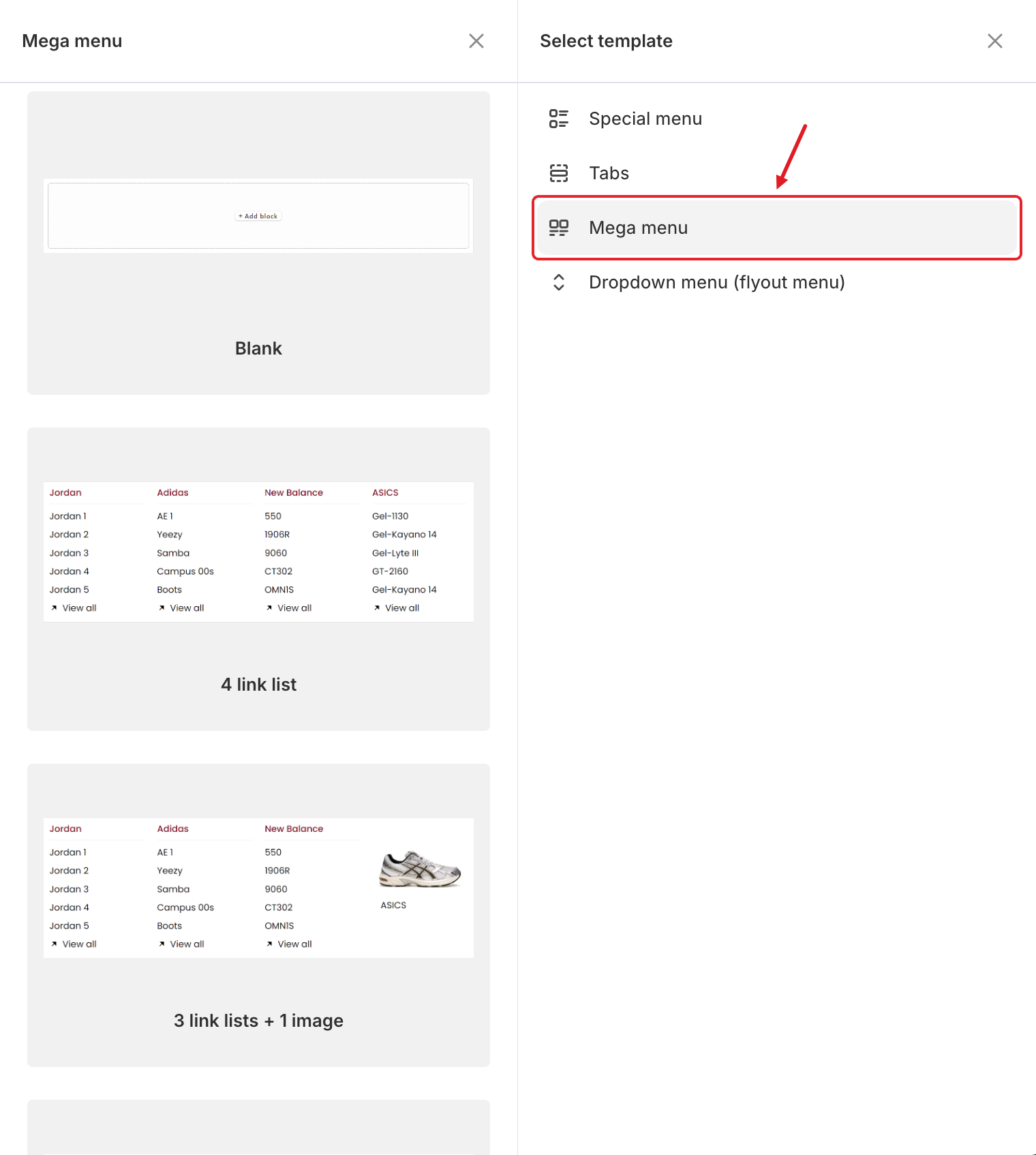
Mega menu templates
## 📐 Templates
| Template | What you get |
| ------------------------------------------------------------------------------------ | -------------------------------------------- |
| **Blank** | An empty panel. Add your own blocks. |
| **4 link list** | Four columns of links |
| **3 link lists + 1 image** | Three link columns and an image |
| **2 link lists + 2 images**, **1 link lists + 3 images**, **4 images** | Mixes of link columns and images |
| **4 products** | Four single products |
| **4 product lists**, **1 link list + 3 product lists** | Product lists, with or without a link column |
| **Product carousel**, **Link list + product carousel**, **Image + product carousel** | A sliding row of products |
| **Map + contact + address** | A map, a contact form and your address |
{% hint style="info" %}
Templates with product lists or carousels need the **Growth Navigation** or **Pro Navigation** plan. Locked templates show a plan badge and an **Upgrade to use** button. See [Plans and Billing](/globo-mega-menu/analytics-and-billing/plans-and-billing.md).
{% endhint %}
## Build a Mega Menu
{% stepper %}
{% step %}
### Choose a template
In the **Elements** tree, click **Add submenu** under the top-level item. In **Select template**, point to **Mega menu**, then click **Select** on **Blank** or a ready-made template.
Ready-made templates come with sample content. It's usually faster to start from the closest template and replace the content than to start from **Blank**.
{% endstep %}
{% step %}
### Add blocks
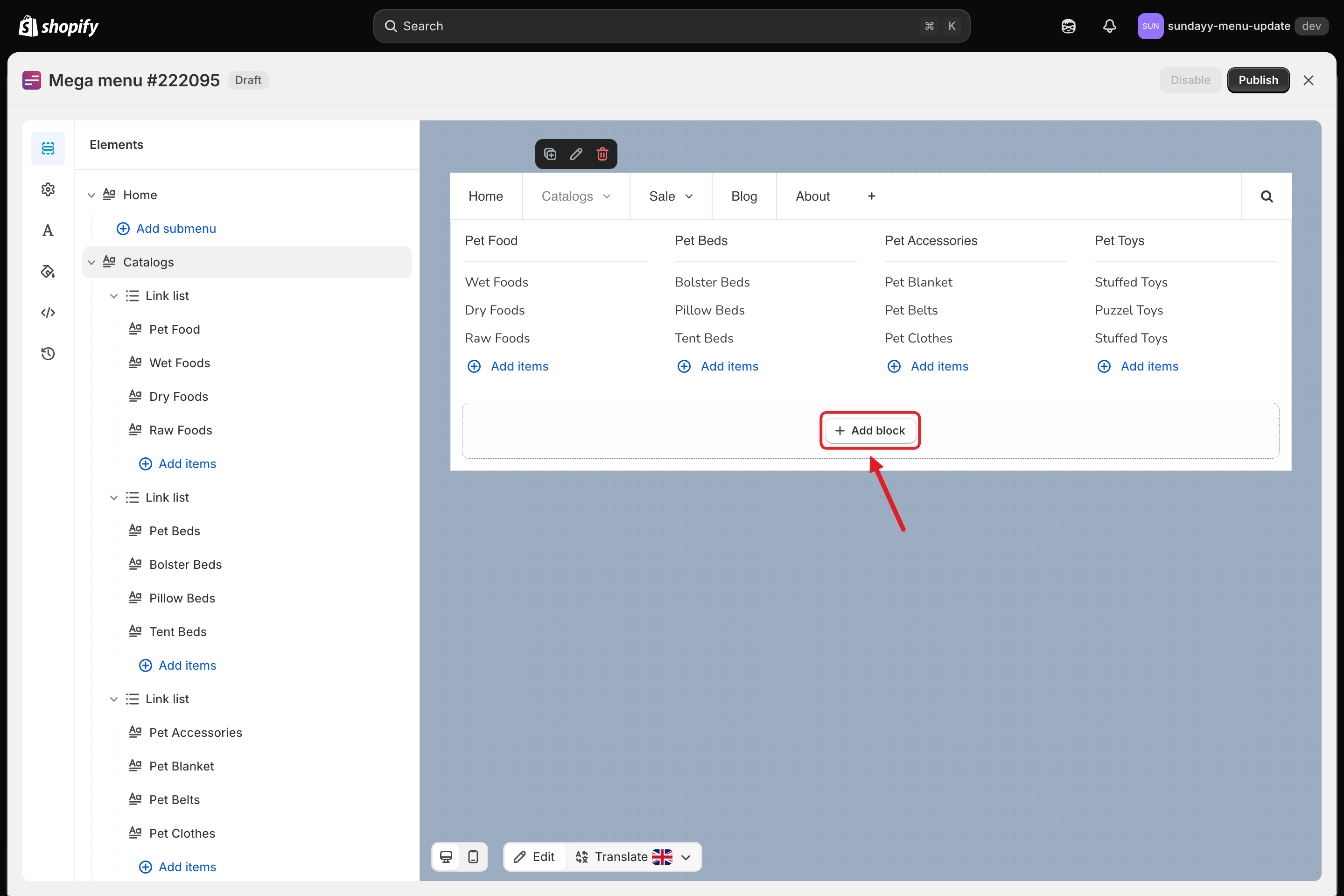
Click **Add block** inside the panel in the preview (or under the mega menu in the **Elements** tree).
Click Add block to add content to the panel
In the **Select block** panel, choose a group, then click **Select** on a layout. See [Blocks Overview](/globo-mega-menu/menu-blocks/blocks.md) for every block type.
{% endstep %}
{% step %}
### Fill in each block
Hover over a block in the preview or the **Elements** tree and click ✏️ to edit its content. For a link list, click **Add items** to add links.
{% endstep %}
{% step %}
### Set the block widths
Each block has a **Width** setting. Choose **Auto** or a share of the panel width: 8.33%, 16.66%, 20%, 25%, 33.33%, 41.66%, 50%, 58.33%, 66.66%, 75%, 80%, 83.33%, 91.66% or 100%.
| Layout | Widths |
| ----------------- | ------------------------ |
| 4 equal columns | 25% + 25% + 25% + 25% |
| 3 equal columns | 33.33% + 33.33% + 33.33% |
| 5 equal columns | 20% × 5 |
| 1 wide + 2 narrow | 50% + 25% + 25% |
When the widths in a row add up to more than 100%, the next block moves to a new row.
{% endstep %}
{% step %}
### Adjust the panel layout (optional)
Open the parent item (✏️ **Edit Item**) > **Submenu** to change **Width + alignment**, **Content alignment**, **Background color** or **Background image**. See [Submenus](/globo-mega-menu/manage-menu-items/manage-submenu-items.md).
{% endstep %}
{% step %}
### Save and publish
Click **Save** in the top bar, then **Publish**.
{% endstep %}
{% endstepper %}
## 💡 Tips
* To reorder blocks, drag them in the **Elements** tree.
* If blocks don't fill the whole width, use **Content alignment** (for example **Center** or **Space between**) to spread them out.
* Want columns of different heights to stack neatly? See [Apply Masonry Layout](/globo-mega-menu/manage-menu-items/manage-submenu-items/apply-masonry-layout.md).
* Preview the menu on mobile with the device switch at the bottom of the preview before publishing.
***
### Related Articles
{% content-ref url="/pages/lUHoSham1OxSYk97Xx5H" %}
[Blocks Overview](/globo-mega-menu/menu-blocks/blocks.md)
{% endcontent-ref %}
{% content-ref url="/pages/La331S2qopj8nJM5dm65" %}
[Submenus](/globo-mega-menu/manage-menu-items/manage-submenu-items.md)
{% endcontent-ref %}
{% content-ref url="/pages/ivNxvIka6pDDRkSaaZ7L" %}
[Apply Masonry Layout](/globo-mega-menu/manage-menu-items/manage-submenu-items/apply-masonry-layout.md)
{% endcontent-ref %}
***
**💬 Need help?**
Email us at **📧** [**contact@globo.io**](mailto:contact@globo.io) - we’re happy to assist!