> For the complete documentation index, see [llms.txt](https://docs.globo.io/llms.txt). Markdown versions of documentation pages are available by appending `.md` to page URLs; this page is available as [Markdown](https://docs.globo.io/globo-mega-menu/manage-menu-items/modify-main-menu-item.md).
# Edit Menu Item
Edit, style, badge, hide, duplicate, move or delete a menu item.
Every menu item has its own settings: title, link, icon, colors, badge, submenu layout and visibility. This page walks through each section of the **Edit Item** panel.
## Open the Item Settings
{% stepper %}
{% step %}
### Hover over the item
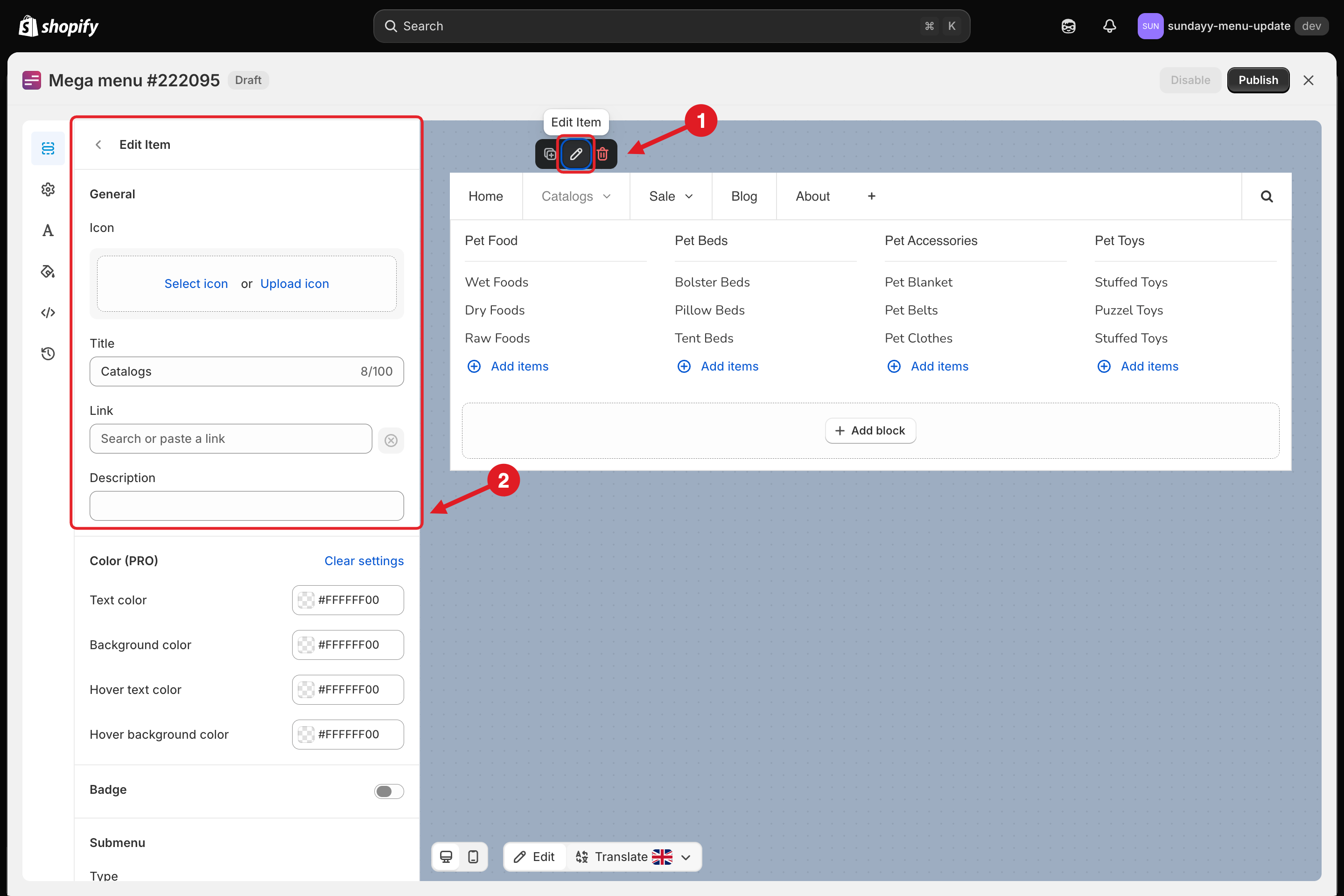
In the editor preview, hover over the item you want to change. A small toolbar appears above it.
{% endstep %}
{% step %}
### Click Edit Item
Click the ✏️ **Edit Item** button (1). The **Edit Item** panel opens on the left (2).
1. Click Edit Item · 2. The item settings open on the left
You can also hover over the item in the **Elements** tree and use the same edit, duplicate and delete buttons there.
{% endstep %}
{% step %}
### Change the settings and save
Change what you need (see the sections below), then click **Save** in the top bar and **Publish**. Click **‹** next to **Edit Item** to go back to the tree.
{% endstep %}
{% endstepper %}
## ✏️ General
| Setting | What it does |
| --------------- | -------------------------------------------------------------------------------------------------------------------------------------------------------------------------------------------------------------------------------------------------- |
| **Icon** | Shows an icon before the title. Click **Select icon** to pick one from the icon library, or **Upload icon** to use your own image. See [Upload Custom Icon for Menu Item](/globo-mega-menu/manage-menu-items/upload-custom-icon-for-menu-item.md). |
| **Title** | The text shown in the menu (up to 100 characters). |
| **Link** | Where the item goes when clicked. Click the field to pick a store page or paste a URL. See [Add Main Menu Item](/globo-mega-menu/manage-menu-items/add-main-menu-item.md). |
| **Description** | A short line of text shown under the item title. Leave empty to hide it. |
## 🎨 Color (PRO)
Make a single item stand out, for example a red "Sale" item. These colors override the menu-wide colors for this item only.
| Setting | What it changes |
| -------------------------- | -------------------------------------------------- |
| **Text color** | The item's text color |
| **Background color** | The item's background |
| **Hover text color** | The text color when a shopper hovers over the item |
| **Hover background color** | The background when a shopper hovers over the item |
The default `#FFFFFF00` is fully transparent, which means "use the menu's normal colors". Click **Clear settings** to reset all four colors.
{% hint style="info" %}
Item colors are part of the **Highlight** feature on the **Pro Navigation** plan. On other plans the fields are disabled and show a link to upgrade.
{% endhint %}
## 🏷️ Badge (PRO)
A badge is a small label such as *New*, *Hot* or *-50%* shown on the item.
{% stepper %}
{% step %}
### Turn on Badge
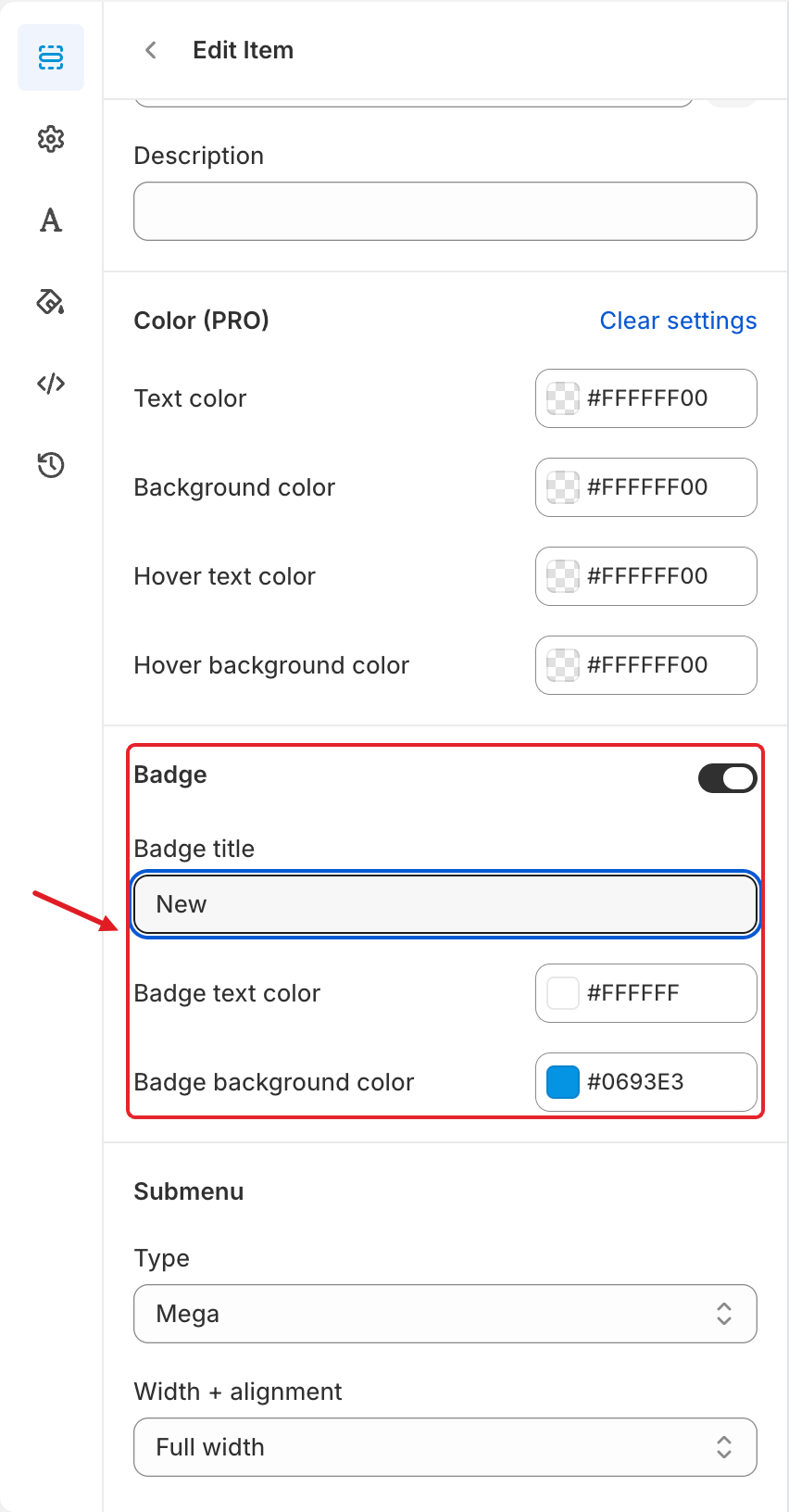
Click the **Badge** toggle. The badge settings appear.
Badge settings
{% endstep %}
{% step %}
### Set the badge
* **Badge title**: the badge text, for example `New`. The badge only shows when this field isn't empty.
* **Badge text color**: default `#FFFFFF` (white).
* **Badge background color**: default `#0693E3` (blue).
{% endstep %}
{% step %}
### Check the preview
The badge appears on the item in the preview. On top-level items it sits above the title:
Badge on the menu
{% endstep %}
{% endstepper %}
{% hint style="info" %}
Badges are available on the **Pro Navigation** plan. You can translate the badge title for each language. See [Translate Menu Items](/globo-mega-menu/manage-menu-items/translate-menu-items.md).
{% endhint %}
## 🧩 Submenu
If the item has a submenu, the **Submenu** section lets you change its **Type**, **Width + alignment**, **Content alignment**, **Background color** and **Background image**. See [Submenus](/globo-mega-menu/manage-menu-items/manage-submenu-items.md) for every option.
## 👁️ Visibility
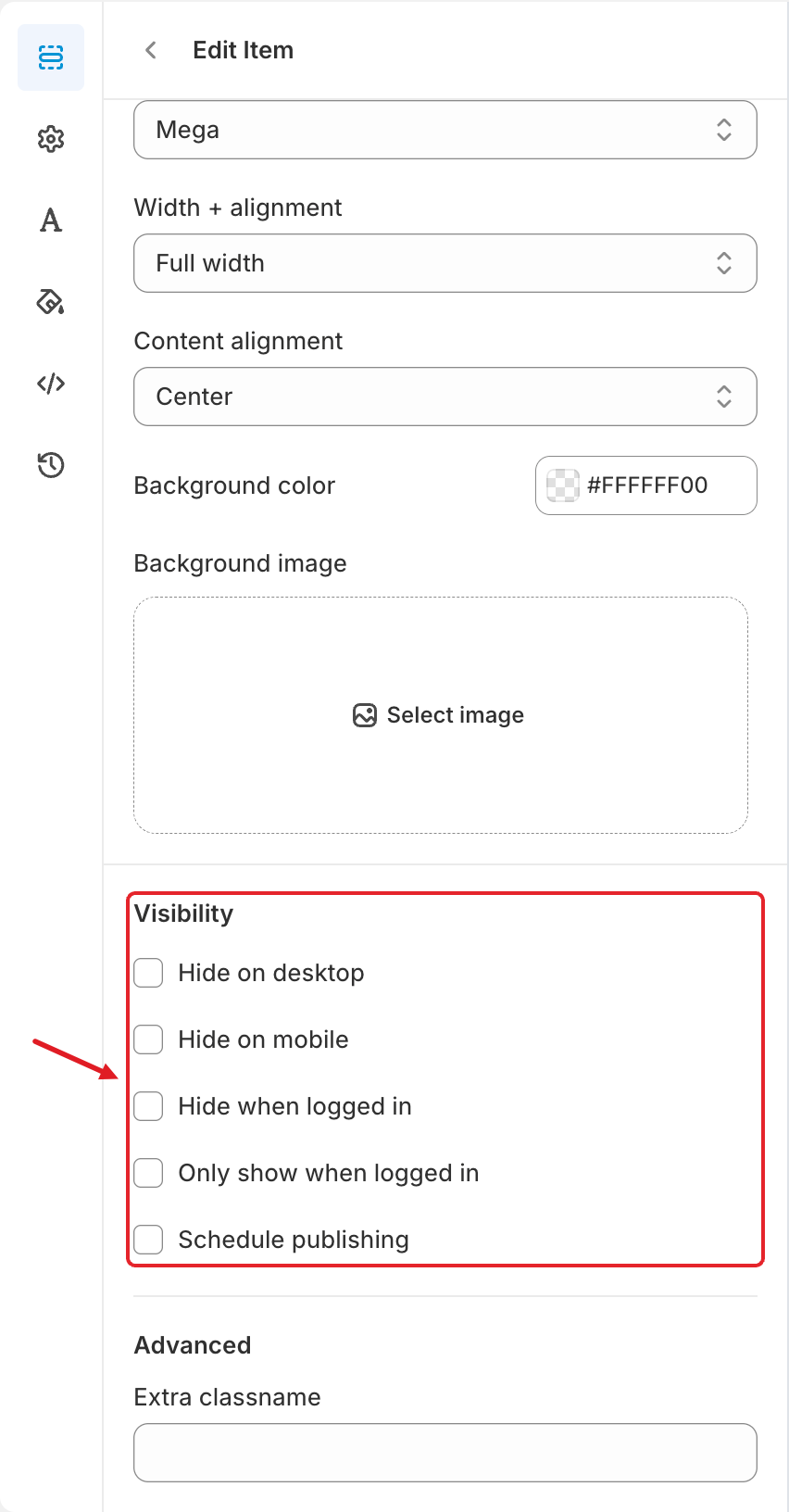
Choose who sees the item and when. You can tick more than one option.
Visibility settings
| Option | Use it to |
| ---------------------------- | ------------------------------------------------------------------------------------ |
| **Hide on desktop** | Show the item on mobile only, e.g. a "Call us" link |
| **Hide on mobile** | Show the item on desktop only, e.g. a wide mega menu that doesn't suit small screens |
| **Hide when logged in** | Show the item to guests only, e.g. "Create an account" |
| **Only show when logged in** | Show the item to signed-in customers only, e.g. "Wholesale" or "My orders" |
| **Schedule publishing** | Show the item only between a **Start date/Start time** and an **End date/End time** |
When you tick **Schedule publishing**, pick the start and end date and time. The times use your store's time zone (shown under the date fields). The end date must be in the future and after the start date. Leave a date empty to have no start or no end limit. See [Schedule Menus and Items](/globo-mega-menu/manage-menus/schedule-menus-and-items.md).
{% hint style="info" %}
Visibility rules are applied on your live store. To check them, open your storefront on the right device, or sign in and out of a customer account.
{% endhint %}
## ⚙️ Advanced
**Extra classname**: adds your own CSS class to the item so you can style it with [Custom CSS](/globo-mega-menu/adjust-menu-styling/custom-css.md). Enter the class name without the dot, for example `sale-item`.
## 🔁 Duplicate, Move and Delete
Hover over an item in the preview to see its toolbar:
* **Duplicate Item**: creates a copy right below, including its whole submenu.
* **Edit Item**: opens the settings described above.
* **Delete Item**: removes the item **and all of its submenus**. You're asked to confirm first.
To **move** an item, drag it to a new position in the **Elements** tree.
{% hint style="danger" %}
Deleting an item also deletes everything inside its submenu. If you delete something by mistake before saving, click **Discard** in the top bar. After saving, you can restore an earlier version from [Version History](/globo-mega-menu/manage-menus/version-history.md).
{% endhint %}
Click **Save** in the top bar, then **Publish**.
***
### Related Articles
{% content-ref url="/pages/fDthaESiTf5Rie5U2rrK" %}
[Upload Custom Icon for Menu Item](/globo-mega-menu/manage-menu-items/upload-custom-icon-for-menu-item.md)
{% endcontent-ref %}
{% content-ref url="/pages/La331S2qopj8nJM5dm65" %}
[Submenus](/globo-mega-menu/manage-menu-items/manage-submenu-items.md)
{% endcontent-ref %}
{% content-ref url="/pages/NZ5M2u702ZmxwHspbbvB" %}
[Schedule Menus and Items](/globo-mega-menu/manage-menus/schedule-menus-and-items.md)
{% endcontent-ref %}
{% content-ref url="/pages/uIc9BwQoCgt6BXeUB7aY" %}
[Adjust Menu Colors](/globo-mega-menu/adjust-menu-styling/adjust-menu-colors.md)
{% endcontent-ref %}
***
**💬 Need help?**
Email us at **📧** [**contact@globo.io**](mailto:contact@globo.io) - we’re happy to assist!