> For the complete documentation index, see [llms.txt](https://docs.globo.io/llms.txt). Markdown versions of documentation pages are available by appending `.md` to page URLs; this page is available as [Markdown](https://docs.globo.io/globo-mega-menu/manage-menu-items/translate-menu-items.md).
# Translate Menu Items
Show your menu in every language your store sells in.
If your store sells in more than one language, you can translate every menu item and the built-in menu texts (such as *Add to cart* or the countdown labels). Shoppers then see the menu in the language they're browsing your store in.
{% hint style="info" %}
**What each plan can translate:**
* **Every plan**, including **Basic Navigation**: the built-in menu texts in the **General** tab of the **Localization** page (*Sale*, *Add to cart*, *Search*, countdown labels, contact form and account links).
* **Growth Navigation** and **Pro Navigation** (Multi-language): the menu items themselves, in the **Menu items** tab and in **Translate** mode in the editor.
The app uses the languages published in Shopify **Settings** > **Languages**. To add a language, publish it there first.
{% endhint %}
There are two ways to translate:
* **Localization page**: translate all items in one table. Best for translating a whole menu.
* **Translate mode in the editor**: click items in the preview and translate them one by one. Best for quick fixes, or to use a different icon per language.
## Method 1: Use the Localization Page
{% stepper %}
{% step %}
### Open Localize
In **Menu manager**, click **⋯** next to the menu, then click **Localize**. The **Localization** page opens.
{% endstep %}
{% step %}
### Choose the language
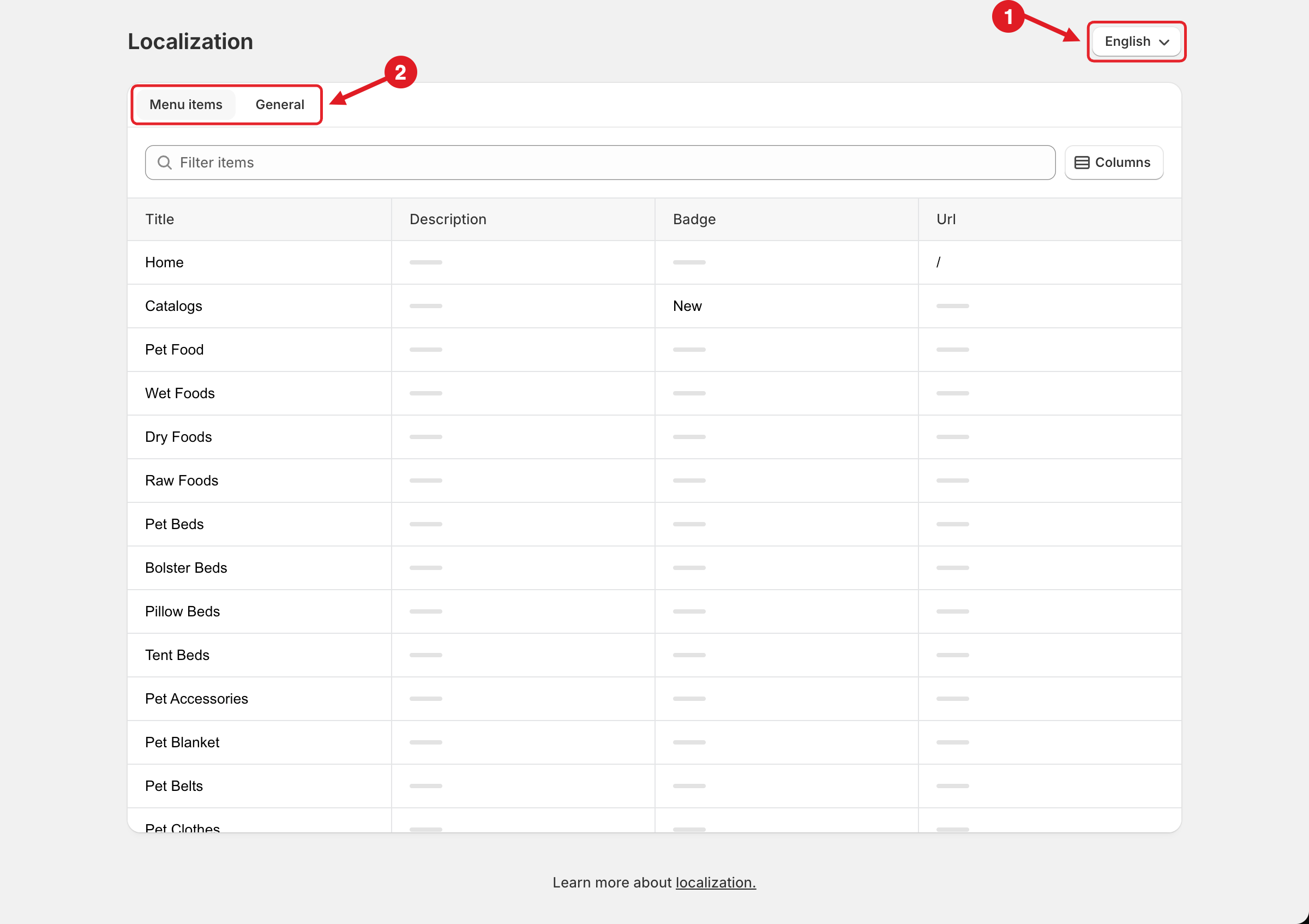
Click the language picker in the top-right corner (1) and choose the language you want to translate into. The page opens on your store's primary language.
Then choose the **Menu items** or **General** tab (2).
1. Choose the language · 2. Choose Menu items or General
{% hint style="warning" %}
**On Basic Navigation**, the **Menu items** tab is greyed out with a 🔒 lock icon, and the page opens on the **General** tab. Hover over the lock to see *This option is only available to Growth plan*. You can still translate every text in **General**. To translate the menu items, upgrade to **Growth Navigation** or **Pro Navigation** (see [Plans and Billing](/globo-mega-menu/analytics-and-billing/plans-and-billing.md)).
{% endhint %}
{% endstep %}
{% step %}
### Translate menu items
In the **Menu items** tab, every item of the menu is listed with these columns:
| Column | What to translate |
| --------------- | -------------------------------------------------------------- |
| **Title** | The item text |
| **Description** | The short line under the title |
| **Badge** | The badge text, e.g. *New* |
| **Url** | The link, if the page has a different address in this language |
Each field starts with the original text. Replace it with the translation.
* Type in **Filter items** to find an item quickly.
* Click **Columns** to show or hide columns.
* A grey dash (–) means the item has no value for that column in the original (for example, no badge), so there's nothing to translate.
{% endstep %}
{% step %}
### Translate built-in texts
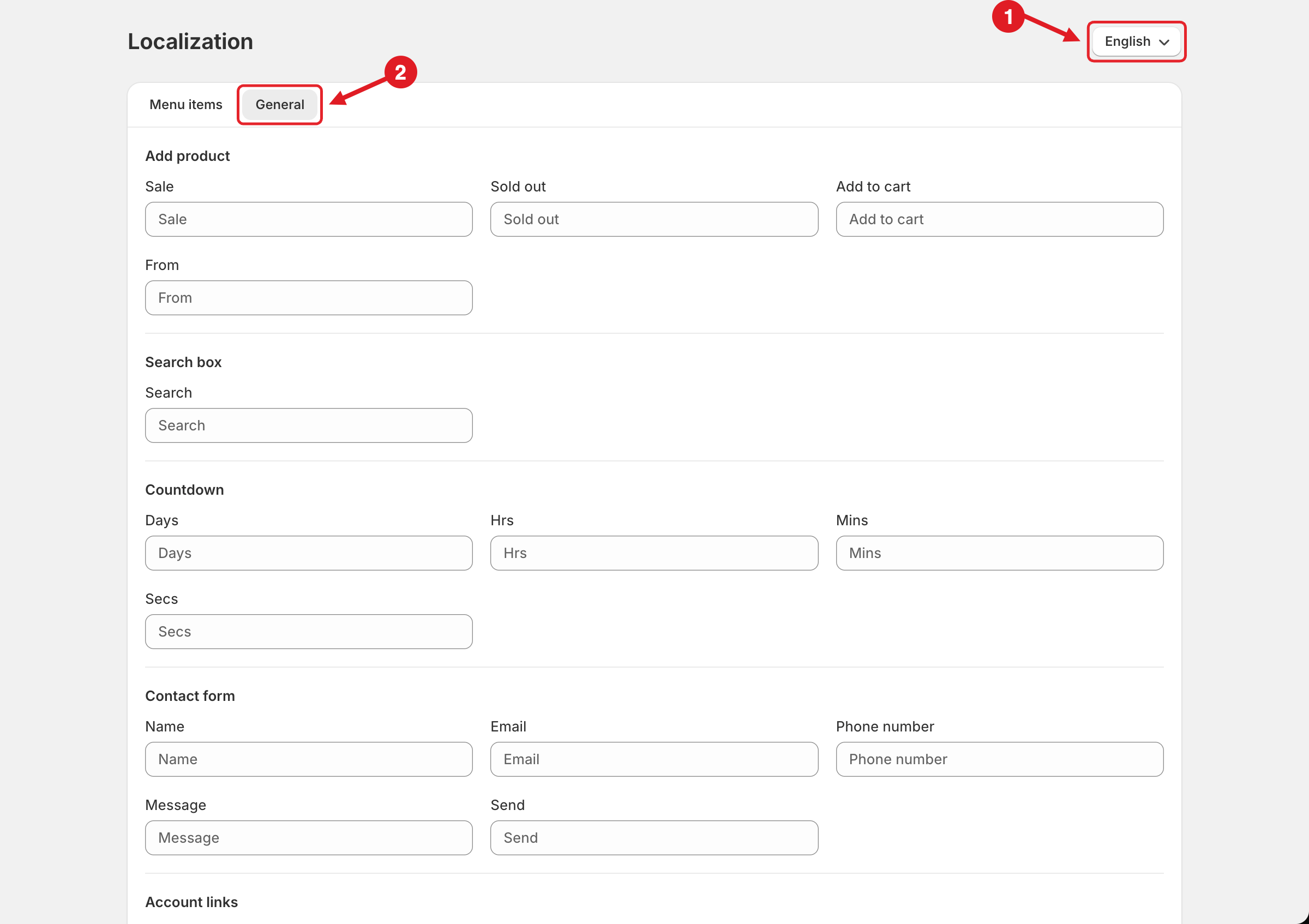
Open the **General** tab to translate the texts the app adds to your menu:
1. Choose the language · 2. Open the General tab
| Section | Texts |
| ----------------- | ---------------------------------------- |
| **Add product** | Sale, Sold out, Add to cart, From |
| **Search box** | Search (the search box placeholder) |
| **Countdown** | Days, Hrs, Mins, Secs |
| **Contact form** | Name, Email, Phone number, Message, Send |
| **Account links** | Login, Register, Account, Logout |
Fields you don't fill in keep the app's default text.
{% endstep %}
{% step %}
### Save
Click **Save** in the save bar at the top. You'll see *Translation updated*. Repeat from step 2 for each language.
{% endstep %}
{% endstepper %}
## Method 2: Use Translate Mode in the Editor
{% hint style="info" %}
Translate mode is part of Multi-language, so the **Translate** button only appears in the editor on **Growth Navigation** and **Pro Navigation**.
{% endhint %}
{% stepper %}
{% step %}
### Switch to Translate mode
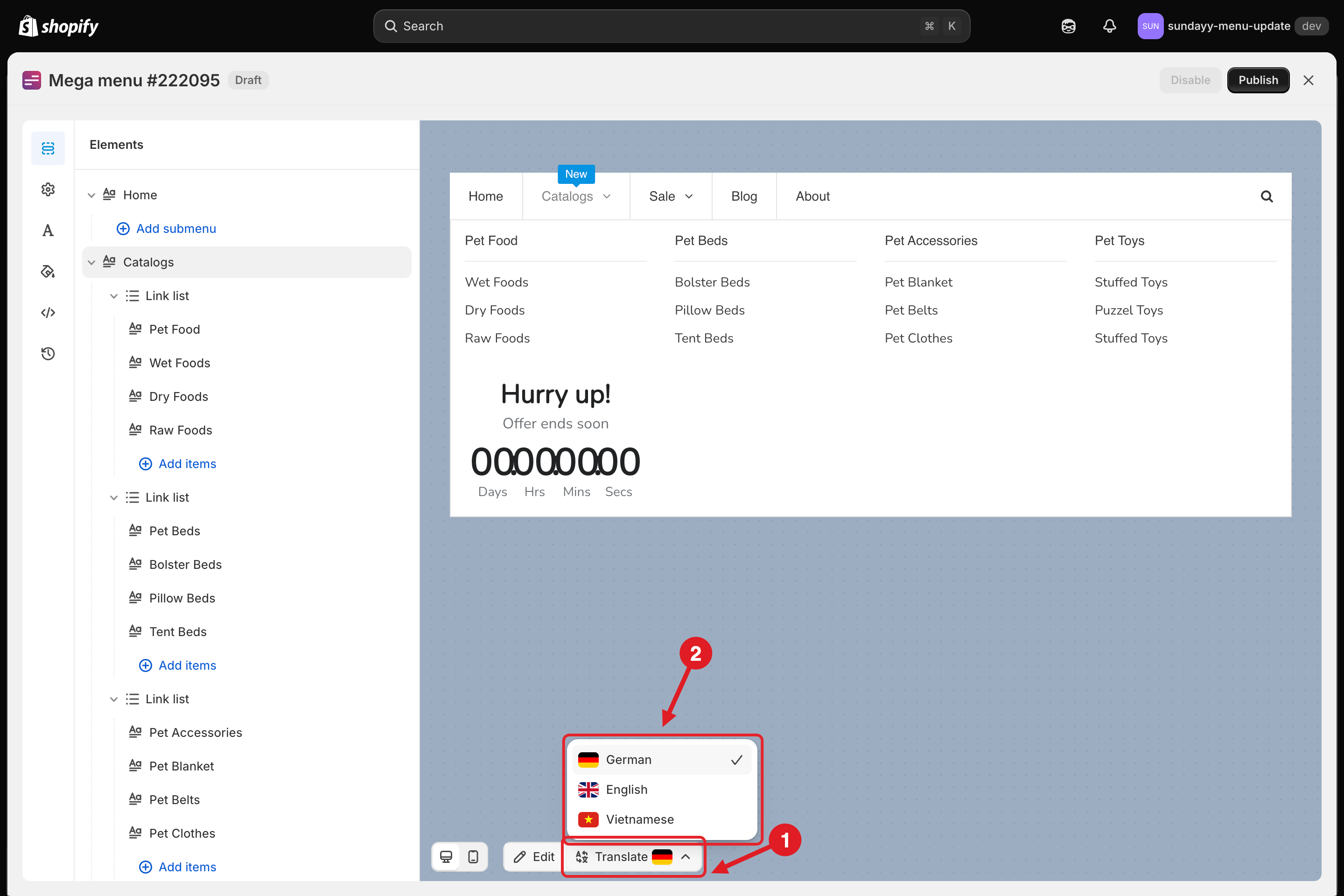
Open the menu in the editor. In the toolbar at the bottom of the preview, click **Translate** (1).
{% endstep %}
{% step %}
### Pick a language
Choose the language from the list (2). The flag on the **Translate** button shows the language you're editing.
1. Click Translate · 2. Pick a language
{% endstep %}
{% step %}
### Translate items in the preview
Hover over an item in the preview and click ✏️ **Edit Item**. In translate mode the panel only shows what can be translated: **Icon**, **Title**, **Link**, **Description** and **Badge title**. Colors, submenu and visibility settings are shared by all languages, so they're hidden here.
{% endstep %}
{% step %}
### Save and go back to editing
Click **Save** in the top bar, then **Publish**. Click **Edit** in the bottom toolbar to leave translate mode.
{% endstep %}
{% endstepper %}
{% hint style="success" %}
Shoppers see the menu in the language they're browsing. Anything you haven't translated falls back to the original text, so you can translate step by step.
{% endhint %}
## 🛠️ Troubleshooting
* **A language is missing from the picker**: make sure it's published in Shopify **Settings** > **Languages**, then reload the app.
* **The Menu items tab is greyed out with a lock, or there's no Translate button in the editor**: your plan doesn't include Multi-language. Translate the **General** texts, or upgrade to **Growth Navigation** to translate menu items.
* **The storefront still shows the original text**: check that you saved the translation for the right language, then switch your storefront to that language (for example with the theme's language selector) and refresh.
* **Can't translate a description, badge or URL**: the field is only editable when the original item has a value. Add it to the item first (see [Edit Menu Item](/globo-mega-menu/manage-menu-items/modify-main-menu-item.md)), then translate it.
***
### Related Articles
{% content-ref url="/pages/E4CAYUZfy2r1RrlWTsxp" %}
[Show Menus by Market](/globo-mega-menu/manage-menus/show-menus-by-market.md)
{% endcontent-ref %}
{% content-ref url="/pages/juoC3naBGncW8PAmEsCr" %}
[Edit Menu Item](/globo-mega-menu/manage-menu-items/modify-main-menu-item.md)
{% endcontent-ref %}
{% content-ref url="/pages/uZRxVoy6Lr9mPJcevwai" %}
[Menu Manager](/globo-mega-menu/manage-menus/menu-manager.md)
{% endcontent-ref %}
***
**💬 Need help?**
Email us at **📧** [**contact@globo.io**](mailto:contact@globo.io) - we’re happy to assist!