> For the complete documentation index, see [llms.txt](https://docs.globo.io/llms.txt). Markdown versions of documentation pages are available by appending `.md` to page URLs; this page is available as [Markdown](https://docs.globo.io/globo-mega-menu/manage-menus/menu-editor-overview.md).
# Menu Editor Overview
A tour of the menu editor — where to find every tool.
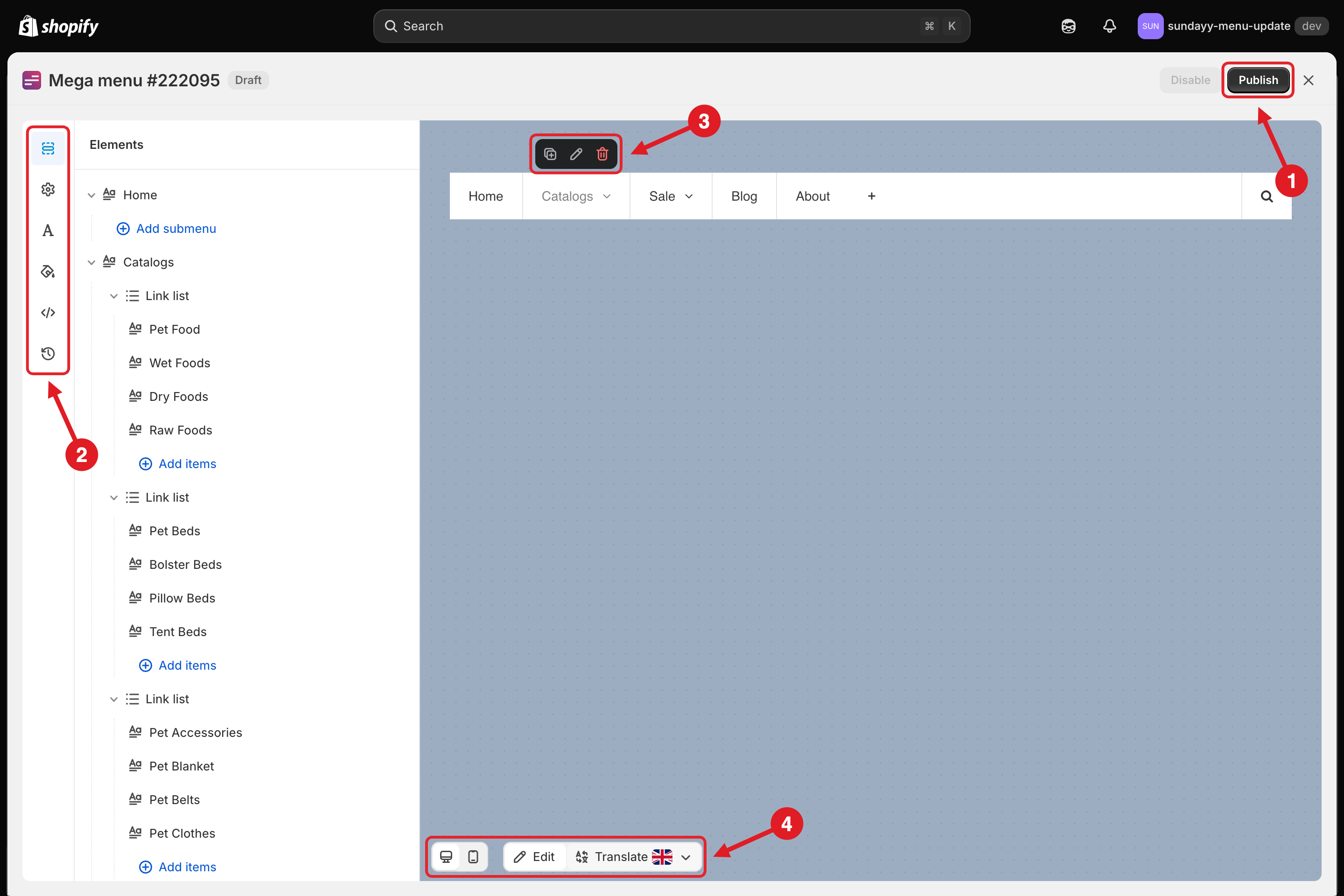
The menu editor is where you build and style a menu. To open it, click **Customize** on a menu in [Menu Manager](/globo-mega-menu/manage-menus/menu-manager.md). It opens in full screen, with four main areas:
(1) Top bar, (2) sidebar tabs, (3) item toolbar in the live preview, (4) bottom toolbar
## 🧩 Editor Areas
| # | Area | What it does |
| :-: | ------------------ | ---------------------------------------------------------------------------------------------------------------------------------------------------------------------------------------------------------------------------------------------------------------------------------------------------------- |
| 1 | **Top bar** | Shows the menu name and its status badge (**Draft** or **Active**). **Publish** opens the Publish dialog. **Disable** unpublishes an active menu (it's greyed out while the menu is a draft). **X** closes the editor. When you have unsaved changes, **Save** and **Discard** appear too. |
| 2 | **Sidebar tabs** | The icons in the left bar switch the panel next to them: Elements, Settings, Fonts, Colors, Advanced and Version history (see below). |
| 3 | **Live preview** | Shows your menu as customers will see it. Hover over an item for a small toolbar with **Duplicate**, **Edit** (pencil) and **Delete** (trash can). Click **+** at the end of the menu bar to add a new main item. |
| 4 | **Bottom toolbar** | The two screen icons switch the preview between **desktop** and **mobile**. **Edit** is the normal building mode. **Translate** lets you pick a language (flag dropdown) and translate items right in the preview. See [Translate Menu Items](/globo-mega-menu/manage-menu-items/translate-menu-items.md). |
## 🗂️ Sidebar Tabs
These are the icons from top to bottom:
| Icon | Tab | What you do there |
| :---: | ------------------- | -------------------------------------------------------------------------------------------------------------------------------------------------------------------------------------------------------------------------------------------------------------------------------------------------------------------- |
| ☰ | **Elements** | Build the structure: main items, submenus and blocks. Click **Add submenu** under an item, or **Add items** inside a block. Click an item to edit it. See [Add Main Menu Item](/globo-mega-menu/manage-menu-items/add-main-menu-item.md) and [Submenus](/globo-mega-menu/manage-menu-items/manage-submenu-items.md). |
| ⚙️ | **Settings** | Position (where the menu appears on your theme), layout, submenu animation, account links, spacing and mobile behavior. See [Menu Settings](/globo-mega-menu/adjust-menu-styling/menu-settings.md). |
| **A** | **Fonts** | Typography for each part of the menu. See [Adjust Menu Font](/globo-mega-menu/adjust-menu-styling/adjust-menu-font.md). |
| 🪣 | **Colors** | Colors for the main menu, submenu, tabs, labels and buttons. See [Adjust Menu Colors](/globo-mega-menu/adjust-menu-styling/adjust-menu-colors.md). |
| `` | **Advanced** | **Market availability** and **Stylesheet / CSS**. See [Show Menus by Market](/globo-mega-menu/manage-menus/show-menus-by-market.md) and [Custom CSS](/globo-mega-menu/adjust-menu-styling/custom-css.md). |
| 🕘 | **Version history** | Go back to an earlier saved version of the menu (**Pro Navigation**). See [Version History](/globo-mega-menu/manage-menus/version-history.md). |
## A Typical Editing Session
{% stepper %}
{% step %}
### Build the structure
In **Elements**, add your items and set up their submenus. The live preview updates as you go.
{% endstep %}
{% step %}
### Style it
Adjust **Settings**, **Fonts** and **Colors**. Switch the preview to **mobile** in the bottom toolbar to check the mobile menu too.
{% endstep %}
{% step %}
### Save
Click **Save** in the top bar. This stores your changes in the app.
{% endstep %}
{% step %}
### Publish
Click **Publish**, choose the theme and click **Publish** again. See [Publish New Menu to Theme](/globo-mega-menu/basic-knowledge/publish-new-menu-to-theme.md).
{% endstep %}
{% endstepper %}
{% hint style="warning" %}
**Save isn't the same as Publish.** **Save** stores your changes in the app. The storefront only gets them after you **Publish**. When you edit a menu that's already **Active**, click **Save**, then **Publish** again.
{% endhint %}
{% hint style="info" %}
**Tip:** before big changes, **Duplicate** the menu in Menu manager. On **Pro Navigation** you can also go back to an earlier save in [Version History](/globo-mega-menu/manage-menus/version-history.md).
{% endhint %}
***
### Related Articles
{% content-ref url="/pages/ifslWIMwuyJG9dfRDMz6" %}
[Add Main Menu Item](/globo-mega-menu/manage-menu-items/add-main-menu-item.md)
{% endcontent-ref %}
{% content-ref url="/pages/La331S2qopj8nJM5dm65" %}
[Submenus](/globo-mega-menu/manage-menu-items/manage-submenu-items.md)
{% endcontent-ref %}
{% content-ref url="/pages/CJqRGoOfDUa2UWF1CrbS" %}
[Menu Settings](/globo-mega-menu/adjust-menu-styling/menu-settings.md)
{% endcontent-ref %}
{% content-ref url="/pages/GicujsB7qcB0s3MYM7JU" %}
[Publish New Menu to Theme](/globo-mega-menu/basic-knowledge/publish-new-menu-to-theme.md)
{% endcontent-ref %}
***
**💬 Need help?**
Email us at **📧** [**contact@globo.io**](mailto:contact@globo.io) - we’re happy to assist!