> For the complete documentation index, see [llms.txt](https://docs.globo.io/llms.txt). Markdown versions of documentation pages are available by appending `.md` to page URLs; this page is available as [Markdown](https://docs.globo.io/globo-mega-menu/menu-blocks/collection-list.md).
# Collection List
Show collections with images.
A **Collection list** block shows the collections you choose, each with its collection image and name, linking to the collection page. Use it for visual shortcuts such as "Shop by brand" or "Shop by category".
{% hint style="info" %}
Collection list is available on the **Growth Navigation** and **Pro Navigation** plans.
{% endhint %}
## Add a Collection List
{% stepper %}
{% step %}
### Open the Select block panel
In the mega menu panel of the preview, click **+ Add block**.
{% endstep %}
{% step %}
### Pick a layout
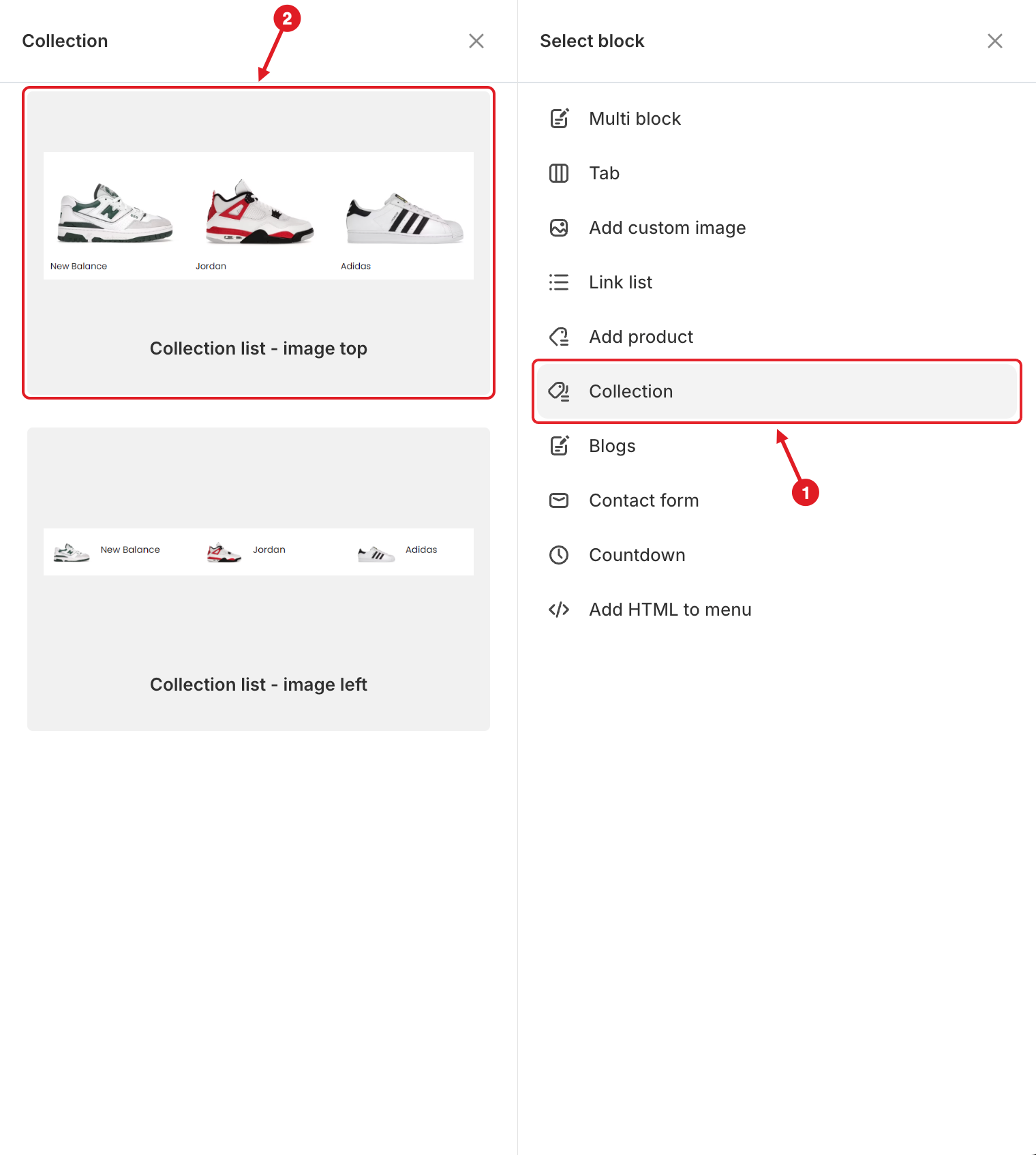
1. Click **Collection** on the right.
2. Hover over a layout and click **Select**:
* **Collection list - image top**: a large image with the name under it.
* **Collection list - image left**: a small image with the name next to it.
1. Click Collection · 2. Pick a layout
{% endstep %}
{% step %}
### Choose the collections
In **Edit Item**, open the collection picker and select the collections to show.
{% endstep %}
{% step %}
### Adjust the display, then save
Set the options below, then click **Save** and **Publish**.
{% endstep %}
{% endstepper %}
## ⚙️ Settings
| Setting | What it does |
| ------------------- | ------------------------------------------------------------------------------------------------------------------------ |
| **Width** | How much of the mega menu row the block takes (**Auto** or 8.33%–100%). |
| **Layout** | **Image above** or **Image left**. You can switch at any time, whichever layout you started from. |
| **Item(s) per row** | **1**, **2**, **3**, **4** or **6** collections per row. Default: **3**. |
| **Image ratio** | **Auto**, **1:1**, **4:3**, **3:4**, **16:9** or **9:16**. Makes all collection images the same shape. |
| **Collections** | The collections to show. |
| **Visibility** | **Hide on desktop**, **Hide on mobile**, **Hide when logged in**, **Only show when logged in**, **Schedule publishing**. |
{% hint style="warning" %}
**A collection shows a grey placeholder?** It has no collection image. Add one in Shopify admin > **Products** > **Collections**; the menu picks it up automatically. Collection titles and images are read live, but the block only remembers **which** collections you picked: if you delete a collection or change its handle (URL), open the block and pick it again.
{% endhint %}
{% hint style="success" %}
**Tip:** Collection images come in many shapes. Set **Image ratio** to **1:1** for a tidy row of equal tiles.
{% endhint %}
***
### Related Articles
{% content-ref url="/pages/mS6hCeKStWyG1JN0cEPl" %}
[Product List](/globo-mega-menu/menu-blocks/product-list.md)
{% endcontent-ref %}
{% content-ref url="/pages/lUHoSham1OxSYk97Xx5H" %}
[Blocks Overview](/globo-mega-menu/menu-blocks/blocks.md)
{% endcontent-ref %}
{% content-ref url="/pages/dDqYFHXOREFy0RvVlyIU" %}
[Changes I Made in Shopify Admin Don't Appear in the Menu](/globo-mega-menu/faqs/why-are-shopifys-changes-not-reflected-on-menu.md)
{% endcontent-ref %}
***
**💬 Need help?**
Email us at **📧** [**contact@globo.io**](mailto:contact@globo.io) - we’re happy to assist!