> For the complete documentation index, see [llms.txt](https://docs.globo.io/llms.txt). Markdown versions of documentation pages are available by appending `.md` to page URLs; this page is available as [Markdown](https://docs.globo.io/globo-mega-menu/menu-blocks/image.md).
# Image
Show a banner or promo image with a title, description and link.
An **Image** block shows one picture in the mega menu, with an optional title, description and link. Use it for a seasonal banner, a "New arrivals" promo or a brand logo that links to a collection. You can also make the picture change when shoppers hover over it.
## Add an Image
{% stepper %}
{% step %}
### Open the Select block panel
In the mega menu panel of the preview, click **+ Add block**.
{% endstep %}
{% step %}
### Pick an image layout
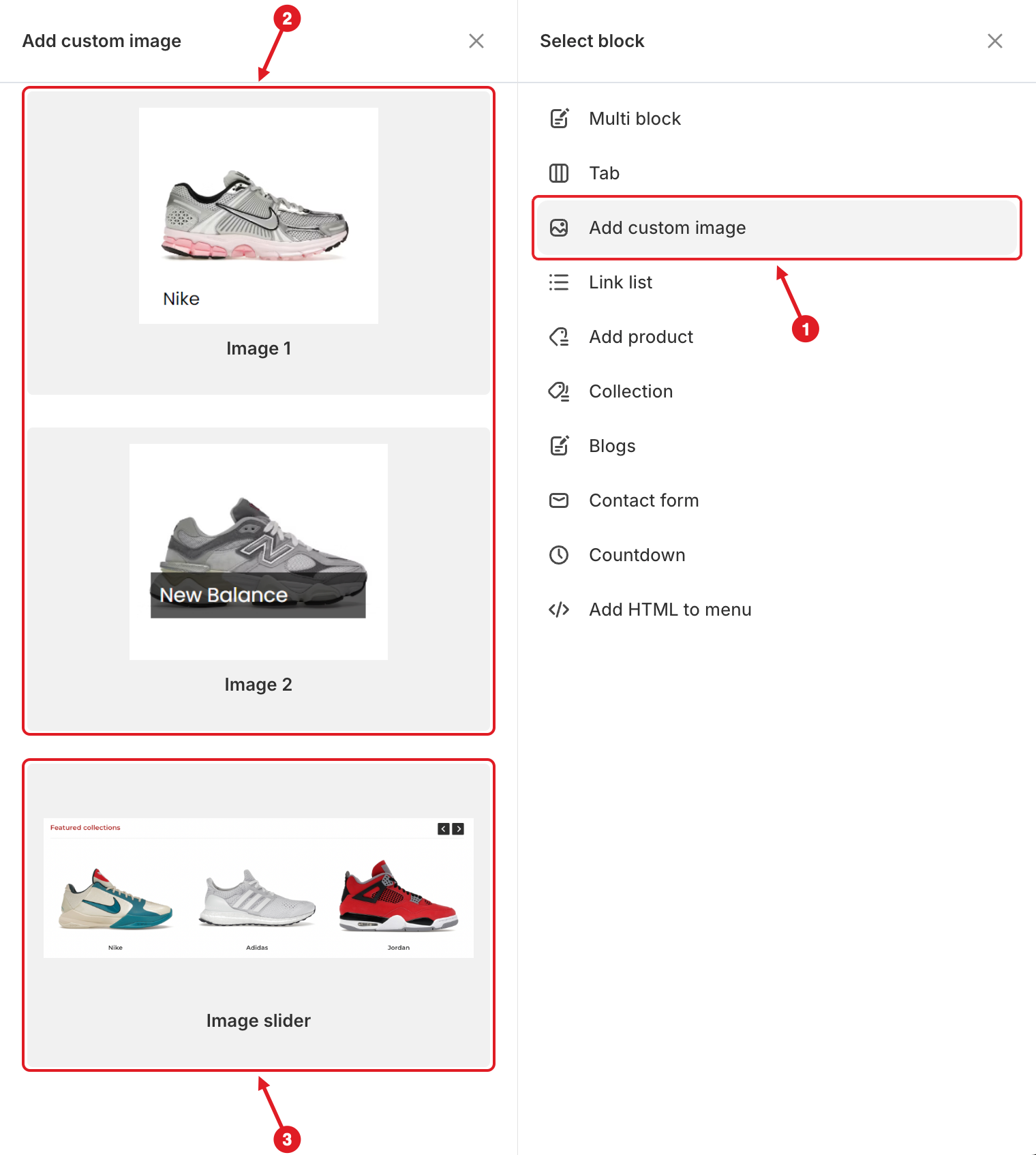
1. Click **Add custom image** on the right.
2. Hover over **Image 1** or **Image 2** and click **Select**.
1. Click Add custom image · 2. Pick Image 1 or Image 2 · 3. Image slider (see the Image Slider article)
**Image 1** shows the title under the picture. **Image 2** shows the title on a dark bar over the picture.
{% endstep %}
{% step %}
### Choose the picture and texts
In **Edit Item**, click the image area to upload or pick a picture, then fill in the **Title**, **Link** and **Description**.
{% endstep %}
{% step %}
### Save and publish
Click **Save**, then **Publish**.
{% endstep %}
{% endstepper %}
## ⚙️ Settings
| Setting | What it does |
| --------------------------- | ----------------------------------------------------------------------------------------------------------------------------------- |
| **Title** | Text shown with the image. Leave it empty to show only the picture. |
| **Link** | Where the image goes when clicked (page, product, collection or URL). Tick **Open in new tab** if needed. |
| **Description** | A second, smaller line of text under the title. |
| **Swap image on hover** | When on, you can add a **Hover image**. Shoppers see it when they move the mouse over the block. |
| **Image** / **Hover image** | The main picture and, with swap on, the picture shown on hover. |
| **Image width** | Appears after you choose an image: **Auto** or **Custom** (a number in %, px, em or rem; 50% by default when you switch to Custom). |
| **Width** | How much of the mega menu row the block takes (**Auto** or 8.33%–100%). |
| **No padding** | Removes the block's inner spacing so the image fills the block edge to edge. |
| **Visibility** | **Hide on desktop**, **Hide on mobile**, **Hide when logged in**, **Only show when logged in**, **Schedule publishing**. |
{% hint style="success" %}
**Tip:** Use the same image size (for example 800 × 800 px) for the main and hover images so the block doesn't jump when the picture swaps.
{% endhint %}
{% hint style="info" %}
Hover only exists with a mouse, so on phones and tablets shoppers see the main **Image**.
{% endhint %}
{% hint style="warning" %}
A big image in a narrow block makes the menu heavy. If the image is only decoration, turn on **Visibility** > **Hide on mobile**.
{% endhint %}
***
### Related Articles
{% content-ref url="/pages/Rnwv4j4XQ2SXlKnlR8Cn" %}
[Image Slider](/globo-mega-menu/menu-blocks/image-slider.md)
{% endcontent-ref %}
{% content-ref url="/pages/lUHoSham1OxSYk97Xx5H" %}
[Blocks Overview](/globo-mega-menu/menu-blocks/blocks.md)
{% endcontent-ref %}
{% content-ref url="/pages/f5H2ZdBdZILUk8k7C2Xo" %}
[Mega Menu](/globo-mega-menu/manage-menu-items/manage-submenu-items/mega-menu.md)
{% endcontent-ref %}
***
**💬 Need help?**
Email us at **📧** [**contact@globo.io**](mailto:contact@globo.io) - we’re happy to assist!