> For the complete documentation index, see [llms.txt](https://docs.globo.io/llms.txt). Markdown versions of documentation pages are available by appending `.md` to page URLs; this page is available as [Markdown](https://docs.globo.io/globo-mega-menu/menu-blocks/image-slider.md).
# Image Slider
A carousel of images with captions and links.
An **Image slider** block shows several images in a carousel with arrows to move between them. Each slide has its own image, title, description and link. Use it to feature several collections, brands or campaigns in the space of one block.
{% hint style="info" %}
Image slider is available on the **Growth Navigation** and **Pro Navigation** plans.
{% endhint %}
## Add an Image Slider
{% stepper %}
{% step %}
### Open the Select block panel
In the mega menu panel of the preview, click **+ Add block**.
{% endstep %}
{% step %}
### Pick the Image slider layout
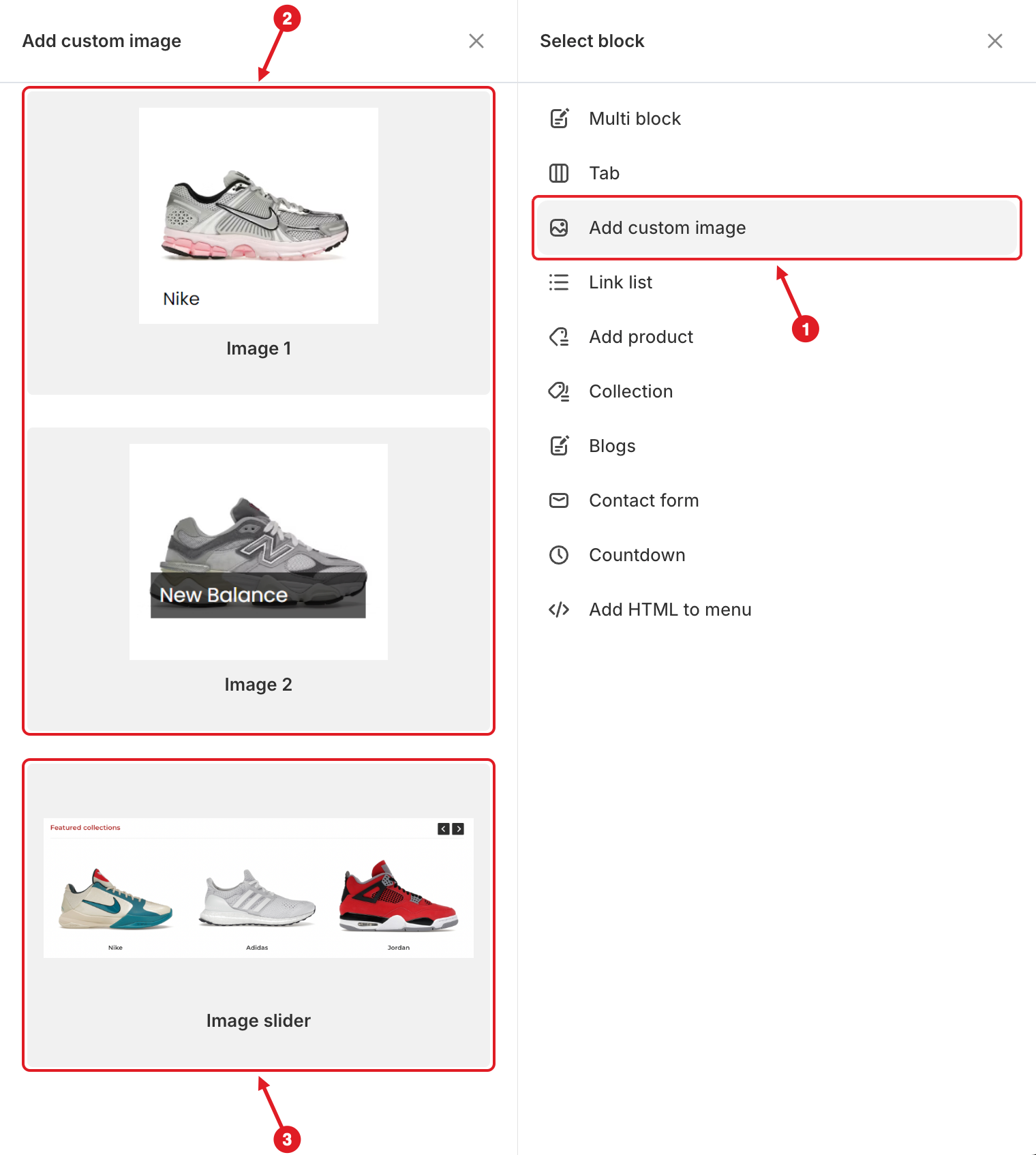
1. Click **Add custom image** on the right (**1** in the screenshot).
2. Hover over **Image slider**, the bottom layout (**3** in the screenshot), and click **Select**. Layouts **2** (Image 1 and Image 2) add a single image instead — see [Image](/globo-mega-menu/menu-blocks/image.md).
{% endstep %}
{% step %}
### Set up the slider
In **Edit Item**, set the block **Title** (the heading above the carousel, such as "Featured collections"), its **Link**, **Width**, **Item(s) per row** and **Image ratio**.
{% endstep %}
{% step %}
### Add and fill the slides
Click **Add slide** to add a slide. For each slide, choose the **Image** and fill in the **Title**, **Link** and **Description**. Click **Remove** to delete a slide. You can also click a slide in the preview to jump to its settings.
{% endstep %}
{% step %}
### Save and publish
Click **Save**, then **Publish**.
{% endstep %}
{% endstepper %}
## ⚙️ Settings
| Setting | What it does |
| ----------------------------------------------------------- | ------------------------------------------------------------------------------------------------------------------------ |
| **Title** | Heading shown above the slider. Leave it empty to hide the heading. |
| **Link** | Makes the heading clickable. |
| **Width** | How much of the mega menu row the block takes (**Auto** or 8.33%–100%). |
| **Item(s) per row** | How many slides are visible at once: **1**, **2**, **3**, **4** or **6**. Default: **3**. |
| **Image ratio** | Crops all slide images to the same shape: **Auto** (original shape), **1:1**, **4:3**, **3:4**, **16:9** or **9:16**. |
| **Slide** > **Image**, **Title**, **Link**, **Description** | The picture, caption and destination of each slide. |
| **Visibility** | **Hide on desktop**, **Hide on mobile**, **Hide when logged in**, **Only show when logged in**, **Schedule publishing**. |
{% hint style="success" %}
**Autoplay and looping** apply to all carousels in the menu (image sliders and product carousels). Turn them on in **Settings** > **Carousel** > **Auto play** and **Infinity loop**.
{% endhint %}
{% hint style="warning" %}
If your images have different shapes, the slides look uneven. Pick an **Image ratio** such as **1:1** or **4:3** to make them line up.
{% endhint %}
***
### Related Articles
{% content-ref url="/pages/vKcjWIGyN4VLd2FSoWYm" %}
[Image](/globo-mega-menu/menu-blocks/image.md)
{% endcontent-ref %}
{% content-ref url="/pages/lUHoSham1OxSYk97Xx5H" %}
[Blocks Overview](/globo-mega-menu/menu-blocks/blocks.md)
{% endcontent-ref %}
{% content-ref url="/pages/CJqRGoOfDUa2UWF1CrbS" %}
[Menu Settings](/globo-mega-menu/adjust-menu-styling/menu-settings.md)
{% endcontent-ref %}
***
**💬 Need help?**
Email us at **📧** [**contact@globo.io**](mailto:contact@globo.io) - we’re happy to assist!