> For the complete documentation index, see [llms.txt](https://docs.globo.io/llms.txt). Markdown versions of documentation pages are available by appending `.md` to page URLs; this page is available as [Markdown](https://docs.globo.io/globo-mega-menu/menu-blocks/product-list.md).
# Product List
Show products as a single card, grid, list or carousel.
Product blocks put your products right inside the mega menu, with image, name, vendor and price. Use a **Single product** to spotlight one best seller, or a product list (grid, list or carousel) to show new arrivals, best sellers or a whole collection.
{% hint style="info" %}
**Single product** is available on all plans, including **Basic Navigation**. Product lists (grid, list and carousel layouts) need the **Growth Navigation** or **Pro Navigation** plan.
{% endhint %}
## Add Products to the Menu
{% stepper %}
{% step %}
### Open the Select block panel
In the mega menu panel of the preview, click **+ Add block**.
{% endstep %}
{% step %}
### Pick a product layout
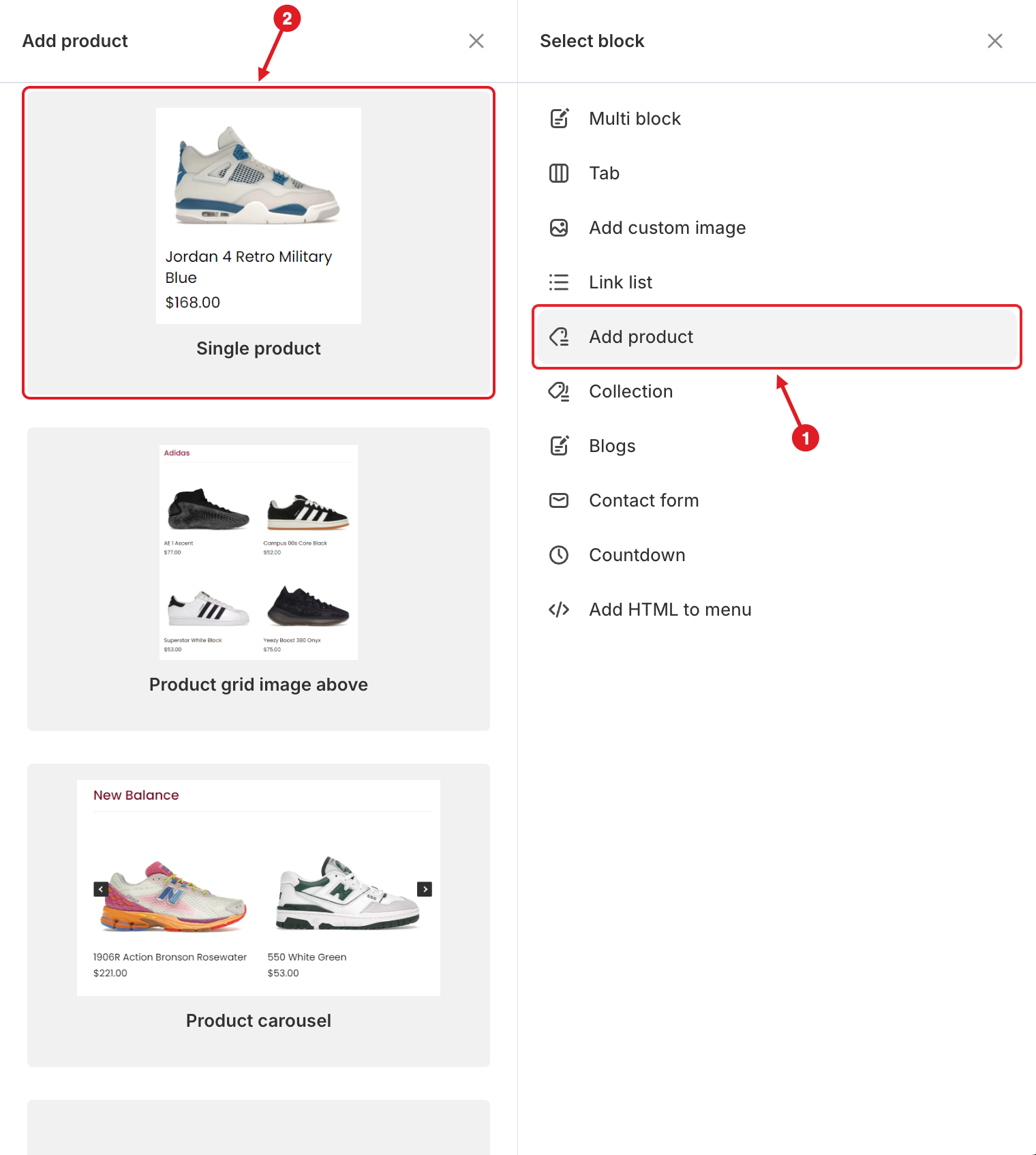
1. Click **Add product** on the right.
2. Hover over a layout on the left and click **Select**.
1. Click Add product · 2. Pick a layout
| Layout | What it is |
| ---------------------------- | ---------------------------------------------------------- |
| **Single product** | One product card (two versions: image above or image left) |
| **Product grid image above** | Products in a grid, image on top |
| **Product carousel** | Products in a slider with arrows |
| **Product list** | Products one under another |
| **Product grid image left** | Products in a grid, small image on the left |
| {% endstep %} | |
{% step %}
### Choose the products
* **Single product**: under **Add product**, pick the product.
* **Product list**: choose a **Source** (see below). For **Collection** pick one collection; for **Manual** pick the products one by one.
{% endstep %}
{% step %}
### Adjust the display, then save
Set the view options below, then click **Save** and **Publish**.
{% endstep %}
{% endstepper %}
## ⚙️ Single Product Settings
| Setting | What it does |
| --------------- | ------------------------------------------------------------------------------------------------------------------------ |
| **Width** | How much of the mega menu row the block takes (**Auto** or 8.33%–100%). |
| **Layout** | **Image above** (default) or **Image left**. |
| **Add product** | The product to show. |
| **Visibility** | **Hide on desktop**, **Hide on mobile**, **Hide when logged in**, **Only show when logged in**, **Schedule publishing**. |
## ⚙️ Product List Settings
| Setting | What it does |
| ---------------------- | ------------------------------------------------------------------------------------------------------------------------ |
| **Title** / **Link** | Heading above the products, and where it links (for example the full collection). |
| **Width** | How much of the mega menu row the block takes. |
| **List view** | **Carousel**, **List** or **Grid**. |
| **Number of products** | How many products to show. Default: **10**. |
| **Item(s) per row** | Only for **Grid** and **Carousel**: **1**, **2**, **3**, **4** or **6** products per row. Default: **3**. |
| **Item view** | Only for **Grid** and **Carousel**: **Image above** or **Image left**. |
| **Image ratio** | **Auto**, **1:1**, **4:3**, **3:4**, **16:9** or **9:16**. Makes all product images the same shape. |
| **Source** | Where the products come from (see below). Default: **Newest products**. |
| **Visibility** | **Hide on desktop**, **Hide on mobile**, **Hide when logged in**, **Only show when logged in**, **Schedule publishing**. |
### Product sources
| Source | Products shown |
| ------------------- | ----------------------------------- |
| **Newest products** | Your most recently added products |
| **Best selling** | Your best-selling products |
| **Collection** | Products of one collection you pick |
| **Manual** | Only the products you pick |
## 🛍️ What Shoppers See
Each product shows its image, vendor, name and price. Products with several variants show **From** before the lowest price. If a product has a compare-at price, the old price is crossed out and a **Sale** label appears; unavailable products get a **Sold out** label.
{% hint style="success" %}
Turn on **Settings** > **Advanced** > **Show add to cart button** to add an **Add to cart** button under every product in the menu. Carousel autoplay and looping are in **Settings** > **Carousel**.
{% endhint %}
{% hint style="warning" %}
Product data is read live from your store: title, price, image and stock update on their own, and a **Collection** source always shows the collection's current products. The block only remembers **which** products or collection you picked. If you delete one or change its handle (URL) in Shopify admin, open the block and pick it again. See [Changes I Made in Shopify Admin Don't Appear in the Menu](/globo-mega-menu/faqs/why-are-shopifys-changes-not-reflected-on-menu.md).
{% endhint %}
***
### Related Articles
{% content-ref url="/pages/JQCxVxhXbTUF6QvUH5FZ" %}
[Collection List](/globo-mega-menu/menu-blocks/collection-list.md)
{% endcontent-ref %}
{% content-ref url="/pages/lUHoSham1OxSYk97Xx5H" %}
[Blocks Overview](/globo-mega-menu/menu-blocks/blocks.md)
{% endcontent-ref %}
{% content-ref url="/pages/CJqRGoOfDUa2UWF1CrbS" %}
[Menu Settings](/globo-mega-menu/adjust-menu-styling/menu-settings.md)
{% endcontent-ref %}
***
**💬 Need help?**
Email us at **📧** [**contact@globo.io**](mailto:contact@globo.io) - we’re happy to assist!