> For the complete documentation index, see [llms.txt](https://docs.globo.io/llms.txt). Markdown versions of documentation pages are available by appending `.md` to page URLs; this page is available as [Markdown](https://docs.globo.io/globo-mega-menu/mobile-bottom-bar/mobile-bottom-navigation-bar.md).

# Mobile Bottom Navigation Bar

Add a sticky, app-like bar with quick actions for mobile shoppers.

A bottom navigation bar is a sticky bar of icons that stays on screen while shoppers scroll — like the tab bar in a mobile app. Use it to give mobile shoppers one-tap access to the pages and actions they use most: Home, the menu, the cart, search, a chat, a phone call and more. An item can also open a small submenu (for example a **More** item with account, contact and FAQ links).

{% hint style="info" %}
The bottom navigation bar is available on the **Pro Navigation** plan. See [Plans and Billing](/globo-mega-menu/analytics-and-billing/plans-and-billing.md).
{% endhint %}

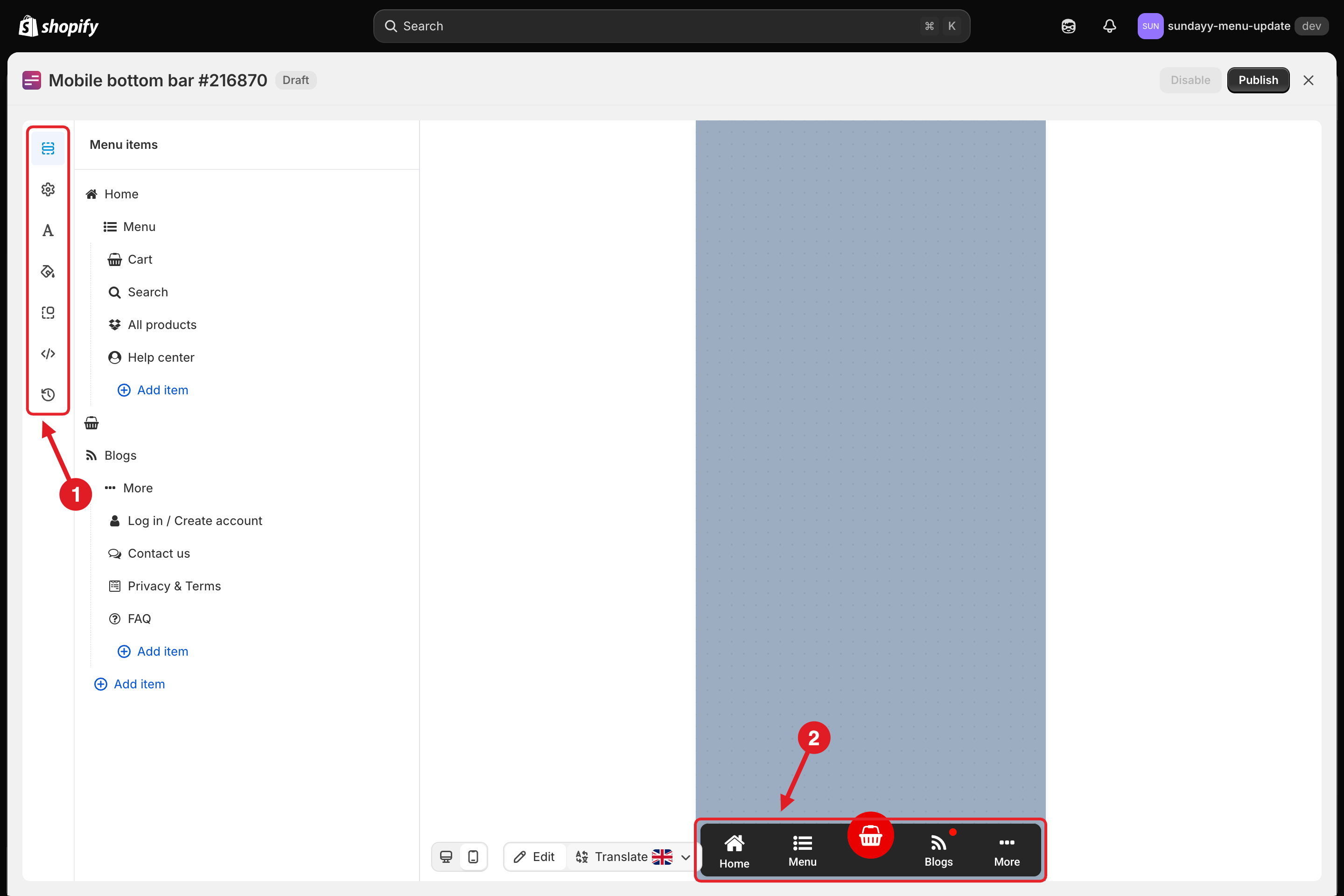
<figure><img src="https://2995734148-files.gitbook.io/~/files/v0/b/gitbook-x-prod.appspot.com/o/spaces%2FqP3YAfC1xaiWJzITQ9sI%2Fuploads%2Fgit-blob-02901f1cc7a31b9677f8bc2b42a64f8422c965de%2Fbottom-bar-editor.png?alt=media" alt="Bottom bar editor"><figcaption><p>The bottom bar editor: settings tabs (1) and live preview (2)</p></figcaption></figure>

The editor has two parts:

1. **Settings tabs** in the left sidebar: **Menu items**, **General**, **Typography**, **Colors**, **Position**, **Advanced** and **Version history**.
2. **Live preview** of the bar. Use the desktop / mobile buttons under the preview to switch the preview device.

## <mark style="color:blue;">Create a Bottom Bar</mark>

{% stepper %}
{% step %}

### Create the menu

On the app **Home** page, click **Add bottom navigation**. You can also go to **Menu manager** > **Create menu** and choose **Mobile bottom bar**. The bottom bar editor opens.
{% endstep %}

{% step %}

### Edit, add or remove items

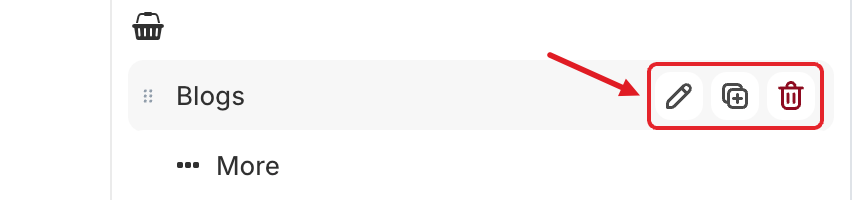
In the **Menu items** tab, hover over an item to show its actions: **Edit** (✏️), **Duplicate** and **Delete** (🗑️). Click **Add item** to add an item at that level. Items indented under another item become its submenu.

<figure><img src="https://2995734148-files.gitbook.io/~/files/v0/b/gitbook-x-prod.appspot.com/o/spaces%2FqP3YAfC1xaiWJzITQ9sI%2Fuploads%2Fgit-blob-ffb0a2c97722eff7518732dafb5569fbdb1862c9%2Fbottom-item-row-actions.png?alt=media" alt="Item actions"><figcaption><p>Hover over an item to Edit, Duplicate or Delete it</p></figcaption></figure>
{% endstep %}

{% step %}

### Set the item's icon, title and link

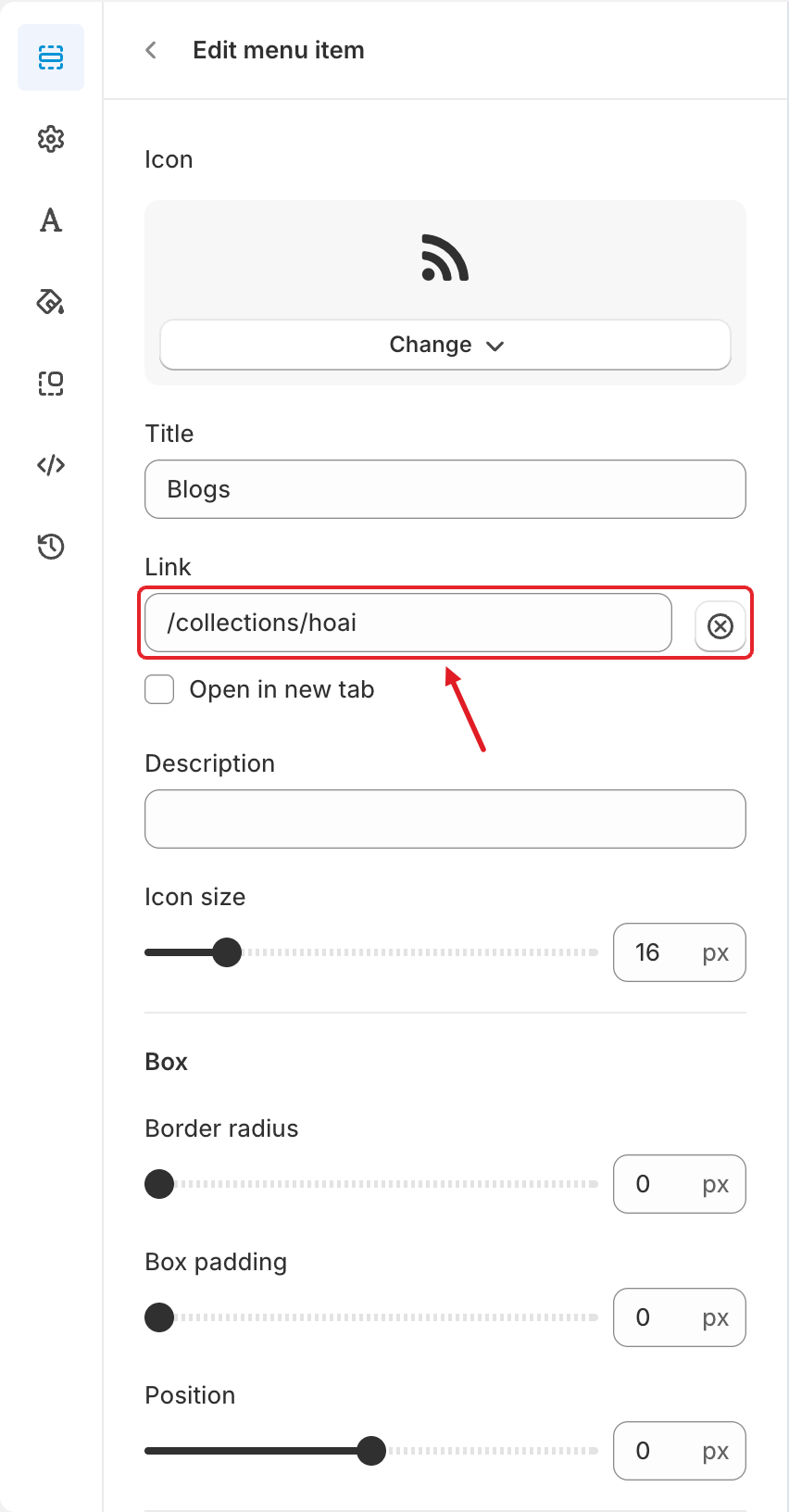
Click **Edit** to open **Edit menu item**. Choose an **Icon** (click **Change**), enter a **Title**, then click the **Link** field to choose what the item does.

<figure><img src="https://2995734148-files.gitbook.io/~/files/v0/b/gitbook-x-prod.appspot.com/o/spaces%2FqP3YAfC1xaiWJzITQ9sI%2Fuploads%2Fgit-blob-8c0a3b2270cdb561ac7602693a38981a1cc687a0%2Fbottom-item-edit.png?alt=media" alt="Edit menu item"><figcaption><p>Click the Link field to choose the item's action</p></figcaption></figure>
{% endstep %}

{% step %}

### Choose an action

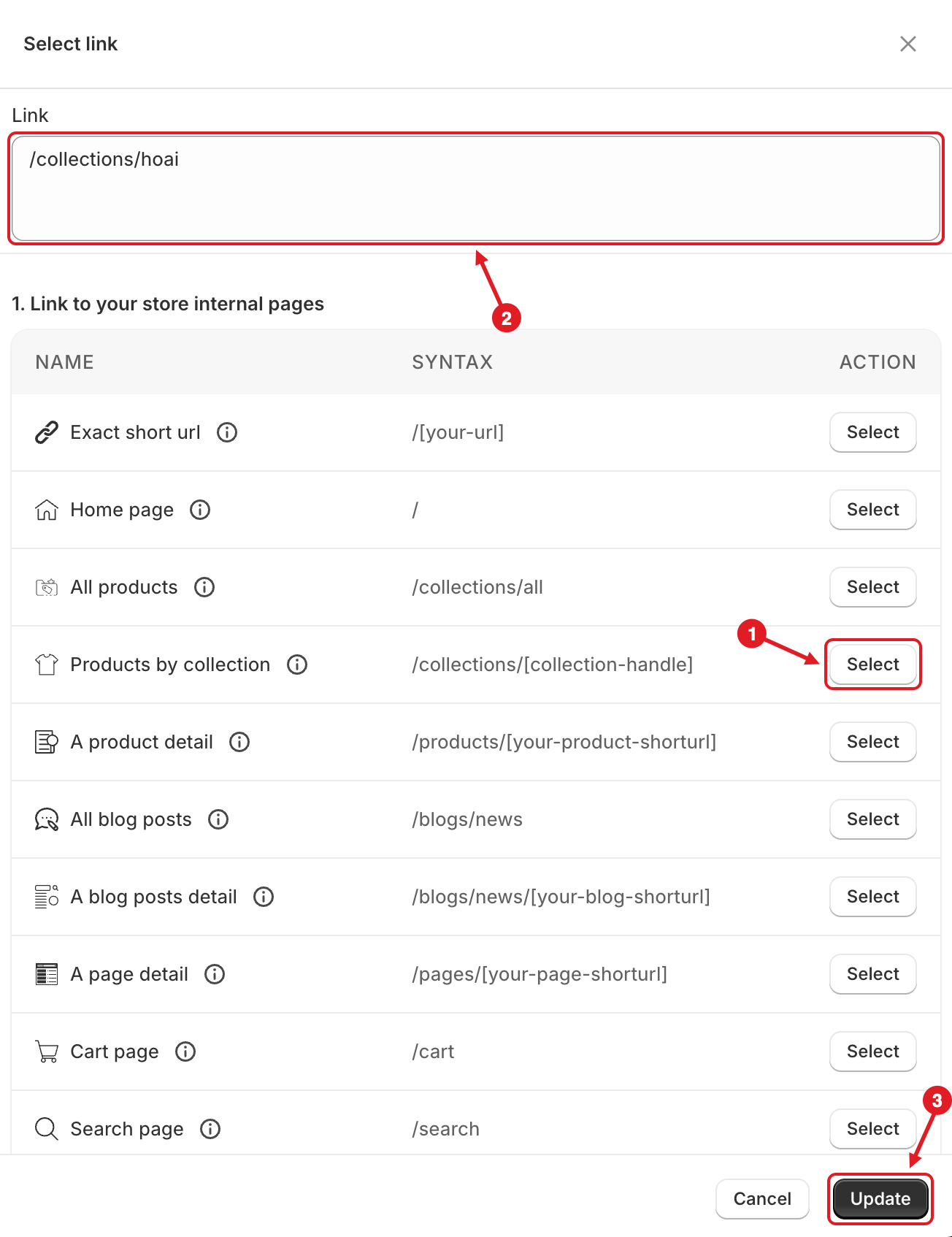
In **Select link**, click **Select** next to an action (1). Its syntax is copied into the **Link** box (2) — replace the placeholder in brackets with your own value, for example `/collections/[collection-handle]` → `/collections/summer-sale`. Then click **Update** (3).

<figure><img src="https://2995734148-files.gitbook.io/~/files/v0/b/gitbook-x-prod.appspot.com/o/spaces%2FqP3YAfC1xaiWJzITQ9sI%2Fuploads%2Fgit-blob-c1b67c84d5c5bfc5aaac0a57412f7c6c961ff763%2Fbottom-select-link.png?alt=media" alt="Select link"><figcaption><p>Click Select (1), edit the link (2), then click Update (3)</p></figcaption></figure>
{% endstep %}

{% step %}

### Style, position and publish

Adjust the **General**, **Typography**, **Colors** and **Position** tabs (see below). Click **Save**, then **Publish** at the top right of the editor.
{% endstep %}
{% endstepper %}

{% hint style="warning" %}
The bar is shown through the app embed, like all menus. If it doesn't appear on your storefront, make sure the app embed is on for that theme. See [Enable App Embed](/globo-mega-menu/basic-knowledge/enable-app-embed.md).
{% endhint %}

## ✏️ Item Settings

In **Edit menu item**:

| Setting                     | What it does                                                                                                              |
| --------------------------- | ------------------------------------------------------------------------------------------------------------------------- |
| **Icon**                    | Click **Change** to choose an icon or upload an image.                                                                    |
| **Title**                   | The text under the icon.                                                                                                  |
| **Link**                    | What happens when the item is tapped. Click it to open **Select link** (see **Item Actions** below). Click ⊗ to clear it. |
| **Open in new tab**         | Opens the link in a new browser tab.                                                                                      |
| **Description**             | Optional short text shown with the item.                                                                                  |
| **Icon size**               | Icon size in px.                                                                                                          |
| **Box** > **Border radius** | Rounds the corners of the item's box (0–100 px).                                                                          |
| **Box** > **Box padding**   | Space inside the item's box (0–100 px).                                                                                   |
| **Box** > **Position**      | Moves the item left (negative values) or right (positive values), from −100 to 100 px.                                    |

Further down the panel you'll also find:

* **Color** — colors for this item only: text, icon, icon background and background, each with a hover color. Click **Clear settings** to go back to the bar's colors.
* **Badge** — a small label on the item, with a **Title**, **Badge text color** and **Badge background color**.
* **Visibility** — **Hide on desktop**, **Hide on mobile**, **Hide when logged in**, **Only show when logged in**, and **Schedule publishing** (with **Date starting** / **Date ending**).
* **Advanced** — an **Extra classname** for custom CSS, and **Divide**.

## 🔗 Item Actions

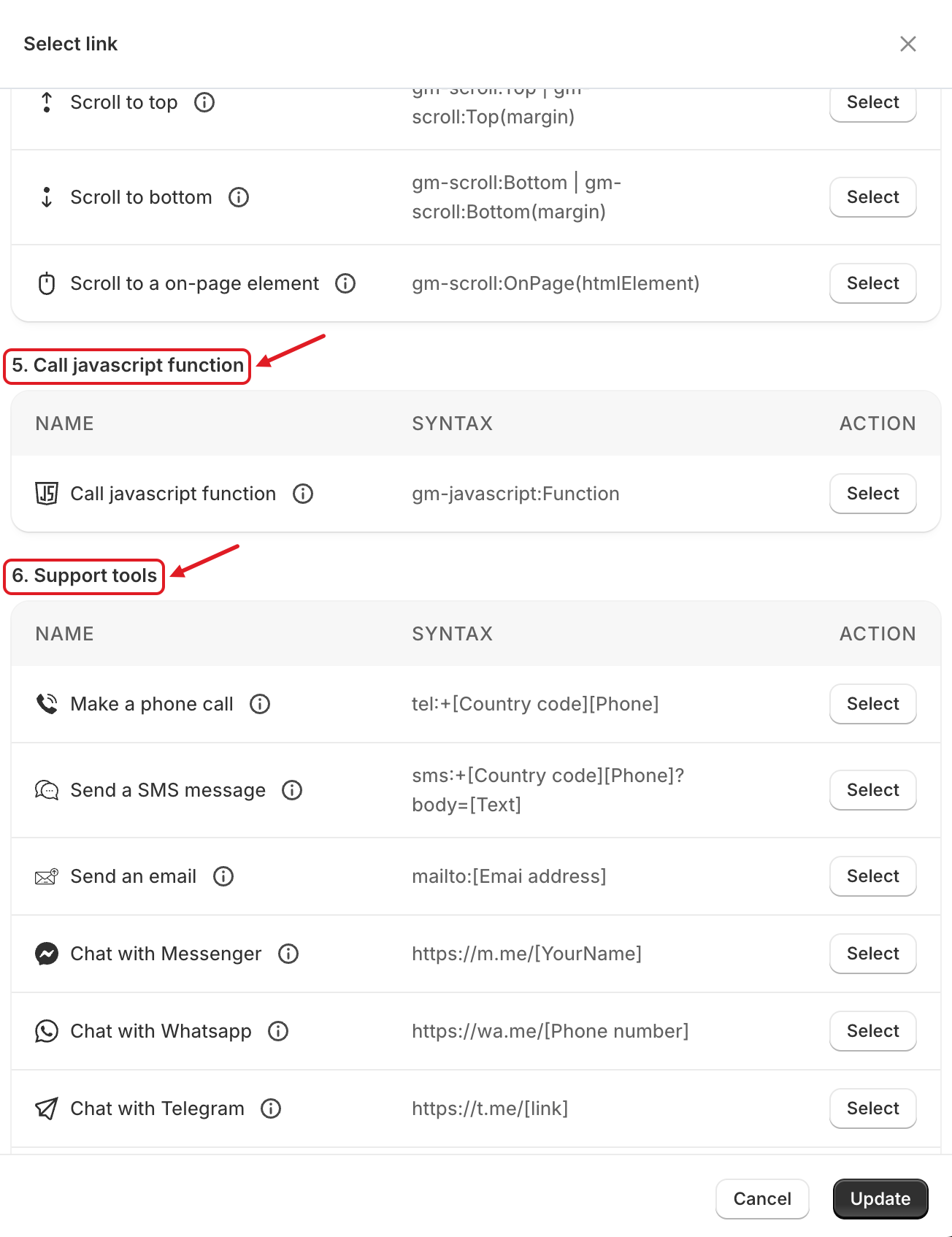
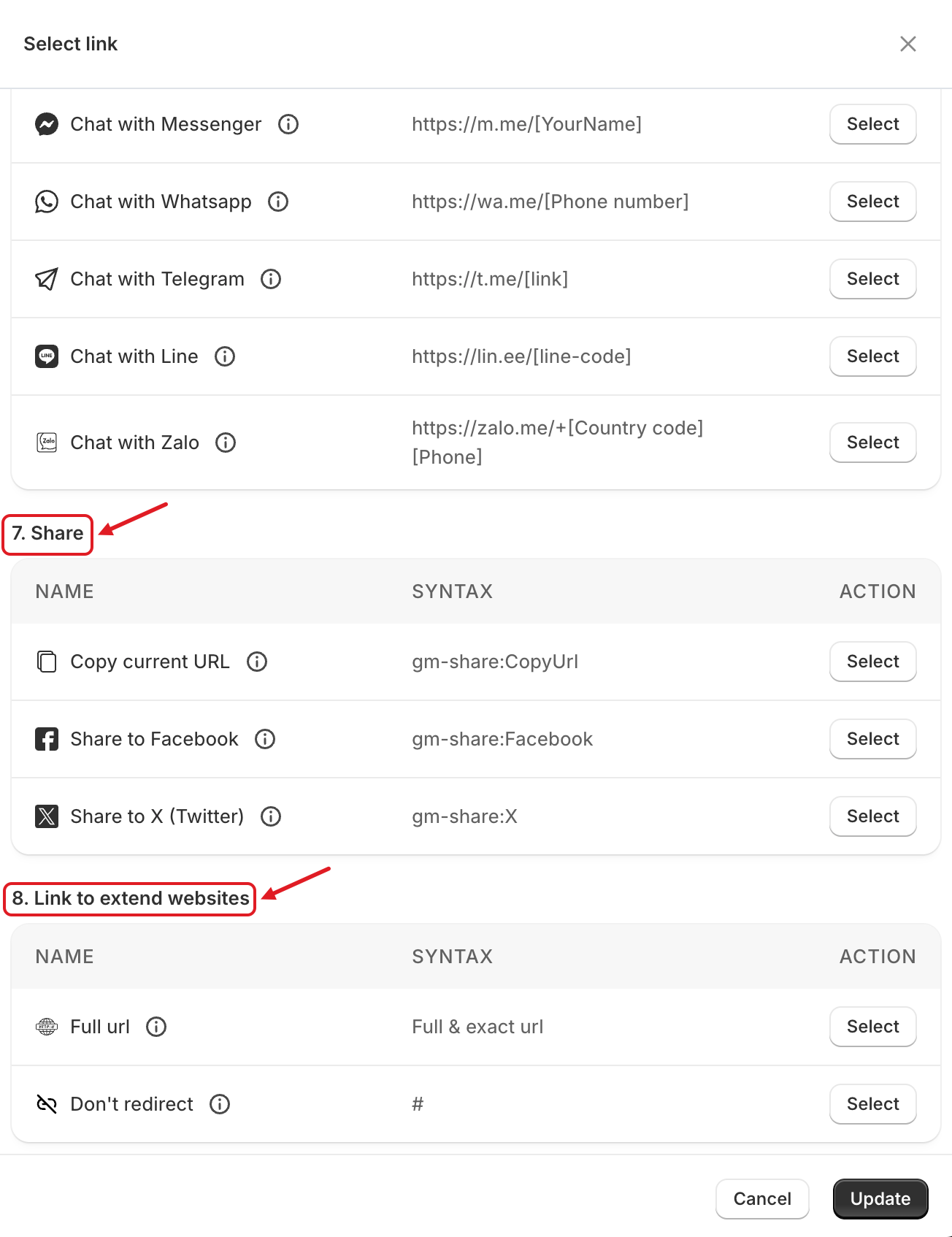
**Select link** groups the available actions into eight sections. Click **(i)** next to an action to see an example.

| Section                                             | Actions and syntax                                                                                                                                                                                                                                                                                                                                                                                         |
| --------------------------------------------------- | ---------------------------------------------------------------------------------------------------------------------------------------------------------------------------------------------------------------------------------------------------------------------------------------------------------------------------------------------------------------------------------------------------------- |
| **1. Link to your store internal pages**            | Exact short url `/[your-url]`, Home page `/`, All products `/collections/all`, Products by collection `/collections/[collection-handle]`, A product detail `/products/[your-product-shorturl]`, All blog posts `/blogs/news`, A blog posts detail `/blogs/news/[your-blog-shorturl]`, A page detail `/pages/[your-page-shorturl]`, Cart page `/cart`, Search page `/search`, Contact form `/pages/contact` |
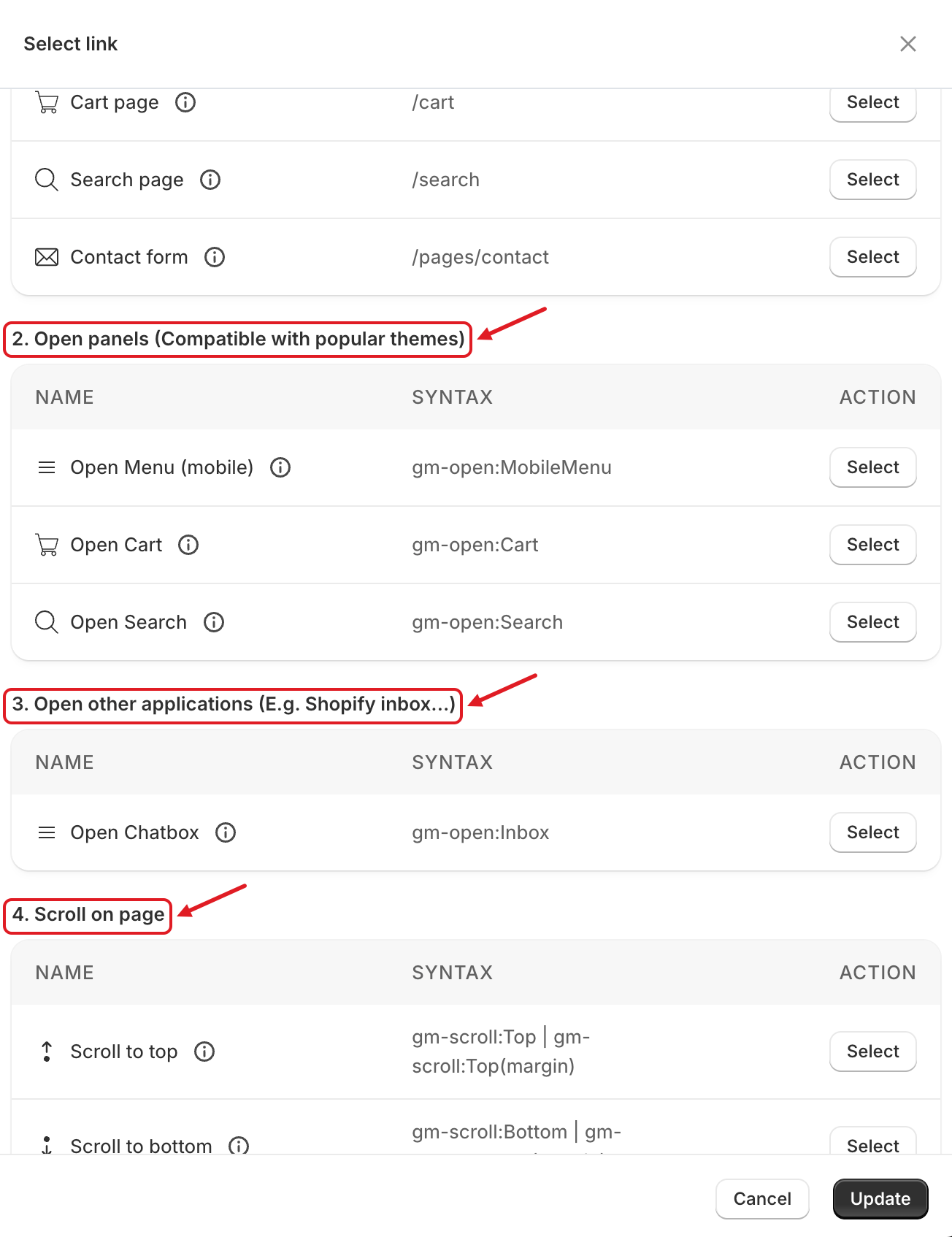
| **2. Open panels (Compatible with popular themes)** | Open Menu (mobile) `gm-open:MobileMenu`, Open Cart `gm-open:Cart`, Open Search `gm-open:Search`                                                                                                                                                                                                                                                                                                            |
| **3. Open other applications**                      | Open Chatbox `gm-open:Inbox` (opens the Shopify Inbox chat)                                                                                                                                                                                                                                                                                                                                                |
| **4. Scroll on page**                               | Scroll to top `gm-scroll:Top`, Scroll to bottom `gm-scroll:Bottom`, Scroll to a on-page element `gm-scroll:OnPage(htmlElement)`                                                                                                                                                                                                                                                                            |
| **5. Call javascript function**                     | `gm-javascript:Function` — runs a JavaScript function on your site                                                                                                                                                                                                                                                                                                                                         |
| **6. Support tools**                                | Make a phone call `tel:`, Send a SMS message `sms:`, Send an email `mailto:`, Chat with Messenger, Whatsapp, Telegram, Line or Zalo                                                                                                                                                                                                                                                                        |
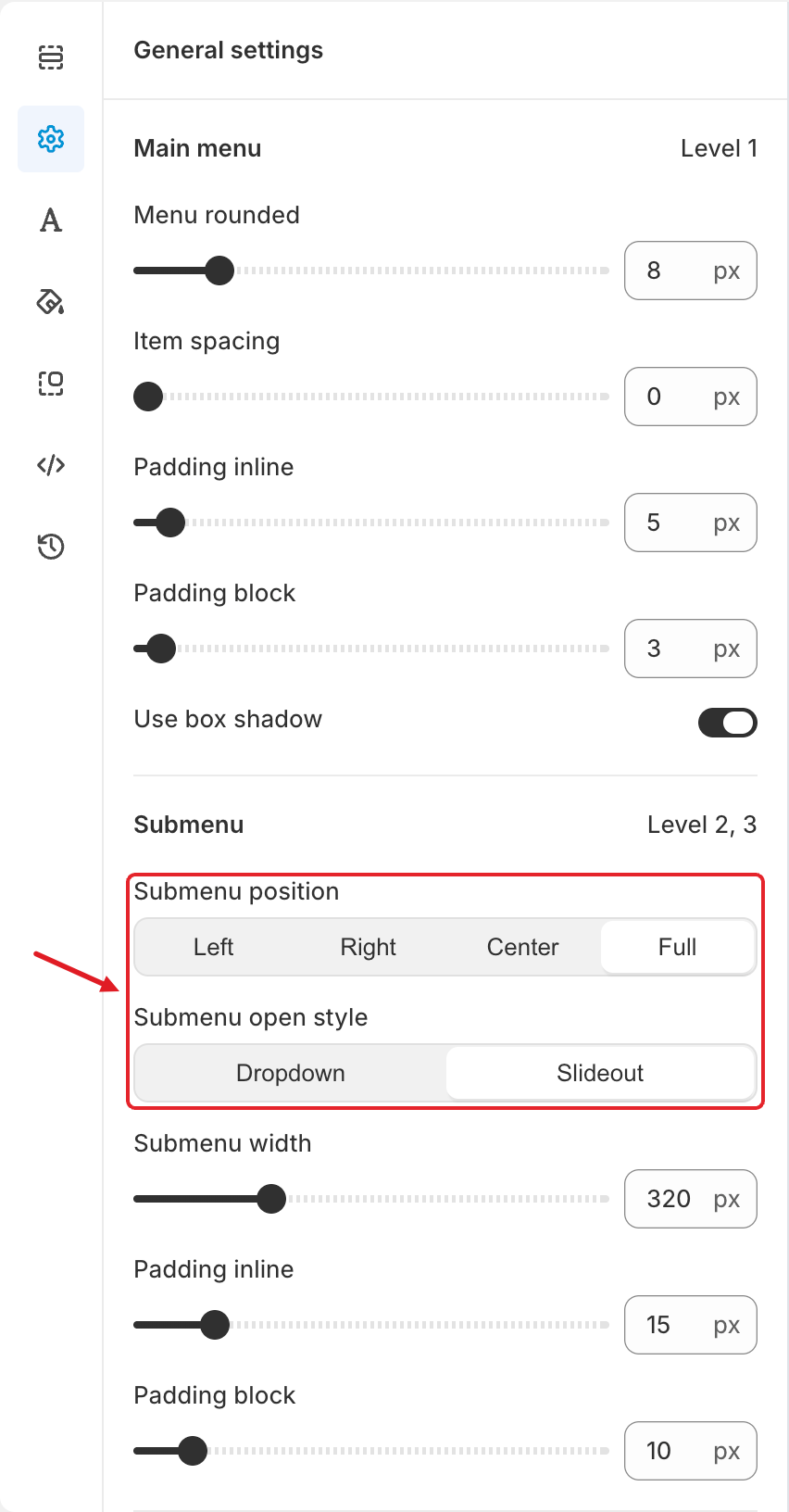
| **7. Share**                                        | Copy current URL `gm-share:CopyUrl`, Share to Facebook `gm-share:Facebook`, Share to X (Twitter) `gm-share:X`                                                                                                                                                                                                                                                                                              |
| **8. Link to extend websites**                      | Full url (any full address, e.g. `https://globo.io`), Don't redirect `#`                                                                                                                                                                                                                                                                                                                                   |

<figure><img src="https://2995734148-files.gitbook.io/~/files/v0/b/gitbook-x-prod.appspot.com/o/spaces%2FqP3YAfC1xaiWJzITQ9sI%2Fuploads%2Fgit-blob-58f5bac60caea529e980e452ed3d417cc48e4df3%2Fbottom-select-link-1.png?alt=media" alt="Select link – panels and scroll"><figcaption><p>Sections 2–4: open panels, other applications and scrolling</p></figcaption></figure>

<figure><img src="https://2995734148-files.gitbook.io/~/files/v0/b/gitbook-x-prod.appspot.com/o/spaces%2FqP3YAfC1xaiWJzITQ9sI%2Fuploads%2Fgit-blob-db15a0708636f91e9b1ccb71a224a51acf7337df%2Fbottom-select-link-2.png?alt=media" alt="Select link – support tools"><figcaption><p>Sections 5–6: JavaScript and support tools</p></figcaption></figure>

<figure><img src="https://2995734148-files.gitbook.io/~/files/v0/b/gitbook-x-prod.appspot.com/o/spaces%2FqP3YAfC1xaiWJzITQ9sI%2Fuploads%2Fgit-blob-b94394d7da6b655bc5a19192e0a8a8f3f23b5b13%2Fbottom-select-link-4.png?alt=media" alt="Select link – share and external"><figcaption><p>Sections 7–8: share and external links</p></figcaption></figure>

Examples:

* `gm-scroll:Top(150)` — scrolls to the top, leaving a 150 px margin.
* `gm-scroll:OnPage(#page-title)` — scrolls to the element with the ID `page-title`.
* `tel:+0123456789` — calls this number.
* `sms:+012345678?body=I need product` — opens an SMS with the text filled in.
* `https://wa.me/0123456789` — opens WhatsApp chat (phone number with country code, without `+`).

{% hint style="info" %}
**Open panels** work with popular themes, because they open the theme's own menu drawer, cart drawer or search. If nothing happens on your theme, link to the page instead (for example **Cart page** `/cart`), or contact us.
{% endhint %}

## 🎨 Look and Position

### General

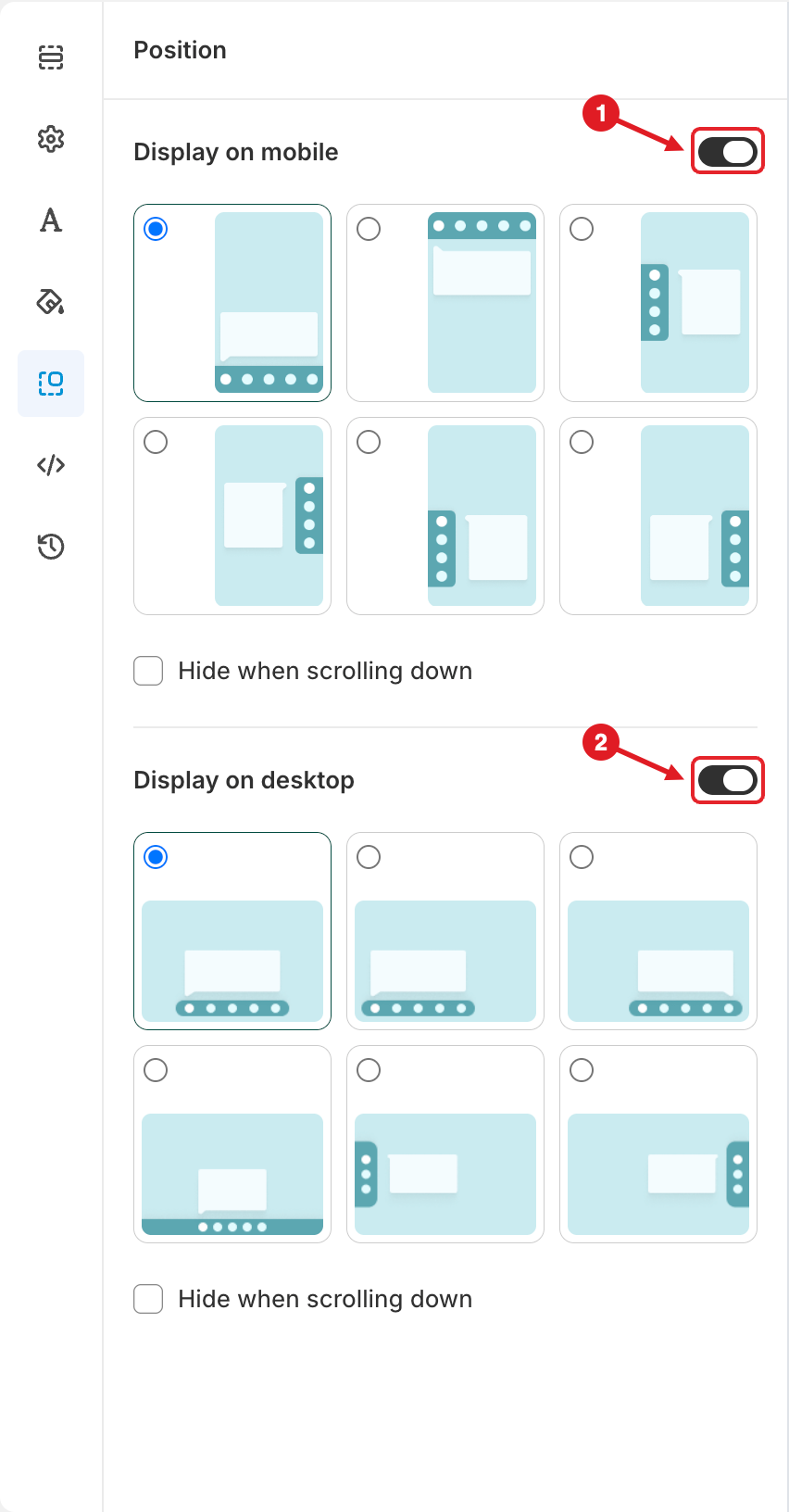
<figure><img src="https://2995734148-files.gitbook.io/~/files/v0/b/gitbook-x-prod.appspot.com/o/spaces%2FqP3YAfC1xaiWJzITQ9sI%2Fuploads%2Fgit-blob-8c052cce4def9836ab26905dcb5a4475235939c8%2Fbottom-tab-general.png?alt=media" alt="General settings"><figcaption><p>General settings: submenu position and open style</p></figcaption></figure>

| Section                  | Settings                                                                                                                                                                                             |
| ------------------------ | ---------------------------------------------------------------------------------------------------------------------------------------------------------------------------------------------------- |
| **Main menu** (Level 1)  | **Menu rounded** (corner radius of the bar), **Item spacing**, **Padding inline**, **Padding block**, **Use box shadow**                                                                             |
| **Submenu** (Level 2, 3) | **Submenu position**: **Left**, **Right**, **Center** or **Full** width. **Submenu open style**: **Dropdown** or **Slideout**. **Submenu width** (100–900 px), **Padding inline**, **Padding block** |
| **Icon & text**          | **Icon size**, **Submenu icon size**, **Main menu gap: text - icon**, **Submenu gap: text - icon**                                                                                                   |
| **Advanced**             | **Hide menu text** (icons only), **Hide submenu text**, **Hide submenu description**                                                                                                                 |

### Typography

Set **Font family**, **Font weight** and **Font size** for **Main menu**, **Submenu text** and **Submenu description**. **Use custom font** works as described in [Adjust Menu Font](/globo-mega-menu/adjust-menu-styling/adjust-menu-font.md).

### Colors

* **Main menu color** and **Sub menu color**: Text, Hover text, Icon, Hover icon, Background and Hover background colors.
* **Other menu color**: Description, Hover description and Divide colors.

### Position

<figure><img src="https://2995734148-files.gitbook.io/~/files/v0/b/gitbook-x-prod.appspot.com/o/spaces%2FqP3YAfC1xaiWJzITQ9sI%2Fuploads%2Fgit-blob-1ab74d87b6d4e75aafe63e0db9f33854f695676c%2Fbottom-tab-position.png?alt=media" alt="Position settings"><figcaption><p>Turn the bar on for mobile (1) and desktop (2), then choose a position</p></figcaption></figure>

{% stepper %}
{% step %}

### Choose where the bar is shown

Turn on **Display on mobile** (1) and/or **Display on desktop** (2). Turn one off to hide the bar on that device.
{% endstep %}

{% step %}

### Pick a position

Click one of the layouts under each toggle:

* **Mobile**: Bottom, Top, Center left, Center right, Bottom left or Bottom right.
* **Desktop**: Bottom center, Bottom left, Bottom right, Bottom full width, Center left or Center right.
  {% endstep %}

{% step %}

### Hide while scrolling (optional)

Tick **Hide when scrolling down** to hide the bar while the shopper scrolls down, so it doesn't cover content.
{% endstep %}
{% endstepper %}

### Advanced

| Setting                 | What it does                                                                                                                     |
| ----------------------- | -------------------------------------------------------------------------------------------------------------------------------- |
| **Market availability** | Shows the bar only in the markets you select. See [Show Menus by Market](/globo-mega-menu/manage-menus/show-menus-by-market.md). |
| **Menu z-index**        | Stacking order. Raise it if other elements cover the bar; lower it if the bar covers popups.                                     |
| **Menu opacity**        | Transparency of the bar (0–100).                                                                                                 |
| **Bottom margin**       | Space between the bar and the bottom of the screen.                                                                              |
| **Stylesheet / CSS**    | Custom CSS for the bar.                                                                                                          |
| **JavaScript**          | Custom JavaScript for the bar.                                                                                                   |

{% hint style="info" %}
If the bar overlaps another floating widget (chat, cookie banner), raise **Bottom margin** or adjust the **Menu z-index** in **Advanced**. You can also choose a different position in the **Position** tab.
{% endhint %}

***

### Related Articles

{% content-ref url="/pages/RZ0tOkDBtsU0FqS1hbYJ" %}
[Plans and Billing](/globo-mega-menu/analytics-and-billing/plans-and-billing.md)
{% endcontent-ref %}

{% content-ref url="/pages/A3ybekGYPMIrQCj905wO" %}
[Enable App Embed](/globo-mega-menu/basic-knowledge/enable-app-embed.md)
{% endcontent-ref %}

{% content-ref url="/pages/fDthaESiTf5Rie5U2rrK" %}
[Upload Custom Icon for Menu Item](/globo-mega-menu/manage-menu-items/upload-custom-icon-for-menu-item.md)
{% endcontent-ref %}

{% content-ref url="/pages/9nUonB2Yv5PPWudjIsAt" %}
[Version History](/globo-mega-menu/manage-menus/version-history.md)
{% endcontent-ref %}

***

**💬 Need help?**

Email us at **📧** [**contact@globo.io**](mailto:contact@globo.io) - we’re happy to assist!