For the complete documentation index, see llms.txt. This page is also available as Markdown.

Custom CSS

Add your own CSS to fine-tune the menu.

Use Stylesheet / CSS when the built-in settings, fonts and colors can't do what you need — for example a special hover effect, a different font size on one item, or a small fix for your theme. The CSS is saved with the menu and added to your storefront when you publish it.

Custom CSS requires basic CSS knowledge. If you'd rather not write code, contact us — we help with small styling changes for free.

Add Custom CSS

1

Open the Advanced tab

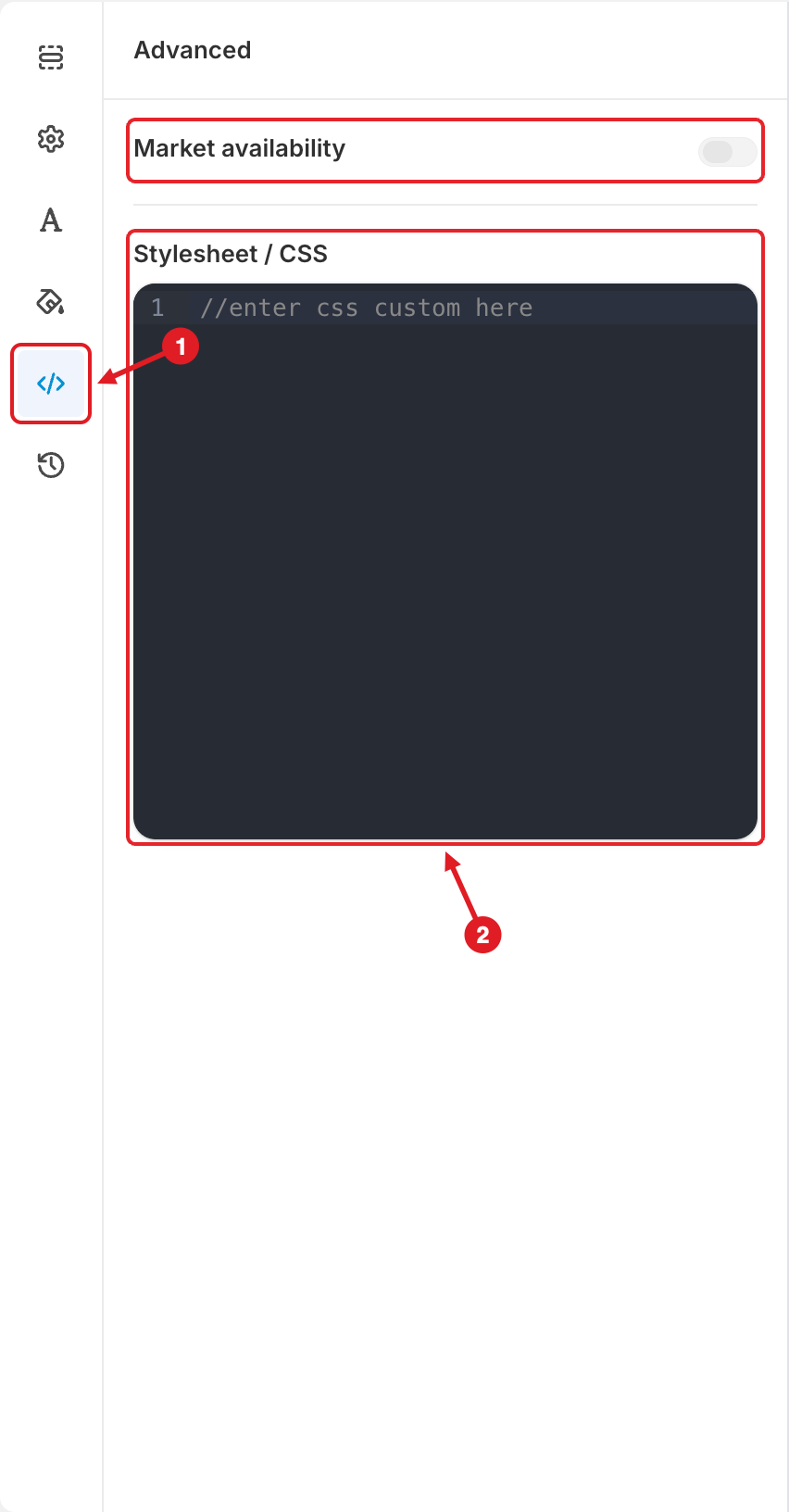
In the menu editor, click the Advanced icon (</>) in the left sidebar (1).

Advanced tab
Open the Advanced tab (1) and type your CSS in Stylesheet / CSS (2). The unnumbered Market availability box isn't needed here.
2

Add your CSS

Type or paste your CSS in the Stylesheet / CSS editor (2), replacing the //enter css custom here placeholder.

3

Save and publish

Click Save, then Publish. Open your storefront and hard-refresh the page to see the result.

🎯 Target the Right Elements

The CSS you enter is added to the page as it is — the app doesn't limit it to this menu. Write selectors that only match the menu, so you don't change other parts of your theme:

  • Every menu uses the class gm-menu, and each menu also has its own class gm-menu-<ID> (right-click the menu on your storefront > Inspect to see it). Start your selectors with .gm-menu to target all menus, or with .gm-menu-<ID> to target just one.

  • To style one specific item, give it an Extra classname in the Advanced section of the item's settings (see Edit Menu Item), then use that class in your CSS.

Example — make an item with the extra classname sale-item bold and red:

.gm-menu .sale-item > .gm-target {
  color: #d72c0d !important;
  font-weight: 700 !important;
}

The same Advanced tab also has Market availability, which limits the menu to selected markets. See Show Menus by Market.


Adjust Menu ColorsAdjust Menu FontEdit Menu Item

💬 Need help?

Email us at 📧 contact@globo.io - we’re happy to assist!

Last updated

Was this helpful?