> For the complete documentation index, see [llms.txt](https://docs.globo.io/llms.txt). Markdown versions of documentation pages are available by appending `.md` to page URLs; this page is available as [Markdown](https://docs.globo.io/mega-menu/basic-knowledge/modify-menu-position-advanced.md).
# Modify Menu Position (Advanced)
Place the menu exactly where you want by adding containers to your theme code.
If your theme has no menu element in the place where you want the Globo menu — or its header is too custom for the other position methods — you can add your own empty **container** to the theme code and tell the app to show the menu there with [Show menu on this CSS selector](/mega-menu/basic-knowledge/publish-new-menu-to-theme/show-menu-on-this-css-selector.md).
{% hint style="warning" %}
**Duplicate your theme before editing code** (**Online Store** > **Themes** > **…** > **Duplicate**), so you can roll back if something goes wrong. If you're not comfortable with code, contact us — we install the menu for free.
{% endhint %}
## Steps to Set Up
{% stepper %}
{% step %}
### Open the theme code
Go to **Online Store** > **Themes**, click **…** on the theme and choose **Edit code**.
{% endstep %}
{% step %}
### Add the menu containers
Paste an empty placeholder where each menu should render. You can use any ID you like — these are just examples:
```html
```
Where to put them depends on your theme. Usually:
* **Desktop:** in the header section file (for example `sections/header.liquid`), where the navigation should be.
* **Mobile:** inside the menu drawer file of your theme, or in `layout/theme.liquid`.
Click **Save** in the code editor.
{% hint style="info" %}
The app fills each container with the menu — anything already inside it is replaced. Your theme's original menu is **not** removed automatically; hide or remove it in the code (or via theme settings) if you don't want both.
{% endhint %}
{% endstep %}
{% step %}
### Point the app at the containers
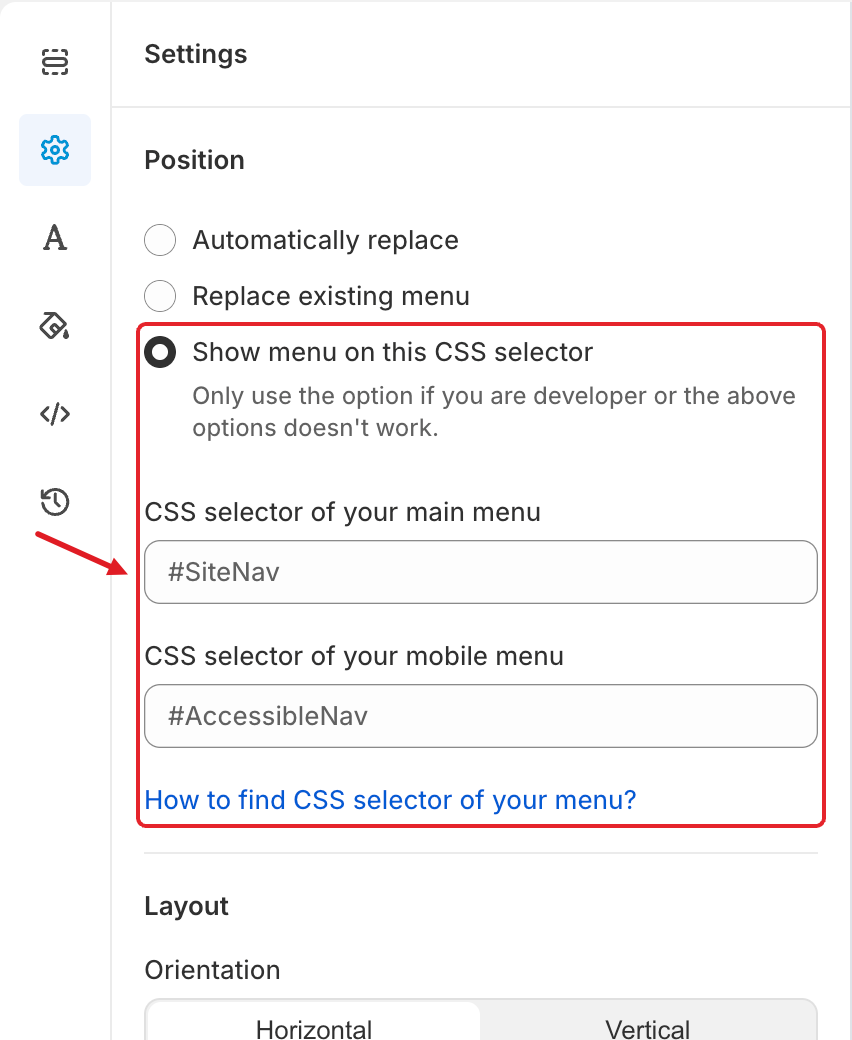
In the app, open the menu editor > **Settings** tab (⚙️) > **Position** > **Show menu on this CSS selector** and enter:
* **CSS selector of your main menu:** `#GloboDesktopMenu`
* **CSS selector of your mobile menu:** `#GloboMobileMenu`
Enter your container IDs in the two CSS selector fields
Only need one layout? Add a single container and leave the other field empty.
{% endstep %}
{% step %}
### Save, publish and check
Click **Save**, then **Publish**, and check your storefront on desktop and mobile.
{% endstep %}
{% endstepper %}
## ⚠️ Good to Know
* Code edits only apply to the theme you edited. If you switch or update your theme, add the containers again.
* Put the containers in code that is always rendered. If the mobile menu doesn't appear because your theme builds its drawer later with JavaScript, move the mobile container somewhere that's always in the page, such as `layout/theme.liquid`.
* **Nothing shows?** Make sure the [app embed](/mega-menu/basic-knowledge/enable-app-embed.md) is on for this theme, and check in your browser console that `document.querySelector('#GloboDesktopMenu')` finds your container.
***
### Related Articles
{% content-ref url="/pages/f4oQERys4to2Q0QUV7xu" %}
[Show Menu on This CSS Selector](/mega-menu/basic-knowledge/publish-new-menu-to-theme/show-menu-on-this-css-selector.md)
{% endcontent-ref %}
{% content-ref url="/pages/GicujsB7qcB0s3MYM7JU" %}
[Publish New Menu to Theme](/mega-menu/basic-knowledge/publish-new-menu-to-theme.md)
{% endcontent-ref %}
{% content-ref url="/pages/BtejsCo8DyYok4eGTxPy" %}
[Custom CSS](/mega-menu/adjust-menu-styling/custom-css.md)
{% endcontent-ref %}
***
**💬 Need help?**
Email us at **📧** [**contact@globo.io**](mailto:contact@globo.io) - we’re happy to assist!