> For the complete documentation index, see [llms.txt](https://docs.globo.io/llms.txt). Markdown versions of documentation pages are available by appending `.md` to page URLs; this page is available as [Markdown](https://docs.globo.io/mega-menu/basic-knowledge/preview-menu-on-draft-theme.md).
# Preview Menu Before Going Live
Check your menu safely before customers see it.
Before you publish a new menu — or publish big changes to a live one — you can check how it looks without affecting your customers. There are two ways:
| Option | Best for |
| ---------------------- | -------------------------------------------------------------------------------------------------------------------------- |
| **Preview in the app** | Quick checks while editing, and a real storefront preview that only you see. Works even when you already have a live menu. |
| **Use a draft theme** | Testing on a full copy of your theme before the app goes live on your store. |
## Option 1: Preview in the App
{% stepper %}
{% step %}
### Switch between desktop and mobile in the editor
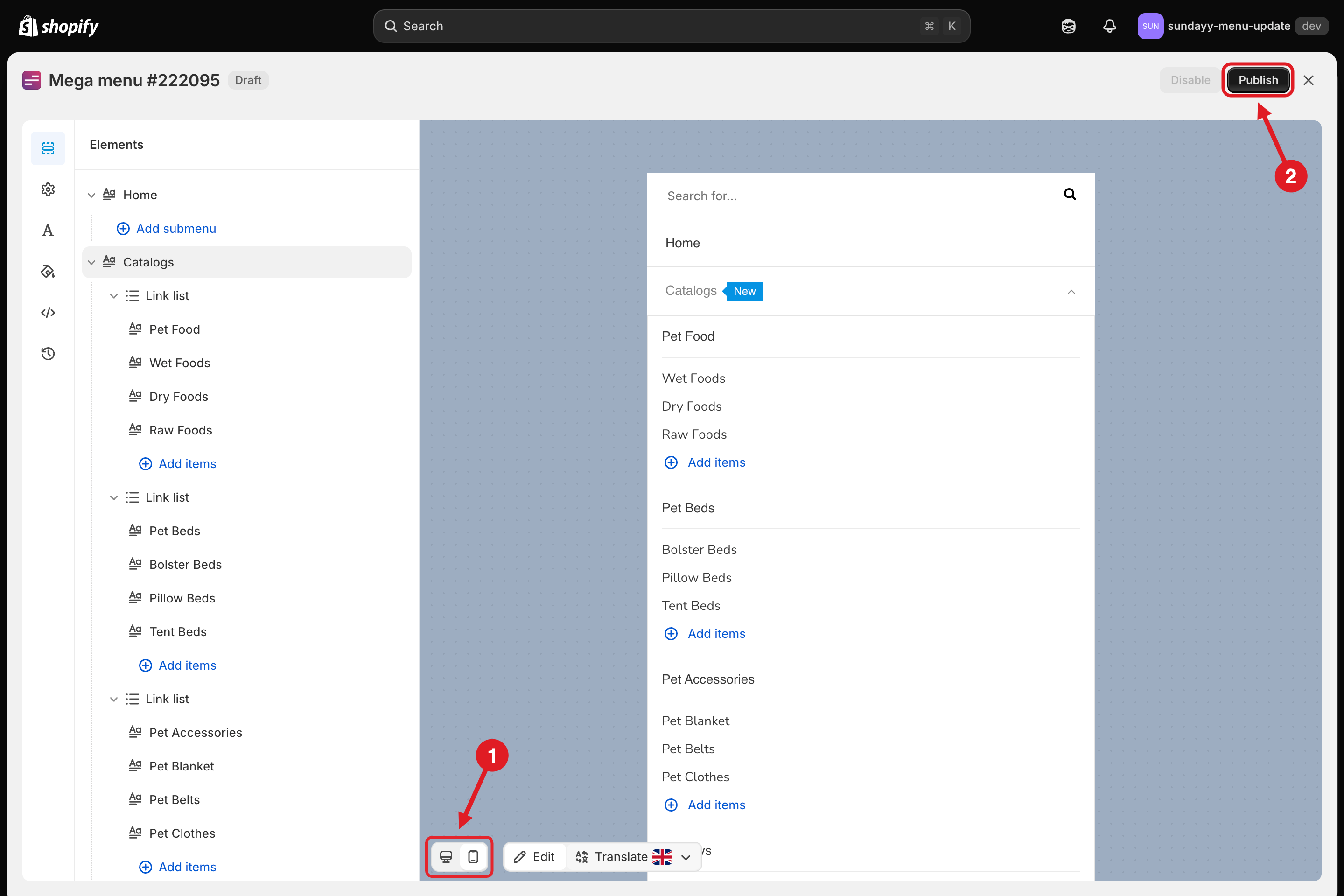
The editor preview updates as you edit. Use the **desktop / mobile** switch **(1)** at the bottom of the preview to check both layouts.
Editor: (1) desktop / mobile switch, (2) Publish button that opens the Preview option
{% endstep %}
{% step %}
### Preview on your real storefront
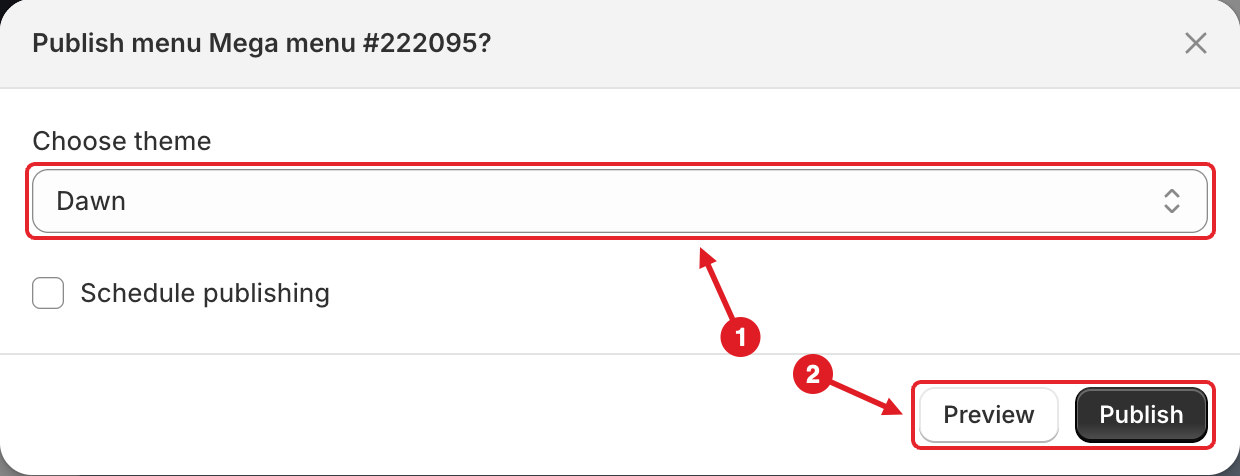
Click **Save**, then click **Publish (2)** in the top-right corner. In the **Publish** dialog, select the theme under **Choose theme** and click **Preview** (don't click **Publish**).
Publish dialog: (1) Choose theme, (2) click Preview (the left button)
Your storefront opens in a new tab showing this version of the menu on the chosen theme. The preview uses a special link, so only people who open that link see it — your customers keep seeing the current menu.
{% endstep %}
{% step %}
### Publish when you're happy
Close the preview tab, go back to the dialog and click **Publish**.
{% endstep %}
{% endstepper %}
{% hint style="info" %}
The storefront preview needs the [app embed](/mega-menu/basic-knowledge/enable-app-embed.md) to be enabled on the theme you preview. If nothing changes in the preview tab, check the embed and refresh after a few seconds.
{% endhint %}
## Option 2: Use a Draft Theme
{% hint style="warning" %}
A published menu shows on **every theme where the Mega menu app embed is enabled**. Use this option only when the app embed is **not** enabled on your live theme yet (for example, when you're setting the app up for the first time). If your live theme already uses the app, use **Option 1** instead.
{% endhint %}
{% stepper %}
{% step %}
### Duplicate your live theme
Go to **Online Store** > **Themes**, click **…** next to your live theme and choose **Duplicate**.
{% endstep %}
{% step %}
### Enable the app embed on the duplicate only
Click **Customize** on the duplicated theme and turn **Mega menu** on in **App embeds**, then **Save**. Leave it off on your live theme for now. See [Enable App Embed](/mega-menu/basic-knowledge/enable-app-embed.md).
{% endstep %}
{% step %}
### Publish the menu to the duplicate
In the app, click **Publish** and select the duplicated theme under **Choose theme**, then click **Publish**.
{% endstep %}
{% step %}
### Preview the duplicate
In **Online Store** > **Themes**, click **…** > **Preview** on the duplicated theme and test the menu on desktop and mobile.
{% endstep %}
{% step %}
### Go live
When you're happy, either publish the duplicated theme in Shopify, or enable the app embed on your live theme and publish the menu to it.
{% endstep %}
{% endstepper %}
***
### Related Articles
{% content-ref url="/pages/GicujsB7qcB0s3MYM7JU" %}
[Publish New Menu to Theme](/mega-menu/basic-knowledge/publish-new-menu-to-theme.md)
{% endcontent-ref %}
{% content-ref url="/pages/A3ybekGYPMIrQCj905wO" %}
[Enable App Embed](/mega-menu/basic-knowledge/enable-app-embed.md)
{% endcontent-ref %}
{% content-ref url="/pages/a9eezz4VJLITzn3qkD5a" %}
[Disable App from Theme](/mega-menu/basic-knowledge/disable-app-from-theme.md)
{% endcontent-ref %}
{% content-ref url="/pages/9nUonB2Yv5PPWudjIsAt" %}
[Version History](/mega-menu/manage-menus/version-history.md)
{% endcontent-ref %}
***
**💬 Need help?**
Email us at **📧** [**contact@globo.io**](mailto:contact@globo.io) - we’re happy to assist!