> For the complete documentation index, see [llms.txt](https://docs.globo.io/llms.txt). Markdown versions of documentation pages are available by appending `.md` to page URLs; this page is available as [Markdown](https://docs.globo.io/mega-menu/basic-knowledge/publish-new-menu-to-theme.md).
# Publish New Menu to Theme
Publish your menu to a theme and choose where it appears on your storefront.
A new menu starts as a **Draft**: you can edit it as much as you like and customers don't see it. **Publishing** makes it **Active** on your storefront. This page covers the **Publish** dialog and the **Position** settings that decide where the menu appears.
## Steps to Publish
{% stepper %}
{% step %}
### Click Publish
In the menu editor, click **Save** if you have unsaved changes, then click **Publish** in the top-right corner.
You can also publish from **Menu manager**: click **Publish** on the menu's row.
{% endstep %}
{% step %}
### Choose the theme
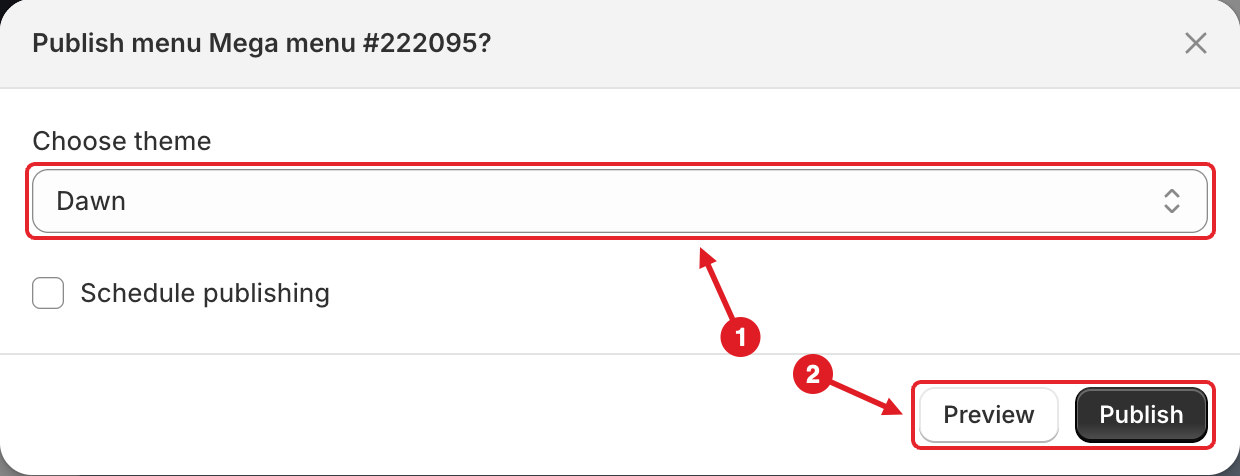
The dialog is titled **Publish menu** followed by your menu name. Under **Choose theme (1)**, select the theme. The list shows your live theme — marked **(Live theme)** — and your unpublished themes.
Publish dialog: (1) Choose theme, (2) Preview and Publish buttons
The app checks the app embed on this theme and uses it to fit the menu to the theme's header.
{% endstep %}
{% step %}
### (Optional) Schedule publishing
Tick **Schedule publishing** to show the menu only for a period of time, then set:
* **Start date** / **Start time** — when the menu goes live.
* **End date** / **End time** — when the menu is taken down.
You must set at least one of the two, both must be in the future, and the start must be before the end. More details: [Schedule Menus and Items](/mega-menu/manage-menus/schedule-menus-and-items.md).
{% hint style="info" %}
**Schedule publishing** is a **Pro Navigation** feature. On **Basic Navigation** and **Growth Navigation** the checkbox is disabled, with a note linking to the **Pro Navigation** plan on the Pricing page.
{% endhint %}
{% endstep %}
{% step %}
### (Optional) Preview
Click **Preview (2)** to open your storefront in a new tab with this menu, before customers see it. See [Preview Menu Before Going Live](/mega-menu/basic-knowledge/preview-menu-on-draft-theme.md).
{% endstep %}
{% step %}
### Publish
Click **Publish (2)**. The menu's status changes to **Active**.
* **Publishing from the editor:** the dialog closes and you only see a **Menu published** message. It does **not** warn you if the app embed is off, so check the **App status** card on **Home** (or follow [Enable App Embed](/mega-menu/basic-knowledge/enable-app-embed.md)) the first time you publish to a theme.
* **Publishing from Menu manager:** if the app embed is off on the chosen theme, the dialog stays open, tells you to enable it and shows a **Go to app embeds settings** button — click it, turn **Mega menu** on and click **Save**.
{% endstep %}
{% endstepper %}
{% hint style="info" %}
There might be a small delay while publishing. Wait a few minutes and refresh your storefront before testing.
{% endhint %}
{% hint style="warning" %}
**Features outside your plan:** if the menu uses features or submenu items that aren't included in your current plan, the dialog shows a warning listing them (for example **Multi-language**, **Menu Versions (Switch Multiple Menus)** or **Bottom navigation bar**). Those items are not displayed on your Online Store until you upgrade. Click **Go to pricing** to see the plans, or remove those items before publishing. See [Plans and Billing](/mega-menu/analytics-and-billing/plans-and-billing.md).
{% endhint %}
### Update a Published Menu
After you edit an **Active** menu, click **Save** and then **Publish** again so the storefront gets the latest version of your menu (items, blocks, settings and position).
You don't need to republish when you change products, collections or blog posts in Shopify admin: product, collection and blog blocks load that data live on your storefront, so titles, prices, images, stock and new posts update automatically. What the menu stores is its own item titles and links and the products/collections/blogs you picked (by handle) — if you change the handle (URL) of one of those or delete it in Shopify, pick it again in the menu. Item titles you typed yourself don't follow renames in Shopify. See [Changes I Made in Shopify Admin Don't Appear in the Menu](/mega-menu/faqs/why-are-shopifys-changes-not-reflected-on-menu.md).
### Take a Menu Down
Click **Disable** (in the editor or in **Menu manager**). The menu goes back to **Draft** and, unless another app menu is published in the same place, your theme's original menu shows again. See [Disable App from Theme](/mega-menu/basic-knowledge/disable-app-from-theme.md).
## Choose Where the Menu Appears
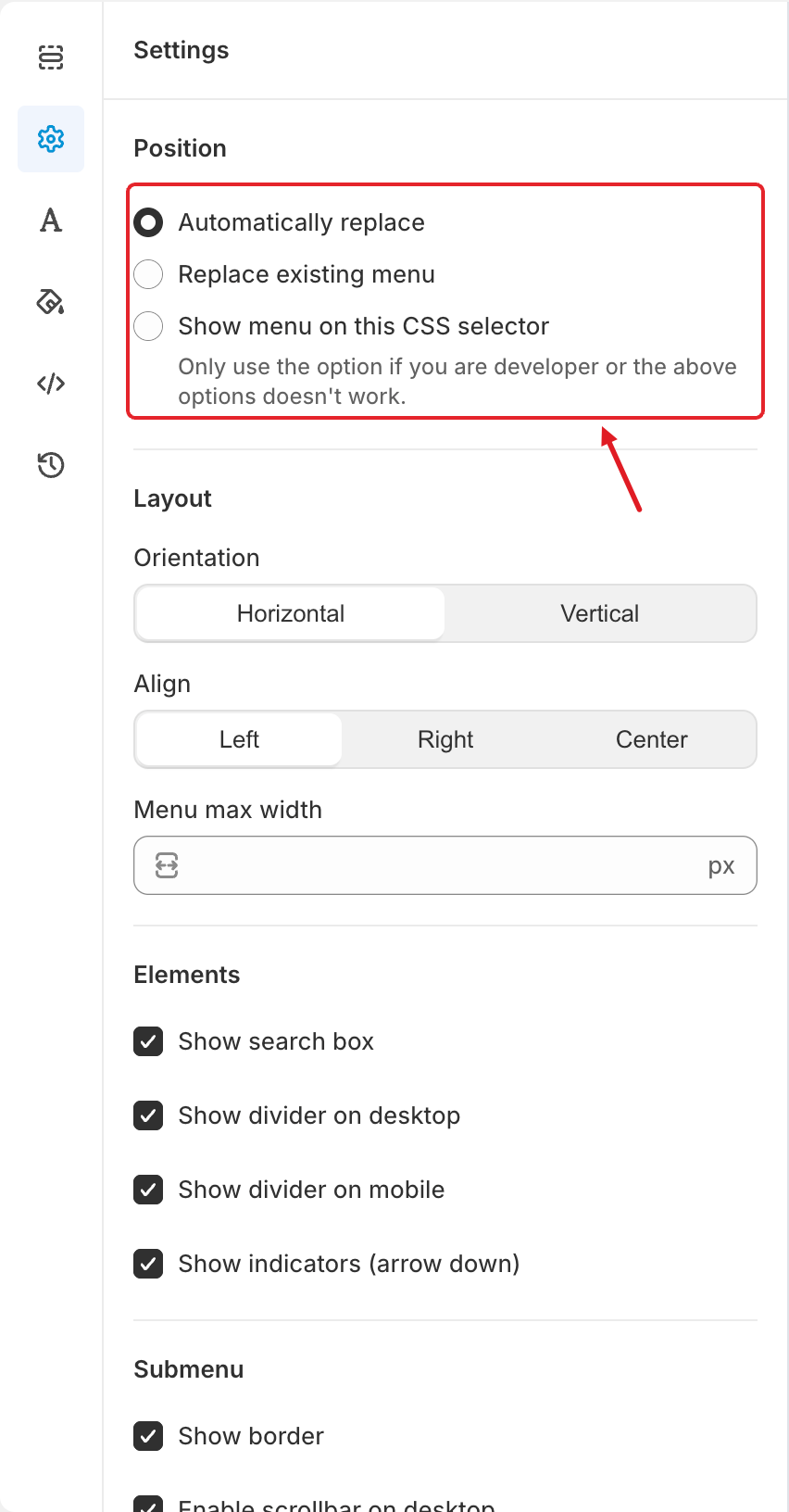
In the menu editor, open the **Settings** tab (⚙️ icon in the left bar). Under **Position**, pick one of three methods:
The three Position options in the Settings tab
| Method | How it works | When to use it |
| ------------------------------------------------------------------------------------------------------------------------ | ------------------------------------------------------------------------------------------------------------------------------- | ----------------------------------------------------------------------------------------------- |
| [Automatically replace](/mega-menu/basic-knowledge/publish-new-menu-to-theme/automatic.md) | The app recognises your theme and replaces its header menu. | **Recommended.** Start here — it works out of the box on 150+ Shopify Theme Store themes. |
| [Replace existing menu](/mega-menu/basic-knowledge/publish-new-menu-to-theme/replace-navigation.md) | You pick the Shopify navigation (e.g. *Main menu*) that your theme's header uses; the app finds it on the page and replaces it. | Automatic doesn't pick the right menu, or your header uses a navigation other than *Main menu*. |
| [Show menu on this CSS selector](/mega-menu/basic-knowledge/publish-new-menu-to-theme/show-menu-on-this-css-selector.md) | You enter the CSS selectors of the elements to replace, for desktop and mobile. | Custom or heavily edited themes, or to place the menu somewhere specific. Meant for developers. |
After changing **Position**, click **Save** and **Publish** again.
***
### Related Articles
{% content-ref url="/pages/Q2gH8NAZJrE1nCavAehy" %}
[Automatic](/mega-menu/basic-knowledge/publish-new-menu-to-theme/automatic.md)
{% endcontent-ref %}
{% content-ref url="/pages/Nb2f1ukj2KKku4ArfPde" %}
[Replace Navigation](/mega-menu/basic-knowledge/publish-new-menu-to-theme/replace-navigation.md)
{% endcontent-ref %}
{% content-ref url="/pages/f4oQERys4to2Q0QUV7xu" %}
[Show Menu on This CSS Selector](/mega-menu/basic-knowledge/publish-new-menu-to-theme/show-menu-on-this-css-selector.md)
{% endcontent-ref %}
{% content-ref url="/pages/A3ybekGYPMIrQCj905wO" %}
[Enable App Embed](/mega-menu/basic-knowledge/enable-app-embed.md)
{% endcontent-ref %}
{% content-ref url="/pages/NZ5M2u702ZmxwHspbbvB" %}
[Schedule Menus and Items](/mega-menu/manage-menus/schedule-menus-and-items.md)
{% endcontent-ref %}
***
**💬 Need help?**
Email us at **📧** [**contact@globo.io**](mailto:contact@globo.io) - we’re happy to assist!