> For the complete documentation index, see [llms.txt](https://docs.globo.io/llms.txt). Markdown versions of documentation pages are available by appending `.md` to page URLs; this page is available as [Markdown](https://docs.globo.io/mega-menu/basic-knowledge/publish-new-menu-to-theme/automatic.md).
# Automatic
Let the app detect and replace your theme's header menu automatically.
**Automatically replace** is the default and recommended position method. The app recognises your theme, finds its header menu (desktop and mobile) and replaces it with your Globo menu — no setup needed.
It works out of the box on 150+ Shopify Theme Store themes (Dawn, Horizon, Prestige, Impulse and many more), and the app applies theme-specific styling so the menu fits your header.
## Steps to Set Up
{% stepper %}
{% step %}
### Open Position settings
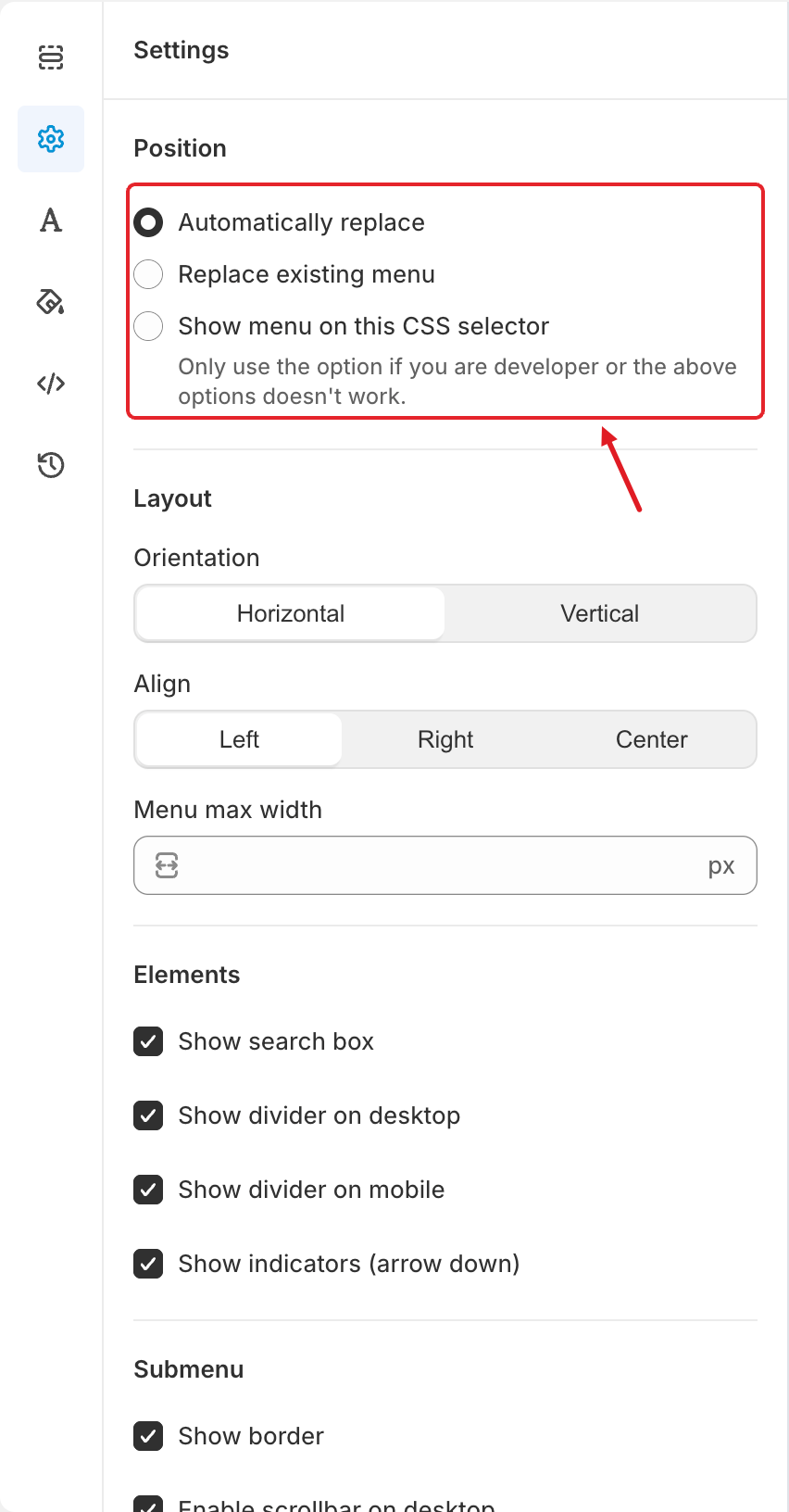
In the menu editor, click the **Settings** tab (⚙️ icon in the left bar). **Position** is the first section.
{% endstep %}
{% step %}
### Select Automatically replace
Choose **Automatically replace**. There are no extra fields for this option.
The three Position options — choose Automatically replace (the first one)
{% endstep %}
{% step %}
### Save and publish
Click **Save**, then [publish the menu](/mega-menu/basic-knowledge/publish-new-menu-to-theme.md) and make sure the [app embed is enabled](/mega-menu/basic-knowledge/enable-app-embed.md) on the same theme.
{% endstep %}
{% step %}
### Check desktop and mobile
Open your storefront and check the header on a computer and on a phone (or a narrow browser window). The menu should appear in place of your theme's menu in both layouts.
{% endstep %}
{% endstepper %}
## ⚙️ How It Works
* **Recognised theme:** the app uses the known locations of the desktop and mobile menus for your theme.
* **Theme not recognised** (custom themes, or themes not in the app's list): the app looks for a menu on the page whose links match your Shopify **Main menu** navigation and replaces it.
{% hint style="info" %}
**The menu doesn't appear, or appears in the wrong place?**
* Your header may use a navigation other than *Main menu* — use [Replace navigation](/mega-menu/basic-knowledge/publish-new-menu-to-theme/replace-navigation.md) and pick the right one.
* Your theme's header may be custom-coded — use [Show menu on this CSS selector](/mega-menu/basic-knowledge/publish-new-menu-to-theme/show-menu-on-this-css-selector.md).
* Or email us — we install the menu for free.
{% endhint %}
{% hint style="warning" %}
If your theme was edited heavily (for example a custom header section), automatic detection may not find the menu even on a supported theme. Try the other two methods before contacting us.
{% endhint %}
***
### Related Articles
{% content-ref url="/pages/Nb2f1ukj2KKku4ArfPde" %}
[Replace Navigation](/mega-menu/basic-knowledge/publish-new-menu-to-theme/replace-navigation.md)
{% endcontent-ref %}
{% content-ref url="/pages/f4oQERys4to2Q0QUV7xu" %}
[Show Menu on This CSS Selector](/mega-menu/basic-knowledge/publish-new-menu-to-theme/show-menu-on-this-css-selector.md)
{% endcontent-ref %}
{% content-ref url="/pages/9mmChkRayUxL6tTLfPaO" %}
[Will It Work with My Theme?](/mega-menu/faqs/will-it-work-with-my-shopify-theme.md)
{% endcontent-ref %}
{% content-ref url="/pages/xrVVZ40v8dnp0dB2SnP5" %}
[The Menu Doesn't Show (or Shows Incorrectly)](/mega-menu/faqs/why-the-menu-does-not-show-or-shows-incorrectly-on-our-website.md)
{% endcontent-ref %}
***
**💬 Need help?**
Email us at **📧** [**contact@globo.io**](mailto:contact@globo.io) - we’re happy to assist!