> For the complete documentation index, see [llms.txt](https://docs.globo.io/llms.txt). Markdown versions of documentation pages are available by appending `.md` to page URLs; this page is available as [Markdown](https://docs.globo.io/mega-menu/manage-menu-items/manage-submenu-items/dropdown-menu.md).
# Dropdown Menu
A simple list of links that opens under a menu item.
A dropdown (flyout) menu shows child items in a simple list under a top-level item. It's the best choice for short menus such as *About → Our story, Contact, FAQ*, and it supports several levels (for example *Shoes → Sneakers → Nike*). Dropdowns are available on all plans.
Dropdown templates
| Template | Result |
| ----------------------- | ---------------------------------------------------------------------------------------------------------------------------------------------- |
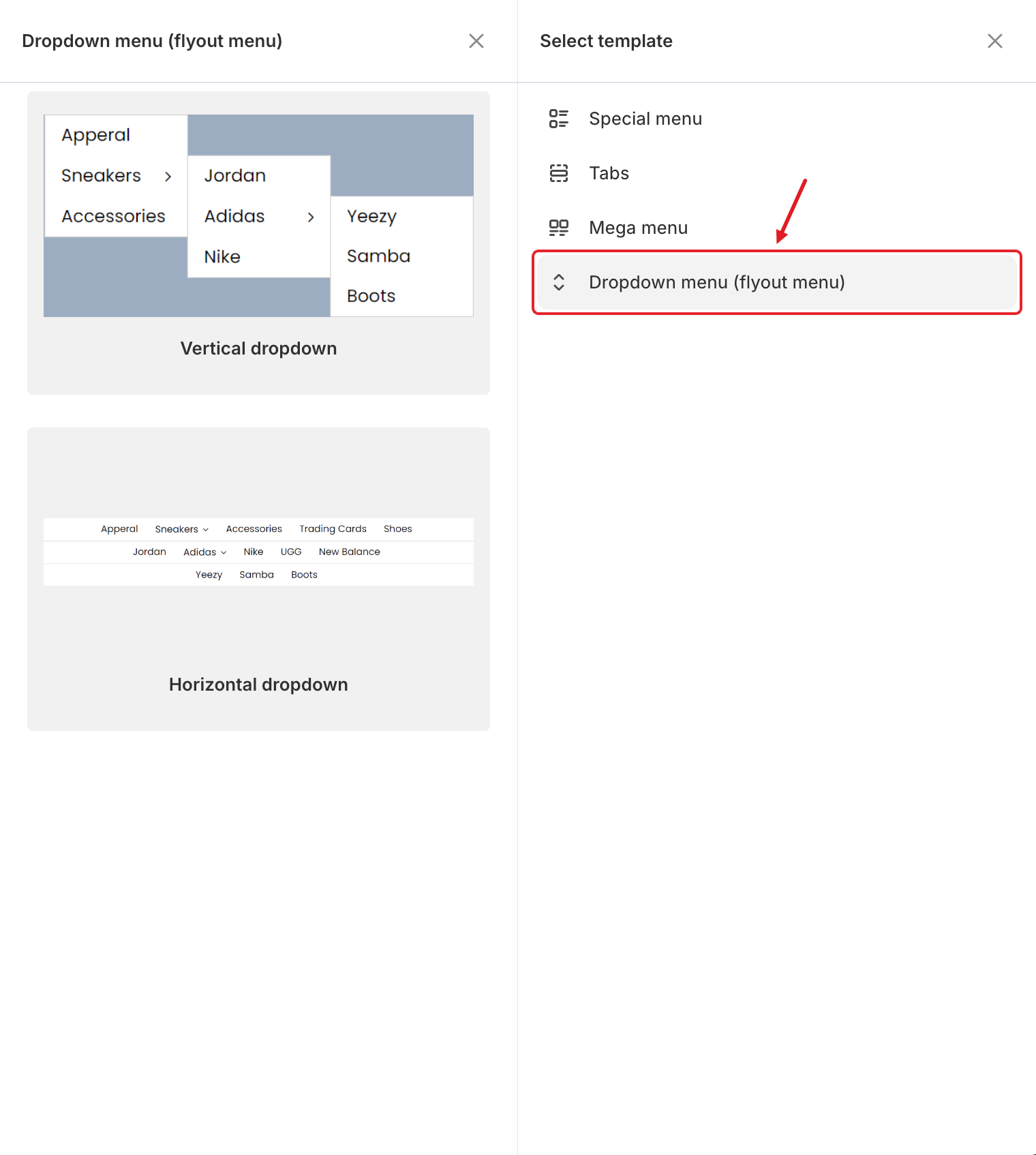
| **Vertical dropdown** | Items are stacked in a column under the menu item. Deeper levels fly out to the side (see *Sneakers → Jordan, Adidas → Yeezy* in the preview). |
| **Horizontal dropdown** | Items are shown in a row across the full width under the menu bar. Each deeper level opens as a new row below. |
## Add a Dropdown
{% stepper %}
{% step %}
### Open Select template
In the **Elements** tree, click **Add submenu** under the top-level item.
{% endstep %}
{% step %}
### Choose Dropdown menu (flyout menu)
In **Select template**, point to **Dropdown menu (flyout menu)**. The two dropdown templates appear on the left.
{% endstep %}
{% step %}
### Select a template
Click **Select** on **Vertical dropdown** or **Horizontal dropdown**. The dropdown is added with sample items.
{% endstep %}
{% step %}
### Edit or add child items
In the **Elements** tree, under the dropdown:
* Click a sample item's ✏️ **Edit Item** button to change its **Title** and **Link**.
* Click **Add items** to add another item at the same level.
* Click **Add dropdown** under an item to give it its own deeper list (a new level).
Each dropdown item has the same settings as a top-level item: **Icon**, **Title**, **Link**, **Image icon**, **Description**, **Badge** and **Visibility**. See [Edit Menu Item](/mega-menu/manage-menu-items/modify-main-menu-item.md).
{% endstep %}
{% step %}
### Save and publish
Click **Save** in the top bar, then **Publish**.
{% endstep %}
{% endstepper %}
## ⚙️ Switch Between Vertical and Horizontal
You don't need to rebuild the dropdown to change its layout. Open the parent item (✏️ **Edit Item**), go to **Submenu** > **Type** and choose **Vertical dropdown**, **Horizontal dropdown** or **None** (turns the dropdown off but keeps its items).
For a **Vertical dropdown**, **Width + alignment** sets where the list opens: **Center**, **Left** or **Right** of the item. A **Horizontal dropdown** always uses the full width.
## 💡 Tips
* Keep dropdowns to about 3 levels. Deeper menus are hard to use, especially on mobile.
* Need images, products or several columns? Use a [Mega Menu](/mega-menu/manage-menu-items/manage-submenu-items/mega-menu.md) instead.
* Items with no link work as labels that only open their own sub-list.
***
### Related Articles
{% content-ref url="/pages/La331S2qopj8nJM5dm65" %}
[Submenus](/mega-menu/manage-menu-items/manage-submenu-items.md)
{% endcontent-ref %}
{% content-ref url="/pages/f5H2ZdBdZILUk8k7C2Xo" %}
[Mega Menu](/mega-menu/manage-menu-items/manage-submenu-items/mega-menu.md)
{% endcontent-ref %}
{% content-ref url="/pages/tijc2NMtByMgkQkH1lzx" %}
[Tabbed Menu](/mega-menu/manage-menu-items/manage-submenu-items/tabbed-menu.md)
{% endcontent-ref %}
***
**💬 Need help?**
Email us at **📧** [**contact@globo.io**](mailto:contact@globo.io) - we’re happy to assist!