Menu Manager
See, create and manage every menu in your store.
Menu manager is the app's home for all your menus. From here you create new menus, import a backup, publish or disable a menu, open it in the editor, and rename, duplicate, export, translate or delete it.
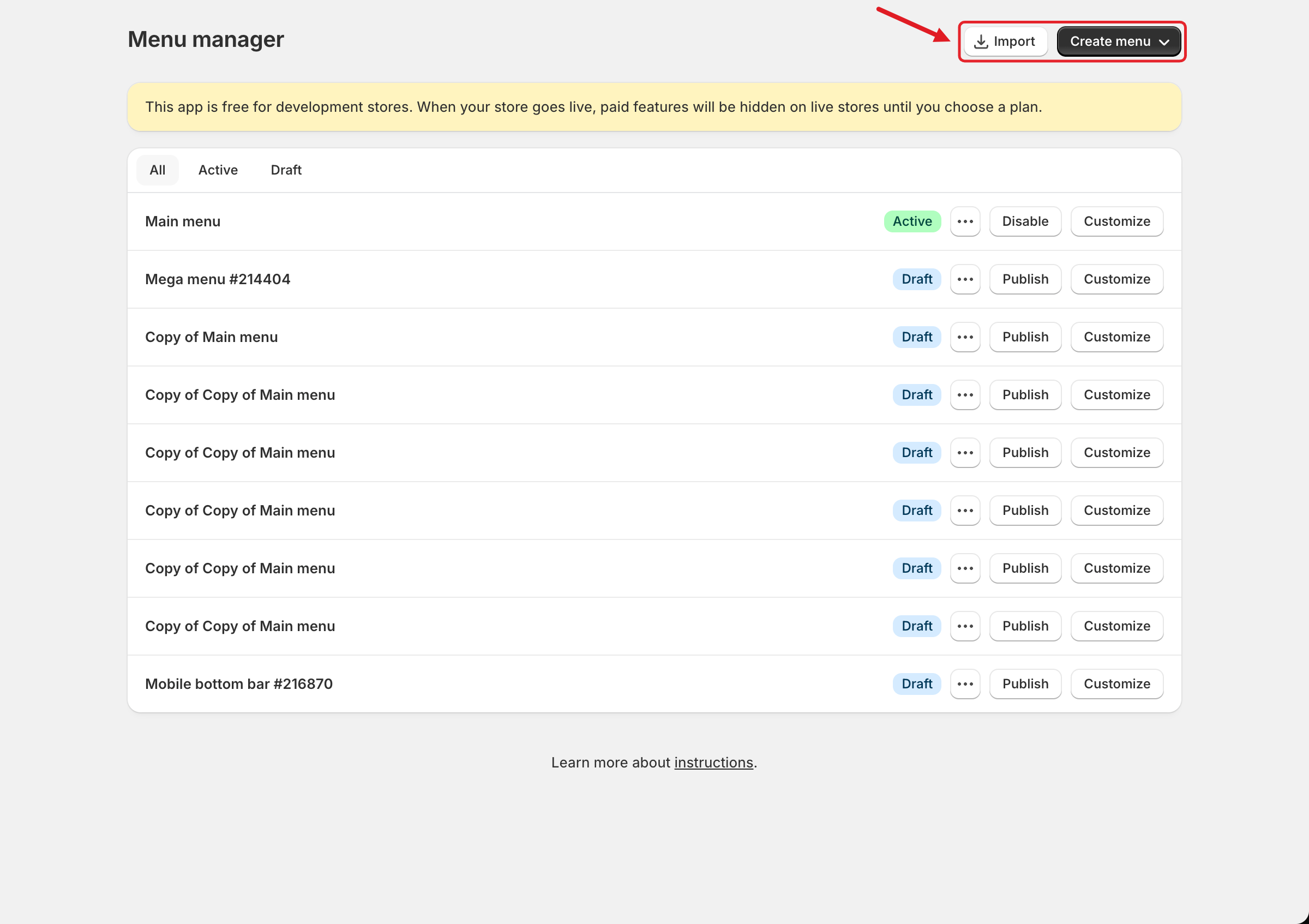
The Import and Create menu buttons are at the top right. Below them is the list of every mega menu and mobile bottom bar in your store.

📋 The Menu List
Each row is one menu. From left to right:
All / Active / Draft tabs
Show all menus, only published menus, or only unpublished menus.
Menu name
For example Main menu, Mega menu #214404 or Mobile bottom bar #216870. New menus get a name with a number, and you can rename them.
📅 Calendar icon
Appears only when the menu has a schedule. Hover over it to see Publish on: and/or Unpublish on: with the dates. See Schedule Menus and Items.
Active badge (green)
The menu is published and can appear on your storefront.
Draft badge (blue)
The menu isn't published. Customers don't see it.
⋯
Opens the menu actions (see Menu Actions below).
Publish / Disable
A draft menu has Publish, which opens the Publish dialog. An active menu has Disable, which unpublishes it and turns it back into a draft.
Customize
Opens the menu in the editor. See Menu Editor Overview.
Create a Menu
Choose the menu type
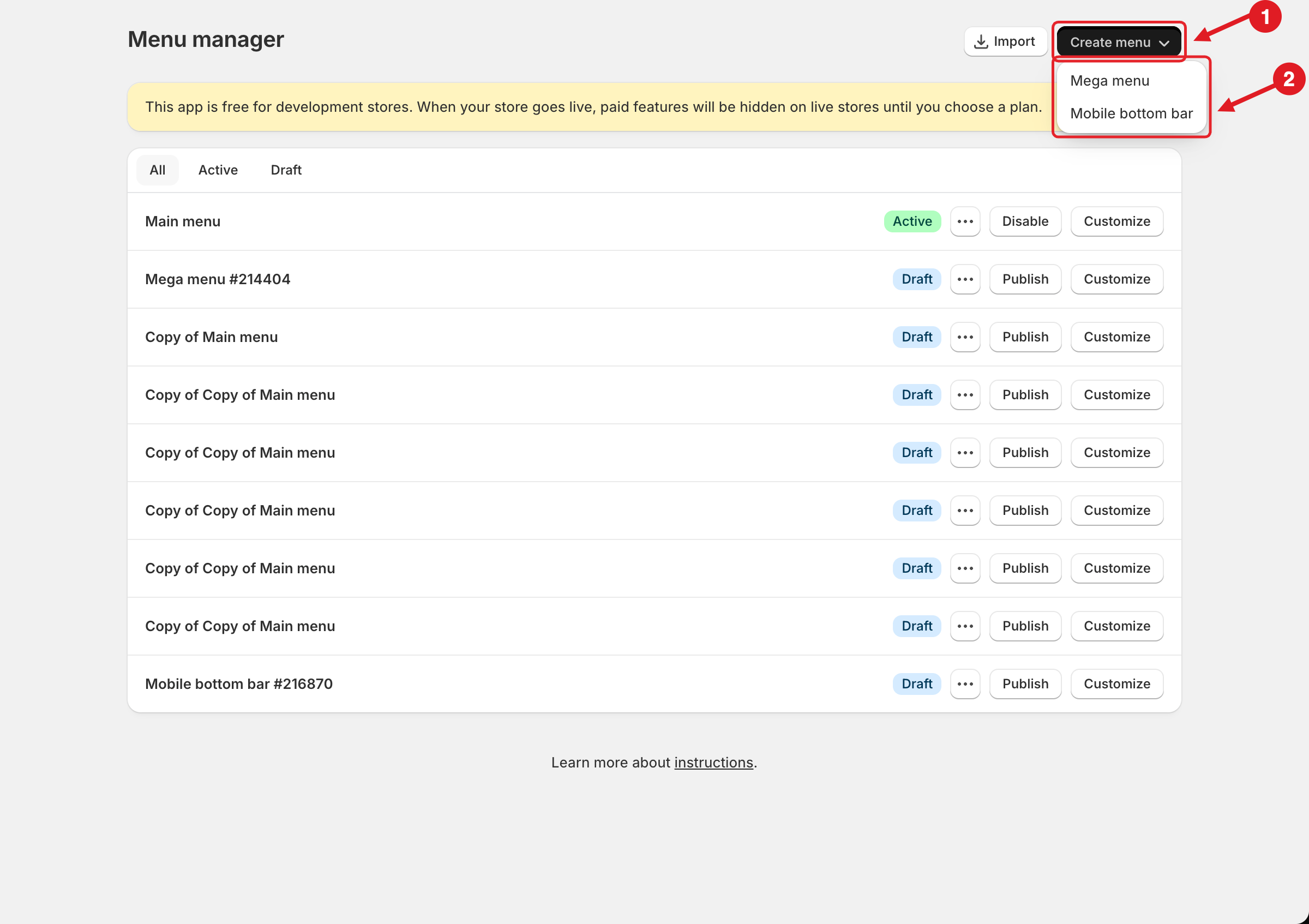
Click Create menu (1), then choose a type from the dropdown (2):
Mega menu: the main navigation menu in your store header, with dropdowns, mega menus, tabs and blocks.
Mobile bottom bar: a fixed navigation bar at the bottom of the screen on mobile. See Mobile Bottom Navigation Bar.

Choose how to start (Mega menu)
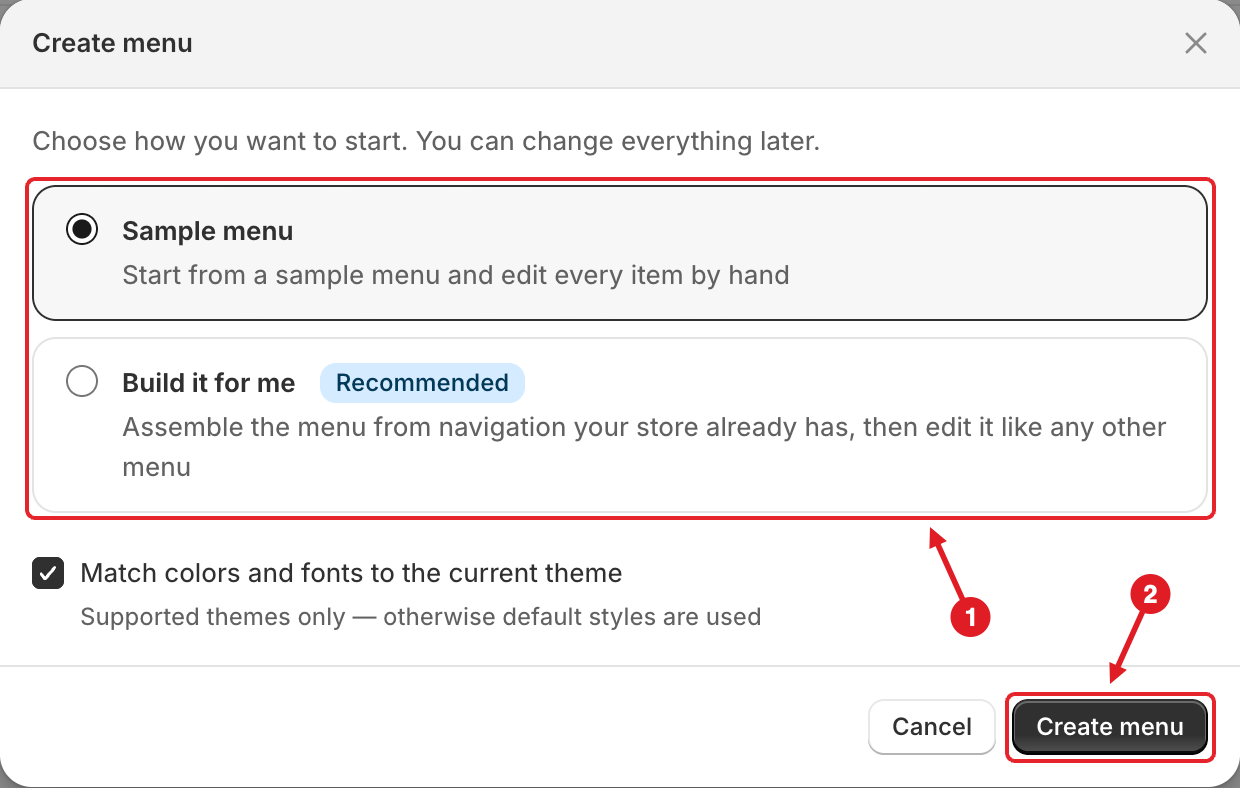
For a Mega menu, the Create menu dialog asks "Choose how you want to start. You can change everything later."
Sample menu (selected by default)
Creates a menu with example items that you edit by hand.
Build it for me (Recommended)
Builds the menu from navigation you already set up in Shopify. When you select it, a Shopify menu list appears: pick the Shopify menu to copy (for example Main menu). Nested links become submenus.
Match colors and fonts to the current theme is ticked by default. It reuses your theme's colors and fonts so the menu fits in straight away. This works on supported themes only; on other themes, default styles are used.

Click Create menu
The new menu is added to the list as a Draft. Open it with Customize to build it, then publish it. See Publish New Menu to Theme.
Menu Actions
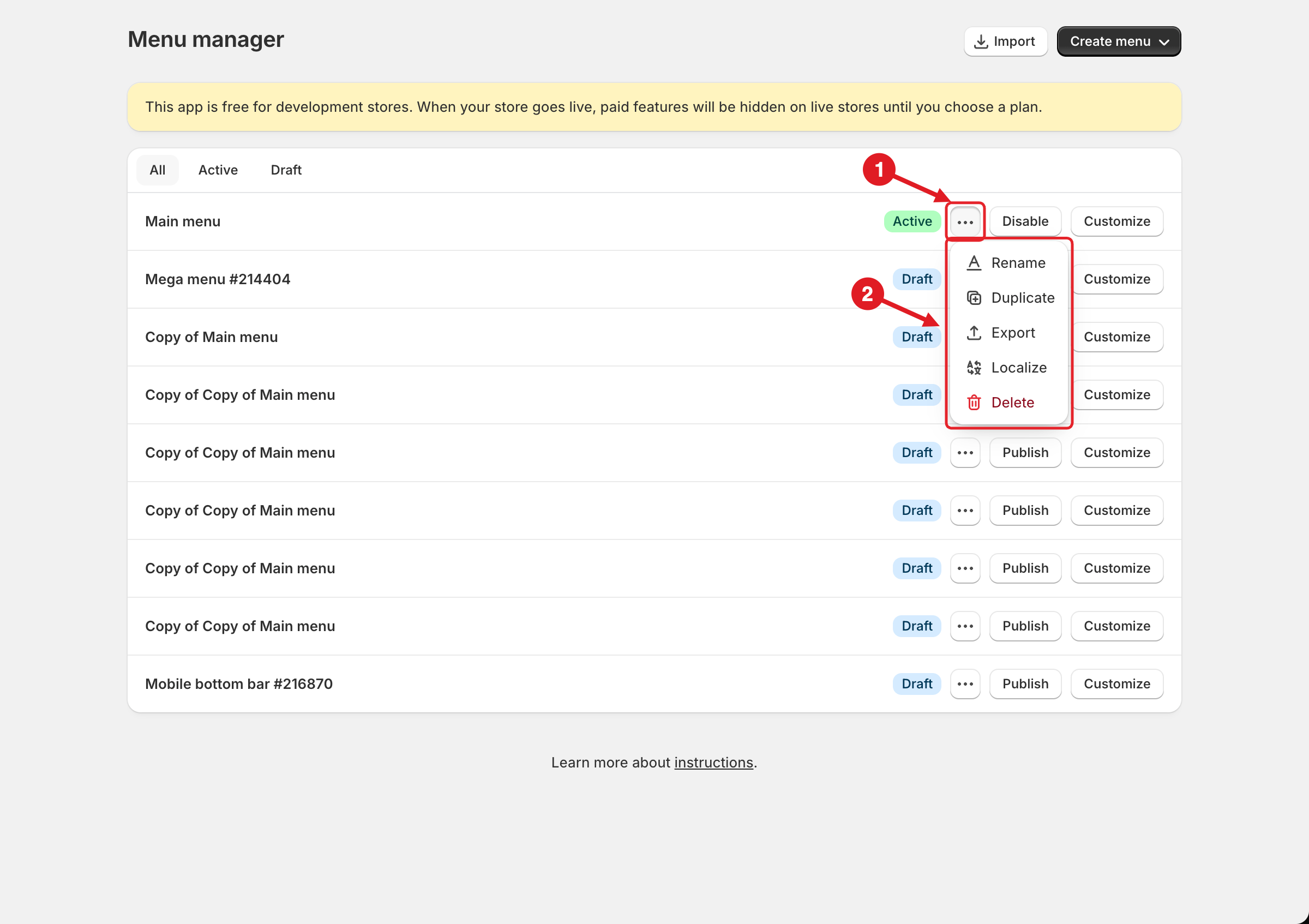
To see a menu's actions, click ⋯ (1) on its row. A list of actions opens (2):

Rename
Turns the name into a text field. Type the new name and click Save in the save bar at the top of the page. Names can be up to 50 characters and can use only letters, numbers, spaces and - # [ ]. Special characters like _ @ ! aren't allowed.
Duplicate
Makes a copy named Copy of …. The copy starts as a Draft. Duplicate a menu to back it up before big changes, or to start a seasonal version.
Export
Downloads the whole menu as a .json file (Pro Navigation). See Import/Export Menu.
Localize
Opens the Localization page for this menu, on every plan. On Basic Navigation you can translate the built-in texts in the General tab; translating the menu items needs Growth Navigation or Pro Navigation. See Translate Menu Items.
Delete
Asks you to confirm ("If you delete … , this can't be undone."). Click Delete menu to remove it.
Menu Limit
Each store can have up to 10 menus, counting both mega menus and mobile bottom bars. When you reach the limit, this banner appears. Create menu, Import and Duplicate are then disabled until you delete a menu you no longer use.

Related Articles
Menu Editor OverviewPublish New Menu to ThemeImport/Export MenuTranslate Menu ItemsMultiple Menus and Campaigns💬 Need help?
Email us at 📧 contact@globo.io - we’re happy to assist!
Last updated
Was this helpful?