> For the complete documentation index, see [llms.txt](https://docs.globo.io/llms.txt). Markdown versions of documentation pages are available by appending `.md` to page URLs; this page is available as [Markdown](https://docs.globo.io/mega-menu/menu-blocks/blocks.md).
# Blocks Overview
Blocks are the content of a mega menu or tab — links, images, products and more.
A **block** is one piece of content inside a mega menu (or inside a tab): a column of links, a banner image, a product grid, a countdown and so on. Blocks sit side by side in a row, and each block's **Width** decides how much of the row it takes. Use blocks whenever a simple dropdown isn't enough and you want to show images, products or promotions right in the menu.
## Add a Block
{% stepper %}
{% step %}
### Click Add block
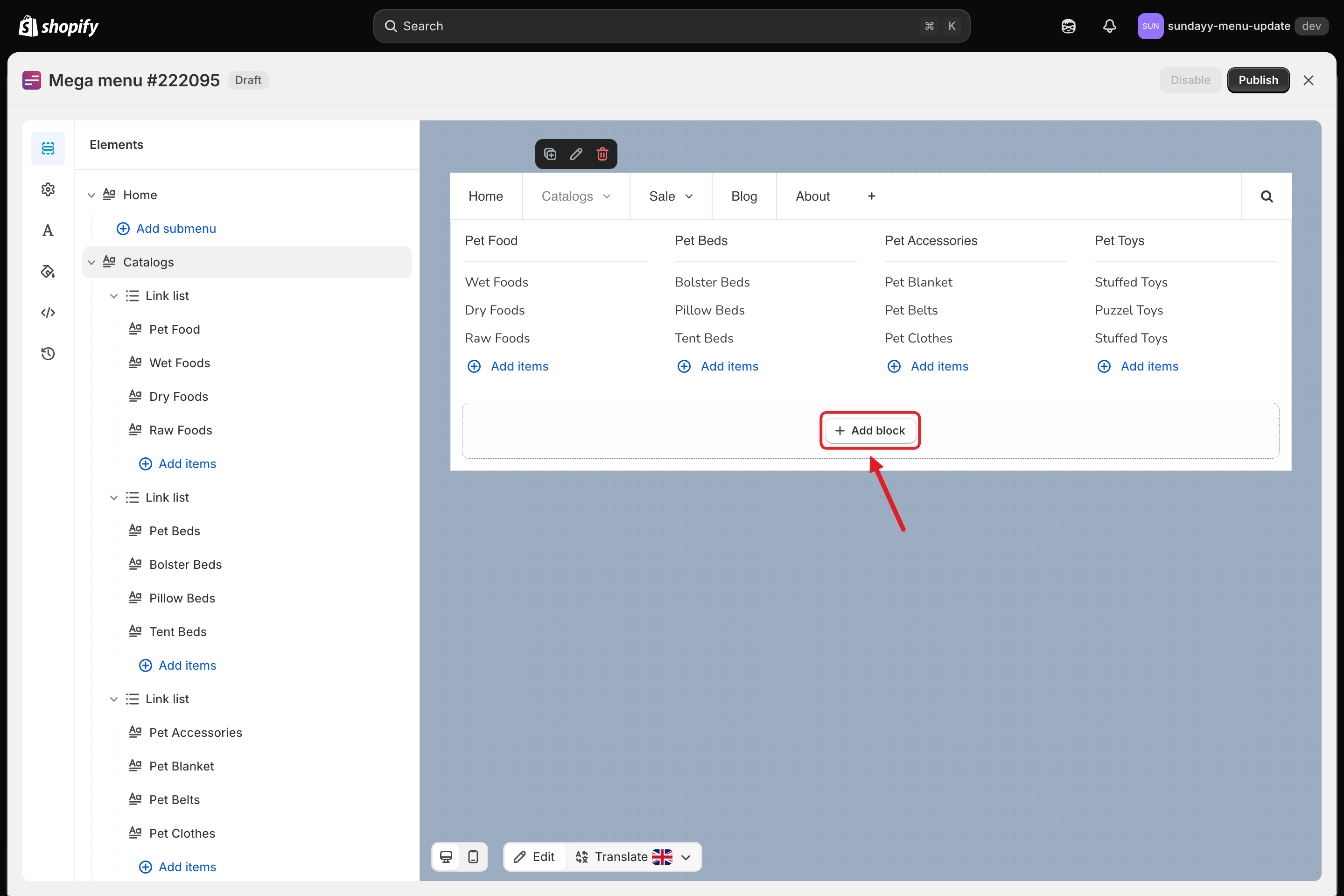
Open the menu in the editor and click the menu item that has a mega menu (in the **Elements** list on the left, or in the preview) so its panel opens. Click **+ Add block** in the empty area of the panel.
Add block
{% endstep %}
{% step %}
### Choose a group and a layout
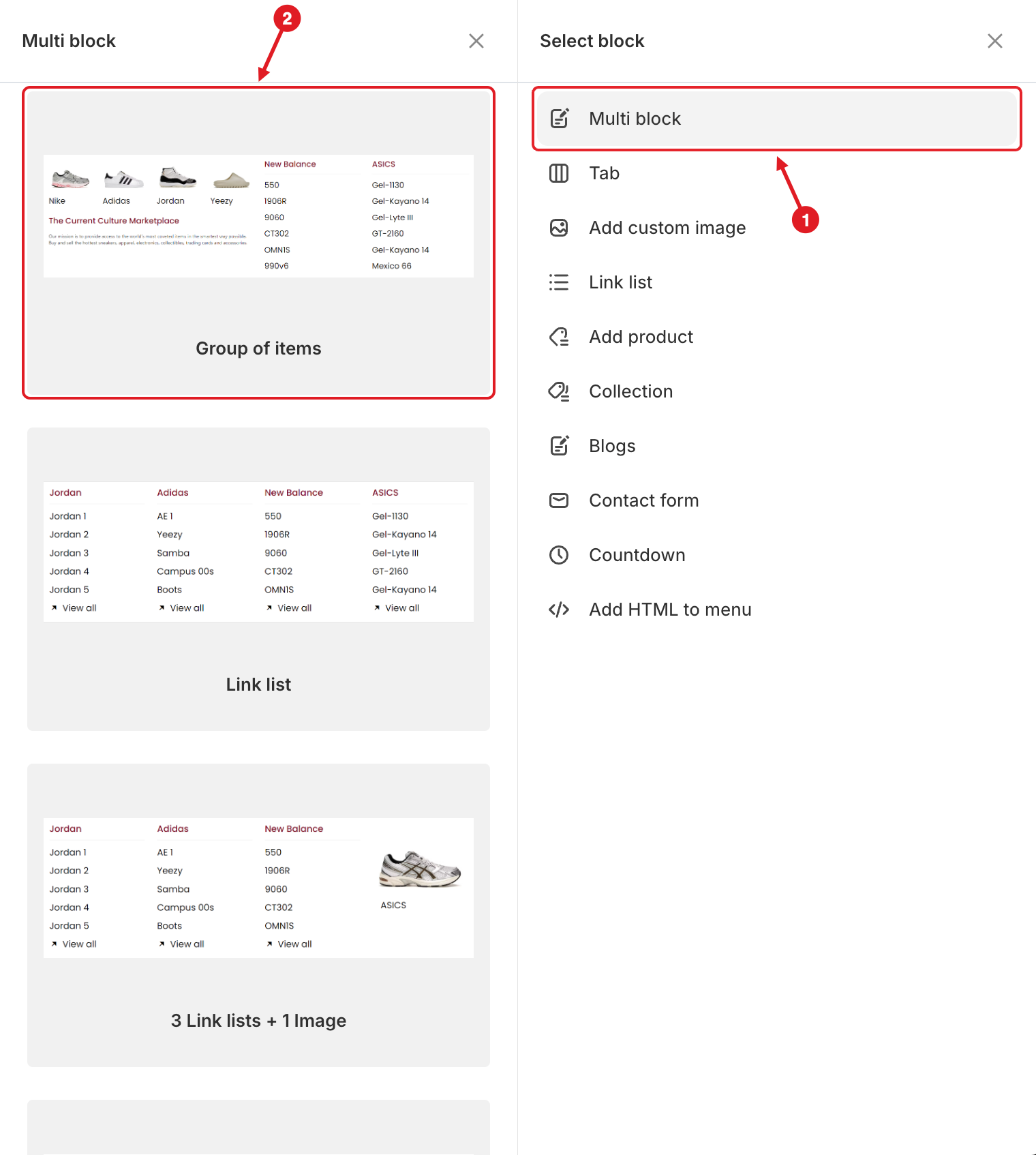
The **Select block** panel opens.
1. On the right, click a block group (for example **Multi block**, **Link list** or **Countdown**).
2. The layouts of that group appear on the left. Hover over a layout and click **Select**.
1. Choose a group · 2. Hover a layout and click Select
{% hint style="info" %}
A layout with a **Growth Navigation** or **Pro Navigation** badge is not included in your current plan. Its button reads **Upgrade to use** and takes you to **Pricing**.
{% endhint %}
{% endstep %}
{% step %}
### Edit the block
The block is added to the panel and its settings open in the **Edit Item** sidebar. Set the content, then pick the block's **Width**. You can click any block in the preview later to edit it again.
{% endstep %}
{% step %}
### Save and publish
Click **Save**, then **Publish** so the change goes live on your store.
{% endstep %}
{% endstepper %}
## 🧱 Block Groups in the Select Block Panel
| Group | Layouts you can pick | What it shows | Plan |
| -------------------- | --------------------------------------------------------------------------------------------------------------------------------------------------------------------------------------------------------------------------------------------------------------------------- | ------------------------------------------------------------------------------------ | ----------------------------------------------------------- |
| **Multi block** | Group of items, Link list, 3 Link lists + 1 Image, 2 Link lists + 2 Images, 1 Link list + 3 Images, 4 Images, 4 Products, 4 Product lists, 1 Link list + 3 Product lists, Product Carousel, Link list + Product Carousel, Image + Product Carousel, Map + Contact + Address | Ready-made combinations of several blocks, added in one click | Depends on the blocks inside |
| **Tab** | Simple left / top / right tabs, Nested left / top / right tabs 2 level and 3 level | Tabs inside a mega menu | Pro Navigation |
| **Add custom image** | Image 1, Image 2, [Image slider](/mega-menu/menu-blocks/image-slider.md) | A banner or promo [image](/mega-menu/menu-blocks/image.md) | Image: all plans · Slider: Growth Navigation and up |
| **Link list** | 2 columns, 3 columns, Simple, Links with icon, Links with image | A [column of links](/mega-menu/menu-blocks/link-list.md) | All plans (incl. Basic Navigation) |
| **Add product** | Single product, Product grid image above, Product carousel, Product list, Product grid image left | [Products](/mega-menu/menu-blocks/product-list.md) as a card, grid, list or carousel | Single product: all plans · Lists: Growth Navigation and up |
| **Collection** | Collection list - image top, Collection list - image left | [Collections](/mega-menu/menu-blocks/collection-list.md) with images | Growth Navigation and up |
| **Blogs** | Latest Blog posts, Articles | [Blog articles](/mega-menu/menu-blocks/blog-posts.md) | Growth Navigation and up |
| **Contact form** | Contact | A [form](/mega-menu/menu-blocks/contact-form.md) customers can submit from the menu | All plans (incl. Basic Navigation) |
| **Countdown** | Countdown standard, Countdown balanced, Countdown inline | A [countdown timer](/mega-menu/menu-blocks/countdown.md) to a date | Growth Navigation and up |
| **Add HTML to menu** | Custom html | [Any HTML](/mega-menu/menu-blocks/custom-html.md): maps, videos, embeds | Pro Navigation |
**Group of items** (in **Multi block**) is a container that stacks several blocks in one column — see [Apply Masonry Layout](/mega-menu/manage-menu-items/manage-submenu-items/apply-masonry-layout.md). It's available on the **Pro Navigation** plan.
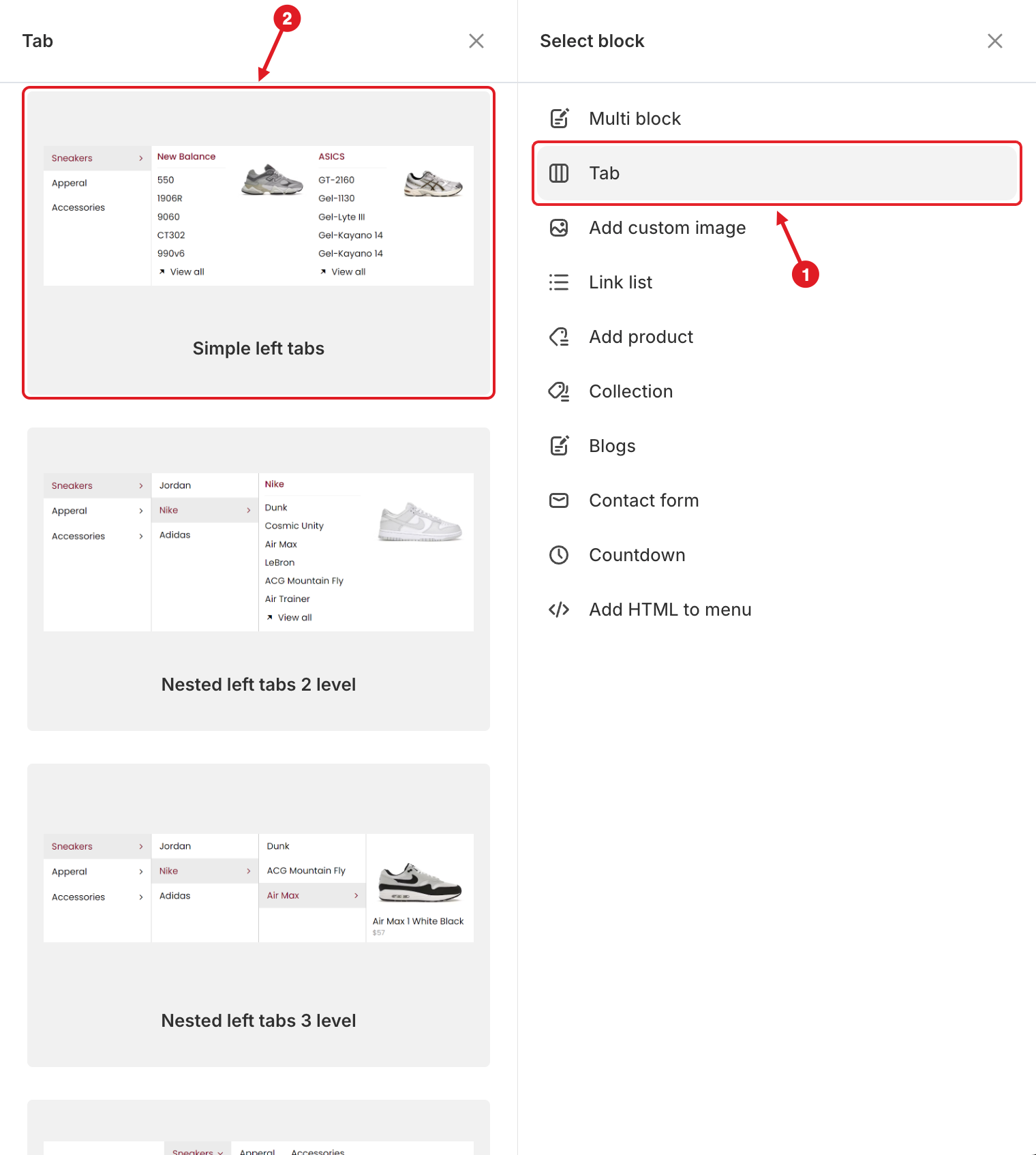
1. Click Tab · 2. Pick a tab layout
A **Tab** block has a **Position** setting (**Left**, **Top** or **Right**) for where the tab titles appear. See [Tabbed Menu](/mega-menu/manage-menu-items/manage-submenu-items/tabbed-menu.md).
## ⚙️ Settings Every Block Has
| Setting | What it does |
| ----------------------------------------------------------------------- | ----------------------------------------------------------------------------------------------------------------------------------------------------------------------------------------------------------------- |
| **Width** | How much of the row the block takes: **Auto**, or 8.33%, 16.66%, 20%, 25%, 33.33%, 41.66%, 50%, 58.33%, 66.66%, 75%, 80%, 83.33%, 91.66% or 100%. Blocks whose widths add up to more than 100% wrap to a new row. |
| **Visibility** > **Hide on desktop** / **Hide on mobile** | Hides the block on one type of device. Handy for a large image that only makes sense on desktop. |
| **Visibility** > **Hide when logged in** / **Only show when logged in** | Shows the block only to guests, or only to customers who are signed in. |
| **Visibility** > **Schedule publishing** | Shows the block only between a **Start date** / **Start time** and an **End date** / **End time**. See [Schedule Menus and Items](/mega-menu/manage-menus/schedule-menus-and-items.md). |
| **Advanced** > **Extra classname** | Adds your own CSS class to the block, so you can style it with [Custom CSS](/mega-menu/adjust-menu-styling/custom-css.md). |
{% hint style="success" %}
**Tip:** For equal columns, give every block the same width: 4 × **25%**, 3 × **33.33%** or 2 × **50%**.
{% endhint %}
{% hint style="warning" %}
Blocks that show Shopify data (products, collections, blog articles) read it live from your store, so titles, prices, images, stock and new blog posts update on their own. The block only remembers **which** items you picked: if you delete an item or change its handle (URL) in Shopify admin, open the block and pick it again. See [Changes I Made in Shopify Admin Don't Appear in the Menu](/mega-menu/faqs/why-are-shopifys-changes-not-reflected-on-menu.md).
{% endhint %}
***
### Related Articles
{% content-ref url="/pages/f5H2ZdBdZILUk8k7C2Xo" %}
[Mega Menu](/mega-menu/manage-menu-items/manage-submenu-items/mega-menu.md)
{% endcontent-ref %}
{% content-ref url="/pages/tijc2NMtByMgkQkH1lzx" %}
[Tabbed Menu](/mega-menu/manage-menu-items/manage-submenu-items/tabbed-menu.md)
{% endcontent-ref %}
{% content-ref url="/pages/ivNxvIka6pDDRkSaaZ7L" %}
[Apply Masonry Layout](/mega-menu/manage-menu-items/manage-submenu-items/apply-masonry-layout.md)
{% endcontent-ref %}
{% content-ref url="/pages/RZ0tOkDBtsU0FqS1hbYJ" %}
[Plans and Billing](/mega-menu/analytics-and-billing/plans-and-billing.md)
{% endcontent-ref %}
***
**💬 Need help?**
Email us at **📧** [**contact@globo.io**](mailto:contact@globo.io) - we’re happy to assist!