> For the complete documentation index, see [llms.txt](https://docs.globo.io/llms.txt). Markdown versions of documentation pages are available by appending `.md` to page URLs; this page is available as [Markdown](https://docs.globo.io/mega-menu/menu-blocks/contact-form.md).
# Contact Form
Let customers send you a message right from the menu.
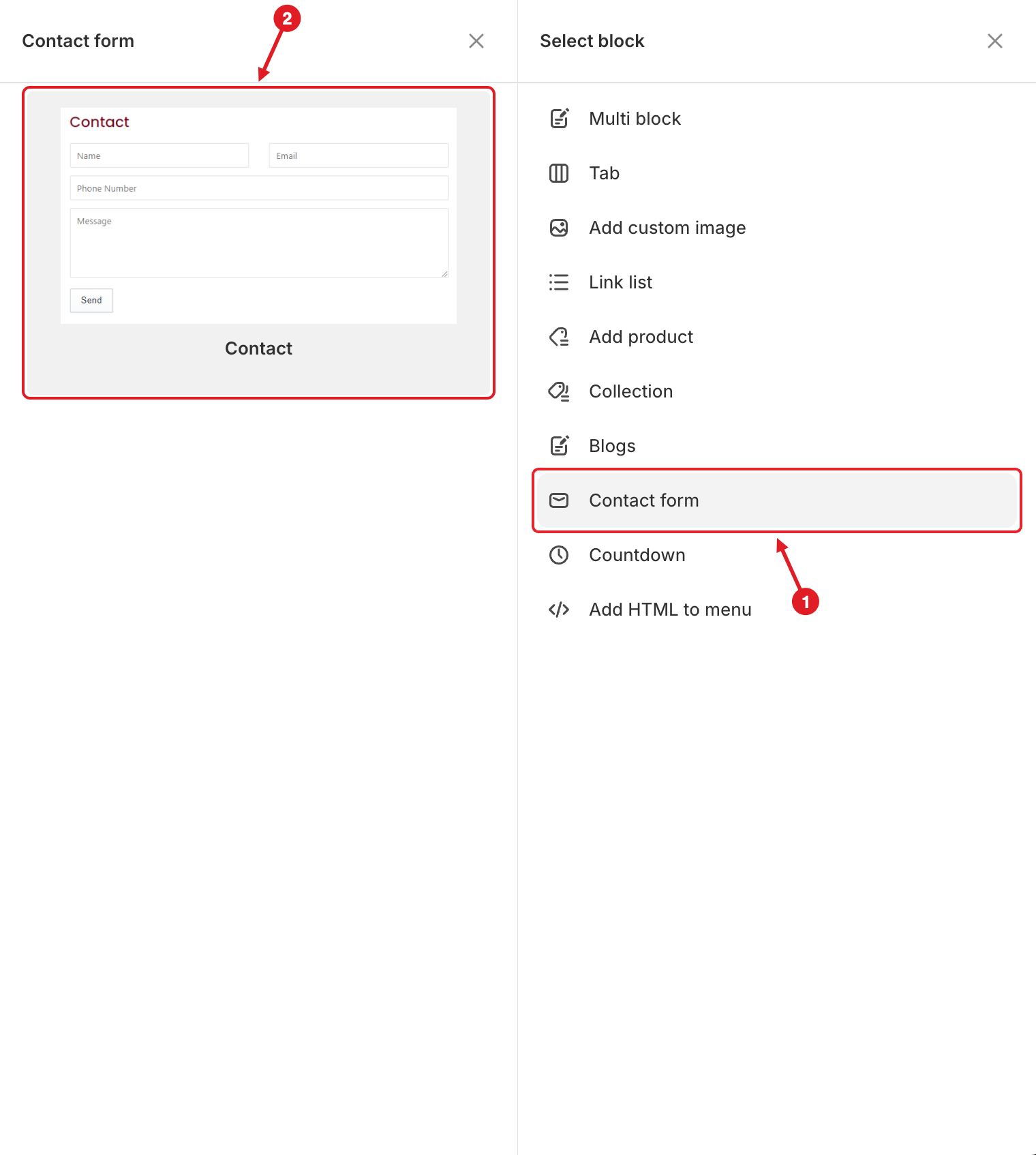
A **Contact form** block puts a small form (**Name**, **Email**, **Phone Number**, **Message** and a **Send** button) inside the mega menu. Customers can ask a question without leaving the page they're on. It uses Shopify's own contact form, so messages arrive the same way as from your store's contact page.
## Add a Contact Form
{% stepper %}
{% step %}
### Open the Select block panel
In the mega menu panel of the preview, click **+ Add block**.
{% endstep %}
{% step %}
### Pick the Contact layout
1. Click **Contact form** on the right.
2. Hover over **Contact** and click **Select**.
1. Click Contact form · 2. Pick Contact
{% hint style="success" %}
Want a map and your address next to the form? Use **Multi block** > **Map + Contact + Address** instead. It adds the form together with the other blocks in one click.
{% endhint %}
{% endstep %}
{% step %}
### Set the texts
In **Edit Item**, change the texts you want (see below). Every field text is optional; empty fields use the default labels.
{% endstep %}
{% step %}
### Save and publish
Click **Save**, then **Publish**. Send a test message from your store to check that it arrives.
{% endstep %}
{% endstepper %}
## ⚙️ Settings
| Setting | What it does |
| -------------------------------------------------- | ------------------------------------------------------------------------------------------------------------------------ |
| **Width** | How much of the mega menu row the block takes (**Auto** or 8.33%–100%). |
| **Title** | Heading above the form, for example "Contact". |
| **Description** | A short text under the title, for example your opening hours. |
| **Name**, **Email**, **Phone number**, **Message** | The placeholder text shown inside each field. |
| **Send** | The text of the submit button. |
| **Success message** | Shown after the message is sent. Default: "Thanks for contacting us. We'll get back to you as soon as possible." |
| **Visibility** | **Hide on desktop**, **Hide on mobile**, **Hide when logged in**, **Only show when logged in**, **Schedule publishing**. |
{% hint style="info" %}
Submissions are sent to your store's **customer email** (Shopify admin > **Settings** > **General** > **Store details**). If Shopify finds a problem with the form (for example an invalid email), the error is shown above the fields.
{% endhint %}
{% hint style="warning" %}
**Not getting messages?** Check the customer email in your store details and your spam folder, and send the test from the live storefront.
{% endhint %}
{% hint style="success" %}
Selling in several languages? Translate the field texts and the success message in [Translate Menu Items](/mega-menu/manage-menu-items/translate-menu-items.md).
{% endhint %}
***
### Related Articles
{% content-ref url="/pages/BhWYoZEBAeXWGq5Mku4A" %}
[Where Do Contact Form Submissions Go?](/mega-menu/faqs/where-do-contact-form-submissions-go.md)
{% endcontent-ref %}
{% content-ref url="/pages/6ZVodM4cnixWmT8KHDYB" %}
[Custom HTML (Maps, Videos, Embeds)](/mega-menu/menu-blocks/custom-html.md)
{% endcontent-ref %}
{% content-ref url="/pages/lUHoSham1OxSYk97Xx5H" %}
[Blocks Overview](/mega-menu/menu-blocks/blocks.md)
{% endcontent-ref %}
***
**💬 Need help?**
Email us at **📧** [**contact@globo.io**](mailto:contact@globo.io) - we’re happy to assist!