> For the complete documentation index, see [llms.txt](https://docs.globo.io/llms.txt). Markdown versions of documentation pages are available by appending `.md` to page URLs; this page is available as [Markdown](https://docs.globo.io/mega-menu/menu-blocks/countdown.md).
# Countdown
Add a countdown timer for flash sales and launches.
A **Countdown** block shows a live timer (**Days : Hrs : Mins : Secs**) counting down to a date and time you set, with a title and subheading above it. Use it to create urgency for a flash sale, a product drop or a holiday deadline. You decide what happens when the time runs out.
{% hint style="info" %}
Countdown is available on the **Growth Navigation** and **Pro Navigation** plans.
{% endhint %}
## Add a Countdown
{% stepper %}
{% step %}
### Pick a countdown layout
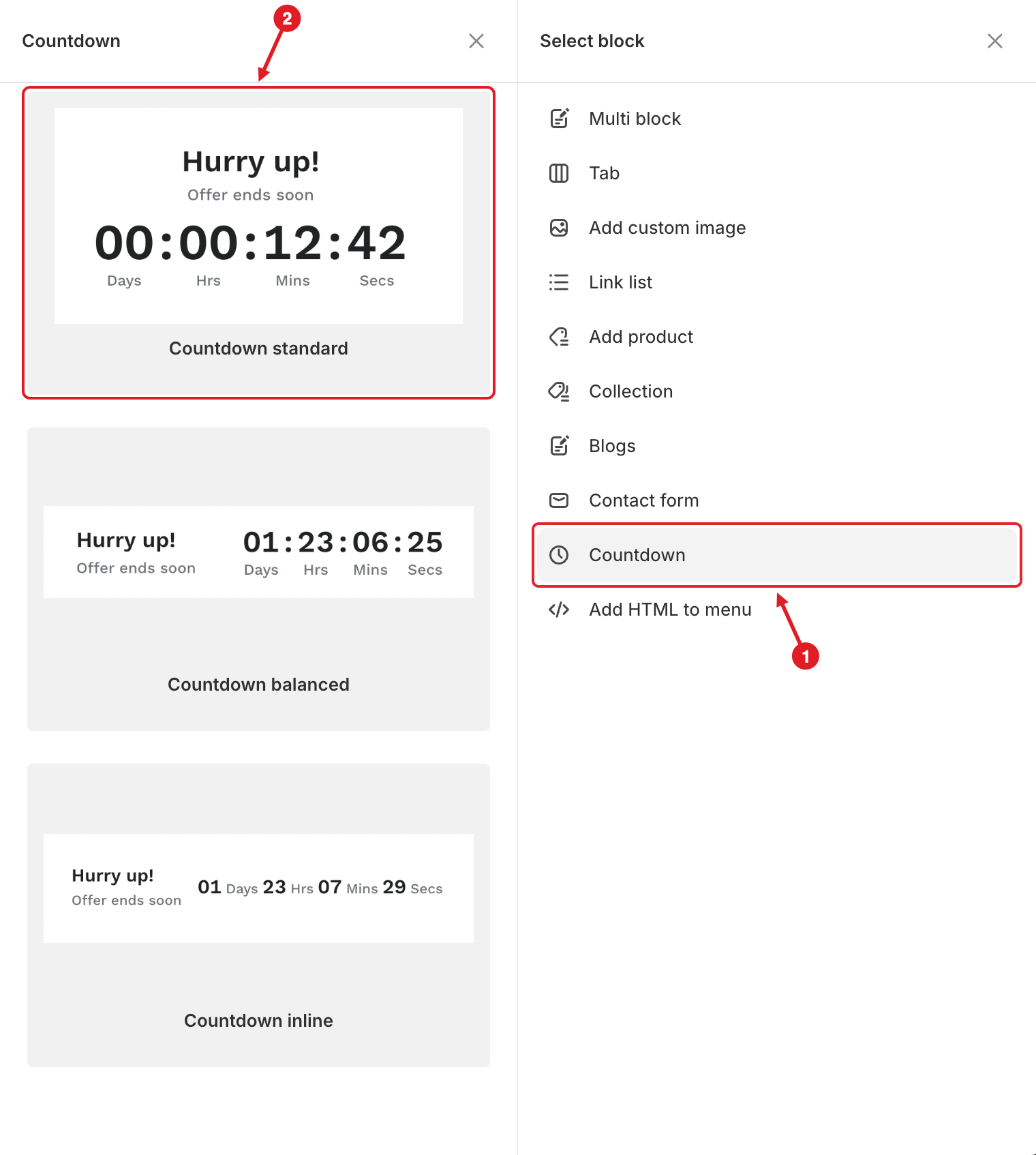
In the mega menu panel of the preview, click **+ Add block**. Then:
1. Click **Countdown** on the right.
2. Hover over a layout and click **Select**.
1. Click Countdown · 2. Pick a layout
| Layout | Looks like |
| ---------------------- | ----------------------------------------------------------------------------- |
| **Countdown standard** | Title and subheading centered, with a large timer under them |
| **Countdown balanced** | Title on the left, timer on the right |
| **Countdown inline** | Title on the left, a compact one-line timer ("01 Days 23 Hrs …") on the right |
You can change the layout later under **Styles** > **Layout**.
{% endstep %}
{% step %}
### Open the block and set the texts
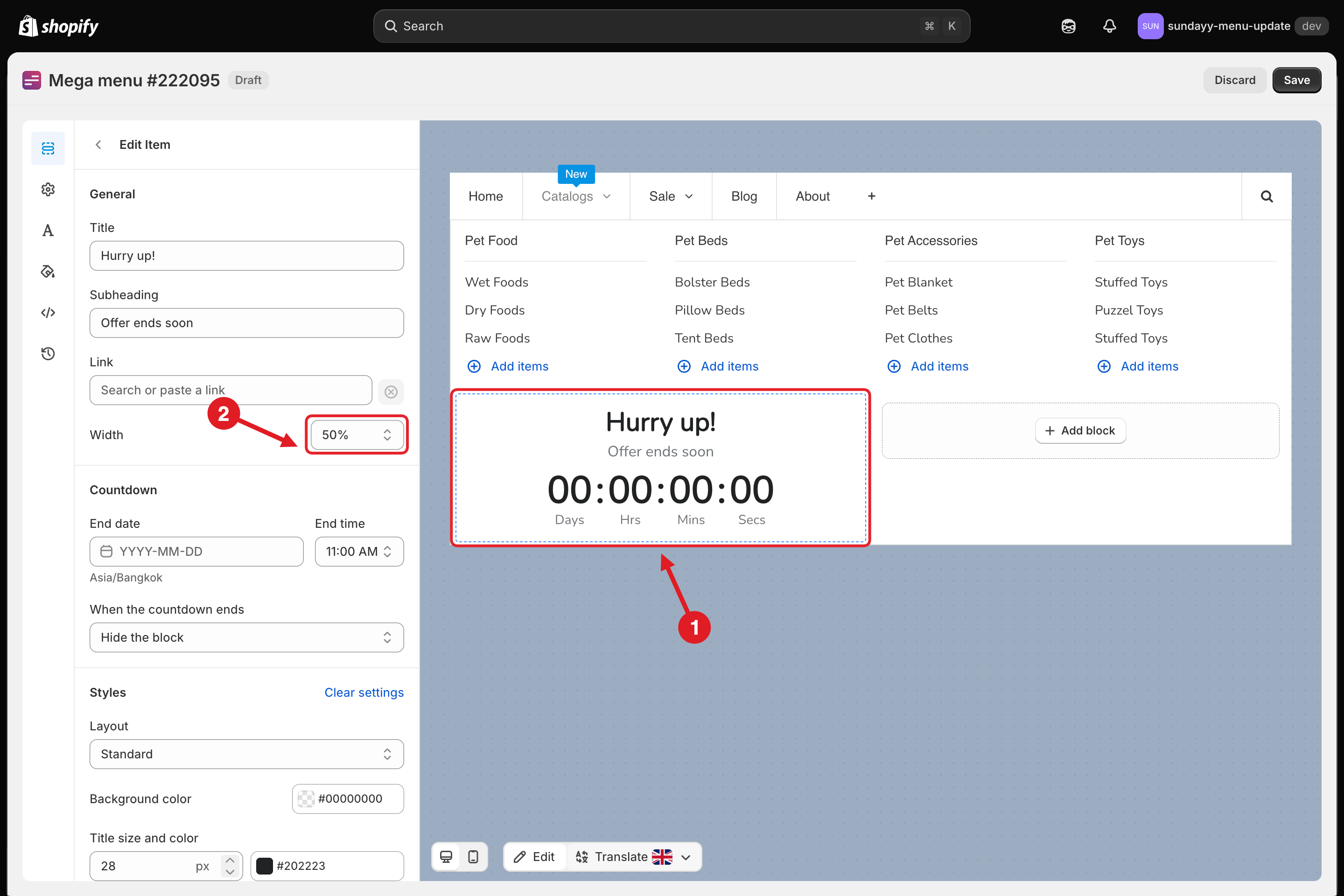
1. Click the countdown in the preview to open its settings in **Edit Item**.
2. Under **General**, set the **Title** (for example "Hurry up!"), **Subheading** (for example "Offer ends soon"), an optional **Link** and the block **Width**.
1. Click the countdown in the preview · 2. Set its Width
{% endstep %}
{% step %}
### Set the end date and what happens next
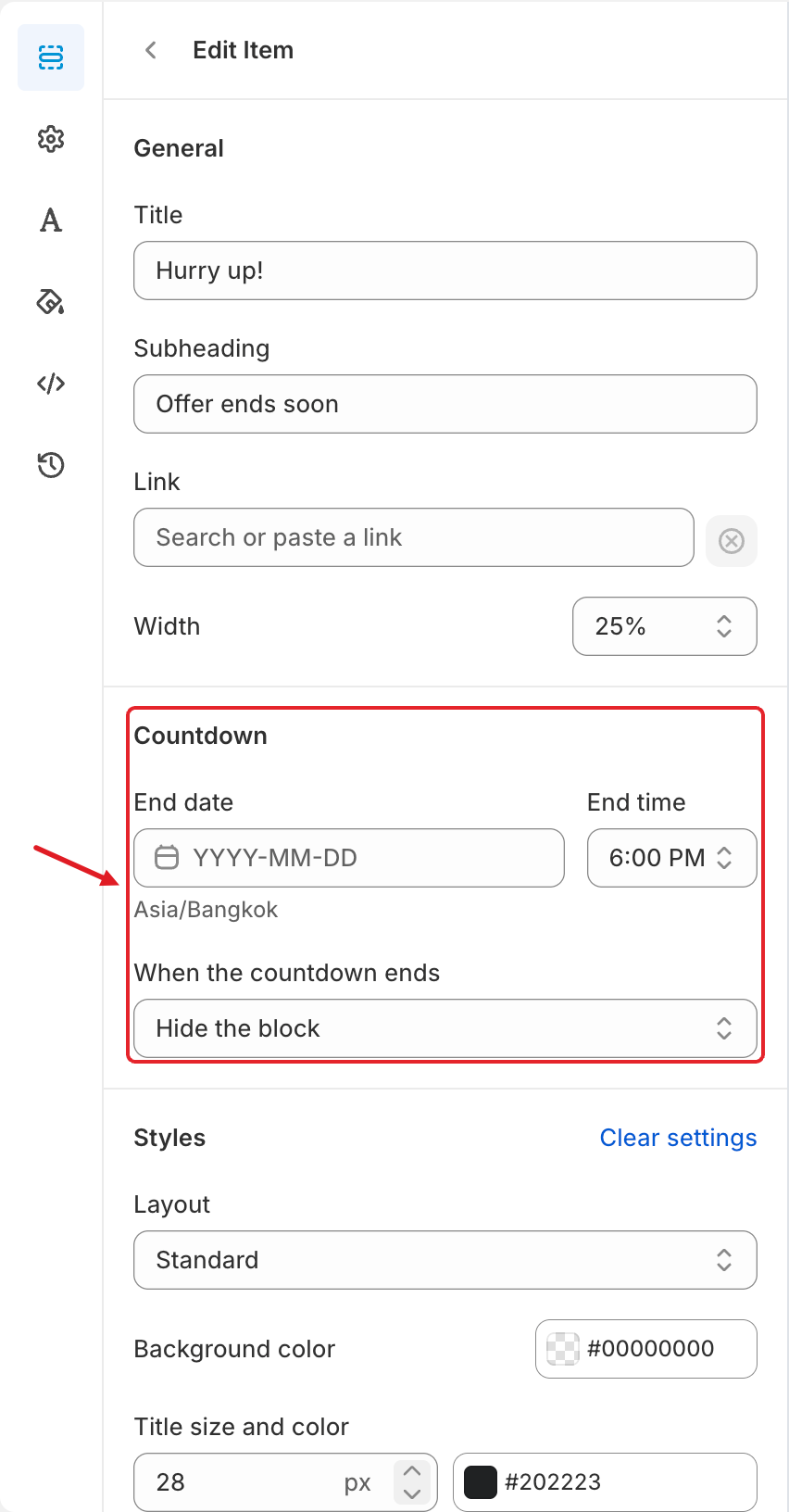
In the **Countdown** section:
* **End date** and **End time**: when the timer reaches zero. The time zone shown under the date (for example **Asia/Bangkok**) is your store's time zone. The end must be in the future.
* **When the countdown ends**:
* **Hide the block** (default): the block disappears from the menu.
* **Keep showing zeros**: the block stays with **00:00:00:00**.
* **Show a message**: type the text in **Message when ended**, for example "This offer has ended".
End date, End time and When the countdown ends
{% endstep %}
{% step %}
### Style it
Under **Styles**, choose the **Layout** (**Standard**, **Inline** or **Balanced**), the **Background color**, and the size (8–96 px) and color of each text:
| Setting | Standard | Balanced | Inline | Default color |
| -------------------------------------- | :------: | :------: | :----: | ------------- |
| **Title size and color** | 28 px | 24 px | 18 px | #202223 |
| **Subheading size and color** | 16 px | 16 px | 14 px | #6D7175 |
| **Timer size and color** | 40 px | 32 px | 20 px | #202223 |
| **Legend size and color** (Days, Hrs…) | 14 px | 14 px | 14 px | #6D7175 |
The background is transparent by default. Click **Clear settings** to go back to the defaults.
{% endstep %}
{% step %}
### Save and publish
Click **Save**, then **Publish**.
{% endstep %}
{% endstepper %}
{% hint style="warning" %}
Changing the **Layout** resets your custom sizes and colors to that layout's defaults, so pick the layout first and style it afterwards.
{% endhint %}
{% hint style="warning" %}
The **Standard** layout needs room for 4 large number pairs. In narrow columns (25% or less), lower the **Timer size** or give the block a **Width** of **33.33%** or more.
{% endhint %}
{% hint style="info" %}
The timer counts to one fixed date and doesn't restart. For a new sale, set a new **End date**. To show the block only during the sale, you can also use **Visibility** > **Schedule publishing**.
{% endhint %}
***
### Related Articles
{% content-ref url="/pages/lUHoSham1OxSYk97Xx5H" %}
[Blocks Overview](/mega-menu/menu-blocks/blocks.md)
{% endcontent-ref %}
{% content-ref url="/pages/NZ5M2u702ZmxwHspbbvB" %}
[Schedule Menus and Items](/mega-menu/manage-menus/schedule-menus-and-items.md)
{% endcontent-ref %}
{% content-ref url="/pages/f5H2ZdBdZILUk8k7C2Xo" %}
[Mega Menu](/mega-menu/manage-menu-items/manage-submenu-items/mega-menu.md)
{% endcontent-ref %}
***
**💬 Need help?**
Email us at **📧** [**contact@globo.io**](mailto:contact@globo.io) - we’re happy to assist!